How to Check or Change Your Google Account Region

Learn how to check your current Google Account or Google Play region, change it through Play Store or Google Payments, and use Google's Country Association Form when your account is linked to the wrong country.

In today's digital world, your Google Account region determines everything from the apps you can download on the Play Store to the currency you pay in. If you've recently moved to a new country or noticed that your Google services aren't matching your location, you might need to update your region settings.
While Google often updates this automatically, there are times when you need to manually intervene. This guide covers everything you need to know about checking and changing your Google Account region.
Quick answer
- Move permanently: Open Google Play Store on Android, go to Settings > General > Account and device preferences > Country and profiles, choose the new country when it appears, and add a local payment method.
- Wait before changing again: According to Google's current English Help page, you must usually wait at least 90 days after setting or changing your Play country before changing it again.
- Processing time: The update can take up to 48 hours.
Important
- This guide is about your Google Account country association and Google Play country. If you only want Google Search results from another country, changing your account region is usually unnecessary.
Google Region troubleshooting guides
- Choose the Right Google Region Guide
- Why Your Google Account Region Matters
- How to Check Your Current Region
- Method 1: Change Region via Google Play Store (Android)
- Method 2: Change Region via Google Pay (Desktop/Web)
- Method 3: Use the Country Association Form
- Why the Change Country Option Is Missing
- Important Limitations & Warnings
- Official Google Sources
- Frequently Asked Questions (FAQ)
- Conclusion
Choose the Right Google Region Guide
Google does not use one universal country switch for every service. Before changing your region, match the symptom to the setting involved. This prevents unnecessary Play country changes and protects country-specific balances, subscriptions, and account information.
| What you see | Start with |
|---|---|
| Country and profiles is missing | The eligibility and missing-option guide |
| Google services place you in another country | The wrong-country location diagnosis |
| Play and Payments show different countries | The Play country vs Payments profile comparison |
| The old Play country remains after a change | The 48-hour synchronization guide |
| A purchase says the country does not match | The country-of-residence mismatch guide |
If you have simply moved and need to check or change the region, continue with this pillar guide. If a setting is already correct but a specific error remains, use the matching troubleshooting page instead of repeating the country-change process.
Why Your Google Account Region Matters
Your Google Account is associated with a specific country or region to comply with local laws and provide relevant services. This association affects:
- Google Play Store: App availability varies by country. Some apps are only available in specific regions (e.g., banking apps, streaming services).
- Payment Currency: The currency for buying apps, movies, and books matches your region.
- Features: Certain Google features (like Google Assistant capabilities) may differ by region.
- Terms of Service: The specific Google entity providing services to you depends on your country.
Google Play country and Google Account country association are related, but they are not always the same setting. Google Play uses your location and payment profile to determine store availability, while the Country Association Form is used when Google has associated your broader account with the wrong country or state.
How to Check Your Current Region
Before attempting to change anything, verify the Google Play country currently linked to your account.
Step 1 Open the Google Play Store app on your Android device.
Step 2 Tap your Profile Icon in the top right corner.
Step 3 Go to Settings > General > Account and device preferences.
Step 4 Look under the "Country and profiles" section. You will see your current country listed there.
You can also check the country tied to your payments profile at pay.google.com under Settings > Payments profile > Country/Region. If the country is incorrect, Google usually requires creating a new payments profile instead of editing the country on the existing profile.
Method 1: Change Region via Google Play Store (Android)
This is the most common way to update your region if you have permanently moved to a new country.
Before you start
- Location: You must be physically located in the new country or region.
- Payment: You need a valid payment method from the new country or region.
- Eligibility: You must not be blocked by a recent country change or Google Family restriction.
Step 1 Open the Google Play Store app.
Step 2 Tap the Profile Icon > Settings > General > Account and device preferences.
Step 3 Under "Country and profiles", if Google detects you are in a new country, you will see an option to Switch to the [New Country] Play Store.
Step 4 Tap on the new country option.
Step 5 Follow the on-screen prompts to add a payment method for that country.
Step 6 Once added, the change can take up to 48 hours to process.
Google says the country option only appears when you are in a new country or region and can add a local payment method. If the option is not shown, do not keep switching VPN locations; use the troubleshooting section below instead.

Method 2: Change Region via Google Pay (Desktop/Web)
If you don't have an Android device handy, or if the Play Store option isn't appearing, you can try checking the country in your Google Payments profile.
Step 1 Go to pay.google.com and sign in.
Step 2 Click on Settings at the top.
Step 3 Under "Payments profile", look for Country/Region.
Step 4 If the country is wrong, create a new payments profile for the new country when Google offers that option.
Step 5 Enter your new address and payment details for that country.
Step 6 Once created, you can switch between payment profiles. The Google Play Store should eventually sync to this new profile if you are located in that country.
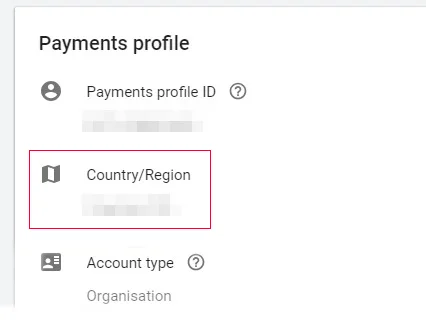
Google notes that you cannot change the country on an existing payments profile. For a new country, you normally need a separate profile with the correct country and payment details.
Method 3: Use the Country Association Form
If you believe Google has associated your account with the wrong country (e.g., due to VPN usage, working near a border, or a system error), you can request a manual review.
Step 1 Visit the Google Country Association Form.
Step 2 Sign in with the affected Google Account.
Step 3 The form will display the country Google currently associates with your account.
Step 4 Select the reason why you believe this is incorrect, such as "I moved," "I travel frequently," or "I use a VPN."
Step 5 Submit the request. Google will review your case and typically respond within a few weeks.

Why the Change Country Option Is Missing
If you cannot see Country and profiles or the new country does not appear, it usually means one of Google's eligibility checks has not been met.
Common reasons
- You are not in the new country: Google must detect that you are physically located in the country or region you want to switch to.
- No local payment method is available: A payment method from the new country or region is required when setting up a new Play country.
- You changed recently: Google's current English Help page says you must wait at least 90 days after initially setting or changing your Play country before changing it again. Some accounts may have additional restrictions.
- You are in a Google Family group: Google says Family members cannot change their Play country or region while they remain in the group.
- The Play Store app is out of sync: Update the Play Store, then try clearing Play Store cache and data if the country should be available but still does not show.
Important Limitations & Warnings
Changing your Google Play country is a significant action. Keep these restrictions in mind:
Check these before switching
- Waiting period: Google's current English Help page says you must wait at least 90 days after setting or changing your Google Play country before changing it again. Additional restrictions can apply.
- Play balance: Your Google Play balance remains linked to the old country. You cannot use that balance in the new country, although it may become available again if you later switch back.
- Play Points: Google Play Points and your level do not carry over to the new country.
- Subscriptions: Active subscriptions may remain on the old payment profile. If a service is not available in the new country, you may need to cancel and subscribe again with the new profile.
- Family Library: If you are part of a Google Family group, Google says you cannot change your Play country or region until you leave the group or the family setup is changed.
Official Google Sources
The steps and restrictions above were checked against these official Google resources:
Frequently Asked Questions (FAQ)
Q: Why can't I see the option to change my country in the Play Store?
A: This option usually appears only when Google detects that you are in a new country or region and can add a local payment method. It can also be hidden if you changed your Play country recently, are in a Google Family group, or the Play Store app needs to be updated or refreshed.
Q: Can I use a VPN to change my region?
A: A VPN alone is not enough. Google requires that you are actually in the new country or region and can add a valid local payment method. Trying to force the change with a VPN can also create country association confusion, which is exactly when the Country Association Form may be needed.
Q: Is this the same as changing Google Search region?
A: No. Google Search can use your device location, IP address, language, and search settings. Your Google Play country affects Play Store content, payments, subscriptions, and some Google services. Do not change your Play country just to see search results from another location.
Q: Can I change the country on an existing payments profile?
A: Usually no. Google says the country for an existing payments profile cannot be changed. If your country is wrong, you normally need to create a new payments profile for the correct country.
Q: Does changing my Play Store region change my YouTube region?
A: It may affect paid YouTube availability and pricing, such as YouTube Premium. Standard YouTube search results, recommendations, and trends can still depend on your current location, app settings, language, and watch activity.
Conclusion
Keeping your Google Account region accurate ensures you get the best experience with local apps and services. Whether you use the Play Store settings for a permanent move or the Country Association Form for corrections, the process is straightforward but comes with payment, balance, subscription, Family group, and waiting-period restrictions. Always check the official Google Help page before making the switch, especially if your account has recently changed country.
Related Articles
-
![fix Google Play country mismatch error]() Google Play Country Doesn't Match Your Country of Residence? 8 Fixes
Google Play Country Doesn't Match Your Country of Residence? 8 Fixes
-
![check if your Gmail account was pwned]() Is Your Gmail Pwned? How to Check
and Fix It
Is Your Gmail Pwned? How to Check
and Fix It
-
![use Google Results About You]() How to Use Google's Results About You to
Track and Protect Your Personal Data
How to Use Google's Results About You to
Track and Protect Your Personal Data
-
![enable Gemini in Chrome]() How to Enable Gemini AI in Google Chrome on
Windows and Mac
How to Enable Gemini AI in Google Chrome on
Windows and Mac
-
![recover Google account password]() How to Retrieve a
Forgotten Google Account Username and Password
How to Retrieve a
Forgotten Google Account Username and Password
-
![change Gmail password]() How to Change My Gmail Password
How to Change My Gmail Password
-
![set up Gmail in Outlook]() How to Setup Gmail Account in Outlook
2016 via IMAP
How to Setup Gmail Account in Outlook
2016 via IMAP