Learn how to manually enable Gemini AI features in Google Chrome by editing the Local State configuration file. This guide provides step-by-step instructions for both Windows and macOS users.
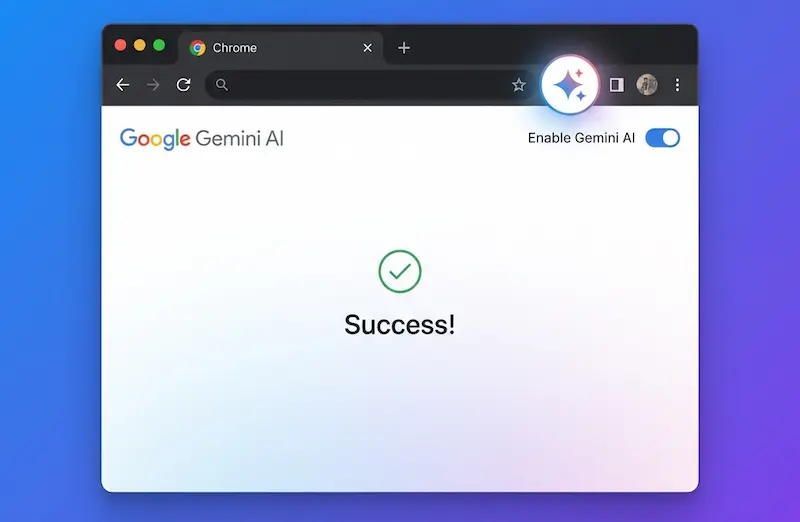
Google's Gemini AI integration in Chrome brings powerful AI capabilities directly to your browser. However, depending on your region or account settings, you might not see the Gemini features enabled by default. This guide shows you how to manually enable Gemini AI in Chrome by modifying the browser's Local State configuration file.
This method works by changing eligibility flags and region settings in Chrome's configuration, allowing you to access Gemini features that might otherwise be restricted in your location.
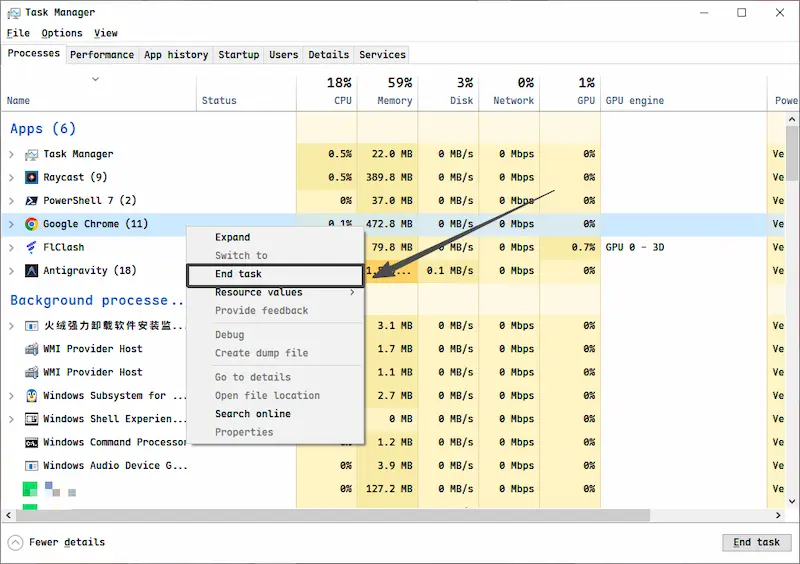
Before making any changes to Chrome's configuration files, you must completely close the browser. Having Chrome open while editing will cause your changes to be overwritten.
Cmd + Q to fully quit Chrome. Make sure the Chrome
icon is no longer in your Dock with a dot beneath it.Ctrl + Shift + Esc) to ensure no chrome.exe processes are running.
End any remaining Chrome processes if found.
macOS users can enable Gemini quickly using Terminal commands. This method automatically backs up your configuration and makes the necessary changes.
Steps:
Cmd + Space).1. Backup the configuration file
                            cp ~/Library/Application\ Support/Google/Chrome/Local\ State \
                            ~/Library/Application\ Support/Google/Chrome/Local\ State.bak
2. Change eligibility flag (false to true)
                            sed -i '' 's/"is_glic_eligible":[[:space:]]*false/"is_glic_eligible":true/g' \
                            ~/Library/Application\ Support/Google/Chrome/Local\ State
3. Change country code (cn to us)
                            sed -i '' 's/"variations_country":"cn"/"variations_country":"us"/g' \
                            ~/Library/Application\ Support/Google/Chrome/Local\ State
4. Update permanent consistency country code to us
                            sed -i ''
                            's/"variations_permanent_consistency_country":[[:space:]]*\[\([^]]*\),[[:space:]]*"[^"]*"\]/"variations_permanent_consistency_country":[\1,"us"]/g'
                            \
~/Library/Application\ Support/Google/Chrome/Local\ StateWindows users need to manually edit the Local State file using a text editor like Notepad.
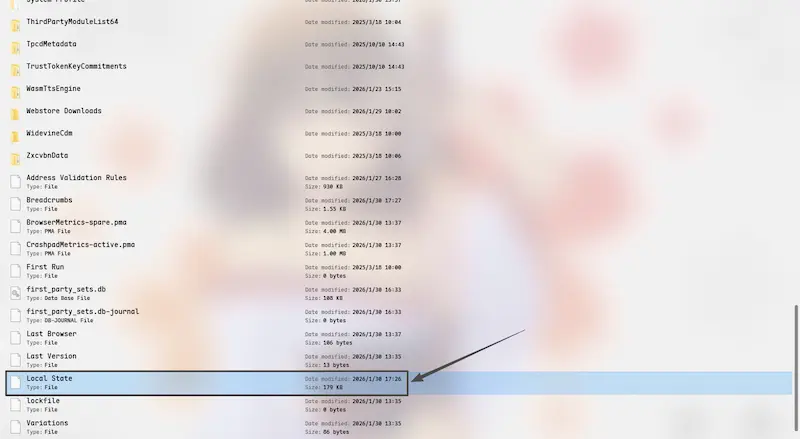
Step 1: Navigate to Chrome's User Data Folder
Win + R to open the Run dialog.%LOCALAPPDATA%\Google\Chrome\User Data\Step 2: Backup the Local State File
Step 3: Edit the Local State File
Ctrl + F to find and replace the following values:| Find This Text | Replace With |
|---|---|
"is_glic_eligible": false |
"is_glic_eligible": true |
"variations_country":"cn" |
"variations_country":"us" |
In "variations_permanent_consistency_country", find the last country code
in brackets |
Change it to "us" |
Ctrl + S).After restarting Chrome, you should see Gemini AI features available. Here's how to verify:
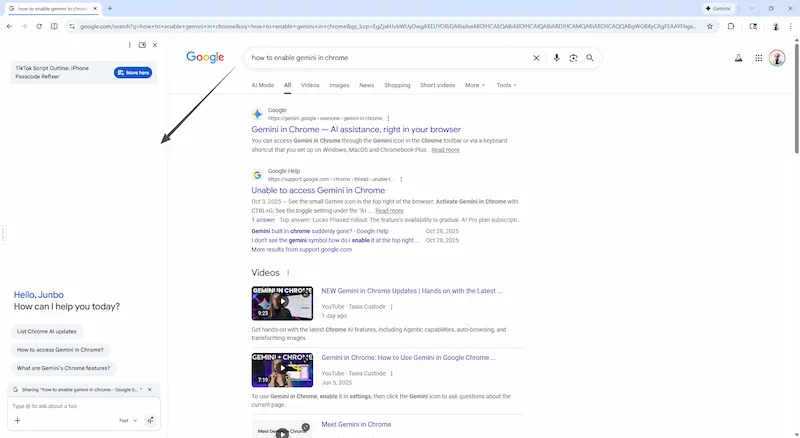
If It Doesn't Work:
Q: Is this method safe?
A: Yes, this method only modifies Chrome's local configuration settings. We recommend creating a backup of the Local State file before making changes, which is included in our instructions.
Q: Will this survive Chrome updates?
A: In most cases, yes. Chrome updates typically don't reset these specific settings. However, major version updates might occasionally reset the configuration, requiring you to apply the changes again.
Q: Why isn't Gemini available in my region by default?
A: Google rolls out new features gradually across different regions due to regulatory requirements, localization needs, or staged deployment strategies. This method essentially tells Chrome that you're eligible for Gemini features.
Q: Can I revert these changes?
A: Yes, simply restore the backup file (Local State.bak) by removing the original Local State file and renaming the backup back to "Local State".