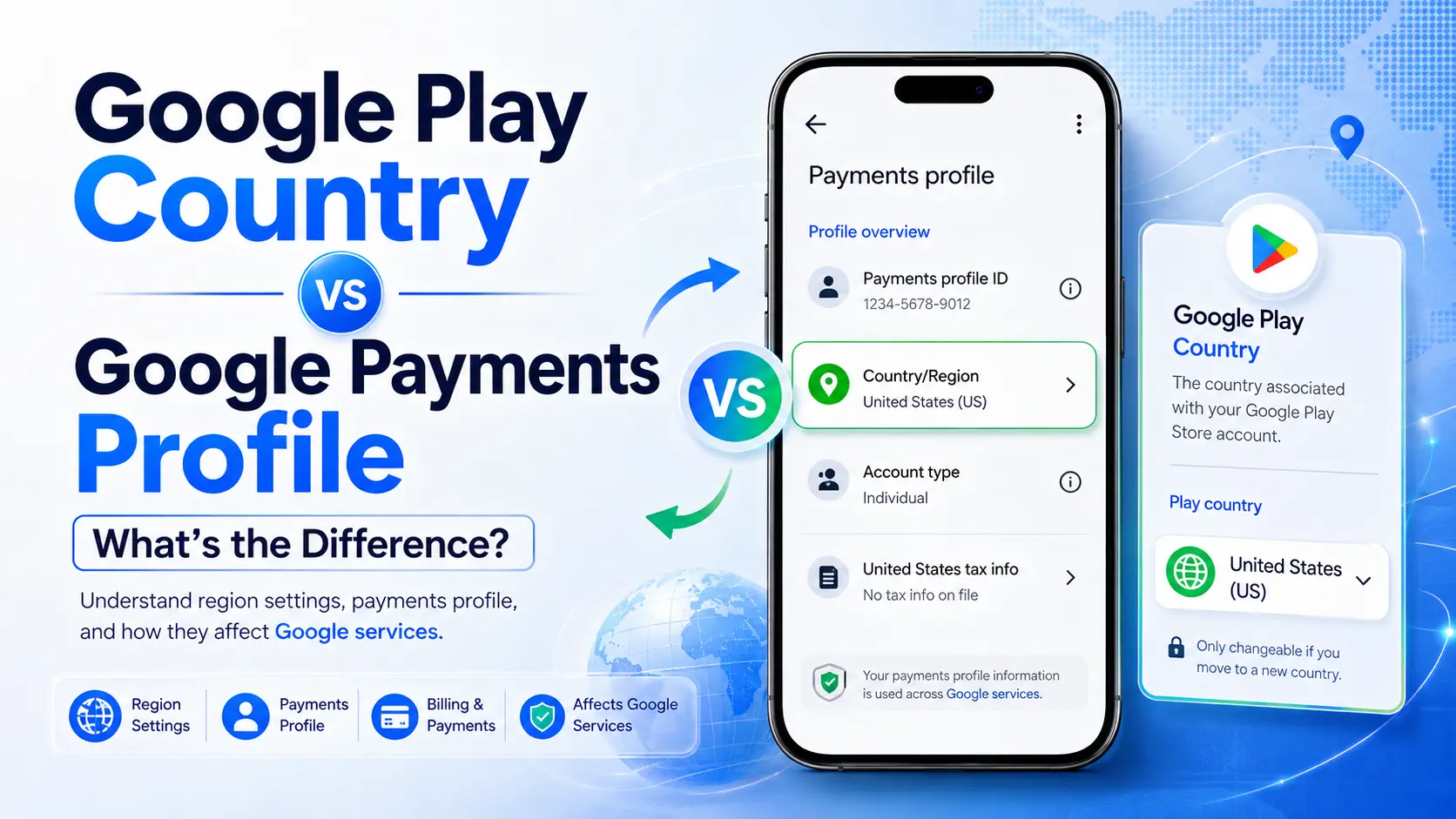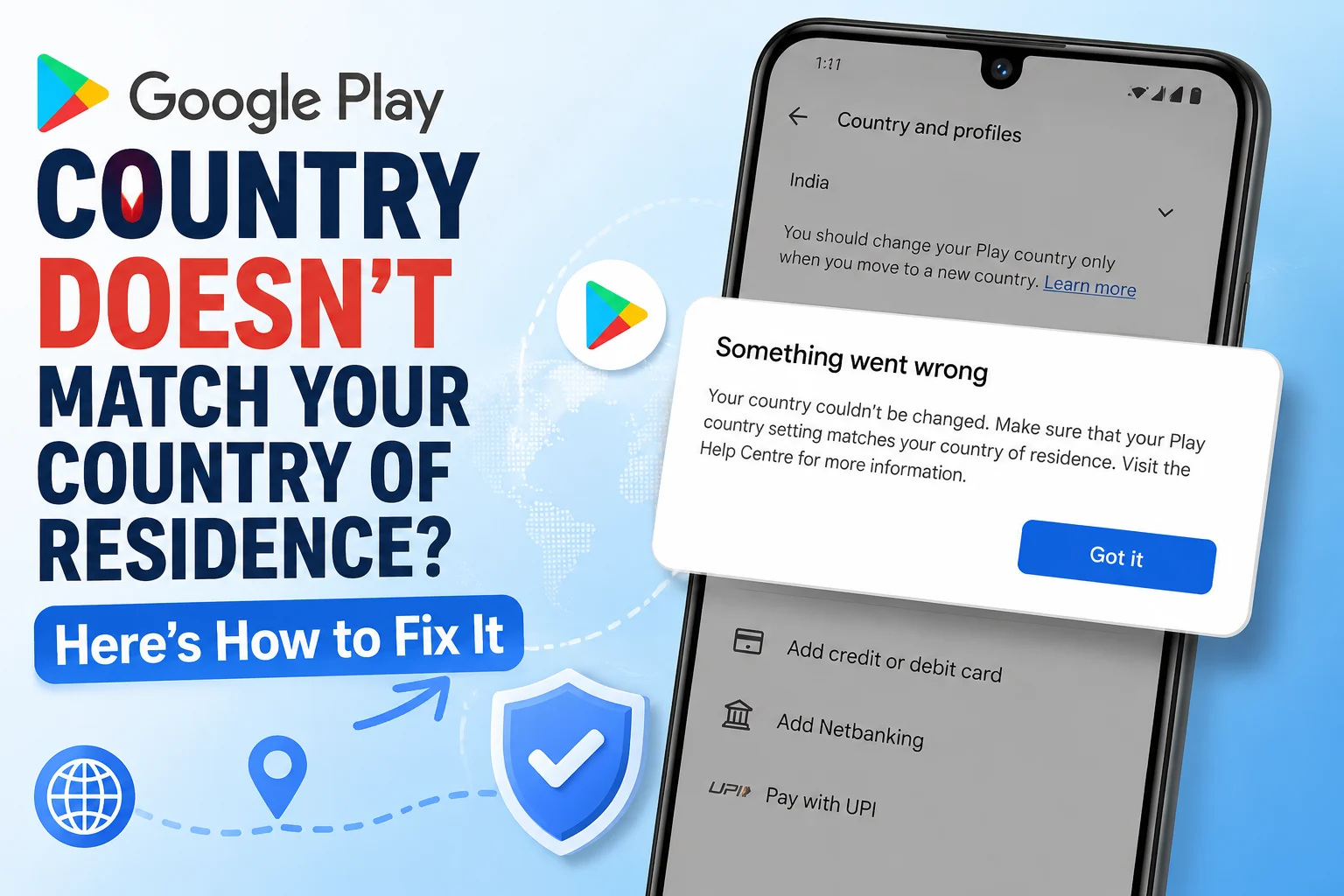
Find out whether Google Search, Play, Payments, or your Google Account has the wrong country, then correct the location source that applies.
Google may show results, prices, apps, legal terms, or services for a country where you do not live. Before changing anything, identify which Google service is wrong. Google Search location, Google Play country, Payments profile country, and Google Account country association are separate signals and may not update together.
Google officially says Search can estimate location from your device, home or work address, previous activity, and internet IP address. Google Play applies its own country requirements, while your Payments profile stores country-specific billing information.
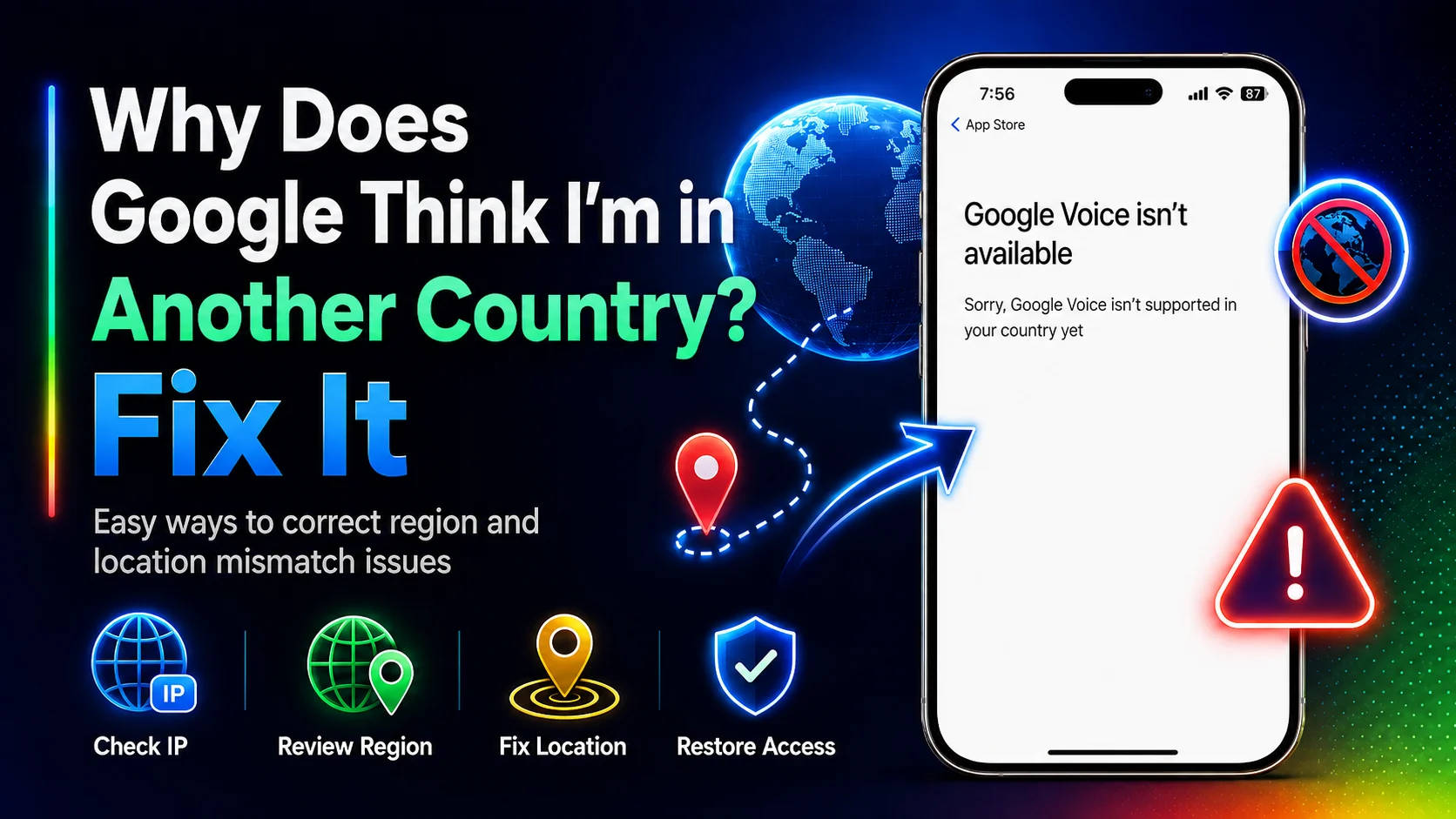
Quick diagnosis
| Where the wrong country appears | Setting or signal to check |
|---|---|
| Google Search results or footer | Device location, browser permission, IP address, home/work address, or previous activity |
| Play Store apps, currency, or purchases | Google Play Country and profiles plus Payments profile |
| Google purchases or subscriptions | Payments profile Country/Region, payment method, and billing address |
| Country version of Google's Terms | Google Account country association |
Do not change your Play country just because Search shows local results for another region. A Play country change can affect app availability, balance, subscriptions, and Play Points, and it is subject to a 90-day restriction.
For Google Search, Google documents four main sources:
You can see how Search estimated your location at the bottom of a results page. It may say From your device, Based on your places, Based on your past activity, or From your internet address. See Google's official explanation of how location works in Search.
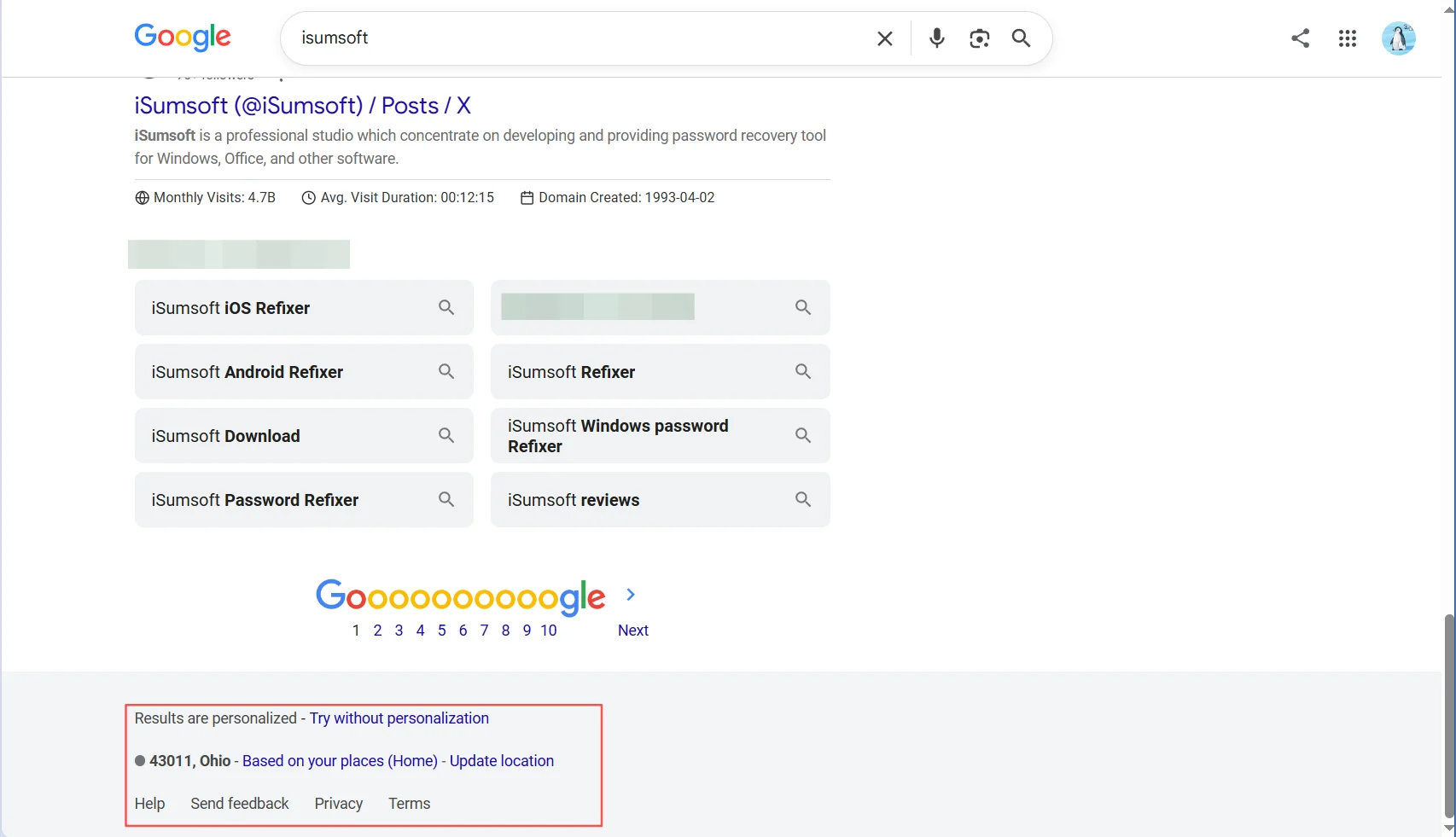
Read the stated source, not only the place name. A wrong country next to From your internet address points to your network or VPN, while a wrong country next to Based on your places points to a saved Home or Work address. The source tells you which fix below applies.
These documented Search signals should not be treated as a complete disclosure of how every Google product determines country. Google Play has separate residence and payment requirements.
A VPN routes traffic through another server, so the internet address seen by Google may point to the VPN server's region. Corporate gateways and privacy services can produce a similar effect.
Step 1 Disconnect the VPN, proxy, private relay, or work tunnel.
Step 2 Close and reopen the affected Google app or browser.
Step 3 Search again or reopen Play Store on a normal local connection.
Do not connect to another country's VPN server to “correct” Google Play. That does not change your country of residence, Payments profile, or payment eligibility.
If Google is correct on mobile data but wrong on home Wi-Fi, the problem may be the approximate location associated with the internet connection. If both networks show the same wrong country, an account or device setting becomes more likely.
Step 1 Note the country shown at the bottom of a Google Search results page.
Step 2 Switch from Wi-Fi to mobile data and repeat the same search.
Step 3 Compare the footer and its stated location source.
An incorrect IP-location estimate is not the same as a wrong Google Account country. Avoid changing billing or Play settings when only one network produces inaccurate Search results.
On Android, first make sure device Location is enabled. Then go to Settings > Location > App permissions, select the Google app or Maps, and choose an appropriate location permission.
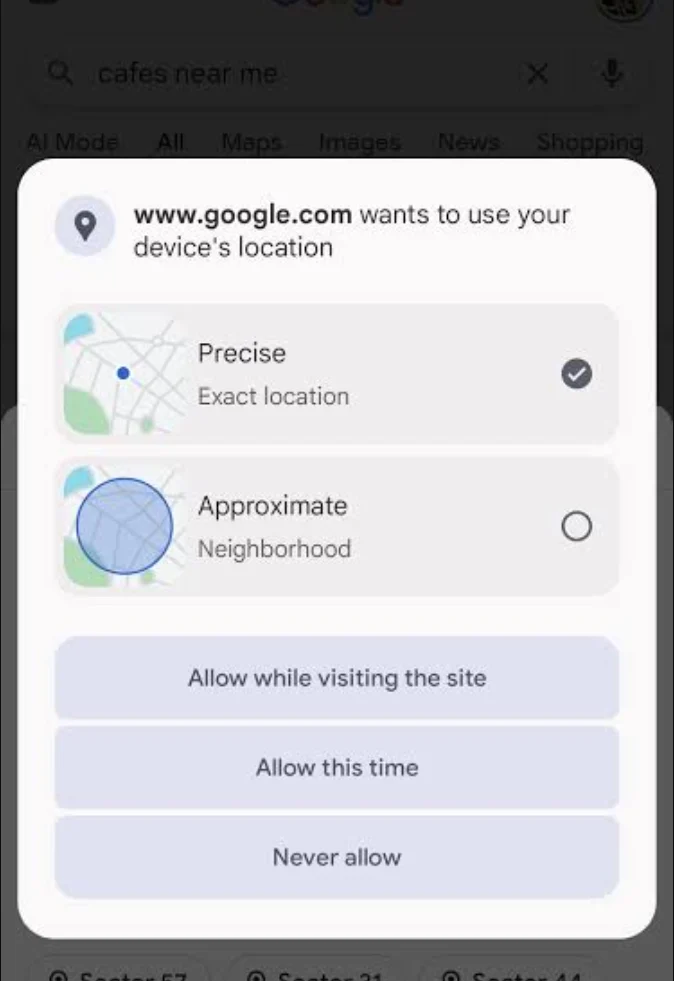
For google.com in Chrome, open the site, tap the site information icon beside the address bar, select Permissions, and check Location access. On a computer, open the browser's site settings for google.com and review Location.
Google notes that Search may temporarily use the device location from your last search when a fresh device location is slow to arrive. That previous location is stored in a cookie set to expire after six hours.
If Search says Based on your places, check the Home and Work addresses saved in your Google Account or Google Maps. Correct an outdated address instead of changing your Play country.
If the footer says Based on your past activity, search for your current location explicitly and review Web & App Activity at myactivity.google.com. To test whether signed-in activity affects results, compare with a non-personalized search.
Clearing Google cookies can remove an old browser-side location, but it will also sign you out of sites and reset preferences. Use this only after checking the location source shown by Search.
If the wrong country affects Play Store content or purchases, open Play Store > Profile icon > Settings > General > Account and device preferences > Country and profiles.
Then sign in at payments.google.com and check Settings > Payments profile > Country/Region. If you need help separating the two settings, read Google Play Country vs Google Payments Profile.
If Country and profiles is absent, see how to fix a missing Google Play country option. If the country looks correct but purchases fail, use the Google Play country mismatch guide.
Your broader Google Account has a country or territory association used for the applicable terms and service provider. If that association is wrong—not merely Search location or Play country—use Google's Country Association Form.
Step 1 Sign in with the affected Google Account.
Step 2 Review the country currently associated with the account.
Step 3 Select the accurate reason for requesting a correction and submit it.
Use the form only for a genuine account-country association issue. It is not a shortcut around Play country eligibility or regional content rules.
The service may be using an IP-based general area, previous activity, a stored browser location, or an account setting instead of current precise device location.
Yes, an IP address provides only an approximate location. Compare Wi-Fi with mobile data and check whether Search says the location came from your internet address.
No. Search localization and Play country serve different purposes. Changing Search preferences does not change Play billing eligibility.
Usually not. First correct Search location permissions, places, activity, or network-based location.
When Google thinks you are in another country, identify the affected service before applying a fix. Search may rely on device location, saved places, activity, or IP address; Play and Payments use separate country settings; and the broader Google Account has its own country association.
For a complete overview of these settings, see How to Check or Change Your Google Account Region.