If Country and profiles is missing from Google Play, check your physical location, the 90-day limit, Google Family membership, Payments profile, and Play Store data.
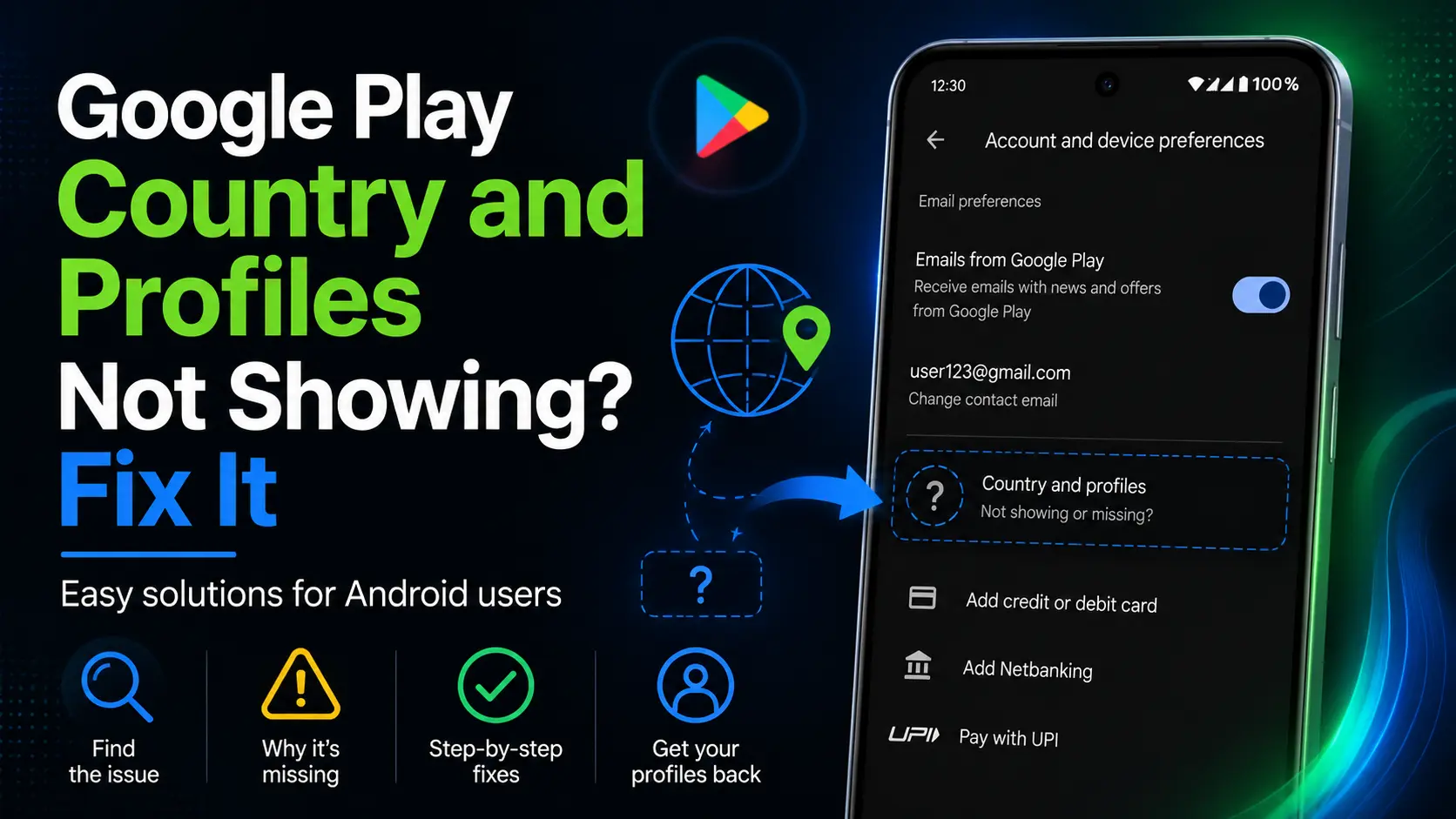
You open Google Play Store > Settings > General > Account and device preferences, but Country and profiles is missing—or it shows only your current country with no option to add another one. This usually means your account does not currently meet one of Google's eligibility conditions.
The missing option is not normally fixed by selecting a random region or connecting to a foreign VPN. Google requires you to be in the new country, have a payment method from there, wait through the country-change restriction, and not be blocked by Google Family membership.
Quick answer
Google's current Android path is:
Google Play Store > Profile icon > Settings > General > Account and device preferences > Country and profiles
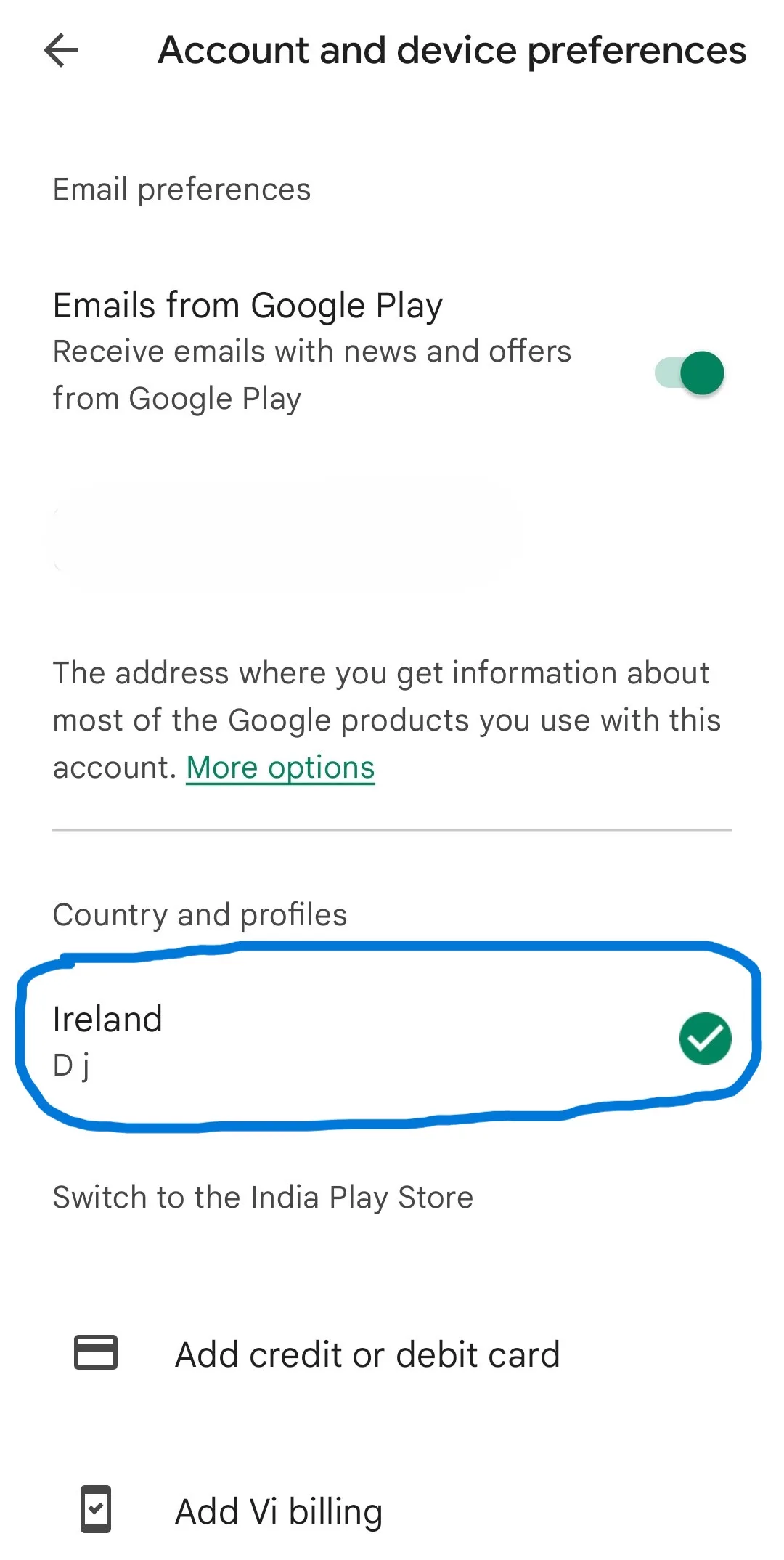
If your account has an eligible country option, it appears in this section. On a computer or non-Android device, open play.google.com, select your profile icon, open Settings, and scroll to Country and profiles.
Google does not promise that every account will always show an alternative country. The option appears only when its conditions are met.
| Possible reason | What it means |
|---|---|
| You are not in a new country | Google requires physical presence in the country you want to add. |
| You changed country recently | At least 90 days must normally pass between country changes. |
| You belong to Google Family | Family members cannot change their Play country. |
| No eligible local payment method | Setting up a new country requires a payment method from that country. |
| Play Store data is stale | The app may not yet display an account-side update. |
These conditions come from Google's current Play country documentation. The previous once-per-year restriction is outdated; the current minimum interval is 90 days, although Google notes that additional restrictions may apply.
Google requires you to be in the target country before adding it to your Play profile. If you have not moved—or you are only traveling—the new-country option may not appear.
Step 1 Turn off any VPN, proxy, private relay, or corporate tunnel.
Step 2 Connect through a normal local Wi-Fi or mobile network.
Step 3 Force close and reopen Play Store.
Step 4 Check Country and profiles again.
A VPN is not a valid way to become eligible. It can make your connection conflict with the country shown by your account and payments information. If Google services generally place you in the wrong country, use the checks in Why Does Google Think I'm in Another Country?.
After initially setting your Play country, you must wait at least 90 days before changing it. You must also wait at least 90 days between later changes. There is no supported method to bypass this restriction.
If you recently switched country, wait until the eligibility period has passed. Do not create duplicate Google Accounts or enter false billing information to force the option to appear.
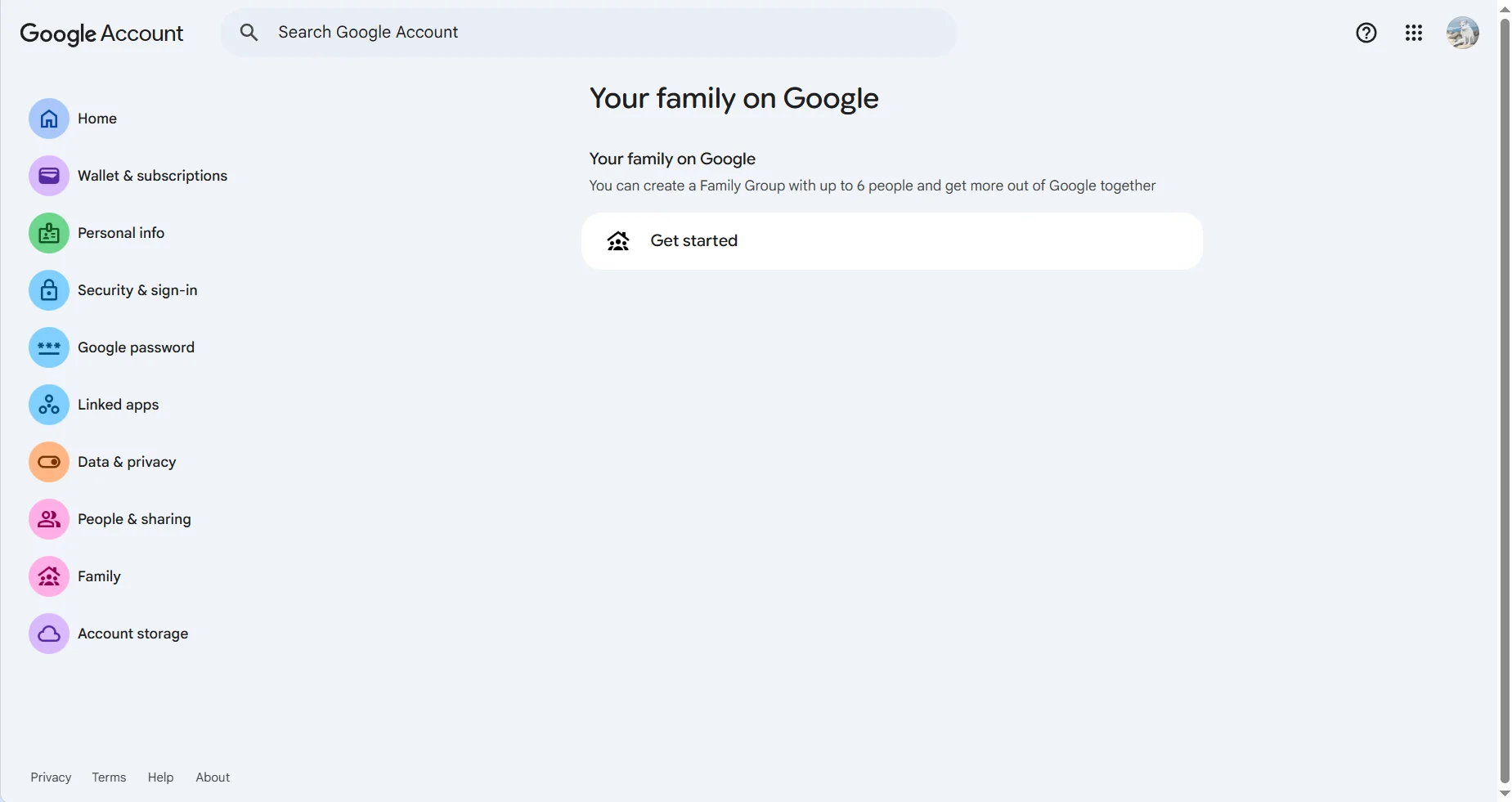
A member of a Google Family group cannot change the Play country. Google says a member must leave the family group first, while a family manager would need to delete the group.
To check your status, open families.google.com or go to your Google Account and select Family. If the page offers Get started and lists no members, you are not in a family group and this is not the cause.
Important
Step 1 Sign in at payments.google.com with the same Google Account.
Step 2 Open Settings and locate Payments profile > Country/Region.
Step 3 If multiple profiles exist, check which country belongs to each profile.
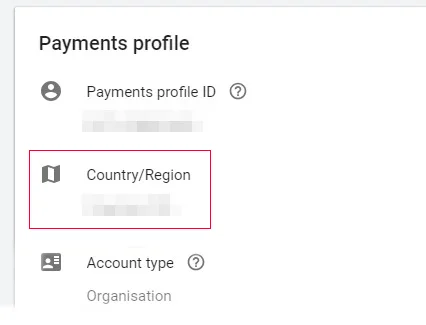
If the country is wrong, Google requires a new country-specific profile; the country on an existing profile cannot be edited. Learn why these settings are related but different in Google Play Country vs Google Payments Profile.
Warning
Step 1 Open Play Store and go to Profile icon > Settings > About > Update Play Store.
Step 2 Touch and hold the Play Store icon, select App info > Storage & cache, and tap Clear cache.
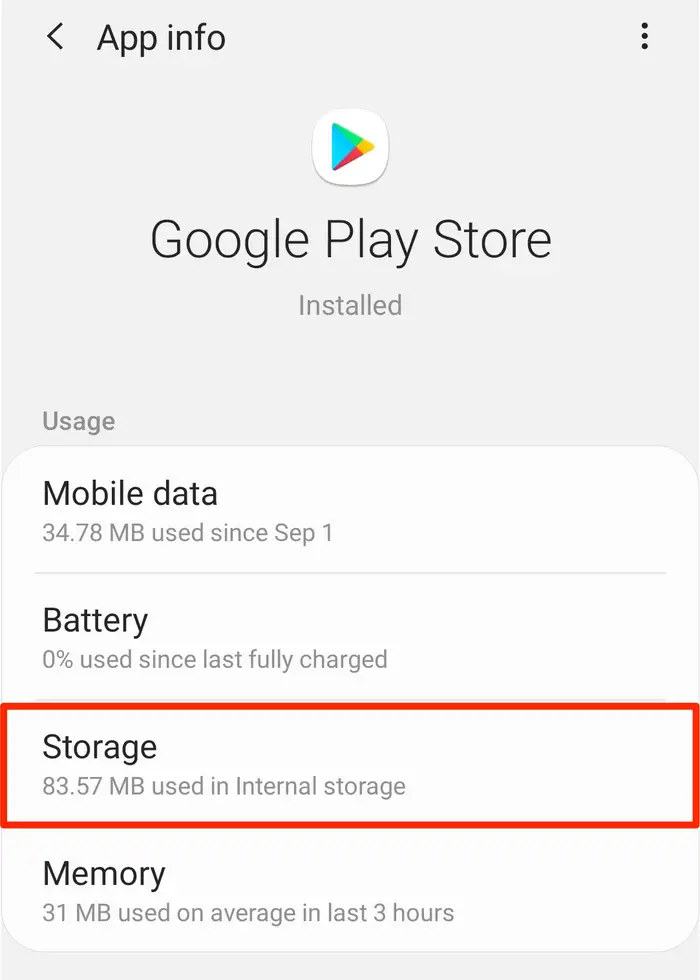
Step 3 If necessary, tap Clear storage > Delete, restart the phone, and reopen Play Store.
Clearing storage may reset Play Store settings such as parental controls and password protection. Re-enable them afterward. If you recently created the country profile, allow up to 48 hours for it to appear. For a change that remains stuck, see how to fix a Google Play country not updating after 48 hours.
If your current country is visible with a check mark but there is no second option, that normally means Google has not offered another eligible profile. If a second country appears but tapping it does nothing, verify the local payment method, update Play Store, clear its cache, and allow the account update window to finish.
If the menu is correct but a purchase reports that the selected country does not match your residence, use the separate Google Play country mismatch troubleshooting guide.
Google has not detected an eligible alternative country for that account. You normally need to be physically in a new country and have an appropriate local payment method.
No. A VPN does not satisfy Google's residence and payment requirements and may create a location conflict.
No. It refreshes local app information; it does not override account eligibility or change the country on Google's servers.
Only if its country is genuinely wrong and you are eligible to use the new country. A new Payments profile does not automatically migrate old subscriptions.
When Google Play Country and profiles is not showing, first check eligibility rather than repeatedly changing device settings. Confirm your physical location, wait out the 90-day limit, review Google Family membership, check the Payments profile, and refresh Play Store.
For the full account-region process, return to the pillar guide: How to Check or Change Your Google Account Region.