If your Google Play country is still stuck after 48 hours, verify the selected account and Payments profile before refreshing Play Store or using advanced Android troubleshooting.
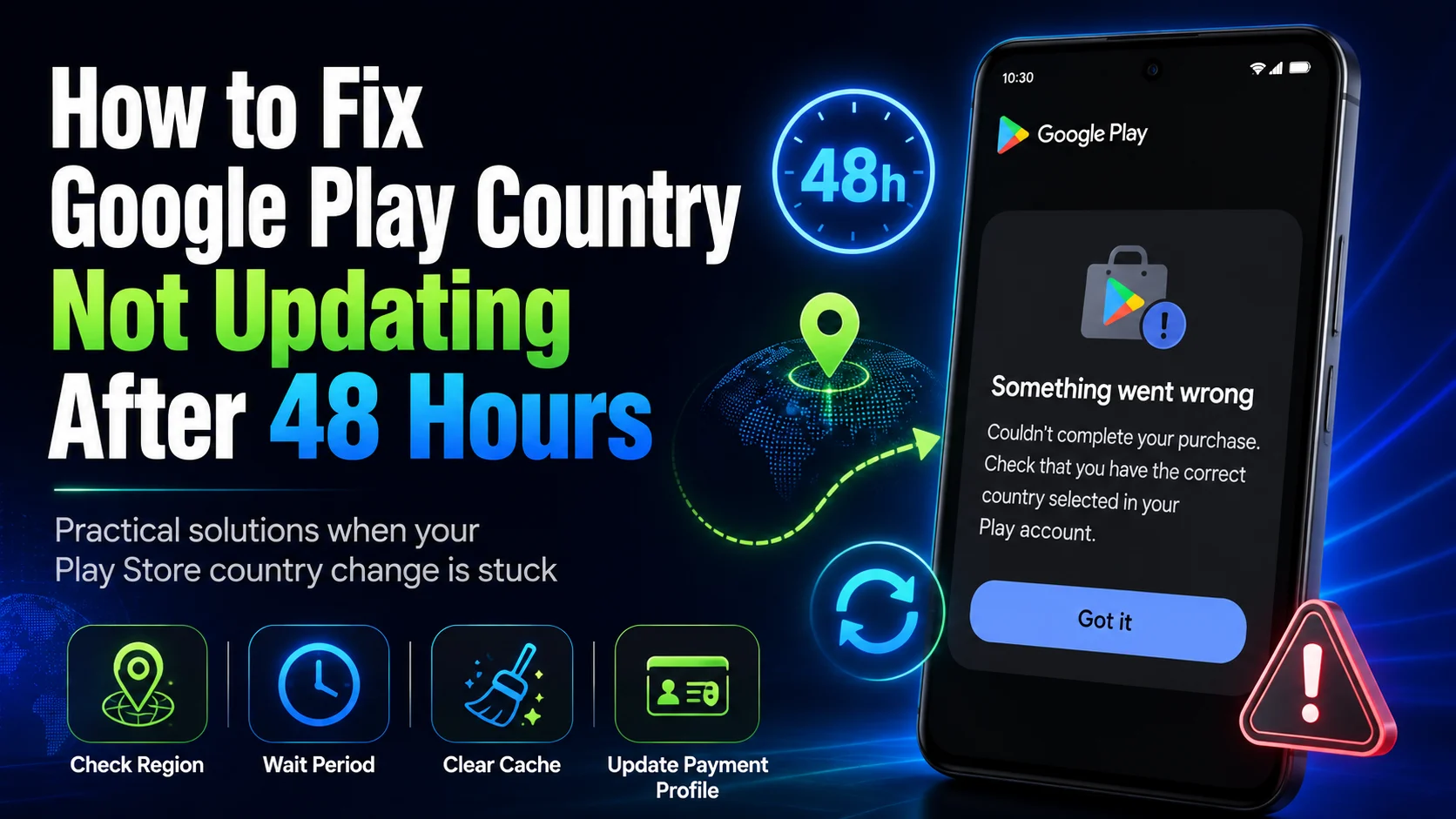
Google says a new or selected Play country profile can take up to 48 hours to update. If the old country is still shown after that window, do not immediately create another profile or delete the old one. First confirm that the change was eligible and made on the same Google Account you are checking.
A country update can appear stuck because the wrong account is active, the intended Payments profile was not created or selected, Play Store is using stale data, Google Family blocks the change, or the account still does not meet the physical-location and payment requirements.
Before troubleshooting
| Cause | What to check |
|---|---|
| Wrong Google Account | The country was changed for one account, but Play Store is showing another. |
| Payments profile is wrong | The active profile still has the old Country/Region. |
| Location or payment requirement failed | You are not physically in the new country or lack an eligible local payment method. |
| Google Family restriction | Family membership prevents a Play country change. |
| Stale Play Store data | The Android app has not refreshed its account-side information. |
| Change restriction | The account is still within the minimum 90-day interval or has an additional restriction. |
Google describes 48 hours as the time a profile can take to update, not a guaranteed deadline for every account. If the request was ineligible, waiting longer will not make it valid.
Step 1 Open Google Play Store and tap the profile icon.
Step 2 Note the email address currently selected.
Step 3 Go to Settings > General > Account and device preferences > Country and profiles.
Step 4 Confirm that the intended country was selected for this account.
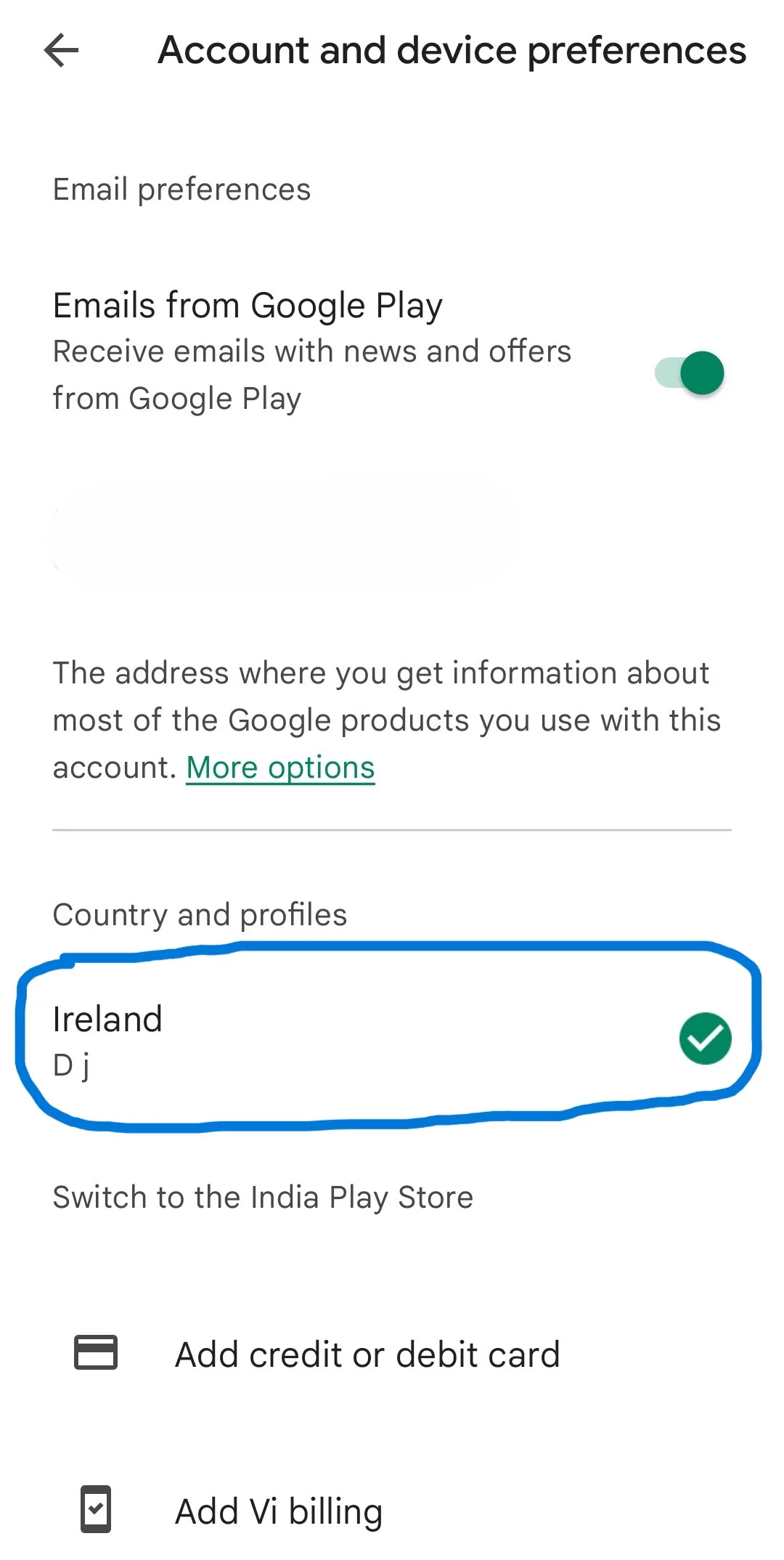
If Country and profiles is missing or no new country is offered, this is an eligibility problem rather than a synchronization delay. Use Google Play Country and Profiles Not Showing? How to Fix It.
Step 1 Sign in at payments.google.com with the same email address.
Step 2 Open Settings and find Payments profile > Country/Region.
Step 3 If multiple profiles exist, inspect each profile and verify which one uses the new country.
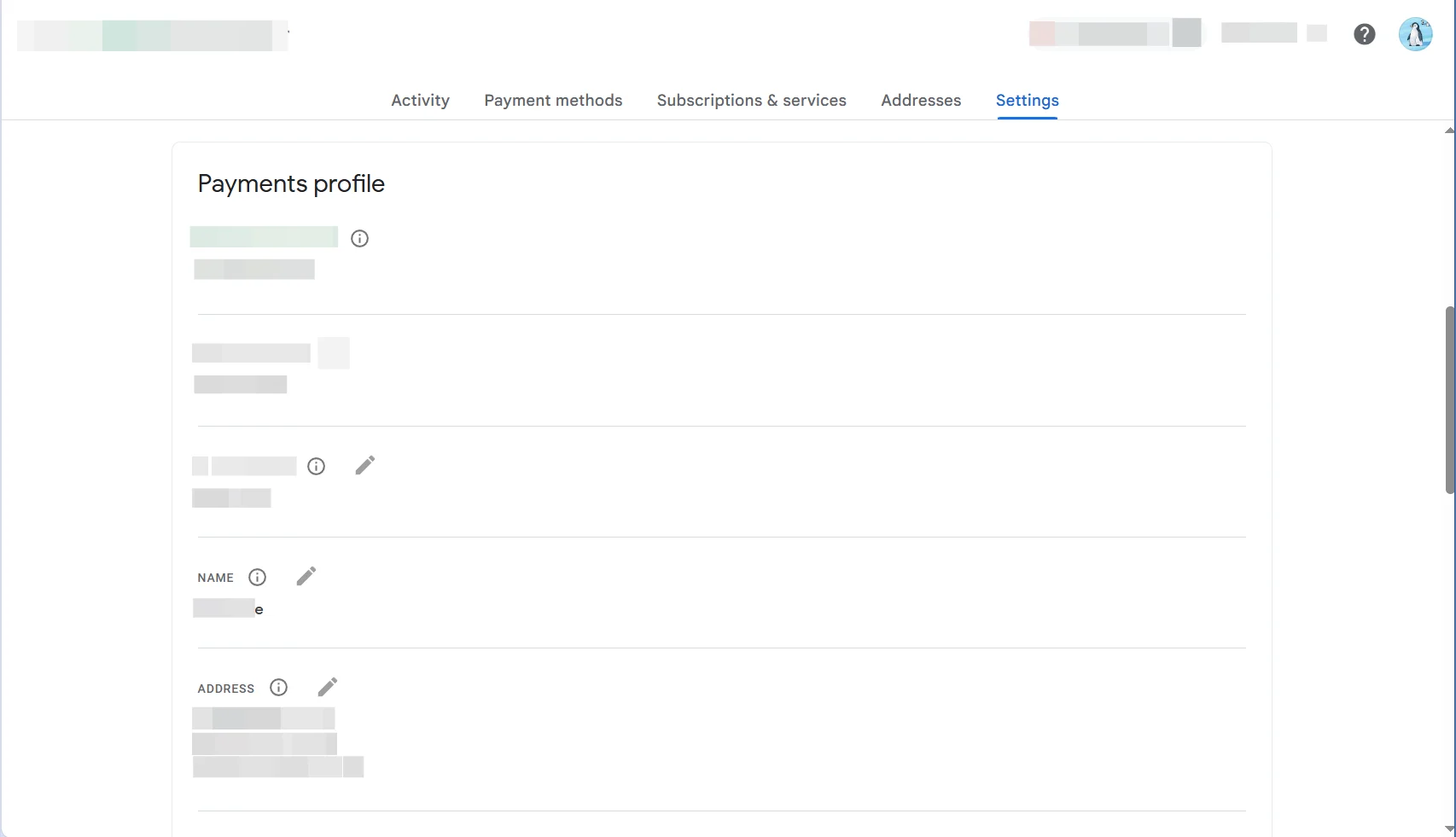
Google does not allow the country on an existing Payments profile to be edited. If it is wrong, you must create a new country-specific profile with accurate information. Read Google Play Country vs Google Payments Profile before changing billing profiles.
Important
To set a new Play country, Google requires you to be physically in that location and have a payment method from the new country. Turn off VPNs and proxies, then reconnect through a normal local network.
Also check that:
If Google services place you in the wrong location even after disabling a VPN, see Why Does Google Think I'm in Another Country?.
Google includes clearing Play Store cache and data in its official country-update troubleshooting.
Step 1 Touch and hold the Google Play Store icon.
Step 2 Tap App info > Storage & cache > Clear cache.
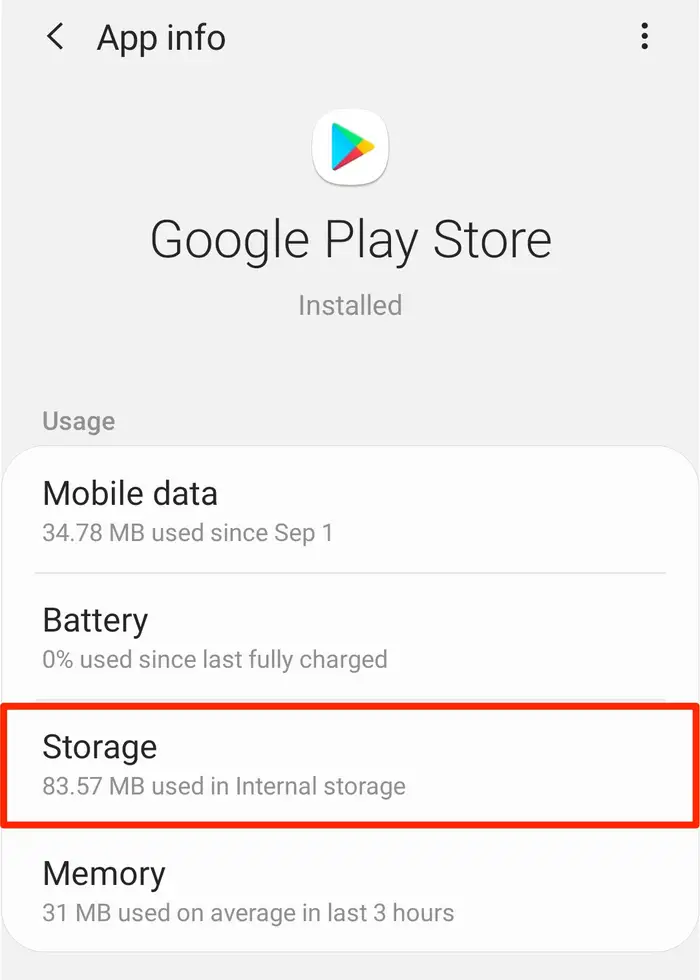
Step 3 Reopen Play Store and check the country.
Step 4 If it is still old, return to Storage & cache, tap Clear storage > Delete, and restart the phone.
Clearing storage can reset Play Store settings, including parental controls and password protection, and may ask you to accept the Terms of Service again. Re-enable your preferred protections afterward.
Open Play Store and go to Profile icon > Settings > About > Update Play Store. Google will install an update or tell you that the app is current.
Step 1 Touch and hold Play Store and select App info.
Step 2 Tap the More menu and choose Uninstall updates, then confirm.
Step 3 Reopen Play Store and go to Settings > About > Update Play Store.
This returns the system app to its factory version and then downloads current updates; it does not change your country eligibility by itself.
Google's country help page lists additional Android steps. Try them one at a time and check the country after each step.
Go to Settings > Apps > All apps > Download Manager > Storage, then clear its cache and data. Some devices require you to show system apps first.
Back up important device information before removing the account. Android removes some account data from the device until you add the account again.
High-impact step
If you accept the risk, the current path is generally Settings > Apps > Google Play services > Storage & cache > Clear storage > Clear all data. Menu names can vary by Android version or manufacturer.
These steps are documented on Google's Play country help page and Play Store app troubleshooting page.
If the country is still wrong after confirming eligibility, profile, account, and app data, contact Google Play Support. Do not continue with unverified fixes or a factory reset solely for a country-profile problem.
Provide the affected email address, old and new country, time of the final selection, Payments profile country, exact error message, and the troubleshooting steps already completed.
If purchases fail even though the correct country is finally displayed, use the separate Google Play country mismatch troubleshooting guide.
You can allow additional time, but first confirm that the request was eligible and the correct profile was selected. Google does not guarantee a precise completion time.
No. Duplicate profiles can make it harder to identify the one used for Play purchases.
No, but it can reset Play Store preferences such as parental controls and password protection.
Not solely for a stuck country profile. Ask Google Play Support to review the account-side issue before considering a destructive device reset.
When Google Play country is not updating after 48 hours, verify the account, Payments profile, physical location, payment method, Family status, and 90-day eligibility first. Then refresh and update Play Store before moving to higher-impact Android steps.
For the full region-changing process, see How to Check or Change Your Google Account Region.