Is Your Gmail Pwned? How to Check (2025 Guide)

TL;DR: “Pwned” means your email address or related data showed up in a known data breach. To check, run Google’s Security Checkup, review recent activity, and search reputable breach databases. If you’re exposed, change your password immediately, move to passkeys + 2‑Step Verification, and revoke suspicious access.
- What “pwned” actually means
- Fast checks inside your Google Account
- Search trusted breach databases
- Spot signs of compromise in Gmail
- If you’re pwned: fix it step by step
- Prevention: habits that keep Gmail clean
- FAQ
What “pwned” actually means
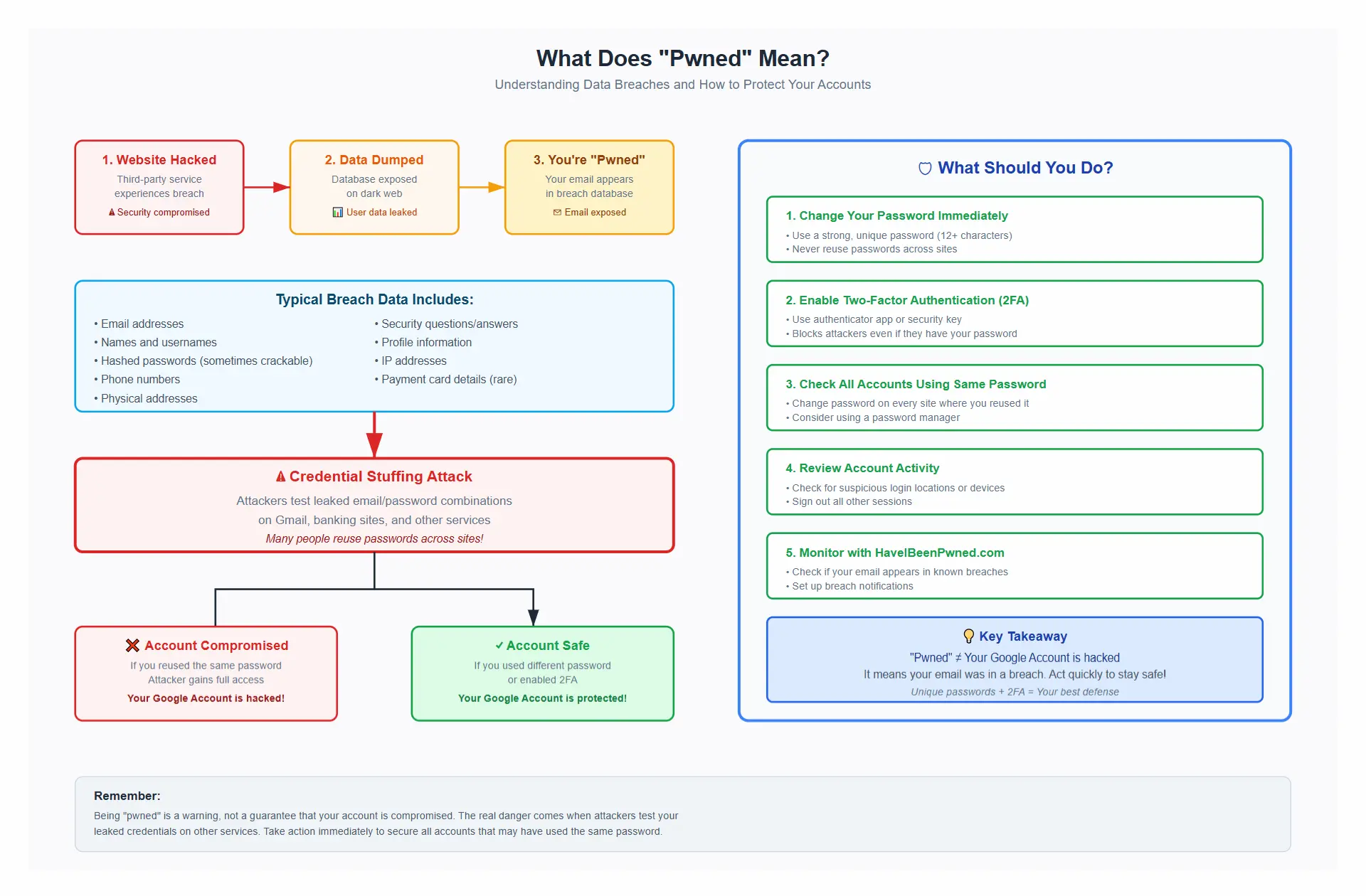
Pwned = found in a data breach. Your Gmail address may appear in databases dumped after a site you used got hacked. That doesn’t automatically mean your Google Account has been broken into—but it does mean you should act.
Typical breach data: email address, names, usernames, hashed passwords, sometimes phone numbers and addresses. In large credential‑stuffing waves, attackers test leaked email/password pairs on Gmail and other services.
You can check this picture for more detailed information about this.
Fast checks inside your Google Account
These built‑in Google tools are your first stop.
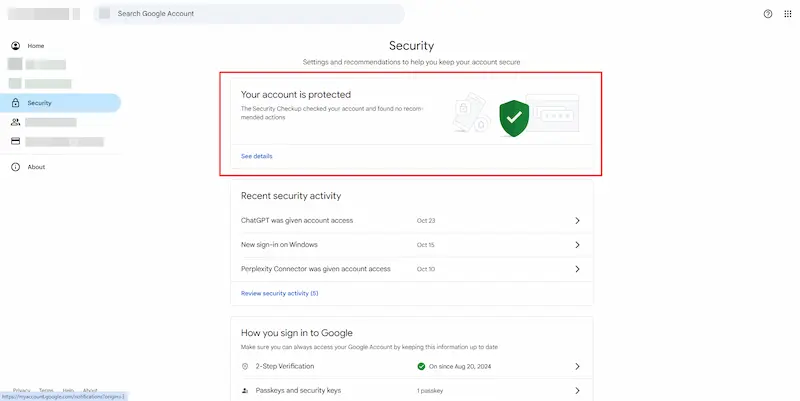
Security Checkup
Go to your Google Account → Security → Security Checkup.
Review alerts, recent security events, and recommended actions.
Recent security activity & devices
In Security, review Recent security activity and Your devices. Look for unfamiliar logins, new devices, or location anomalies. Remove any device you don’t recognize.
Gmail “Last account activity”
Open Gmail on desktop. At the bottom‑right, click Details next to Last account activity. Review IPs, locations, access type (browser, mobile, POP/IMAP). Click Sign out of all other web sessions if anything looks off.
Google Password Manager → Password Checkup
Visit Google Password Manager and run Password Checkup to find compromised, weak, or reused passwords saved to your account. Prioritize changing any reused password that matches your Google Account.
Forwarding, filters, and access
Attackers often hide persistence here:
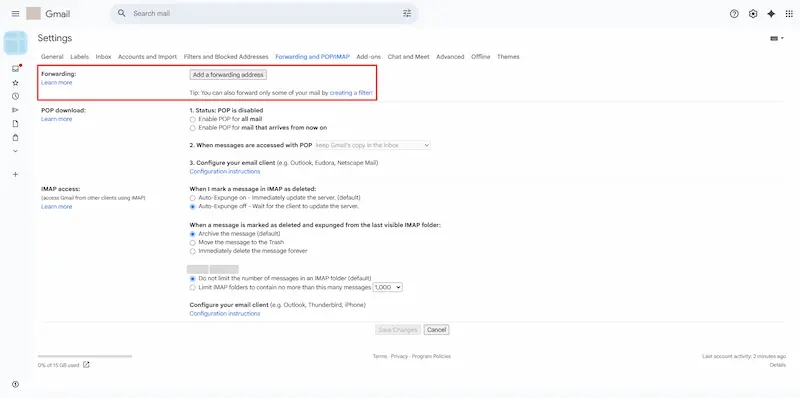
Gmail Settings → See all settings → Forwarding and POP/IMAP: remove any unknown forwarding address.
Filters and blocked addresses: delete suspicious rules (e.g., “Skip Inbox” or forward for certain keywords/senders).
Third‑party access: in Security → Third‑party apps with account access, remove anything you don’t trust.
If enabled, check App passwords and revoke any you don’t recognize.
Search trusted breach databases
Use reputable services that index confirmed breaches (they won’t fix a hack; they help you know where your data appeared).
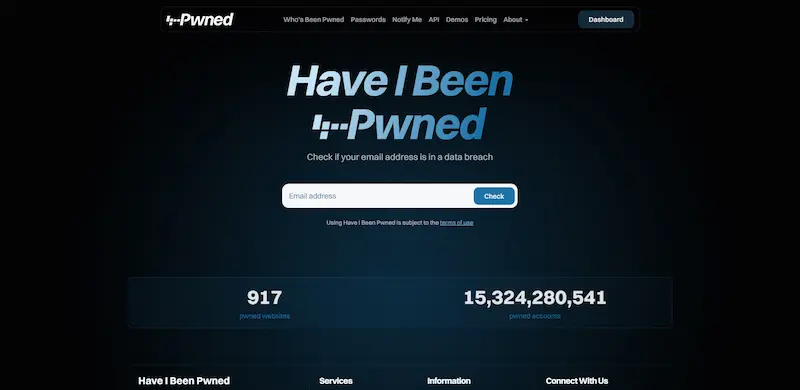
Have I Been Pwned (HIBP) : Enter your Gmail address to see known breaches and set up breach notifications. You can also monitor if your password (hashed only) appears in public dumps.
Tips:
- If you suspect your Google password is exposed,change it first—don’t test it anywhere else.
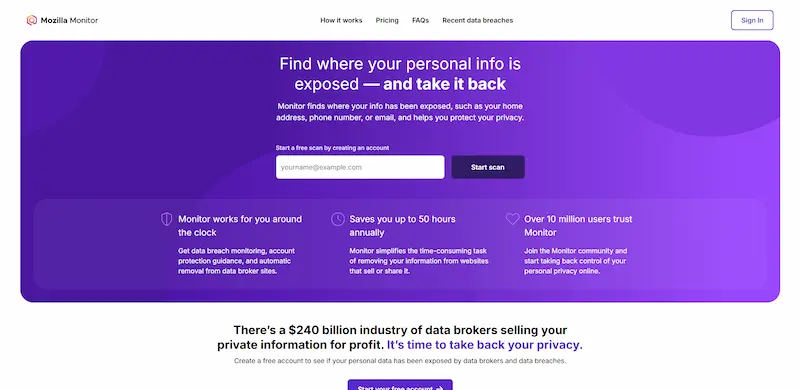
Mozilla Monitor: Uses HIBP data with a friendly dashboard and alerts. It’s another good channel for notifications.
Note:
- These databases show breaches from other services tied to your email, not just Gmail. That’s still valuable because attackers reuse those credentials against Google.
Spot signs of compromise in Gmail
Password suddenly stops working or 2‑Step prompts appear without you.
Security alerts about new logins, new devices, or recovery info changes you didn’t make.
Filters/forwarding you didn’t set up, or messages marked as read/archived unexpectedly.
Friends report phishing emails “from you.”
If you’re pwned: fix it step by step
Follow these in order for maximum impact.
Change your Google password immediately to a unique, long password (20+ characters) you’ve never used elsewhere.
Turn on 2‑Step Verification (2SV) and add at least one backup method (authenticator app or hardware security key). Avoid SMS if you can.
Create a passkey for your Google Account for phishing‑resistant sign‑ins.
Review Gmail persistence: remove unknown forwarding, filters, delegates, App passwords, and third‑party access.
Sign out of all sessions: use Gmail’s Last account activity (Details) to sign out everywhere. In Your devices, remove any you don’t recognize.
Update recovery info: confirm your recovery email and phone are yours.
Change reused passwords on any other accounts that share that old password. Turn on 2FA/Passkeys there too.
Set alerts: enable Google security notifications; subscribe to HIBP/Mozilla Monitor for future breach warnings.
Pro move: Add a hardware security key (FIDO2). It stops almost all phishing attacks cold and is easy to use after setup.
Prevention: habits that keep Gmail clean
One account, one password. Never reuse your Google password.
Passkeys by default. They’re simpler and block phishing attempts.
Password manager for everything else—strong, unique logins without remembering.
Think before you click. Verify sender, domain, and link previews.
Limit third‑party access. Only authorize what you need; review quarterly.
Keep devices updated. OS, browser, and extensions.
Quick reference table
| Where to check | What you learn | Why it matters |
|---|---|---|
| Security Checkup | Risk highlights, recent events | One dashboard of priority fixes |
| Recent security activity & devices | New logins/devices | Spots suspicious sign‑ins |
| Gmail Last account activity | IPs, access types; sign out all sessions | Finds hidden sessions and POP/IMAP abuse |
| Password Checkup | Compromised/reused/weak passwords | Fastest wins for credential reuse |
| Forwarding & Filters | Silent exfiltration rules | Remove persistence/backdoors |
| HIBP / Mozilla Monitor | Where your email appeared in breaches | Context for risk + notifications |
FAQ
Is “pwned” the same as “hacked”?
No. Pwned means your email (and maybe other data) was in a breach elsewhere. Hacked means someone actually accessed your Google Account. You can be pwned without being hacked.
If HIBP says I’m pwned, is my Gmail compromised?
Not automatically. But treat it as a warning: change your Google password if you reused it, and enable 2SV/passkeys.
Should I check my actual password on breach sites?
Avoid entering active passwords anywhere but Google. If you suspect exposure, change it first. Some services use privacy‑preserving checks (k‑anonymity), but changing the password first is safest.
What about recovery codes and backup methods?
Store them offline (password manager secure note or paper in a safe place). Don’t keep them in your inbox.
Can I remove my email from breach lists?
Some services allow opt‑outs, but you can’t erase breaches that already happened. Focus on credential resets, 2SV, and monitoring.
Wrap‑up: A breach mention isn’t the end of the world. The right sequence—change password → 2SV/passkeys → revoke suspicious access → clean filters/forwarding → monitor—puts you back in control fast.
Need help with passwords or data? iSumsoft provides professional tools for password recovery (e.g., Windows/Office) and data recovery across Windows, macOS, iOS, and Android. If you’ve lost access or files during cleanup, consider our solutions to get back on track.
Related Articles
-
![turn off smartscreen filter in microsoft edge]() How to
Turn off SmartScreen Filter in Microsoft Edge and Internet Explorer
How to
Turn off SmartScreen Filter in Microsoft Edge and Internet Explorer
-
![turn on or off smartscreen filter in Windows 10]() How to Turn on
or off SmartScreen Filter in Windows 10 Settings
How to Turn on
or off SmartScreen Filter in Windows 10 Settings
-
![change Windows smartscreen settings]() How to
Change Windows SmartScreen Settings in Windows 10
How to
Change Windows SmartScreen Settings in Windows 10
-
![enable content advisor IE]() How to Enable
Content Advisor in Internet Explorer 10/11
How to Enable
Content Advisor in Internet Explorer 10/11
-
![enable content blocker for safari in iPhone]() How to Enable
Content Blocker for Safari in iPhone
How to Enable
Content Blocker for Safari in iPhone
-
![Enable Microsoft print to pdf option]() How to
Enable Microsoft Print to PDF Option in Windows 10
How to
Enable Microsoft Print to PDF Option in Windows 10