Fix the Google Play country mismatch error by checking the Play country, Payments profile, physical location, payment method, billing address, and account update status.
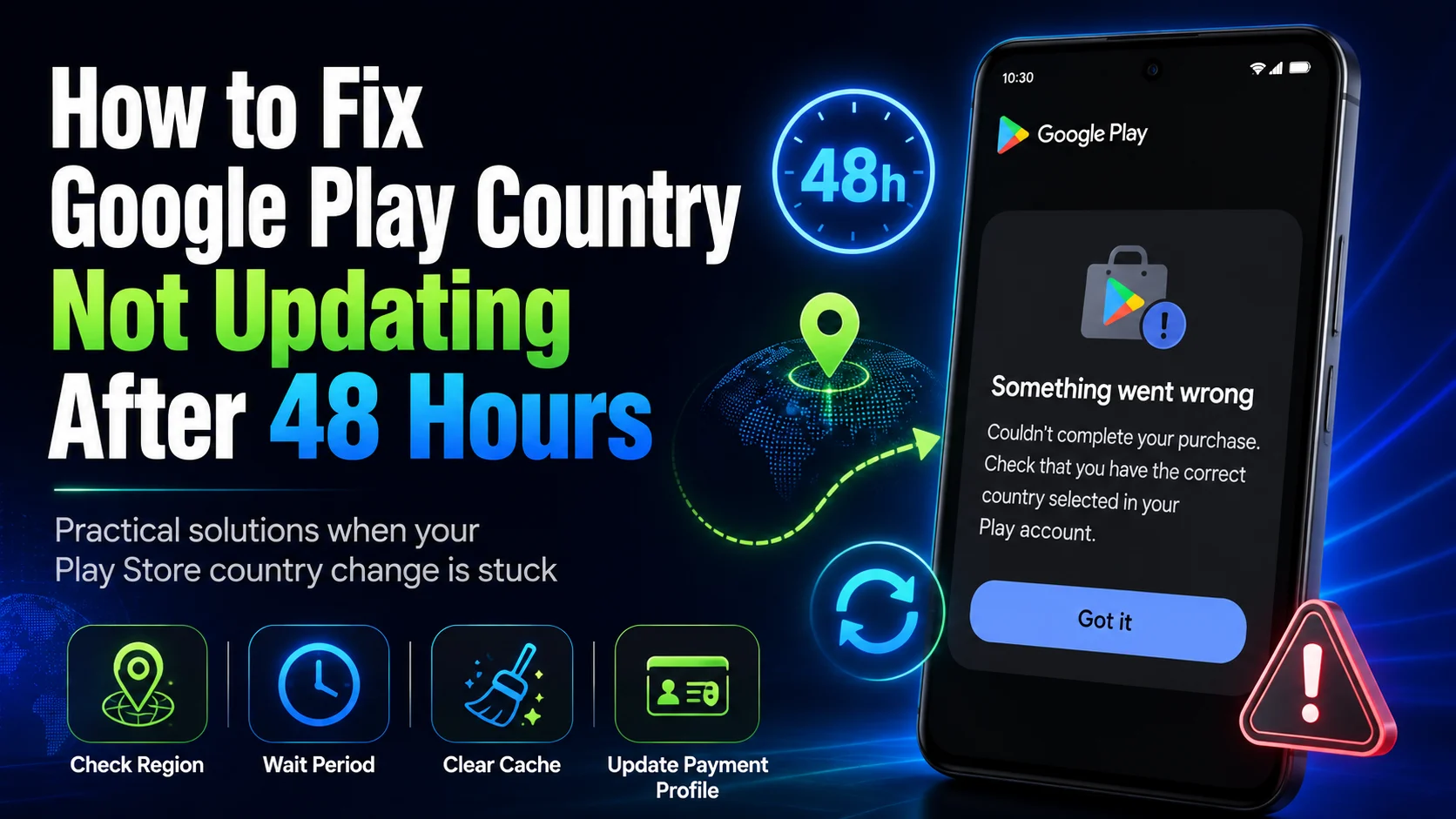
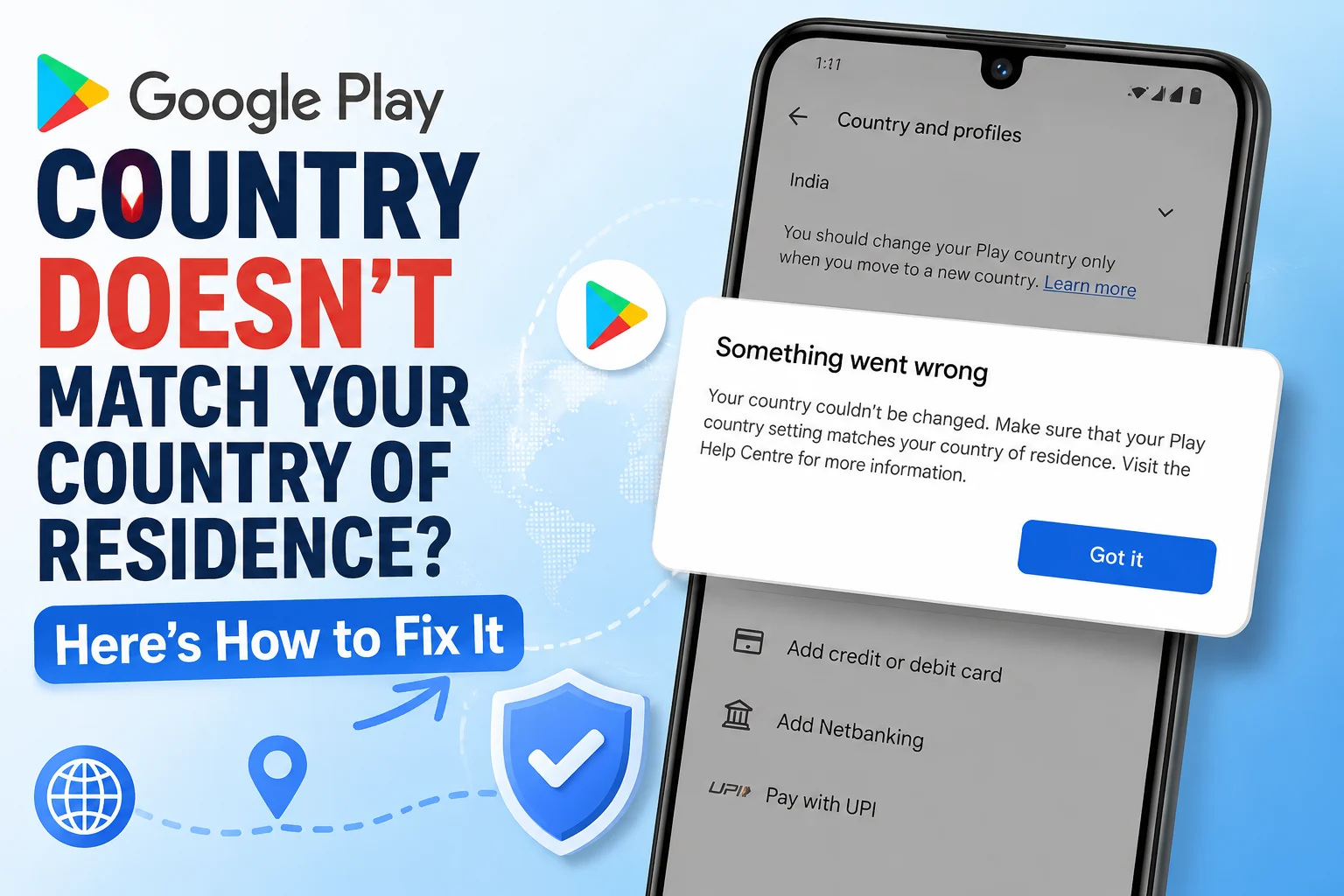
You may see this message when buying an app, subscription, Google One plan, game item, or in-app purchase:
Error message
A Google Play country mismatch can occur even when the country shown in the Play Store looks correct. Your Google Payments profile, payment method, billing address, physical location, VPN connection, or a recent country change may still conflict with your country of residence.
Quick answer
Your Play country determines the content available in the store and in apps. If the country itself is incorrect, see How to Check or Change Your Google Account Region for the complete country-changing process.
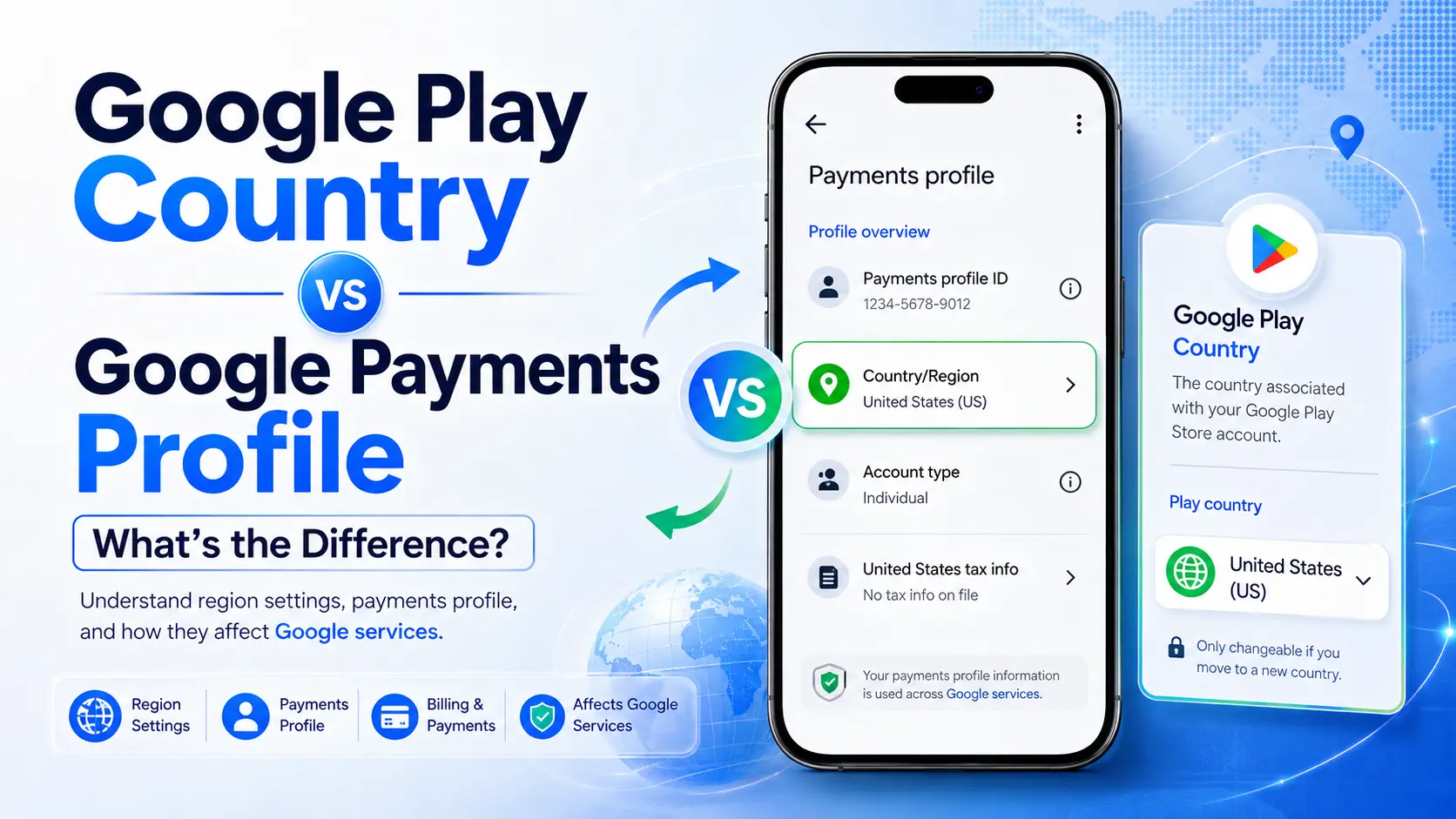
Your Play country controls the storefront, while your Payments profile stores billing details, payment methods, transactions, and subscriptions. If you have profiles for multiple countries, the profile connected to the purchase may not be the one you expected.
For a side-by-side explanation, see Google Play Country vs Google Payments Profile.
Google states that the country of an existing payments profile cannot be changed. You must create a country-specific profile to use another country. Existing services and subscriptions remain associated with their existing profile rather than automatically moving to the new one. See Google's payments profile country instructions.
Google requires a payment method from the new country when you set up a new Play country. Google also advises checking that the address saved for a card matches the billing address registered with the card issuer.
You must be physically present in a new country before setting it as your Play country. Google does not publicly list every signal it uses to assess location, so changing one phone setting may not resolve a conflict involving the account, payment profile, or location. Use the Google wrong-country diagnosis if the problem affects several Google services.
A VPN or proxy can make your connection appear to come from another country. If you are physically in the correct country, disable it and retry through a normal local network. Do not use a VPN to impersonate residence elsewhere.
The old once-per-year rule is no longer current. Google now says you must wait at least 90 days after initially setting your Play country and at least 90 days between later changes. Additional restrictions may apply.
Google says a Play country profile can take up to 48 hours to update. During that window, the store may still show an old profile or reject a purchase. If the old profile remains after that period, follow the Google Play country update troubleshooting steps.
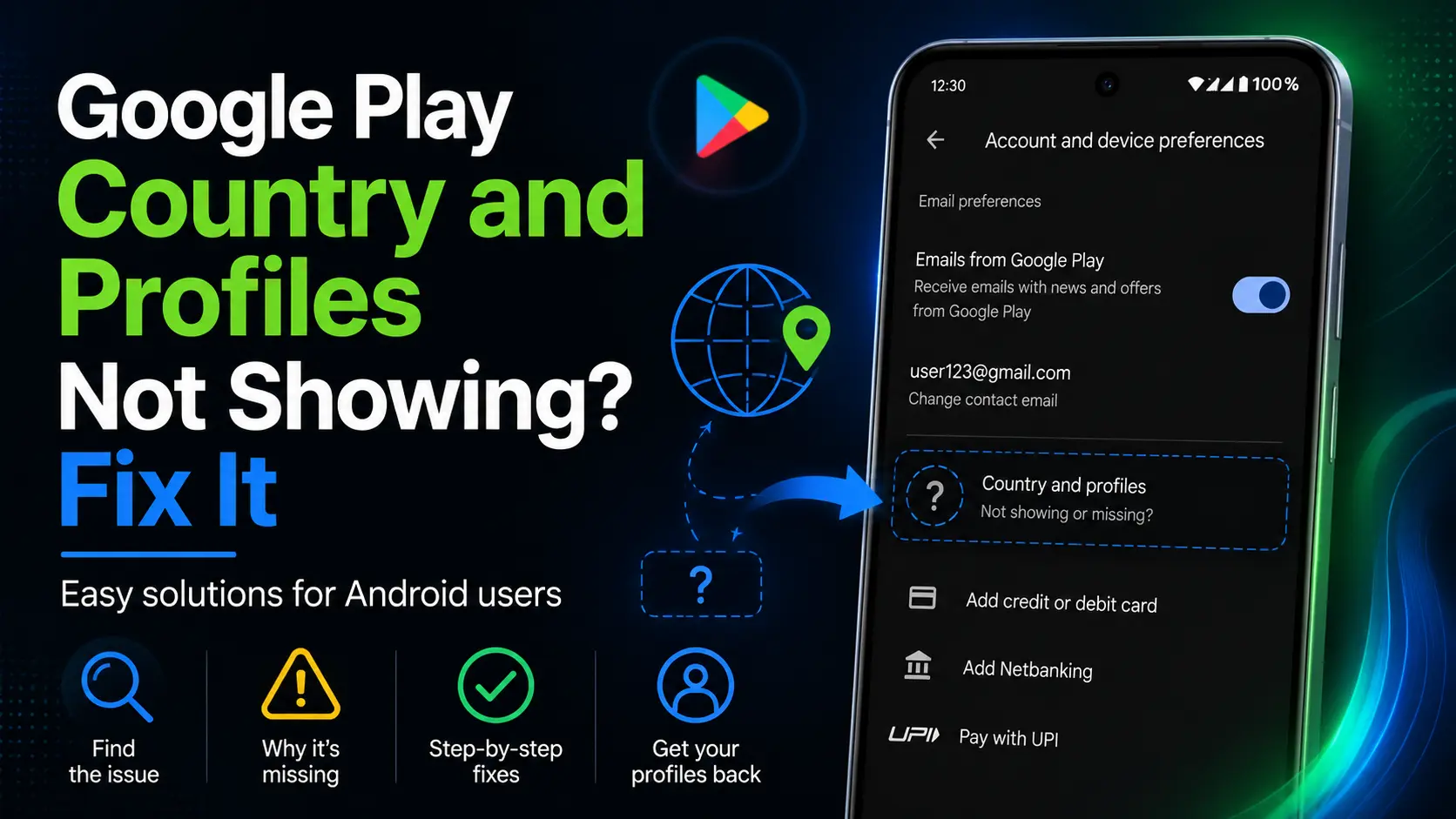
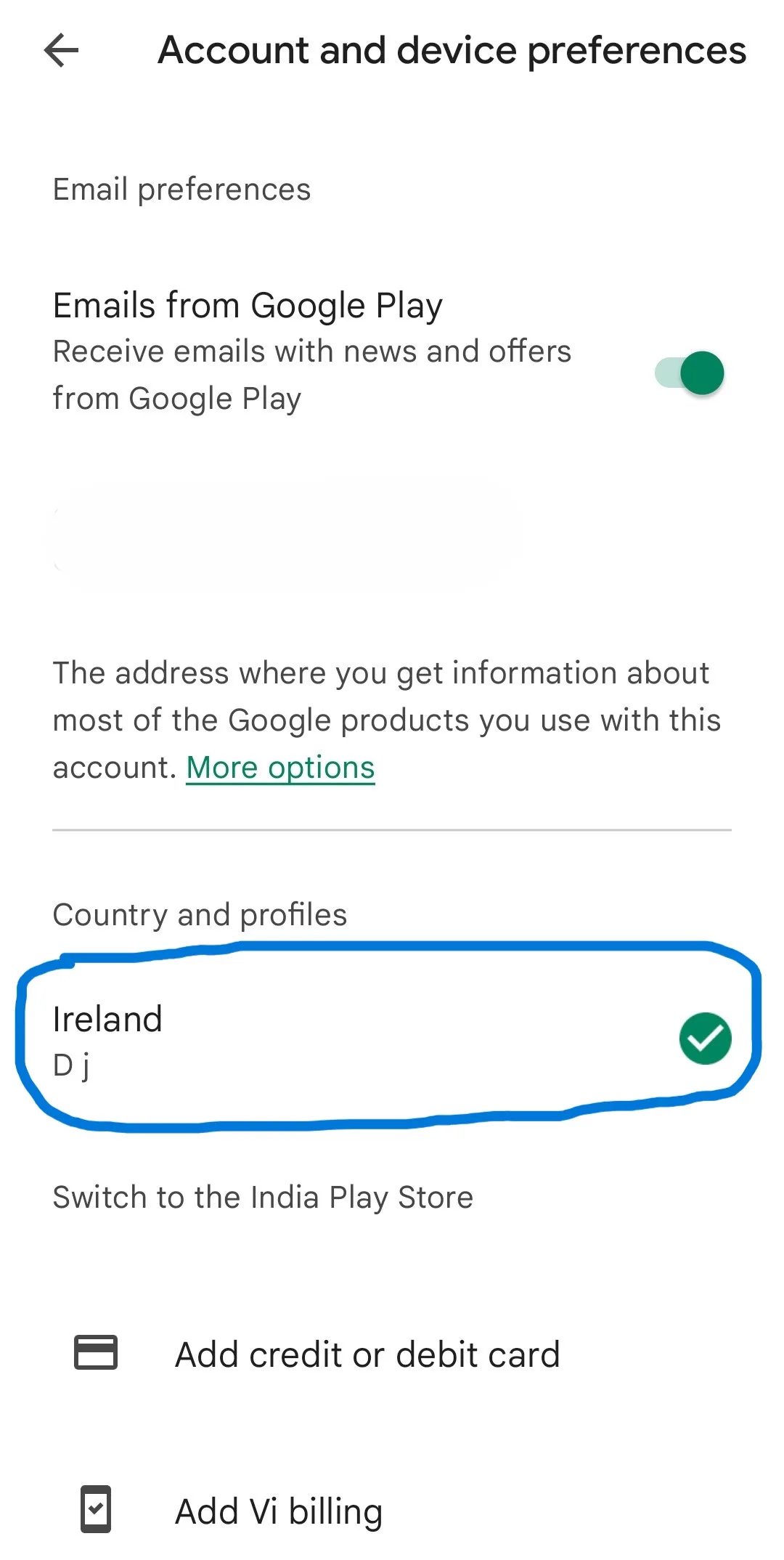
Step 1 Open the Google Play Store on your Android device.
Step 2 Tap your profile icon in the upper-right corner.
Step 3 Go to Settings > General > Account and device preferences > Country and profiles.
Step 4 Check the active country and confirm that you are using the correct Google Account.
Menu names may vary slightly by Android version or device manufacturer. If the Play country is incorrect, follow the complete Google Account region guide instead of repeatedly switching profiles.
If the Country and profiles section itself is absent, see why the Google Play country option is not showing.
Step 1 Sign in at payments.google.com with the same account used in the Play Store.
Step 2 Open Settings.
Step 3 Under Payments profile, check Country/Region.
Step 4 If you have several profiles, use the profile selector to inspect each one.
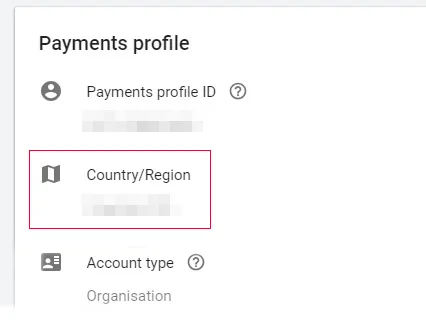
Google's Play country help says this section displays your current Play country. If it is wrong, create a profile for your actual country: select the edit option beside Country/Region, choose Create new profile, select the country, and enter an accurate name and address.
Important
The following is an example of a consistent setup, not a statement that every Google product applies identical requirements:
| Setting | Example of a correct setup |
|---|---|
| Google Play country | United States |
| Payments profile | United States |
| Billing address | The cardholder's real U.S. billing address |
| Payment method | A method supported for Google Play in the United States |
| Current location | United States |
Step 1 Open Google Payments and select Payment methods.
Step 2 Check the expiration date and billing address of the method used for the failed purchase.
Step 3 Make sure the billing address matches the card issuer's records, then correct outdated information.
Do not enter a false address just to resemble the selected Play country. Payment options vary by country and product. Review Google's payment troubleshooting guidance if the transaction is also being declined.
Step 1 Turn off the VPN, proxy, private relay, or work-network tunnel.
Step 2 Force close Google Play Store.
Step 3 Reconnect through a normal local mobile or Wi-Fi network.
Step 4 Reopen Play Store and retry the purchase once.
If you are traveling, do not change your Play country solely for one purchase. Google says users who are traveling—or whose country is already correct but still receive the error—should contact Google Play Support.
Step 1 Open Play Store and tap your profile icon.
Step 2 Go to Settings > About > Update Play Store.
Step 1 Touch and hold the Play Store icon, then tap App info.
Step 2 Select Storage & cache > Clear cache.
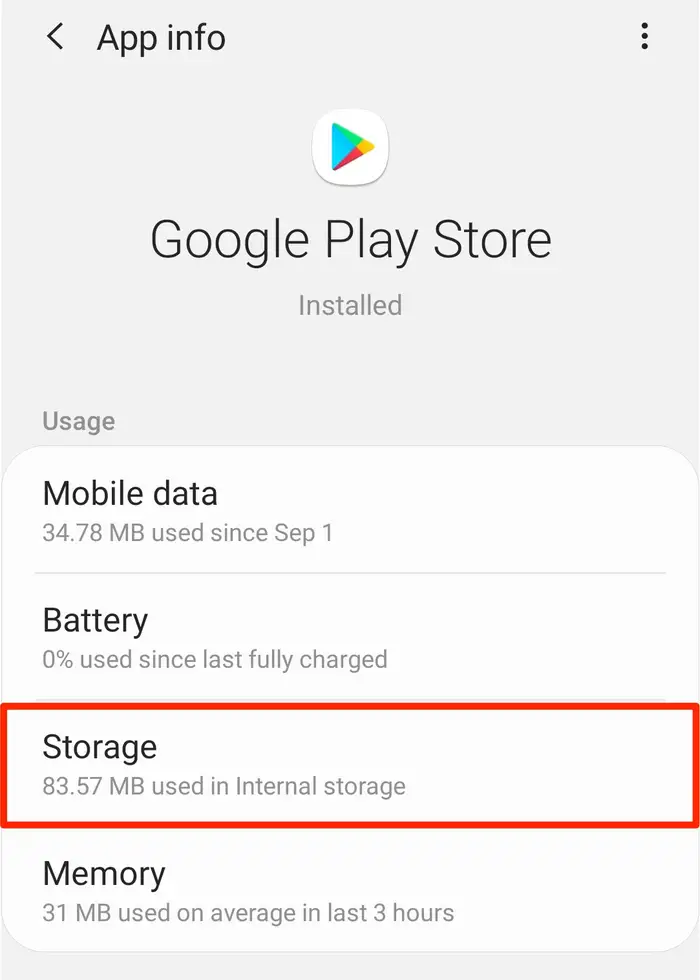
Step 3 If the error remains, tap Clear storage > Delete.
Step 4 Restart the device and reopen Play Store.
Clearing Play Store storage may reset parental controls and password protection. Check those settings afterward. These steps follow Google's Play Store troubleshooting instructions.
Avoid clearing Google Play services data unless safer steps have failed. It can remove saved device information and require payment methods to be authenticated again.
Allow up to 48 hours for the profile to update. Keep the same eligible profile selected, leave the VPN off, use a normal local connection, and avoid creating duplicate profiles while you wait.
“Up to 48 hours” is an expected update window, not a guaranteed completion time. If the country still has not updated after that period, refresh the Play Store and continue with the checks below.
Members of a Google Family group cannot change their Play country. Google's instructions say a member must leave the group first; a family manager would have to delete the family group.
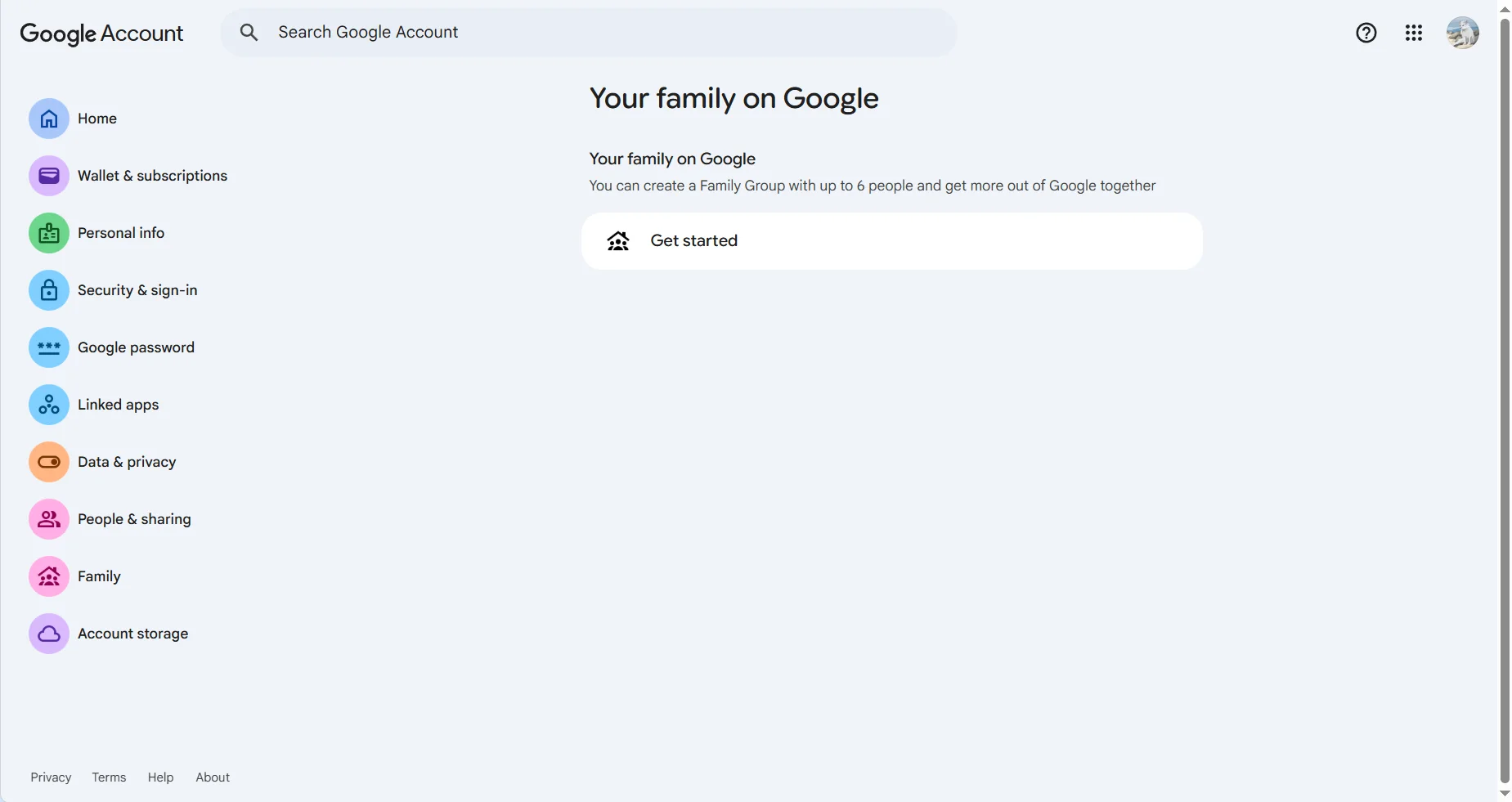
Check your status at families.google.com, or open your Google Account and select Family. If the page offers Get started and lists no members, you are not in a family group and this is not the cause.
Warning
A correct country in Play Store confirms only one part of the purchase setup. It does not prove that the intended Payments profile is active, the card's billing information is current, Google has finished synchronizing the change, or your current location satisfies the country requirement.
| Check | What to confirm |
|---|---|
| Google Account | The account making the purchase is the one you checked. |
| Play country | Country and profiles shows your actual country of residence. |
| Payments profile | Country/Region and the selected profile are correct. |
| Payment details | The method is supported and its real billing address is current. |
| Connection | You are physically in the country with VPN and proxy disabled. |
| Update time | Up to 48 hours have passed after a recent country change. |
Play country correct? → Payments profile correct? → Payment method and billing address correct? → VPN off and physical location correct? → Waited for the account update? → Still failing? → Contact Google Play Support.
Google explicitly recommends contacting support if you are traveling or if the Play country is correct but this country-of-residence error continues.
Before opening a request, confirm that the Play country, physical location, Payments profile, billing address, and payment method are appropriate; the VPN is disabled; Play Store is updated; its cache has been refreshed; and enough time has passed after a country change.
Then visit Google Play Help and select Contact us. Include the exact error, both country settings, the last change date, and whether the problem affects every purchase or only one app.
A conflicting Payments profile, payment method, billing address, travel, VPN connection, or unfinished profile update can leave the purchase setup inconsistent. Google does not publish a complete list of the signals it uses to assess location.
The active Payments profile, billing information, current location, and synchronization status may still point elsewhere. Check them in that order and contact Google Play Support if every visible setting is correct.
Google says the profile can take up to 48 hours to update. If more than 48 hours have passed, refresh Play Store and check the Payments profile again.
No. A VPN does not legitimately change your residence, Payments profile, billing address, or eligibility. If you are already in the correct country, turn the VPN off.
Google Play uses the Payments profile as part of its country and purchase setup. Google's troubleshooting instructions tell users to check Country/Region and create a profile for the correct country if it is wrong. Rules may differ across Google products, so this should not be interpreted as a universal requirement for every service.
Not always. Google currently requires at least 90 days after the country is first set and at least 90 days between later changes. You must also be in the new country, have a payment method from there, and not be blocked by Google Family membership.
Existing subscriptions remain active on the old Payments profile unless canceled. To use a subscription through the new profile, you may need to cancel and subscribe again. Check availability and pricing before canceling.
The option may be unavailable if you changed country within the last 90 days, are not currently in a new country, or belong to a Google Family group. See How to Check or Change Your Google Account Region for the full eligibility guide.
The “selected Play country must match your country of residence” message is not always caused by the country displayed in Play Store. A different Payments profile, unsuitable payment method, outdated billing address, location conflict, VPN, family restriction, or incomplete update can produce the same error.
Check each setting in order, allow up to 48 hours after a change, and avoid deleting profiles or entering false information. If all visible details are correct, contact Google Play Support for an account-specific review.