A Comprehensive Guide to Clear DNS Cache [One Article is Enough]

DNS cache is a temporary database that restores domains and IP records and allows your operating system or browser to quickly parse the URL; however, too much DNS cache can lead to DNS cache poisoning, a malicious cyber-attack. Therefore, you may want to clear DNS cache. Here is how to clear DNS caches for Chrome, Edge, Firefox, Windows, MacOS, and Linux.

- What is the DNS Cache?
- Clear DNS Cache on Google Chrome
- Clear DNS Cache on Microsoft Edge
- Clear DNS Cache on Mozilla Firefox
- Clear DNS Cache on Windows
- Clear DNS Cache on macOS
- Clear DNS Cache on Linux
- FAQS about DNS Flush
What is the DNS Cache?
The Domain Name System (DNS) cache is a temporary database that serves to store information about prior DNS lookups. At the time of each website visit, the operating system and web browser retain a record of that domain and its corresponding Internet Protocol (IP) address. This process eliminates the necessity for repeated queries to a remote DNS server and permits the operating system or browser to rapidly resolve the URL associated with a particular website.
Pros in DNS Cache:
- Improve parsing speed;
- Reduces load on DNS servers;
- Enhance user experience;
- Supports local policy enforcement;
Cons of too much DNS Cache:
- Cache flushing is uncontrolled;
- Resolution permissions and cache values are changed;
- Cache poisoning attacks;
Clear DNS Cache on Google Chrome
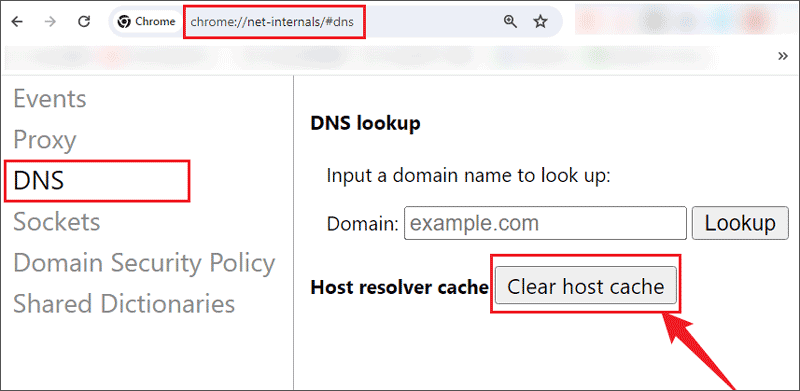
To clear DNS cache on Chrome browser, you can try the following steps:
Step 1: Open Chrome and copy "chrome://net-internals/#dns" to the address bar;
Step 2: Choose the DNS tab and click Clear host cache;
Clear DNS Cache on Microsoft Edge
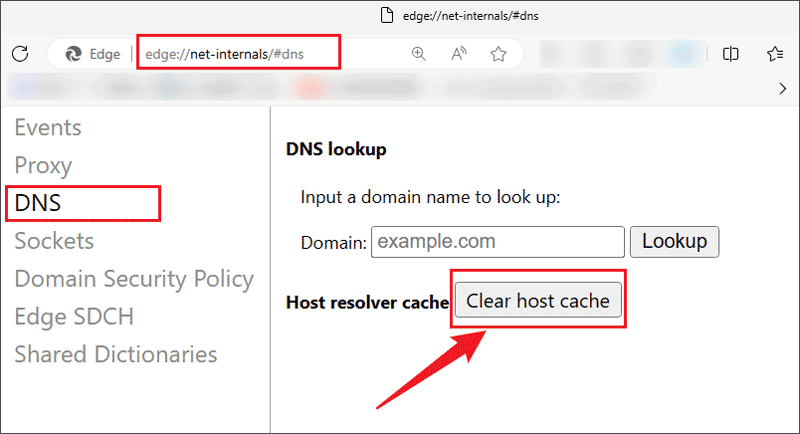
Clear DNS cache on Edge browser is almost the same as Google Chrome browser, check the following steps:
Step 1: Open the Microsoft Edge browser and type "edge://net-internals/#dns" into the address bar;
Step 2: Select the DNS tab and click Clear host cache;
Clear DNS Cache on Mozilla Firefox
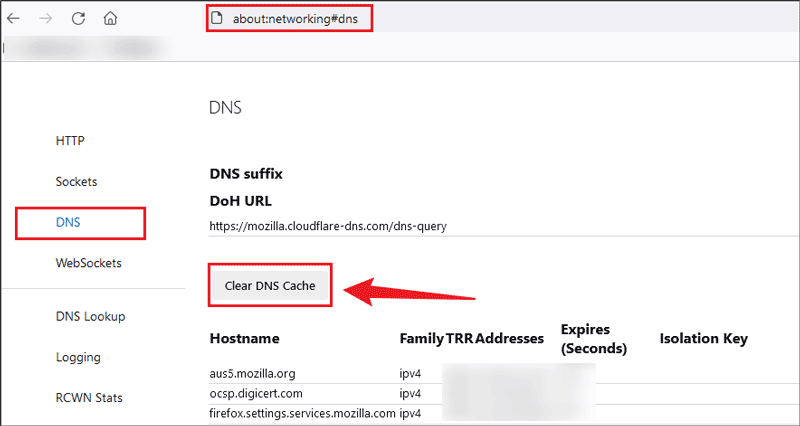
Let me show you how to flush DNS cache on Mozilla Firefox:
Step 1: Turn on the Firefox browser and copy "about:networking#dns" to the address bar;
Step 2: Click Clear DNS Cache;
Clear DNS Cache on Windows
Step 1: Press "Win + R" to open the Windows Command run box;
Step 2: Type "cmd" and press "Ctrl + Shift + Enter" to run as administrator;
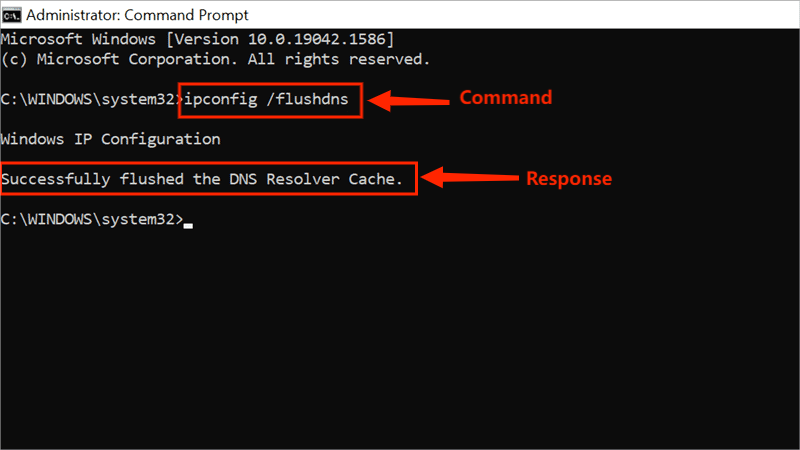
Step 3: Type "ipconfig /flushdns" and hit the Enter button;
Step 4: When the DNS has been flushed on Windows, you will receive a message saying "Successfully flushed the DNS Resolver Cache".
Clear DNS Cache on macOS
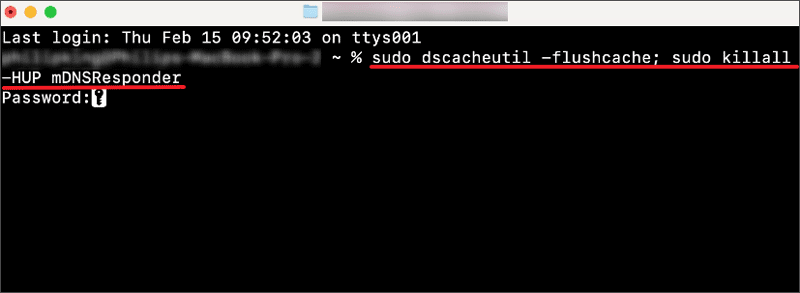
Step 1: Click Finder > Applications > Utilities > Open Terminal window and type the flushing command;
Step 2: The command will be different depending on your Mac version, you can refer to the corresponding command below.
- macOS 12 (Monterey): sudo dscacheutil -flushcache; sudo killall -HUP mDNSResponder
- macOS 11 (Big Sur): sudo dscacheutil -flushcache; sudo killall -HUP mDNSResponder
- macOS 10.15 (Catalina): sudo dscacheutil -flushcache; sudo killall -HUP mDNSResponder
- macOS 10.14 (Mojave): sudo killall -HUP mDNSResponder
- macOS 10.13 (High Sierra): sudo killall -HUP mDNSResponder
- macOS 10.12 (Sierra): sudo killall -HUP mDNSResponder
- OS X 10.11 (El Capitan): sudo killall -HUP mDNSResponder
- OS X 10.10 (Yosemite): sudo discoveryutil udnsflushcaches
- OS X 10.9 (Mavericks): sudo killall -HUP mDNSResponder
- OS X 10.8 (Mountain Lion): sudo killall -HUP mDNSResponder
- Mac OS X 10.7 (Lion): sudo killall -HUP mDNSResponder
- Mac OS X 10.6 (Snow Leopard): sudo dscacheutil -flushcache
- Mac OS X 10.5 (Leopard): sudo lookupd -flushcache
- Mac OS X 10.4 (Tiger): lookupd -flushcache
Step 3: Enter the Admin password to run the command;
Clear DNS Cache on Linux
Step 1: Press "Ctrl + Alt + T" to open Terminal windows;
Different Linux distributions may use different DNS resolvers and caching services (like systemd-resolved, dnsmasq, and NSCD), so specific commands may vary.
Step 2: Type the specific command according to the DNS services;
For Systemd-Resolved: sudo systemd-resolve --flush-caches
For Dnsmasq: sudo service dnsmasq restart
For NSCD: sudo service nscd restart
FAQS about DNS Flush
Q1: Why do I need to clear DNS cache?
1. Clearing DNS cache forces you to re-query the latest DNS information.
2. Clearing DNS cache helps your computer get new DNS records.
3. Clearing the DNS cache helps prevent cyberattacks.
4. Periodically refreshing the DNS cache ensures that your network requests are always based on the latest DNS records.
Q2: How to flush DNS cache in Apple Safari?
Step 1: Open Safari browser > Settings > Advanced;
Step 2: Tick "Show features for web developers";
Step 3: Choose Develop tab > Empty Caches;
Q3: How to know which macOS is using?
Click the Apple menu icon in the desktop > Select About This Mac, then you can find the macOS version.;
Related Articles
![How to Update Your Browsers to its Latest Version]() How to Update Your
Browsers to its Latest Version
How to Update Your
Browsers to its Latest Version![How to Fix Error Code 102630 This Video File Cannot Be Played]() How
to Fix Error Code 102630 This Video File Cannot Be Played
How
to Fix Error Code 102630 This Video File Cannot Be Played![How to Export Google Chrome Saved Passwords to a CSV File]() How to Export
Google Chrome Saved Passwords to a CSV File
How to Export
Google Chrome Saved Passwords to a CSV File![How to Clear Browsing and Search History in Internet Explorer]() How to
Clear Browsing and Search History in Internet Explorer
How to
Clear Browsing and Search History in Internet Explorer![How to Delete Temporary Internet Files from IE/Google Chrome/Firefox/Safari]() How to
Delete Temporary Internet Files from IE/Google Chrome/Firefox/Safari
How to
Delete Temporary Internet Files from IE/Google Chrome/Firefox/Safari![Delete Browsing Data and History for Your Browsers]() Delete Browsing
Data and History for Your Browsers
Delete Browsing
Data and History for Your Browsers