Want to manage your tabs more efficiently in Chrome? Vertical tabs are coming to Google Chrome, and you can test them out now by enabling a hidden flag. Find out how to activate and manage vertical tabs in this quick guide!
Google Chrome is finally catching up with Microsoft Edge and other modern browsers by bringing vertical tabs to its interface. Perfect for widescreen monitors and users with a serious tab-hoarding habit, vertical tabs allow you to easily navigate through dozens of open tabs without losing track of their titles.
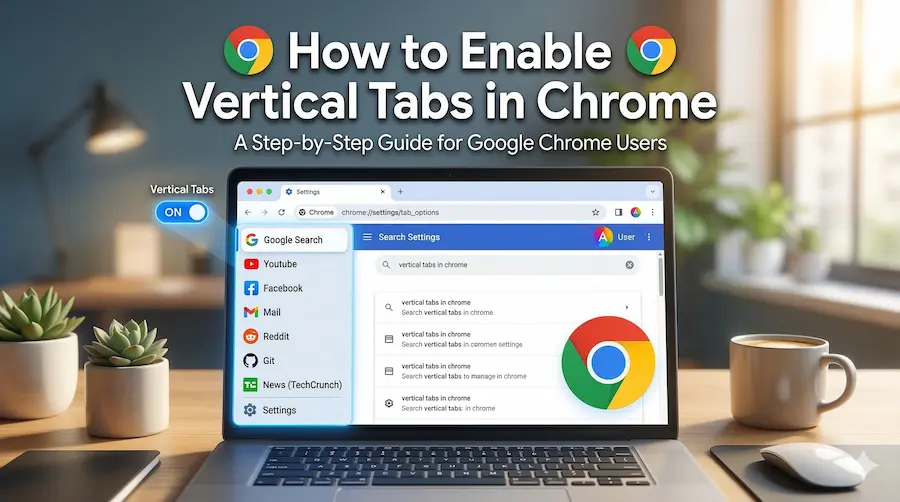
Although the feature is currently in testing (predictively available natively in Chrome version 145+), you can access it right away through Chrome’s experimental flags. Here are the step-by-step instructions.
Follow these simple steps to toggle the vertical tabs setting on.
Step 1: Open Chrome Flags
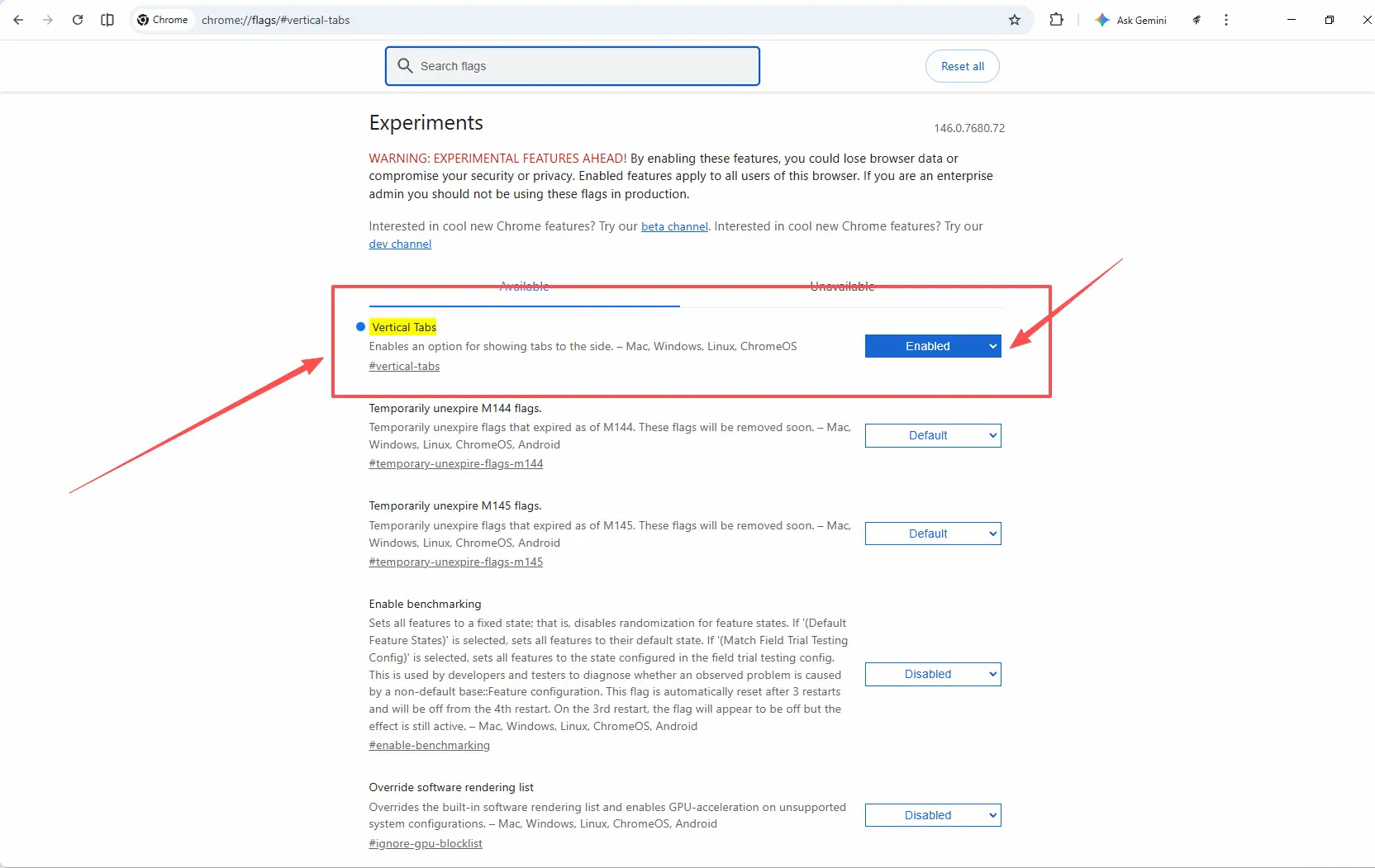
Launch Google Chrome and type chrome://flags/#vertical-tabs directly into the address
bar, then press Enter.
chrome://flags/#vertical-tabs
Step 2: Enable the Feature
This URL will take you directly to the relevant setting, highlighted in yellow. Click the dropdown menu next to Vertical tabs and change the setting from "Default" to "Enabled".
Step 3: Relaunch Chrome
After changing the setting, a prompt will appear at the bottom of the screen. Click the Relaunch button to restart your browser and apply the new feature.
Step 4: Activate the Vertical View
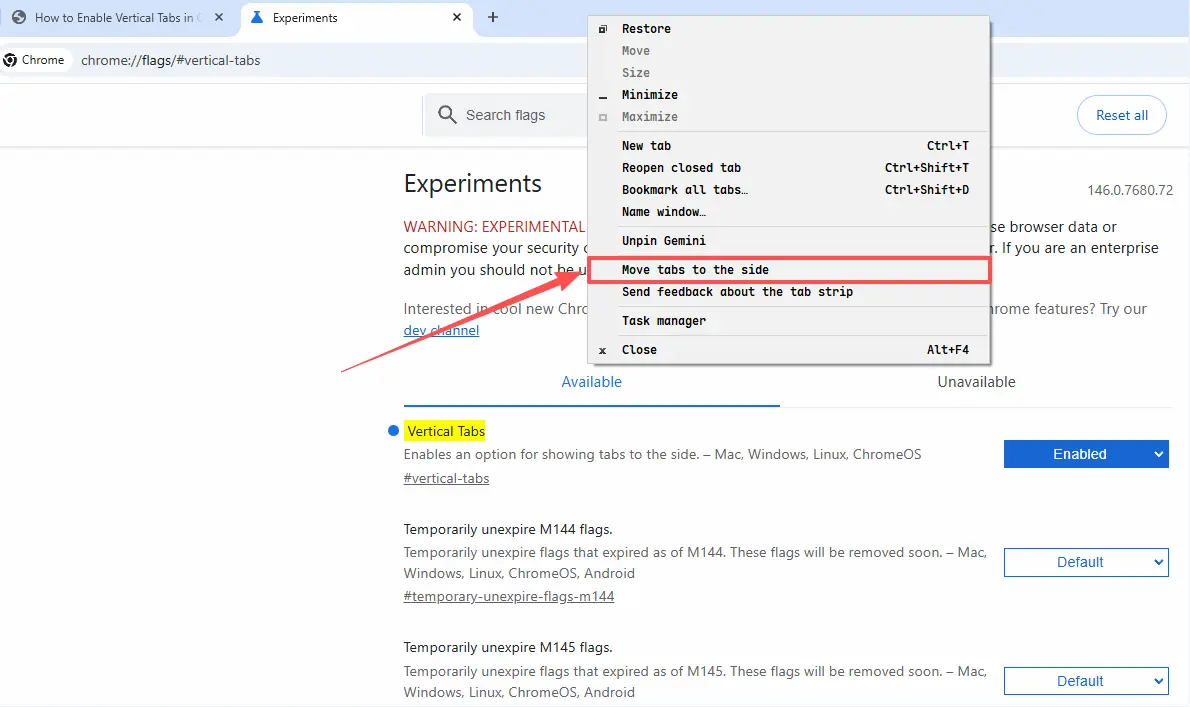
Once the browser has relaunched, you can move your tabs to the side. Right-click anywhere in the blank space of the top tab bar and select "Move tabs to the side" from the context menu. Your tabs will instantly align vertically in a side panel.
If you’re running a stable version of Chrome that doesn’t yet support this flag, or if you prefer a different layout, there are some great Chrome extensions that provide similar functionality: