It's a good idea to update the iPhone software in time. This not only allows you to experience the new features brought by the latest iOS version, but also can fix bugs or errors in the old iOS version. This article will show you how to update your iPhone to the latest iOS version, including iOS 27. Apple lists iPhone 11 and later, plus iPhone SE (2nd generation) and later, among the compatible models. There are four methods below.
Data safety: A standard iOS update is designed to keep your data, but a current backup is still essential before troubleshooting a failed update or using any restore option.
iPhone allows you to update iOS to the latest version from the Settings app. Connect your iPhone to a stable Wi-Fi network and make sure it has at least 50% battery power (preferably connect it to a power source), then follow the steps below.
Step 1 Open the Settings app from your iPhone's Home screen. Then tap General > Software Update. iPhone will check for update.
Step 2 If a new iOS version is available, it will be displayed on the screen. Tap Download and Install. If the new iOS software has already been downloaded, just tap Install Now. If there is no update prompt on the screen, here is how to fix iOS 17/18 Update Not Showing Up.
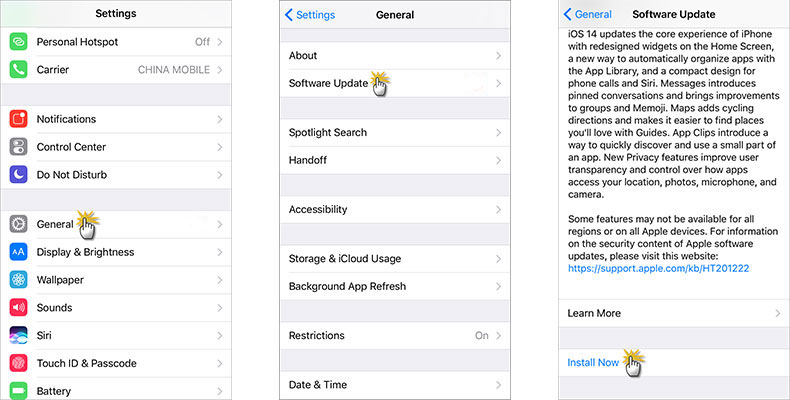
Step 3 Follow the on-screen prompts to confirm that you want to install the update. Then wait for the update to complete, which can take anywhere from 30 minutes to an hour.
If you don't have a Wi-Fi network, or you can't update through Settings for some reason, the second option is to update your iPhone to the latest iOS version using iTunes on your PC.
1. Make sure your PC is connected to the Internet and has the latest version of iTunes installed.
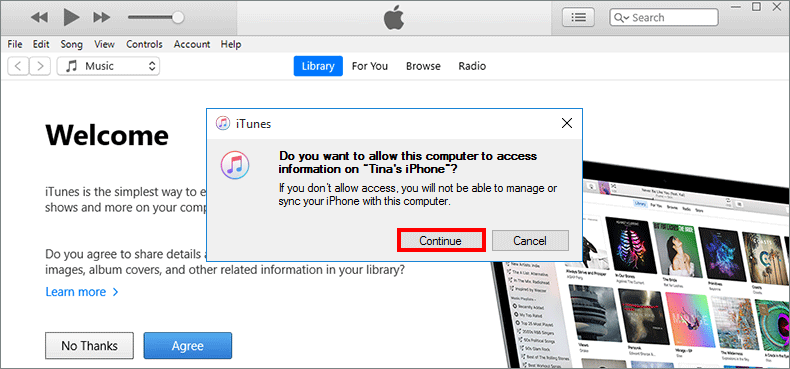
2. Connect the iPhone to your computer with an Apple USB cable, and then launch iTunes. You may need to click Continue in iTunes, then unlock your iPhone and tap Trust to allow this computer to access the iPhone.
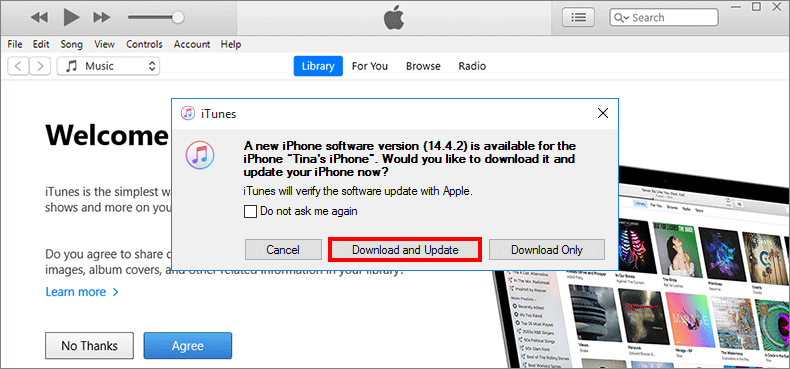
3. Once the iPhone is connected to iTunes, iTunes will pop up a dialog box showing that a new iPhone software version is available and asking if you would like to download it and update your iPhone. Click Download and Update.
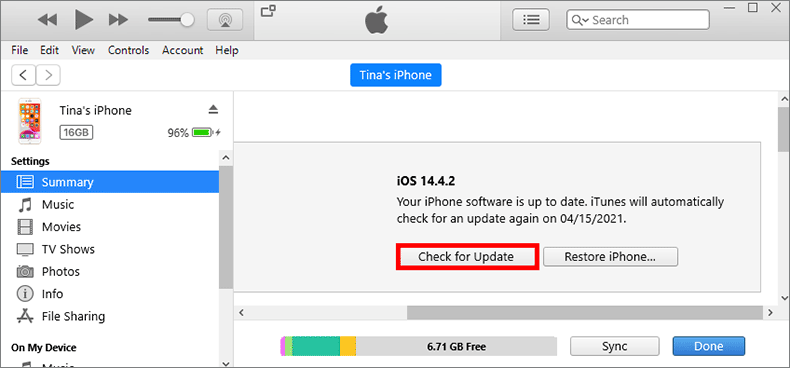
If iTunes does not pop up an update prompt, click the iPhone icon showing in the upper-left corner of the iTunes window, and then click the Summary tab on the left to display the iPhone's device information. Then click Check for Update on the right.
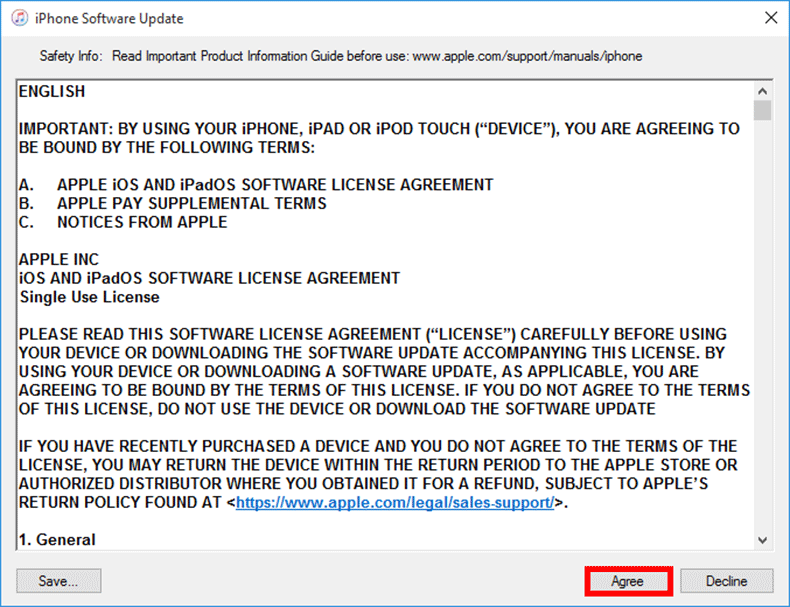
4. The iPhone software update license agreement pops up. Click Agree to agree to the license, and then just follow the on-screen steps to update your iPhone to the latest iOS version.
If the official update methods fail, first review Apple's iPhone update troubleshooting guidance. If you still need a Windows-based recovery workflow, iSumsoft iOS Refixer is another alternative. It is a specialized iOS recovery tool for PC that allows you to smoothly update your iPhone to the latest iOS without using iTunes and without losing data. Follow the steps below.
Step 1 Download and install iSumsoft iOS Refixer on your computer. After installation, run the program.
Step 2 On the program homepage, select the iOS Upgrade/Downgrade option, which is used to upgrade or downgrade iOS for your iPhone.

Step 3 Select Upgrade iOS on the next page.

Step 4 Click Next after making sure your iPhone is connected to your computer via the USB cable. The software automatically detects the connected iPhone and loads the device information.

Step 5 Click the drop-down button next to Firmware Version and select the latest version of firmware. Then, click Download to start downloading the firmware.

Step 6 Once the firmware download is complete, click start and it start updating or upgrading your iPhone software.

Step 7 When the success message appears on the software screen, your iPhone has been updated to the latest version of iOS. Once your iPhone has finished restarting, you can continue to use it.

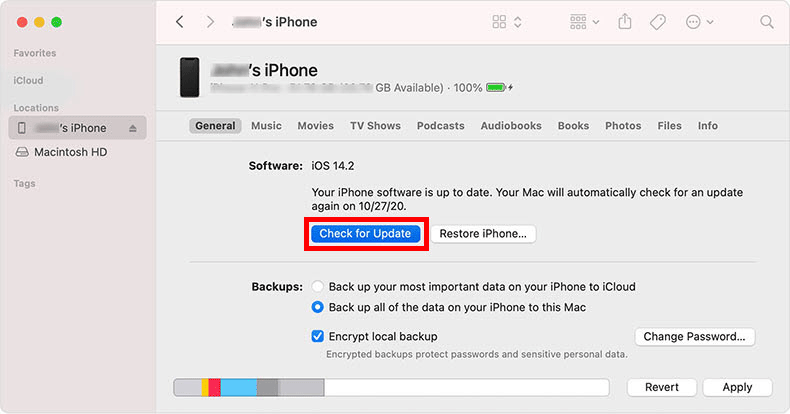
If you don't have a PC but have a Mac, you can also update your iPhone to the latest iOS version using your Mac.
1. If you are using a Mac running macOS Catalina 10.5, open Finder. If you are using a Mac running macOS Mojave 10.14 or earlier, open iTunes.
2. Connect your iPhone to your Mac with a USB cable, and then locate your device in the Finder or iTunes.
3. Click General in Finder or Summary in iTunes to display your device info. Then click Check for Update and follow the steps on the screen to update your iPhone.
 3 Ways to Downgrade iOS 26 to iOS
18 without Losing Data
3 Ways to Downgrade iOS 26 to iOS
18 without Losing Data
 How to Fix
iPhone Stuck on Software Update Complete Screen
How to Fix
iPhone Stuck on Software Update Complete Screen