
How to Transfer Data to iPhone 18 Pro Safely: 4 Methods

Quick answer: Use Apple's Quick Start when both iPhones work normally and are nearby. Keep a verified backup as a fallback, and do not erase or trade in the old iPhone until photos, messages, contacts, authenticator apps, and cellular service have been checked on the new phone.
Apple's current Quick Start instructions also cover wired transfer, iCloud backup, and computer backup options. For a complete restore, see Apple's iCloud and computer backup guidance.
- Before You Transfer
- Compare the 4 Transfer Methods
- Method 1: Quick Start
- Method 2: iCloud Backup
- Method 3: Finder or Apple Devices
- Method 4: Local Windows Transfer
- Verify the New iPhone
- Frequently Asked Questions
Before You Transfer Data to iPhone 18 Pro
Charge both phones, connect them to reliable Wi-Fi, turn on Bluetooth, and keep them close together. Confirm that you know the old iPhone passcode and can sign in to the Apple Account used for iCloud, purchases, and Activation Lock.
Protect the only complete copy of your data:
- Make a current iCloud or computer backup before starting.
- Keep the old iPhone powered and unchanged until the transfer is verified.
- Do not remove the eSIM or erase the old phone early.
- For iOS 27 update preparation, read the iPhone 18 Pro and iOS 27 upgrade guide.
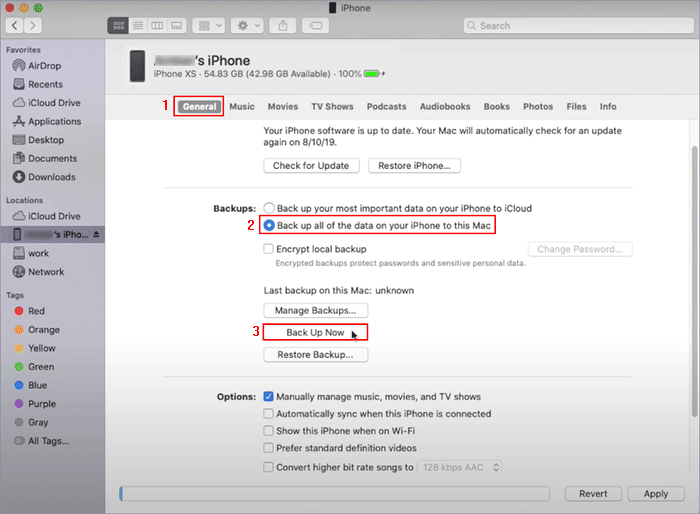
Reference image: backup controls differ between Finder, Apple Devices, and older iTunes versions. Check the backup date before transferring.
Compare the 4 iPhone Transfer Methods
| Method | Best For | Requires | Main Limitation |
|---|---|---|---|
| Quick Start | Direct migration from a working old iPhone | Both phones, Wi-Fi, Bluetooth, power | Can take a long time and both phones remain occupied |
| iCloud Backup | Wireless restore or when phones cannot stay together | Recent iCloud backup and account access | Depends on cloud storage and internet speed |
| Finder / Apple Devices | Encrypted local backup and restore | Mac or Windows PC, cable, backup password | Needs enough computer storage |
| BackupTo | Local Windows backup or selected-file workflows | Windows PC, cable, supported device/build | iOS 27 and new-model validation is still in progress |
Method 1: Transfer with Quick Start
Step 1Turn on iPhone 18 Pro and place it beside the unlocked old iPhone.
Step 2Use the old iPhone when the Set Up New iPhone prompt appears.
Step 3Scan the setup animation and enter the old iPhone passcode on the new phone.
Step 4Follow the prompts for cellular service, Face ID, and Apple Account sign-in.
Step 5Choose direct iPhone transfer or download from iCloud when offered.
Step 6Keep both phones connected to power and near each other until setup completes.
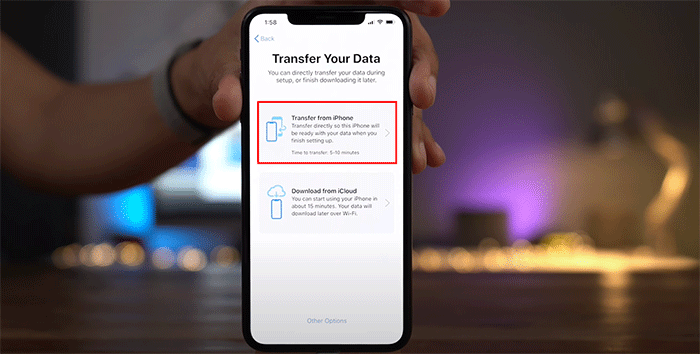
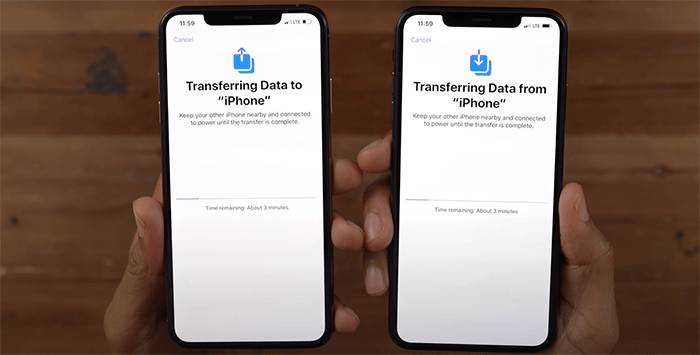
Reference images: the wording and layout can change with iOS versions. Keep both phones on power until the transfer is complete.
Apps, photos, and cloud content may continue downloading after the Home Screen appears. Do not treat the first successful restart as proof that every item has transferred.
Method 2: Restore an iCloud Backup
Step 1On the old phone, open Settings, select your name, then open iCloud and iCloud Backup.
Step 2Tap Back Up Now and wait for a current completion time.
Step 3During new-iPhone setup, choose Restore from iCloud Backup.
Step 4Sign in and choose the correct backup by device name and date.
Step 5Keep the new phone on Wi-Fi and power while remaining content downloads.
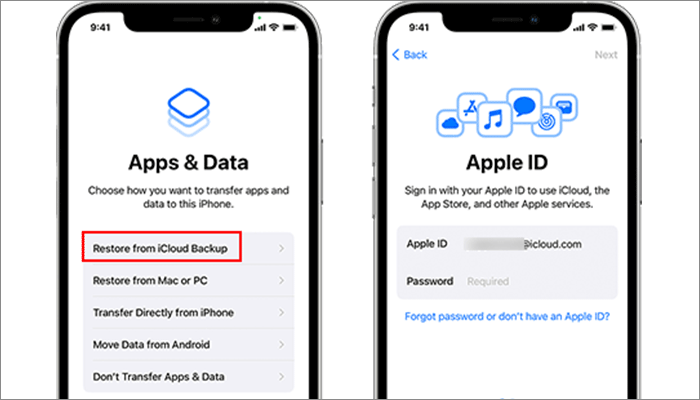
If the backup is incomplete or too old, stop and create a fresh backup rather than erasing the old phone.
Method 3: Restore with Finder or Apple Devices
Use Finder on a current Mac or Apple Devices on a current Windows PC. An encrypted computer backup can include saved passwords, Wi-Fi settings, and Health data that an unencrypted backup may omit.
Step 1Connect and select the old iPhone.
Step 2Enable encrypted local backup if you need the additional protected data, and store the backup password safely.
Step 3Create the backup and confirm its completion date.
Step 4Connect iPhone 18 Pro and choose to restore the verified backup.
Step 5Keep the cable connected until the restore and restart complete.
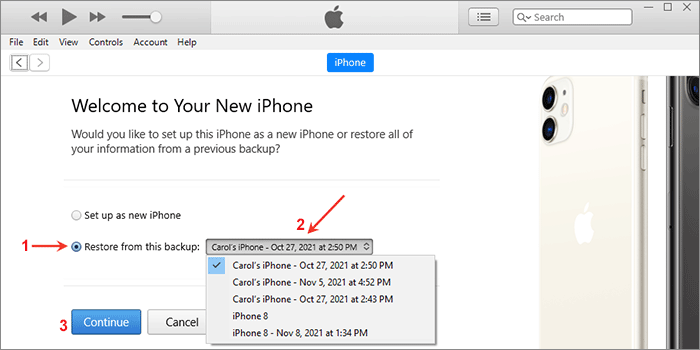
Reference image: Finder and Apple Devices may look different from the older iTunes screen shown, but the restore-from-backup workflow is equivalent.
Important:
- A forgotten encrypted-backup password can prevent restoration. Verify the password before relying on that backup as your only copy.
Method 4: Use a Local Windows Transfer Tool
iSumsoft BackupTo provides local backup, restore, and supported device-to-device workflows on Windows. Its public compatibility is confirmed through iOS 26. iOS 27, iPhone 18 Pro, and iPhone 18 Pro Max validation is in progress.
Step 1Install the current BackupTo build on the Windows PC.
Step 2Connect the iPhone and confirm that the trial detects the exact model and required data type.
Step 3Create and verify a local backup before starting a direct transfer.
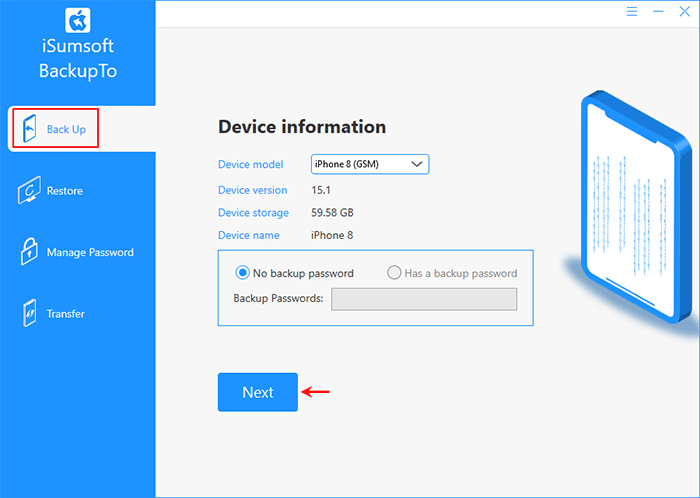
Step 4Keep both devices connected until the software reports completion.
Step 5Inspect the destination data before erasing the source phone.
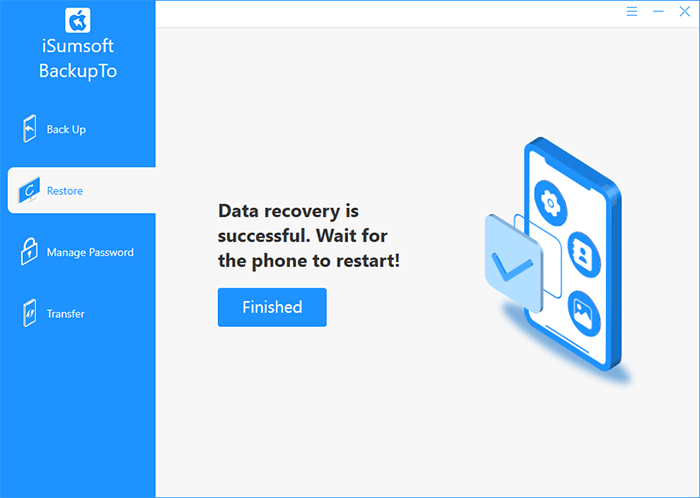
Current workflow reference: iOS 27 and iPhone 18 Pro model validation is still in progress. Verify the exact device and required function with the installed trial.
Do not purchase solely from a general compatibility statement. Confirm that the installed trial recognizes the exact iOS build and workflow first.
Verify the New iPhone Before Erasing the Old One
- Compare recent Photos, Messages, Contacts, Notes, Files, and Voice Memos.
- Open several photos and videos to confirm the originals are available.
- Check authenticator apps, banking apps, passkeys, and trusted-device prompts.
- Test calls, SMS, iMessage, mobile data, and eSIM service.
- Confirm Apple Watch, AirPods, and other accessories reconnect as expected.
- Wait at least one day before erasing or trading in the old phone when practical.
If setup stalls on a required update, use the fixes in New iPhone Stuck on Software Update During Setup.
Frequently Asked Questions
Can I transfer data after setting up iPhone 18 Pro?
Cloud-synced items can appear after sign-in, and individual files can be copied later. Restoring a complete iCloud or computer backup normally requires erasing the new iPhone and returning to setup.
Should I transfer the eSIM before or after my data?
Follow the carrier and onscreen instructions, but keep service active on the old phone until the new phone is usable whenever the workflow allows. Do not erase the old phone until calls and messages work.
Why are photos still missing after Quick Start?
The phone may still be downloading iCloud originals. Keep it on Wi-Fi and power, verify iCloud Photos status, and avoid deleting content from the old device meanwhile.
Does iSumsoft BackupTo support iPhone 18 Pro?
Compatibility validation is in progress. Use the current trial to confirm model detection and the required function before purchasing.
Conclusion
Quick Start is the simplest route for most users, but a verified backup is the safety net. Preserve the old phone until content, accounts, and cellular service have been checked on iPhone 18 Pro or Pro Max.
Related troubleshooting: Apple Devices App Not Detecting iPhone on Windows 11? Fix USB Connection and Driver Issues.