Upgrading to iOS 27 or iPhone 18 Pro? Avoid Lockouts

iOS 27 is available, and iPhone 18 Pro and iPhone 18 Pro Max availability begins September 18, 2026. Before you move to a new phone or update an existing one, protect your backup, keep the old device available, and know which recovery steps erase data.
Common problems include forgotten passcodes, failed Face ID setup, Apple Account verification loops, Quick Start interruptions, and a device that remains unavailable after an update. Start with Apple's official recovery options; use third-party software only when its trial recognizes the exact device and function.
- What's New in iOS 27 and iPhone 18 Pro
- Common Problems After Updating to iOS 27 or Switching to iPhone 18 Pro
- Limitations of Apple's Official Solutions
- How iSumsoft Tools Can Help
- Step-by-Step Guide: Unlocking iPhone with iPhone Passcode Refixer
- Conclusion
What's New in iOS 27 and iPhone 18 Pro
- Apple Intelligence and Siri AI: More personal, contextual help with feature and language limits that vary by device and region.
- iPhone 18 Pro hardware: A20 Pro, a variable-aperture 48MP Fusion Main camera, a smaller Dynamic Island, and improved battery performance.
- More secure recovery: Keep the Apple Account credentials and a verified backup ready before setup or reset.
- Quick Start migration: Transfer is easiest when both phones are updated, charged, nearby, and connected to stable Wi-Fi.
These features strengthen security, but they also make it harder to regain access if you forget a passcode or Face ID stops working.
Related:
- To learn more about this, check out our detailed guide on iOS 27 Review: Apple Intelligence, Siri AI, and New iPhone 18 Pro Features.
- For the current model announcement, read our iPhone 18 Pro and iOS 27 upgrade guide.
Common Problems After Updating to iOS 27 or Switching to iPhone 18 Pro
- Forgotten Passcodes: Try Previous Passcode within Apple's 72-hour window when eligible; other reset routes erase the device.
- Face ID Issues: Face ID cannot replace the passcode after a restart or certain security events.
- Apple Account Verification Errors: Keep the owner's credentials available; resetting a passcode does not remove Activation Lock.
- Quick Start or update stalls: Keep the old phone and its backup intact, then update or transfer in a controlled order.
Limitations of Apple's Official Solutions
Apple's official recovery routes are the safest starting point, but they often:
- Require the owner's Apple Account password.
- Erase the device when a forgotten screen passcode must be reset.
- Leave Activation Lock in place after an erase.
How iSumsoft Tools Can Help
iSumsoft offers specialized solutions to address these lockout problems:
- iSumsoft iPhone Passcode Refixer – Quickly removes lock screen passcodes without requiring Apple ID credentials.
- iSumsoft Data Refixer – Recovers lost data after a failed update or reset.
For supported devices, iSumsoft tools can provide a guided workflow. Compatibility with iOS 27 and iPhone 18 Pro is still being validated, so confirm recognition in the trial before purchasing and expect screen-passcode removal to erase the device.
Step-by-Step Guide: Unlocking iPhone with iPhone Passcode Refixer
Step 1 Launch the Software
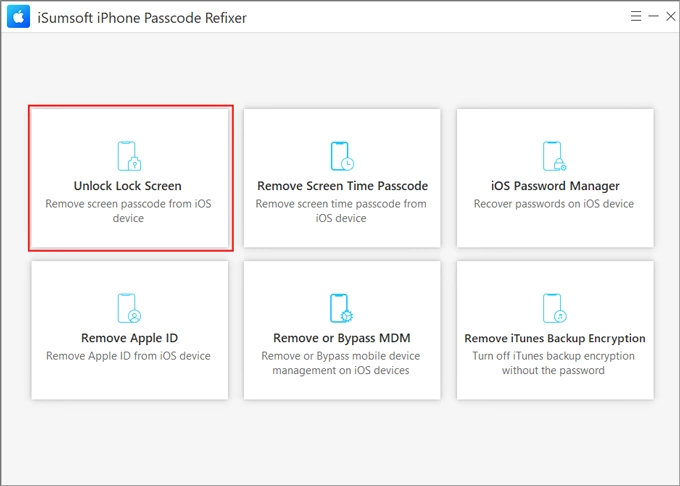
Open the iPhone Passcode Refixer application on your computer and select "Unlock Lock Screen" from the available options.
Step 2 Start the Process
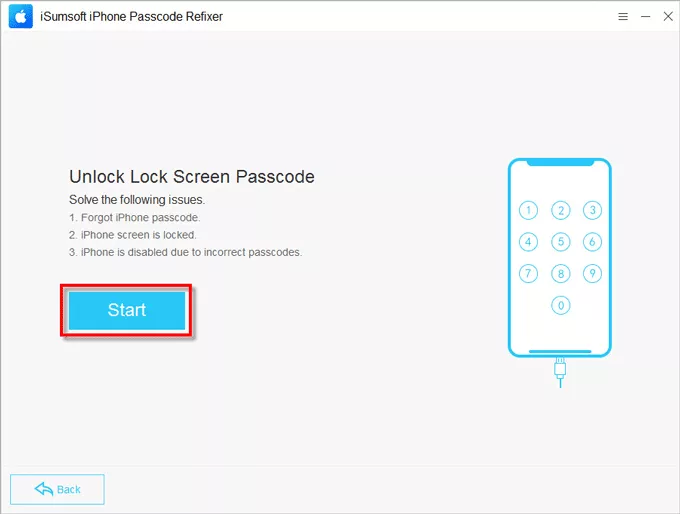
Proceed by clicking the "Start" button on the following screen.
Step 3 Connect Your Device
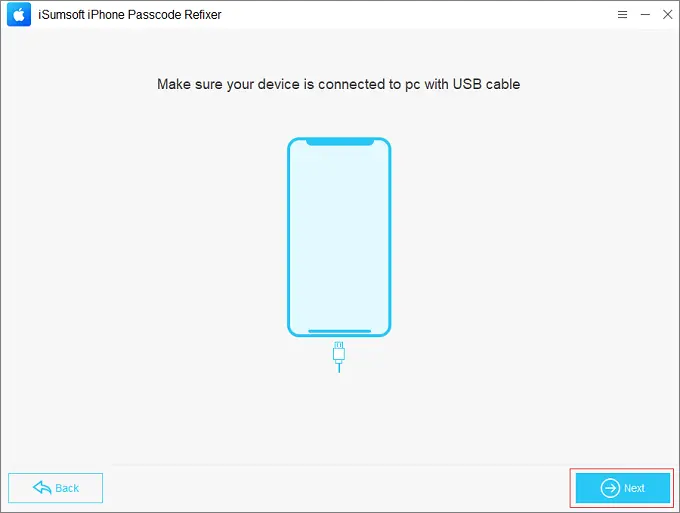
Ensure your iPhone is properly connected to your computer, then click "Next" in the bottom-right corner. The application will automatically detect your device and display its information.
Step 4 Download Firmware
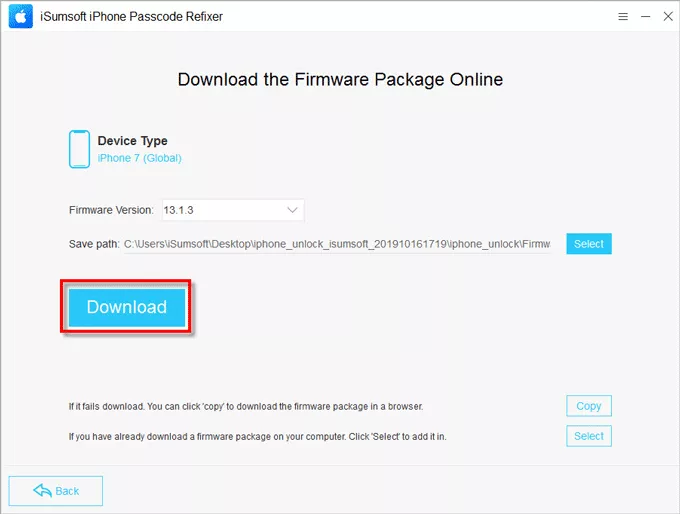
The software will prompt you to obtain the necessary firmware package for unlocking. Click "Download" to let the program automatically retrieve the firmware, or choose "Select" if you already have the firmware file saved on your computer. The software will then verify the firmware package once it's downloaded or selected.
Step 5 Begin Unlocking
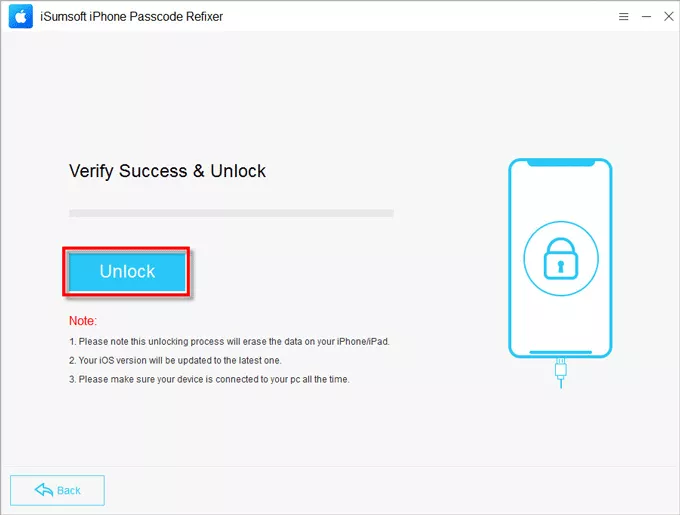
After successful firmware verification, click the "Unlock" button to begin the unlocking procedure. Your iPhone will enter recovery mode, then reboot and upgrade to the most recent iOS version.
Step 6 Complete the Process
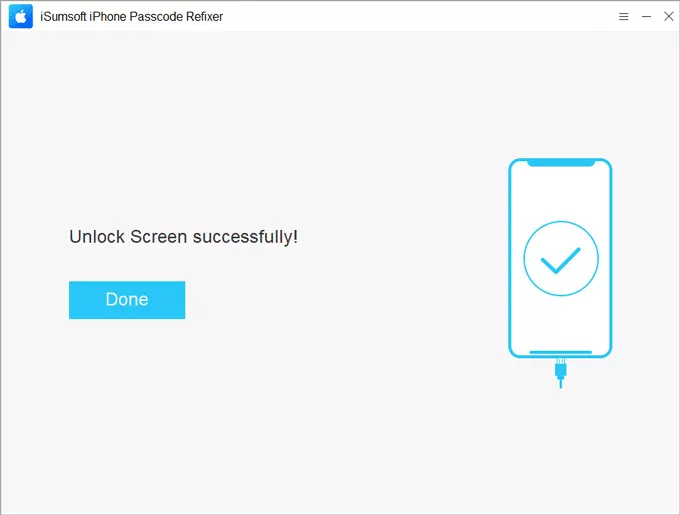
Allow the unlocking process to finish, which typically takes several minutes. When you see "Unlock Screen successfully" displayed on the software interface, click "Done." Your iPhone will reboot and be accessible again. Keep the device connected to your computer until it powers on and shows the welcome screen.
Conclusion
iOS 27 and iPhone 18 Pro add powerful features, but a smooth upgrade still depends on a current backup, working Apple Account credentials, and the correct recovery route. Use Apple's official options first; consider iSumsoft tools only after the trial confirms support.

iSumsoft iPhone Passcode Refixer
Remove Various Passcodes on Your iPhone, iPad, and iPod Touch
- Unlock Screen Lock from locked, disabled, or unavailable iPhone/iPad/iPod Touch
- Remove Screen Time passcode or Restrictions passcode without data loss
- Detect, View, and Export All Passwords with iOS Password Manager
- Supports all iPhone/iPad/iPod Touch models
- Confirmed support through iOS 26; iOS 27 and iPhone 18 Pro compatibility is being validated