
How to Fix iPhone Stuck on Software Update Complete Screen

You’ve patiently waited for your iPhone’s software update to download and install. The progress bar fills up, and finally, you see the message: “Software Update Complete.” A wave of relief washes over you. You tap the “Continue” button to start using your updated phone, but… nothing happens. You tap it again, and again, but the screen remains frozen, stuck on the “Software Update Complete” screen. You’re left in a frustrating limbo, unable to access your iPhone.

This is a more common issue than you might think. An iPhone getting stuck on the "Software Update Complete" screen typically indicates a minor software glitch that occurred during the final stages of the update process. The core software is installed, but a process failed to execute, preventing the device from finalizing the boot sequence.
Don’t panic. Your data is likely still safe, and the situation is almost always fixable without total data loss. This comprehensive guide will walk you through the most effective methods to get your iPhone back to normal, starting with the simplest solutions and moving to more advanced ones.
Why is My iPhone Stuck on the Software Update Complete Screen?
Before we dive into the solutions, it's helpful to understand why this happens. The "Software Update Complete" screen is the final handoff between the installation process and the main operating system. A freeze here can be caused by:
A Minor Software Glitch: A tiny corruption in the firmware code during installation.
Insufficient Storage Space: The update process may have barely squeezed into the available space, leaving no room for essential post-installation processes.
A Bug in the iOS Build: Occasionally, a specific version of iOS might have a minor bug that affects this process on certain devices.
Connectivity Issues: For an OTA (Over-The-Air) update, a momentary loss of Wi-Fi during the final verification step could cause a hang.
Now, let’s get your iPhone unstuck.
Method 1: Force Restart Your iPhone
A force restart is the best and safest first step to tackle any minor software hiccup, including a stuck Software Update Complete screen. This method refreshes your iPhone’s system by clearing its active memory, without affecting any personal data or settings.
1. Quickly press and release the Volume Up button.
2. Quickly press and release the Volume Down button.
3. Press and hold the Side button until you see the Apple logo.
4. Release the Side button, and your iPhone will reboot.

After the device restarts, check if the iPhone can move past the “Software Update Complete” screen. If it proceeds normally, the issue is resolved.
Method 2: Reinstall Software Update Using iTunes
If a force restart doesn’t fix the issue and your iPhone stays stuck on the “Software Update Complete” screen, the next step is to reinstall the update via iTunes. This process involves downloading the latest firmware and reinstalling it, which can help resolve any software issues that occurred during the update process.
1. Connect your iPhone to your computer using a USB cable.
2. Put your iPhone into recovery mode:
• Quickly press and release the Volume Up button.
• Quickly press and release the Volume Down button.
• Press and hold the Side button until the recovery mode screen appears.

3. Open iTunes on your computer, or if you’re using a Mac, open Finder.
4. Once iTunes or Finder prompts you with options to either Update or Restore, choose Update.
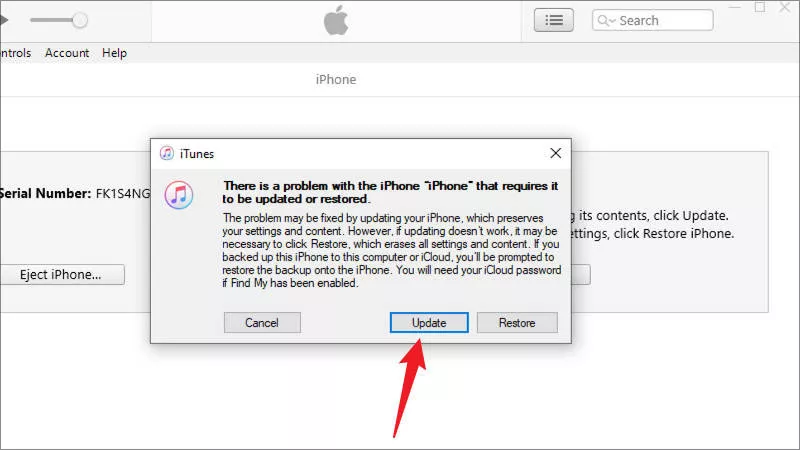
5. If an agreement pops up, click Agree. iTunes/Finder will automatically download and install the latest iOS update for your iPhone.
6. After the update completes, your iPhone should boot up normally, and the “Software Update Complete” screen should disappear. You can then continue using your iPhone with the updated iOS version without any issues.
Method 3: Fix the Issue with iSumsoft iOS Refixer
If iTunes doesn’t work and your iPhone is still stuck on the “Software Update Complete” screen, consider using a third-party tool like iSumsoft iOS Refixer. This software is designed to fix various iOS system issues without data loss, including being stuck on the Apple logo, recovery mode loops, and the “Software Update Complete” screen.

iSumsoft iOS Refixer
Powerful iOS System Repair Tool
- Fix 150+ iOS issues, such as iPhone stuck in recovery mode, Apple logo, white screen of death, etc., without data loss.
- Resolve 200+ iTunes errors and Apple USB Driver issues, without data loss.
- Safely upgrade or downgrade iOS.
- Compatible with all iOS versions, including iOS 26.
1. Connect your iPhone to your computer using a USB cable.
2. Download and install iSumsoft iOS Refixer on your computer, then launch the program.
3. In the software's main interface, select the System Repair option.

4. Choose Standard Mode to fix the issue without data loss.
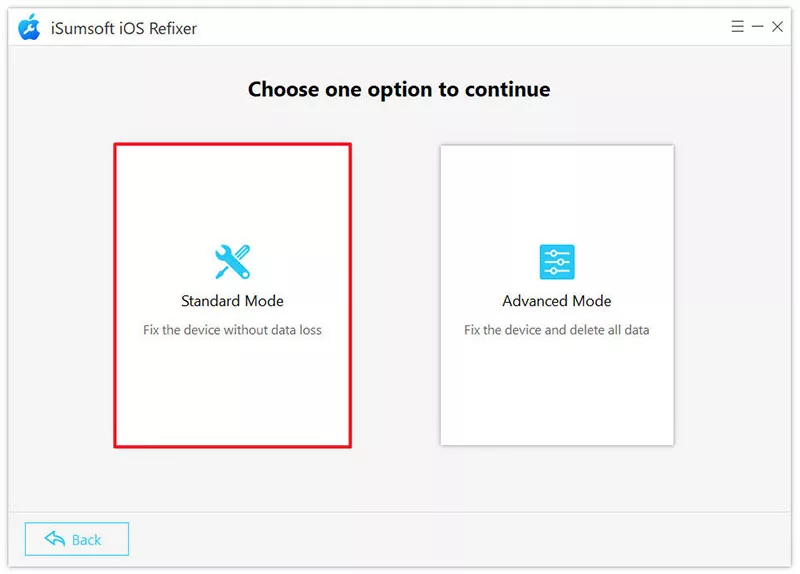
5. Click Start to confirm you want to proceed.

6. Ensure your iPhone is connected and click Next.
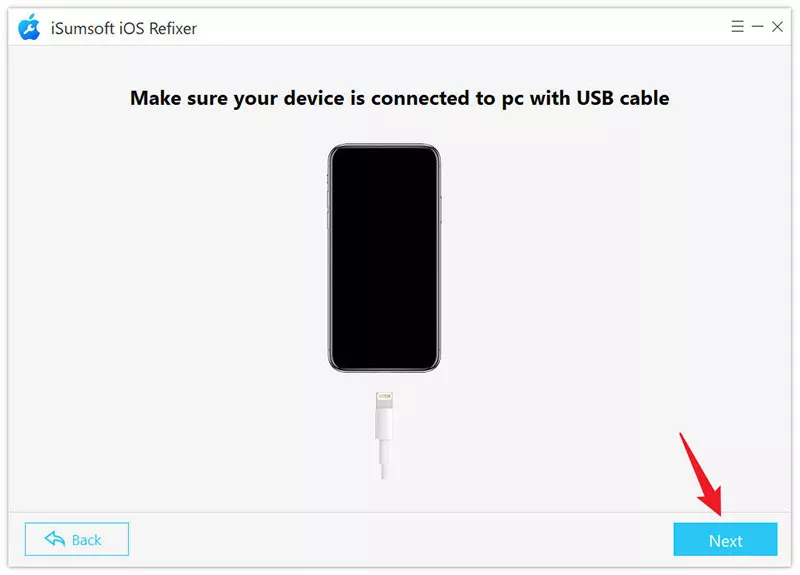
7. Once the software detects your device, click Download to download the necessary firmware for your iPhone.
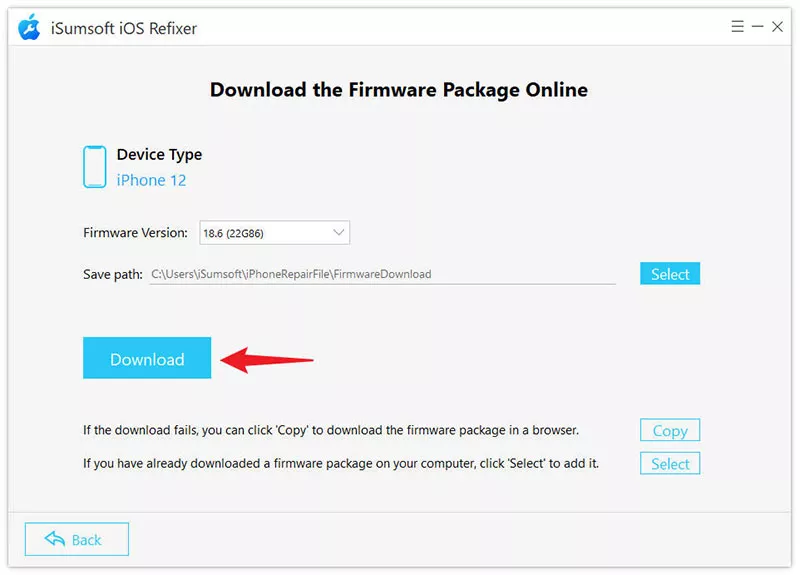
8. After the firmware is downloaded, click Repair to start repairing your iPhone.

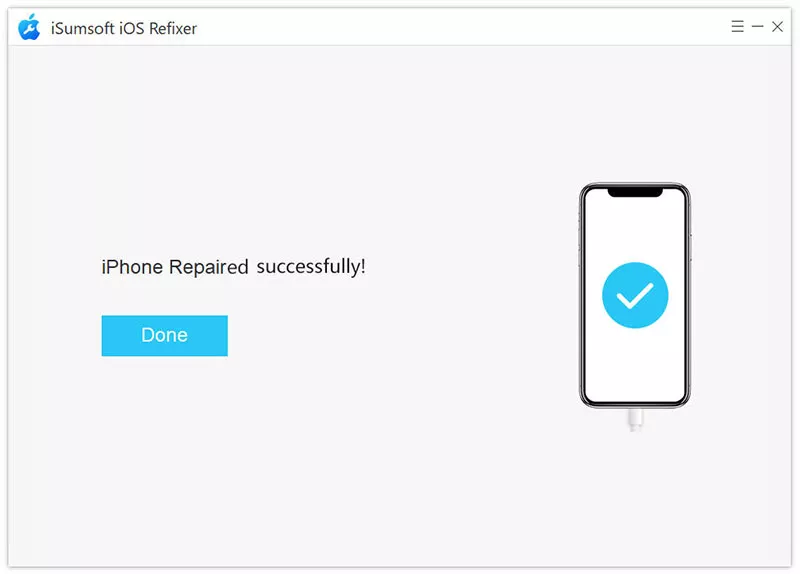
9. Once the repair is complete, your iPhone will restart automatically, and you will be able to proceed directly to the system without encountering the “Software Update Complete” screen.
Conclusion
An iPhone getting stuck on the “Software Update Complete” screen is usually the result of a minor software glitch during the update process. In most cases, the issue can be resolved through a force restart, reinstalling the update with iTunes, or using a third-party tool like iSumsoft iOS Refixer. These methods will help you get your iPhone back to working normally, ensuring a smooth experience when updating to the latest iOS version.
If none of these methods work, it may be worth contacting Apple Support or visiting an Apple Store for further assistance. By following the steps above, you can fix the issue and return to using your iPhone without stress.
Related Articles
-
How to Fix
iPhone Stuck on Software Update Complete Screen
 How to Fix iPhone Stuck on
Preparing Update iOS 18/17
How to Fix iPhone Stuck on
Preparing Update iOS 18/17
![iPhone Battery Draining Fast After Update [iOS 17 Included]](../images/ios-issues/iphone-battery-draining-fast-after-update/iphone-battery-draining-fast-after-update.webp) iPhone Battery
Draining Fast After Update [iOS 17 Included]
iPhone Battery
Draining Fast After Update [iOS 17 Included]
 3 Ways to Fix
iPhone Stuck on Verifying Update
3 Ways to Fix
iPhone Stuck on Verifying Update
 How to Fix iOS
18/17 Stuck on Update Requested
How to Fix iOS
18/17 Stuck on Update Requested
 How to Fix
Face ID Not Available after iOS 17 Update?
How to Fix
Face ID Not Available after iOS 17 Update?