
iPhone 18 Pro & iOS 27 Upgrade Guide: Setup, Transfer & Fixes

Quick answer: Apple announced iPhone 18 Pro and iPhone 18 Pro Max, not a standard iPhone 18; availability begins September 18, 2026. iOS 27 is available now. Back up your current iPhone, verify account access, and leave enough free storage before updating or transferring data.
- Official 2026 iPhone Lineup
- Before You Upgrade or Transfer
- Set Up and Transfer Data Safely
- Common iOS 27 Update and Setup Problems
- If You Are Locked Out
- iSumsoft Compatibility Status
- Frequently Asked Questions
Important release clarification:
- Apple announced iPhone 18 Pro and iPhone 18 Pro Max on September 9, 2026.
- Apple did not announce a standard iPhone 18. The current standard model remains iPhone 17.
- iPhone Duo is a separate foldable model scheduled to ship with iOS 27.1 in October 2026.
Official 2026 iPhone Lineup and iOS 27 Compatibility
The new Pro phones feature the A20 Pro chip, a variable-aperture 48MP Fusion Main camera, updated thermal design, and iOS 27. Apple says iPhone 18 Pro and iPhone 18 Pro Max become available on September 18, 2026. The separate iPhone Duo is scheduled for preorder on October 16 and availability on October 23.
| Product | Status | Software | What to Know |
|---|---|---|---|
| iPhone 18 Pro | Available September 18 | iOS 27 | New Pro model; no standard iPhone 18 was announced. |
| iPhone 18 Pro Max | Available September 18 | iOS 27 | Larger Pro model with the longest advertised battery life in the lineup. |
| iPhone Duo | Available October 23 | iOS 27.1 | Separate foldable model that requires its own compatibility testing. |
| Existing iPhones | iOS 27 available | iPhone 11 or later; iPhone SE 2 or later | Some Apple Intelligence and Siri AI features require newer hardware and a supported language or region. |
See Apple's iPhone 18 Pro announcement, iPhone Duo announcement, and iOS 27 compatibility list for the current official details.
Before You Upgrade to iOS 27 or Move to iPhone 18 Pro
1. Make a Current Backup
Use iCloud, Finder on a Mac, Apple Devices on Windows, or another backup method you already trust. Confirm the backup has a recent date before erasing, trading in, or resetting the old phone. If you prefer a local Windows backup, see our guide to backing up an iPhone to an external drive.
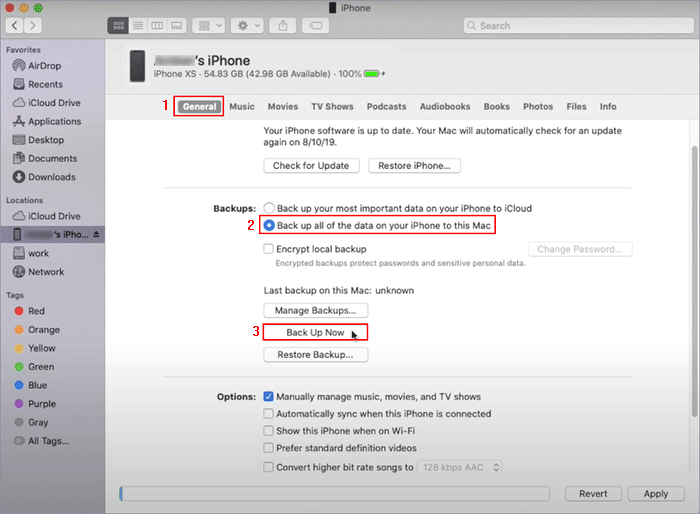
Reference image: Finder, Apple Devices, and iTunes layouts vary by computer and software version. Verify the latest backup date before continuing.
2. Confirm Your Apple Account and Passcode
Make sure you know the current device passcode and can sign in to your Apple Account. Keep access to your trusted phone number. Activation Lock remains linked to the owner's Apple Account and is not removed by a normal transfer or system repair.
3. Check Storage, Power, and Connectivity
Connect to reliable Wi-Fi, plug the phone into power, and free enough storage for the update package and temporary installation files. Apple lists insufficient storage, network problems, update-server access, and incomplete downloads among the common reasons an iPhone will not update.
4. Update the Computer First
If you may use a computer for backup, update, or recovery, install current macOS, Apple Devices for Windows, or iTunes where still applicable. Use a reliable cable and avoid disconnecting the iPhone during an update or restore.
Set Up iPhone 18 Pro and Transfer Data Safely
Keep the old and new phones charged, connected to Wi-Fi, and close together while using Quick Start. Do not erase the old phone as soon as the transfer progress bar finishes.
Step 1 Complete Quick Start and allow apps and cloud content time to finish downloading.
Step 2 Check Photos, Messages, Contacts, Notes, authenticator apps, and important app data.
Step 3 Verify cellular service, eSIM, calls, text messages, and trusted-device prompts.
Step 4 Open several recent photos and files rather than checking only item counts.
Step 5 Keep the old phone and its backup until the new phone has been verified for at least a day.
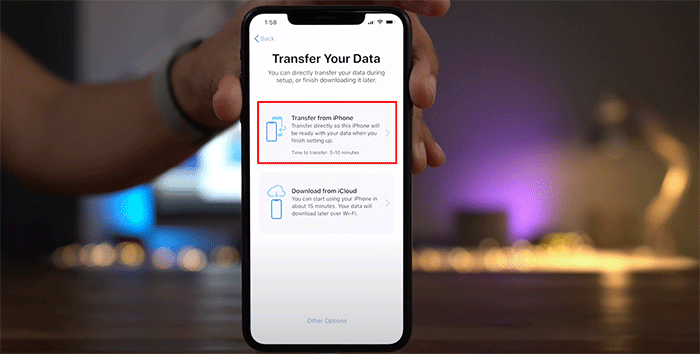
Reference image: Quick Start wording and layout can change between iOS versions.
If Quick Start does not complete, restart both phones, confirm Bluetooth and Wi-Fi are enabled, and try again. You can also restore from a verified iCloud or computer backup. Read how to transfer data to iPhone 18 Pro safely for a model-specific checklist.
Common iOS 27 Update and Setup Problems
| Symptom | Start With | Data Risk |
|---|---|---|
| Update Requested or download stalled | Check Apple services, Wi-Fi, power, and free storage; wait and retry | Low |
| Preparing or verifying update is stuck | Wait, restart once, then remove and redownload the incomplete update | Low |
| Apple logo or progress bar appears frozen | Allow sufficient time, then use the official force-restart sequence | Low |
| Recovery Mode loop | Connect to a current Mac or Windows PC and choose Update before Restore | Update is lower risk; Restore erases data |
| Quick Start transfer fails | Keep both phones powered and nearby; verify Wi-Fi and Bluetooth | Low if the old phone is retained |
| Black screen, repeated restarts, or error codes | Try another cable, port, or computer; record the error code | Varies |
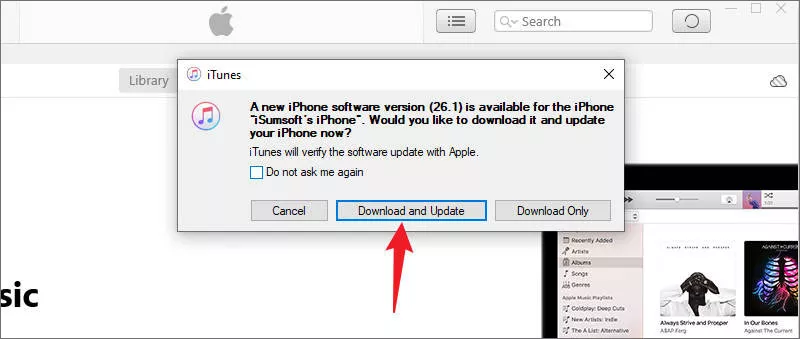
Reference image: Settings layouts can vary by iOS version and device model. Follow the current labels shown on your iPhone.
Use destructive options last:
- Choose Update before Restore in Recovery Mode when Apple offers both choices.
- A factory reset or Recovery Mode Restore erases the iPhone.
- If failures continue across cables and computers, or the device has impact or liquid damage, seek Apple or authorized hardware service.
Apple's current support guidance explains the official checks in If your iPhone or iPad won't update. Our related guides cover an Unable to Check for Update message, an update taking too long, and Recovery Mode.
What to Do If You Are Locked Out After the Upgrade
First identify the screen you see. A forgotten screen passcode, an unavailable-device timer, an Apple Account sign-in prompt, Remote Management, and Activation Lock are different conditions. No legitimate method reveals a forgotten screen passcode. Apple's supported reset routes erase the device, after which you can restore a usable backup.
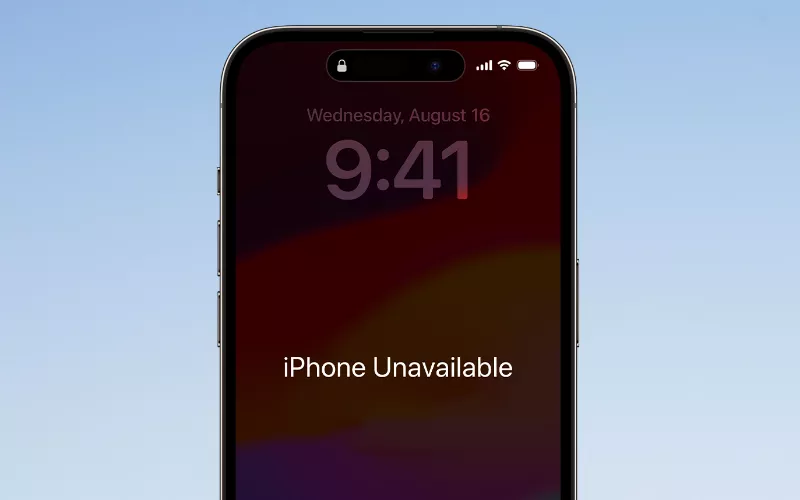
Reference image: the buttons and timer shown on an unavailable iPhone depend on its iOS version, connectivity, and security settings.
Only remove a passcode, account, or management profile from a device you own or are authorized to administer. Activation Lock is an anti-theft control; contact the previous owner or Apple with valid proof of purchase when ownership cannot be verified.
iSumsoft Compatibility Status for iOS 27 and New iPhones
Our current public product pages confirm support through iOS 26 and the iPhone 17 generation. Validation for iOS 27, iPhone 18 Pro, and iPhone 18 Pro Max is in progress. iPhone Duo will be tested separately after its iOS 27.1 release.
| iSumsoft Product | Relevant Use | 2026 Launch Status |
|---|---|---|
| iOS Refixer | Software-related startup, update, and Recovery Mode problems | iOS 27/new-model validation in progress |
| iPhone Passcode Refixer | Supported screen-passcode, Screen Time, Apple Account, and MDM workflows | iOS 27/new-model validation in progress |
| BackupTo | Local backup, restore, and device-to-device transfer on Windows | iOS 27/new-model validation in progress |
| iDevice Cleaner | Preview, export, and remove supported files to free storage | iOS 27/new-model validation in progress |
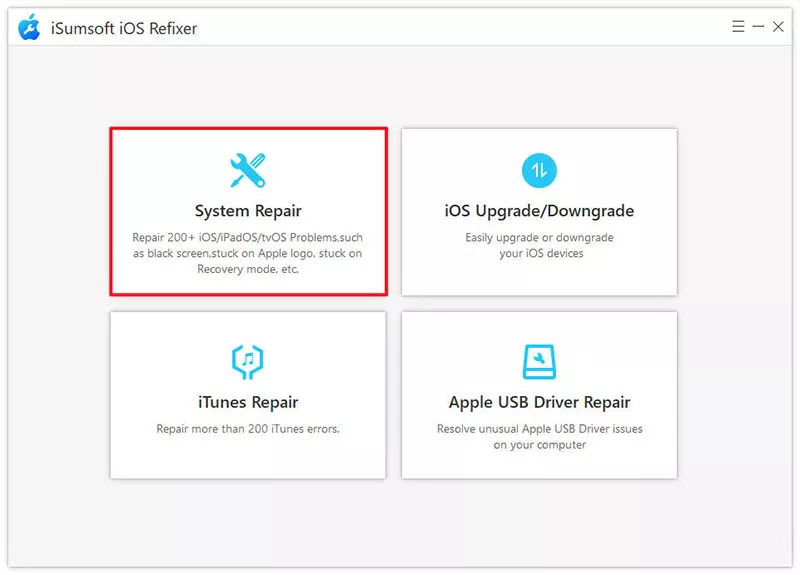
Current interface reference: iOS 27 and iPhone 18 Pro model validation is still in progress. Confirm device recognition with the installed trial before purchasing.
Before purchasing, use the free trial to confirm that the installed version recognizes your exact device and required function. Compatibility may differ by model, iOS build, activation state, and feature.
Frequently Asked Questions
Did Apple release a standard iPhone 18?
No. Apple announced iPhone 18 Pro and iPhone 18 Pro Max. Its current store lineup continues to list iPhone 17 as the standard model.
Which iPhones support iOS 27?
Apple lists iPhone 11 and later and iPhone SE (2nd generation and later). Some Apple Intelligence and Siri AI functions require newer models and supported languages or regions.
Will updating to iOS 27 erase my data?
A normal software update is designed to retain data, but problems can occur. Make and verify a backup first. A Recovery Mode Restore or factory reset erases the device.
Can I downgrade from iOS 27 to iOS 26?
Only while Apple is still signing a compatible iOS 26 firmware for that device. Downgrading can erase data, and a backup made on a newer iOS version may not restore to an older version.
Does iSumsoft already support iPhone Duo?
Support is not yet confirmed. iPhone Duo ships later with iOS 27.1 and requires separate hardware and workflow testing.
Final Checklist
Use the exact model names, keep a verified backup, confirm Apple Account access, and try non-erasing fixes before Restore. Check this page and the linked product specifications for updated iOS 27, iPhone 18 Pro, and iPhone Duo validation results.