
If your iPhone is stuck on Preparing Update in iOS 27, start with Wi-Fi, power, free-storage, and update-file checks. Try the lower-risk fixes below before using Recovery Mode or any option that can erase the device.
Owners setting up a new iPhone can also follow the iPhone 18 Pro and iOS 27 upgrade checklist.

Preparing Update is often completed within a few minutes before proceeding to the following update process. If the Apple update is stuck on Preparing Update taking forever, it could be due to various factors, such as network connectivity issues, incompatible apps, a glitch in the update file, or even insufficient storage on your device.
In addition to the Preparing Update issue, some users may encounter the iOS update getting stuck on the Apple logo or Update Requested on iPhone. These are common issues and can often be resolved by force restarting the device or using recovery mode to restore the iPhone's software.
With the knowledge of why this issue happens, this section introduces 4 solutions to fix the Preparing Update issue.
For a start, you could try to force restart your iPhone as it is an easy and effective method to fix the iPhone stuck issue. Follow these steps to force reboot your iPhone.
Step 1: Press and quickly release the Volume Up button.
Step 2: Press and quickly release the Volume Down button.
Step 3: Keep holding the Power button until you see the Apple logo.

Sometimes, if the download update file is corrupted, the iPhone will keep showing the Preparing Update message. The issue may not be on your end. The server from which you are downloading the update file may have technical difficulties or a corrupted file. This can result in a faulty download and a corrupted update file. Therefore, it is advisable to delete the previous file and then re-download it with a stable network.
Go to Settings > General > iPhone Storage > iOS 27 update file and click Delete Update. Then you can update your iPhone again.
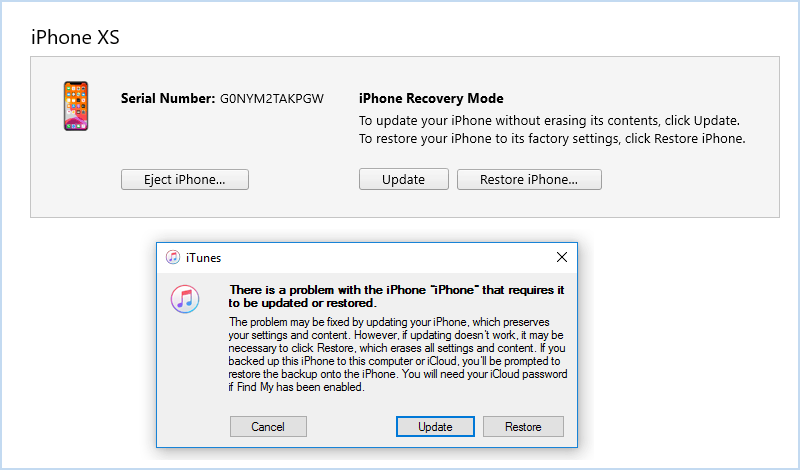
When it comes to resolving common issues with your iPhone, iTunes is widely considered a reliable and suitable choice, providing a range of solutions. iTunes allows users to restore their iPhones to factory settings when frozen on the Preparing Update progress bar. However, it is noted that all your data will be erased once reset. Follow these steps to fix your iPhone.
Note:
Step 1: Connect your iPhone to the computer and then put the iPhone into recovery mode.
Step 2: Launch iTunes. Then a window will pop up with two options for you. Select Restore.
Step 3: Follow the onscreen instructions to complete the process.
However, there may be instances where you encounter more unusual or complex issues that cannot be easily resolved through iTunes alone. In such cases, iSumsoft iOS Refixer may be preferred, which is designed to fix various iOS issues, including stubborn software glitches, system crashes, severe cases of iPhone being stuck in the Preparing Update stage, and even downgrade your iOS 18 Beta to iOS 17 or any other signed versions.

iSumsoft iOS Refixer
Learn how to use iSumsoft iOS Refixer to repair your iPhone
Step 1: Free download the app and install it on your computer. Then launch the software and connect your iPhone to the PC.
Step 2: Select System Repair.

Step 3: Select Standard Mode.
Note:

Step 4: Click Start.

Step 5: Your device info is on the interface and you are required to download a firmware package. Click Download to continue.

Step 6: Click Repair to start getting rid of the Preparing Update prompt.

Step 7: When "Repair Successfully" appears, your device has been recovered and it will restart.

Apple's current guidance covers the same compatibility, storage, network, and redownload checks in If your iPhone or iPad won't update.
![[9 Tips] How to Fix Update Apple ID Settings Stuck 2023](../images/ios-issues/update-apple-id-settings-stuck/fix-update-apple-id-settings-stuck-s.webp) [9 Tips] How to Fix Update
Apple
ID Settings Stuck 2023
[9 Tips] How to Fix Update
Apple
ID Settings Stuck 2023 Why and Fix
iPhone
Says Not Enough Storage but There Is
Why and Fix
iPhone
Says Not Enough Storage but There Is Fix iPhone
X/XS/11/12/13/14/15
Frozen after iOS 16/17 Update
Fix iPhone
X/XS/11/12/13/14/15
Frozen after iOS 16/17 Update How to
Fix Face ID Not Available after iOS 17 Update
How to
Fix Face ID Not Available after iOS 17 Update 3 Ways to Fix
iPhone
Stuck on Verifying Update
3 Ways to Fix
iPhone
Stuck on Verifying Update![[Top Ways] How to Fix iPhone Storage Not Loading iOS 16/15](../images/ios-issues/how-to-fix-iphone-storage-not-loading/how-to-fix-iphone-storage-not-loading-s.webp) [Top Ways] How to Fix
iPhone
Storage Not Loading iOS 16/15
[Top Ways] How to Fix
iPhone
Storage Not Loading iOS 16/15