Jailbreaking changes the way iOS normally works, so it can weaken device security, break some apps, void warranty coverage, or force you to restore the device if something goes wrong. Apple does not recommend jailbreaking. Only continue on a device you own and can unlock, and make a full backup before you start.
checkra1n is still a useful option for older iPhone and iPad models because it is based on the checkm8 bootrom exploit. However, it is not a general jailbreak tool for every iOS version. In practice, this guide is for compatible iPhone and iPad models running iOS/iPadOS 12 to iOS/iPadOS 14.8.1. If your device is on iOS 15 or iOS 16, use our separate guide for jailbreaking iOS 15/16 on Windows.
The jailbreak process is easier on a Mac. On Windows, checkra1n still does not run as a native Windows app, so the practical method is to boot a temporary Ubuntu system from a USB drive and run the Linux version of checkra1n there.
Quick answer: You cannot jailbreak an iPhone directly with checkra1n on Windows. The workable route is to boot Linux from a USB drive and run checkra1n on a supported older device.
| Item | Supported in this guide |
|---|---|
| Device range | iPhone 5s through iPhone X, plus supported A7-A11 iPad models |
| iOS/iPadOS range | iOS/iPadOS 12 to 14.8.1 |
| Windows method | Boot Ubuntu from USB, then run the Linux version of checkra1n |
| Not covered | iOS 15 or later, newer iPhone models, locked devices you cannot normally unlock |
Use this checklist before following the steps:
Important:
Since checkra1n is available for macOS and Linux, but not as a native Windows jailbreak app, the Windows workflow has three parts: create an Ubuntu USB drive, boot Ubuntu on the Windows computer, and run checkra1n from Ubuntu.
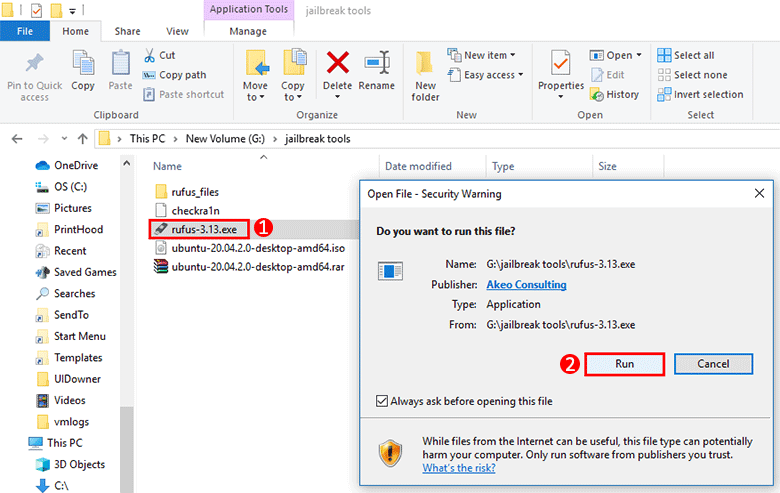
Step 1 Insert the USB flash drive to your Windows computer, and then run the Rufus tool. Rufus doesn't need to be installed – just double click the downloaded executable file to run it.
Step 2 Your USB flash drive will be displayed in the Device drop-down menu. Click the SELECT button, then locate the downloaded Ubuntu ISO image file on your computer and select it.
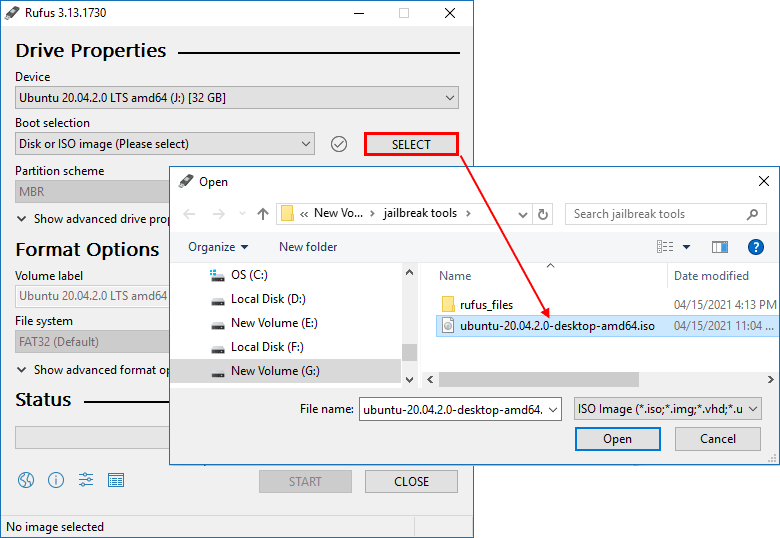
Step 3 Once the Ubuntu iso file is imported to Rufus, it appears in the Boot selection. Leave the default settings and click START to start burning the Ubuntu iso files to the USB flash drive. You will be prompted with an "iSOHybrid image detected" dialog. Just select the recommended option and click OK to start burning.
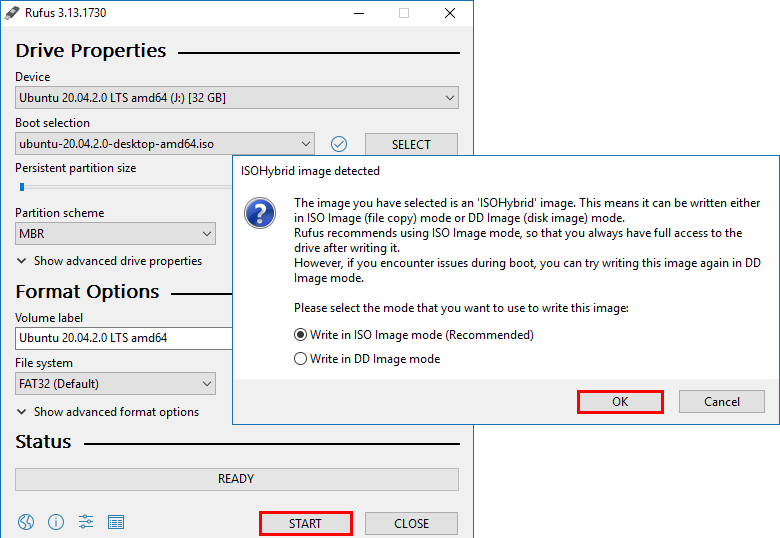
Step 4 Wait for the burning process to complete. This will take a few minutes. When the Status bar shows Ready, the Ubuntu USB flash drive has been created successfully. Then click Close to exit Rufus.
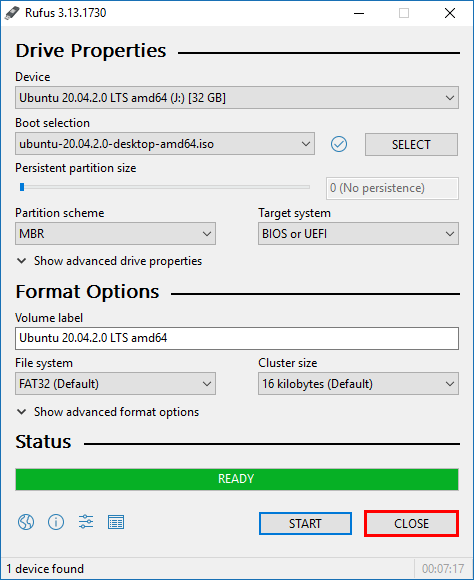
Step 1 Keep the Ubuntu USB flash drive connected to the Windows computer and restart the computer.
Step 2 Once the computer starts, immediately press and hold the F12 key to enter the Boot Menu, and then select the USB flash drive as the primary boot device.

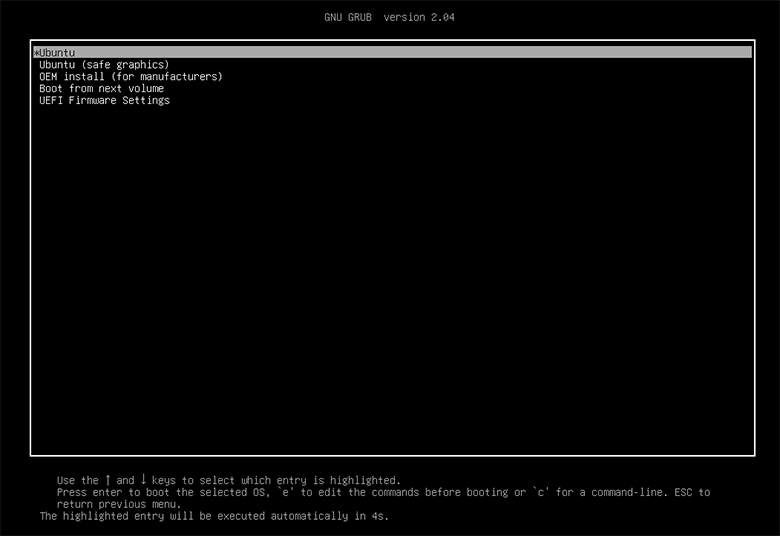
Step 3 After the computer boots from the USB drive, select *Ubuntu and press Enter to continue.
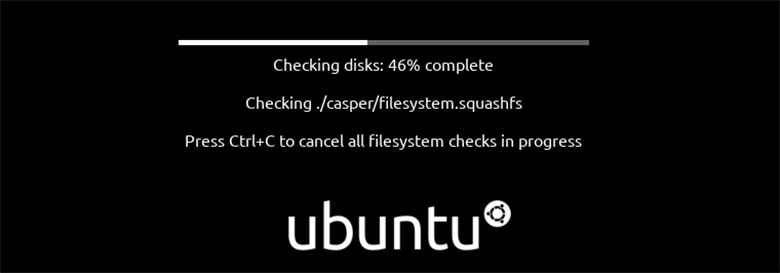
Step 4 Wait for the filesystem check to complete. It will take two or three minutes.
Step 5 When the filesystem check is complete with no errors found, you will see the following screen. Select your language on the left, then click Try Ubuntu.
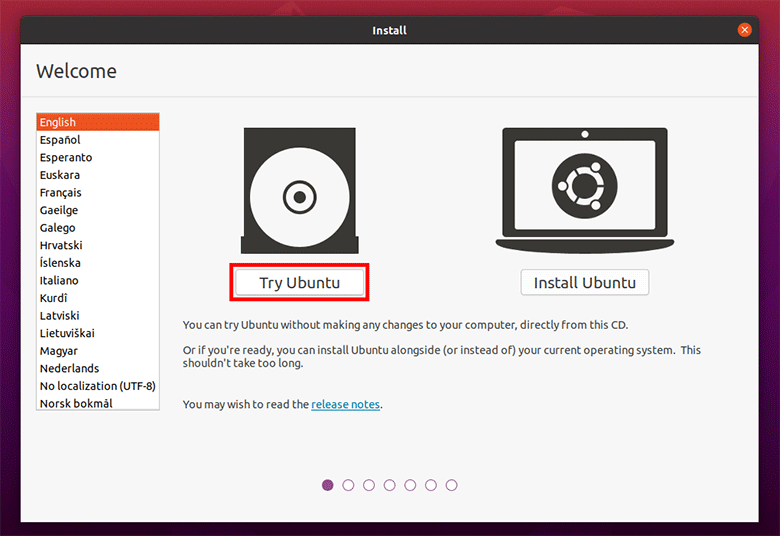
Step 6 Now the Ubuntu system is running on your Windows computer, as shown in the screenshot below.

Step 1 Download and run checkra1n in the Ubuntu environment.
Open the browser in Ubuntu and download the Linux version of checkra1n from checkra.in. If you downloaded it earlier, you can copy the file to the Ubuntu desktop instead. Then connect your iPhone or iPad to the Windows computer with a USB cable, and wait for Ubuntu to detect it.
Open Terminal in Ubuntu, and then run the following two commands in order.
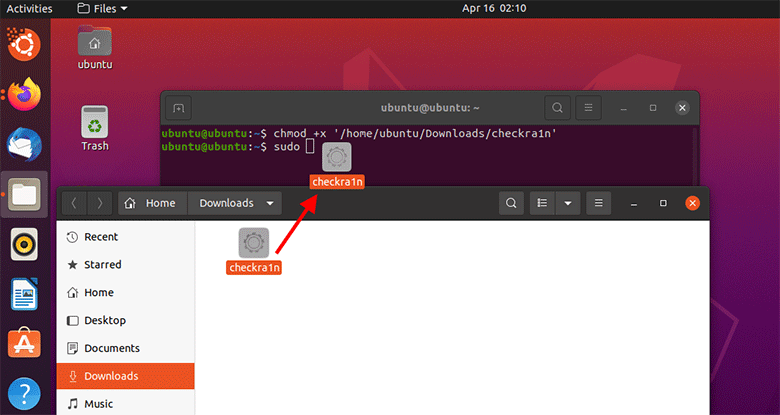
If the commands are executed correctly, checkra1n will open. If Ubuntu does not detect the device, try another USB port or cable, reconnect the device, and tap Trust on the iPhone if prompted.
Step 2 Start the jailbreak process and follow the checkra1n prompts.
Select the Start button at the bottom.
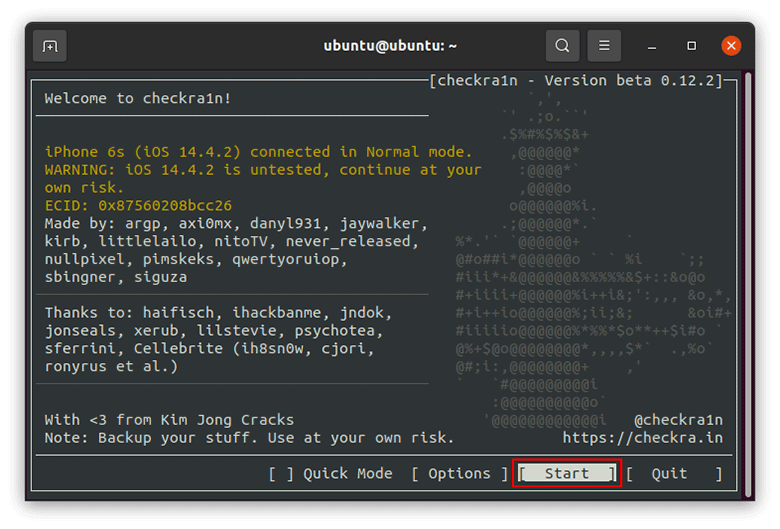
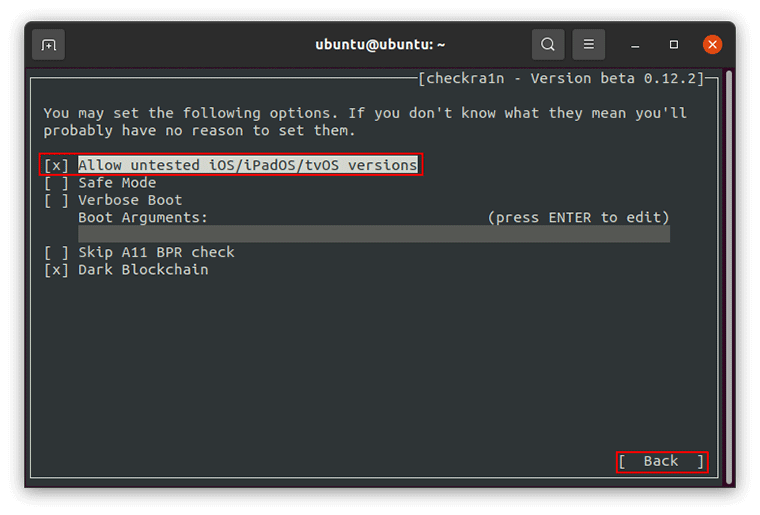
Tips: If the Start button is greyed out on a compatible device, select the Options button and check the "All untested iOS/iPadOS/tvOS versions" option, then click Back. On A11 devices running iOS 14, you may also need the "Skip A11 BPR check" option after removing the device passcode.
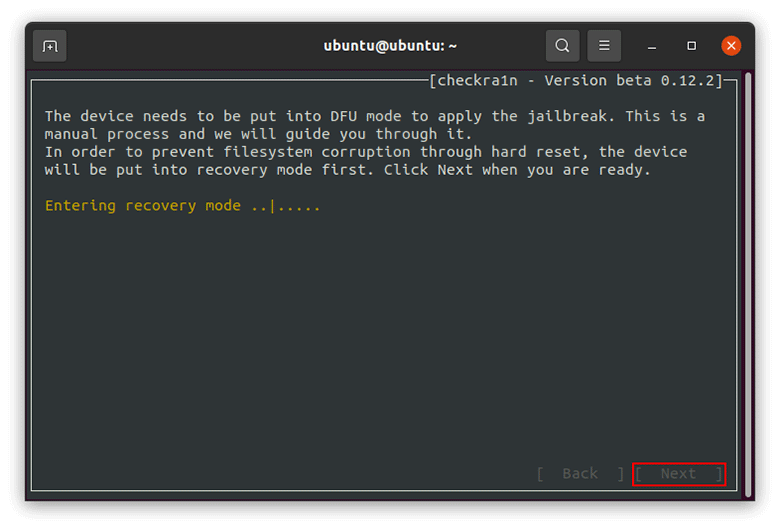
The screen prompts that the iOS device needs to be put into DFU mode to apply the jailbreak, and in order to prevent filesystem corruption, the device will be put into recovery mode first. Click Next and your iOS device will be put into recovery mode.
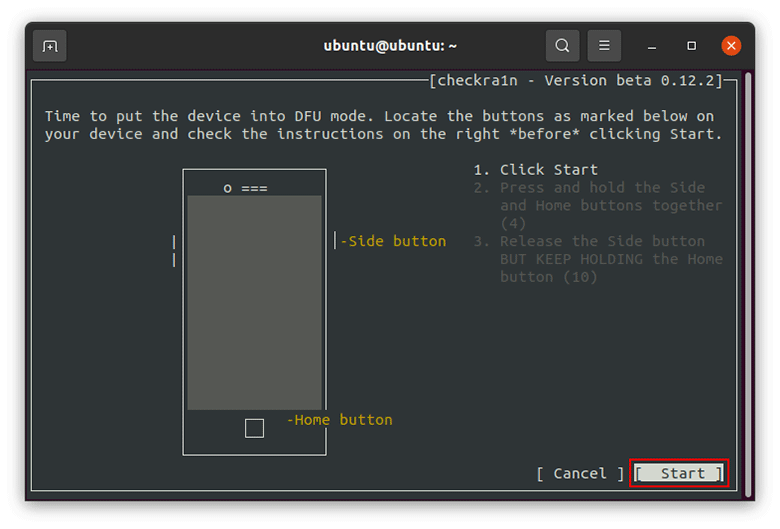
Next, put the iOS device into DFU mode. This is a manual process. Click the Start button, then follow the on-screen prompts. If you miss the timing, repeat this step. You can also check our detailed guide on how to put an iPhone in and out of DFU mode.
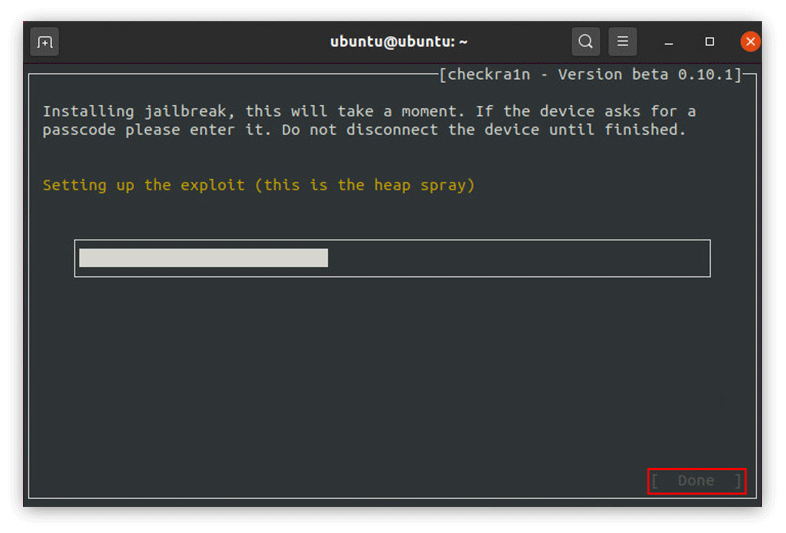
After entering DFU mode successfully, Checkra1n will immediately start installing jailbreak on your iOS device. This will take a few seconds.
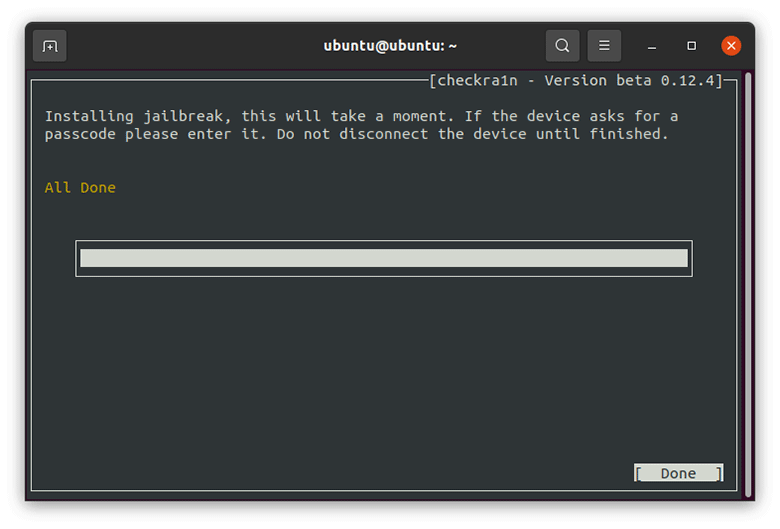
When the screen flashes All Done, the iOS device has been jailbroken successfully. Click Done to finish.
Finally, disconnect the Ubuntu USB drive from your Windows computer and restart the computer. Your computer will exit the Ubuntu environment and boot from Windows as normal.
No. checkra1n is available for macOS and Linux. On a Windows computer, you need to boot a Linux environment, such as Ubuntu from a USB drive, and run checkra1n there.
No. This checkra1n method is for older devices on iOS/iPadOS 12 to 14.8.1. For iOS 15 or iOS 16, follow the iOS 15/16 jailbreak on Windows guide instead.
checkra1n is designed not to erase data during a normal jailbreak, but errors, incompatible tweaks, or later restore operations can still cause data loss. Back up your iPhone before starting. If you do not want to use iTunes or iCloud, see how to back up iPhone without iTunes or iCloud.
Yes. checkra1n is a semi-tethered jailbreak. If the iPhone or iPad reboots, it starts in normal iOS mode. To use jailbreak apps and tweaks again, reconnect the device and run checkra1n again.
That's the whole process of running Ubuntu on a Windows computer to jailbreak a compatible iOS device with checkra1n. If your device or iOS version is not supported, do not force the process; use a method that matches your device model and system version.