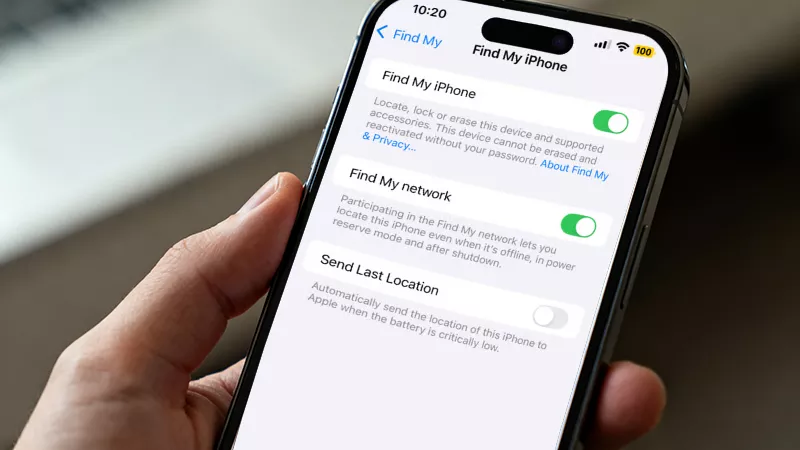
How to Hide Location on iPhone without Them Knowing

"I have someone who has my location but sometimes I wish they didn’t have it, but at the same time I can’t turn it off or it’ll raise an issue. How do I go about hiding my location from them temporarily?”
In today’s digital age, sharing your location can be convenient, but there are times when you might want to hide your whereabouts from someone—whether it’s for privacy, security, or simply to maintain some control over your digital presence. Fortunately, iPhones offer multiple ways to hide your location without alerting the other party. In this guide, we’ll explore four effective methods to help you hide your location on iPhone without them knowing.
Why You Might Want to Hide Your Location on iPhone
Before diving into the methods, it’s important to understand why you might need to hide your iPhone’s location. You may be trying to:
- Prevent someone from knowing where you are in real time.
- Hide your location during sensitive situations, like when you need privacy.
- Keep your movements private for security or personal reasons.
Regardless of the reason, it’s possible to hide your location with a few simple tweaks.
Understanding How iPhone Location Sharing Works
Before we dive into the methods, it's crucial to understand the mechanics. Location sharing on an iPhone primarily happens through two channels:
Find My App: This is the most common method. You can share your location indefinitely or for a limited time with specific contacts through the Find My app or Messages.
Third-Party Apps: Social media apps (like Snapchat Maps), dating apps, and navigation apps often have their own location-sharing features.
When you stop sharing your location via the Find My app directly, the person is notified that you have stopped. Therefore, our focus will be on methods that circumvent this notification.
Method 1: Hide Location on iPhone by Stopping Sharing
The most effective and recommended method to hide your iPhone’s location is to stop sharing your location. This method works by disabling the system-level location sharing feature, making your device appear offline in the Find My app.
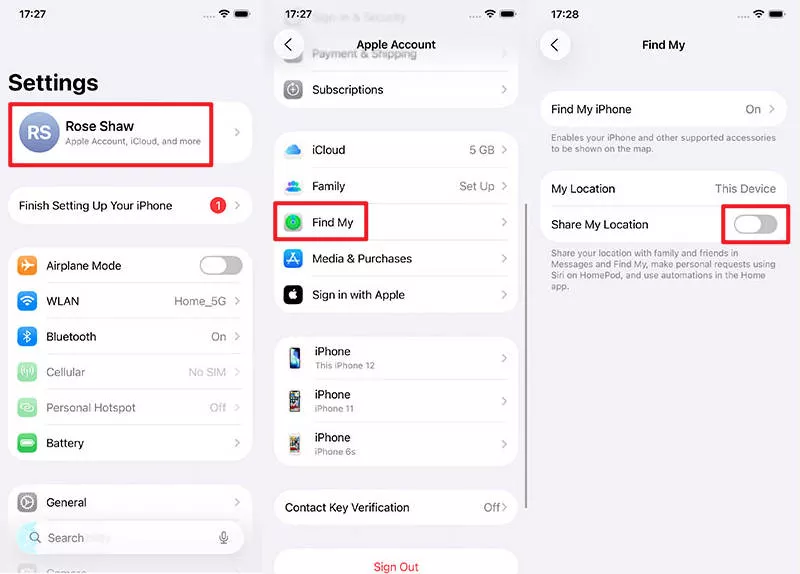
- Open the Settings app on your iPhone.
- Tap on your Apple account banner at the top (your name and picture).
- Select Find My.
- Toggle off "Share My Location”.
What Happens?
Your Perspective: Your location is immediately hidden from everyone you were sharing with via Find My.
Their Perspective: In the Find My app, your profile picture or name will simply show "No Location Available" or "Location Not Found." It does not send a push notification saying "John Doe stopped sharing location with you." The change is silent.
Important Consideration: This method is all-or-nothing. You cannot hide your location from just one person; it hides it from everyone. It's perfect for when you need a complete blackout.
Method 2: Hide Location on iPhone using Airplane Mode
Airplane Mode is a quick, temporary solution to hide your iPhone’s location, which is ideal for short periods where you need to disappear from the grid instantly.
- Swipe down from the top-right corner of your screen (or up from the bottom on older models) to open the Control Center.
- Tap the Airplane Mode icon. It will turn orange.
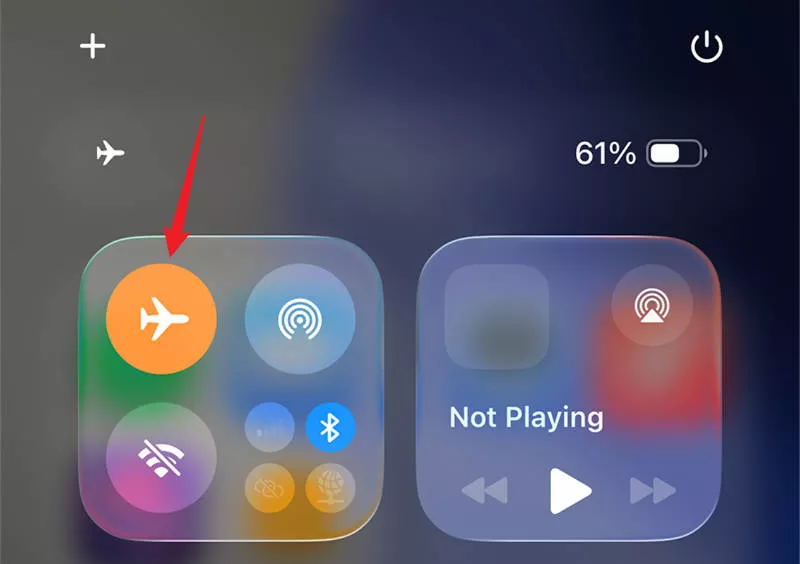
What Happens?
Your Perspective: All wireless radios (Cellular, Wi-Fi, and Bluetooth) are disabled. Your iPhone cannot transmit its location.
Their Perspective: Your location will not update. In Find My, your last known location will be shown until the app eventually times out and shows "No Location Available." Again, no notification is sent.
Tip: Remember, with Airplane Mode on, you won't receive calls, texts, or notifications. You can manually re-enable Wi-Fi after turning on Airplane Mode if you need internet access without cellular location tracking, but this is less reliable for hiding your location as Wi-Fi networks can be used to approximate position.
Method 3: Hide Location by Turning Off Location Services
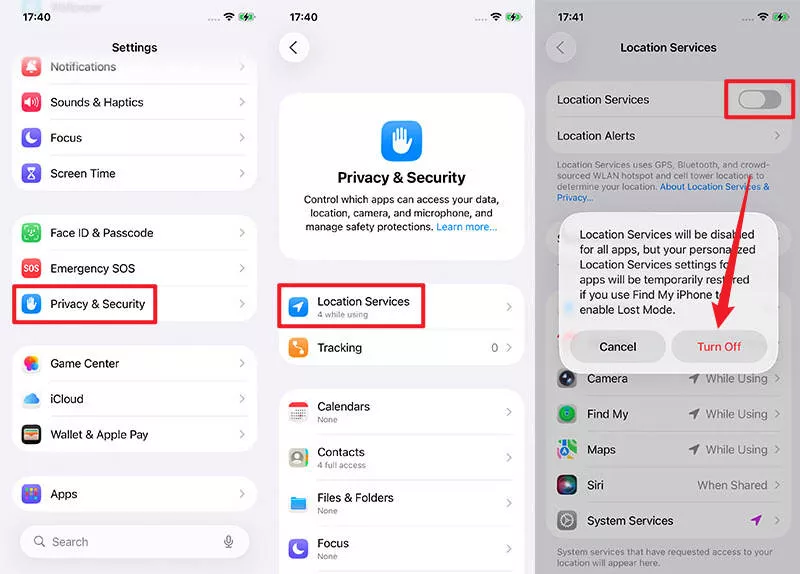
Apple’s Location Services feature is responsible for determining your device’s location. Turning it off ensures that apps and services (including Find My and Google Maps) cannot access or track your location, thereby hiding your whereabouts.
- Open the Settings app.
- Scroll down and tap on Privacy & Security.
- Tap on Location Services.
- Toggle the Location Services switch to Off and tap Turn Off to confirm.
Method 4: Hide Location on iPhone with iSumsoft iSelectGo
If none of the previous methods meets your needs, iSumsoft iSelectGo offers a reliable way to hide or spoof your iPhone’s location. This app allows you to change your iPhone’s GPS location, making it appear as though you are somewhere else. Unlike other methods, this solution doesn’t require you to manually turn off any settings and can be done quickly and discreetly.
Connect your iPhone to your computer
Connect your iPhone to your computer via USB cable, then unlock your Phone and tap Trust if prompted.
Start iSumsoft iSelectGo on the computer
1. On your computer, download and install iSumsoft iSelectGo, then launch the software.
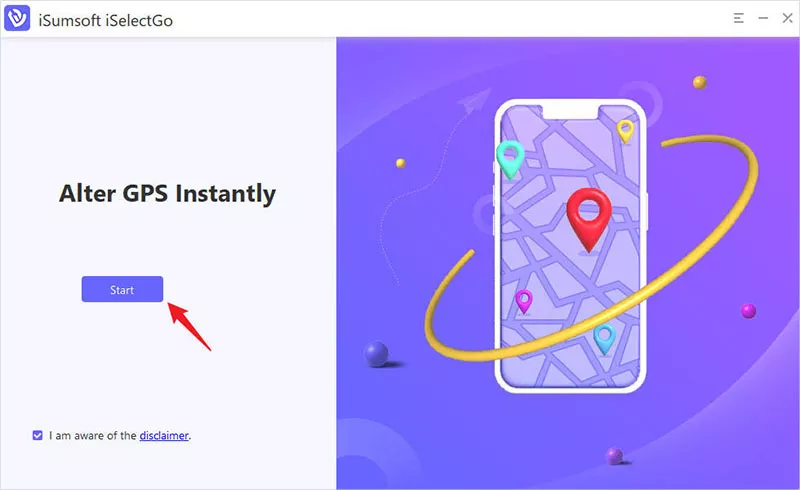
2. Click Start, and the software should automatically detect your iPhone.
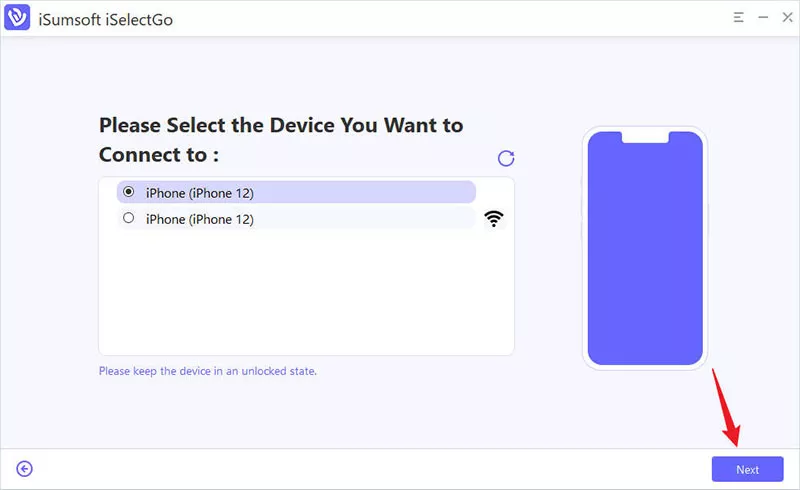
3. Select your iPhone and click Next to proceed.
4. Follow the on-screen instructions to enable Developer Mode on your iPhone. 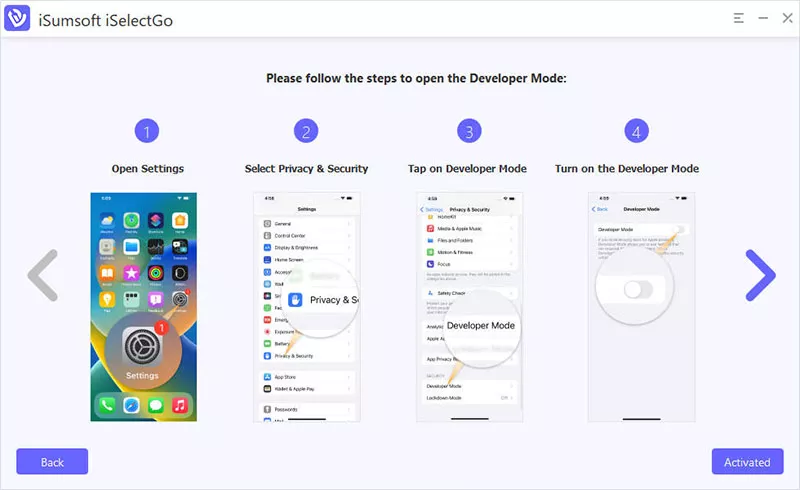
5. The software automatically detects your current actual location and displays it on a world map.
Change the location on your iPhone
1. Click the “Modify Location” option in the upper-right corner of the interface.
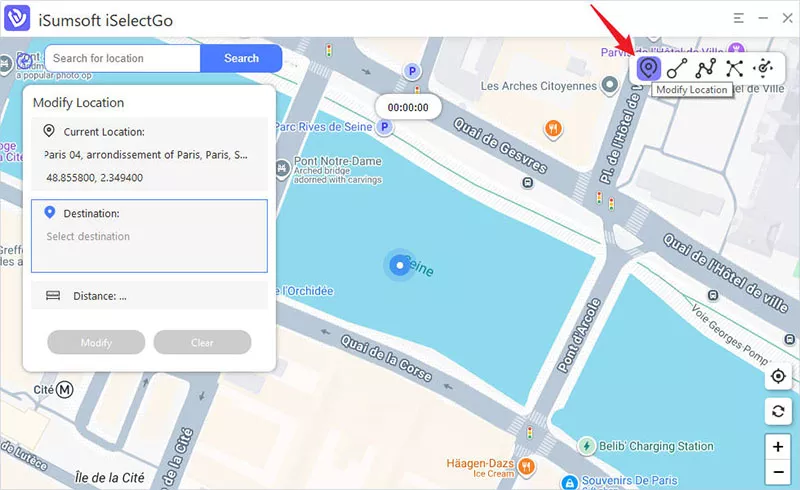
2. Search for your desired location by entering the name or address, or click on the map to choose your new location.
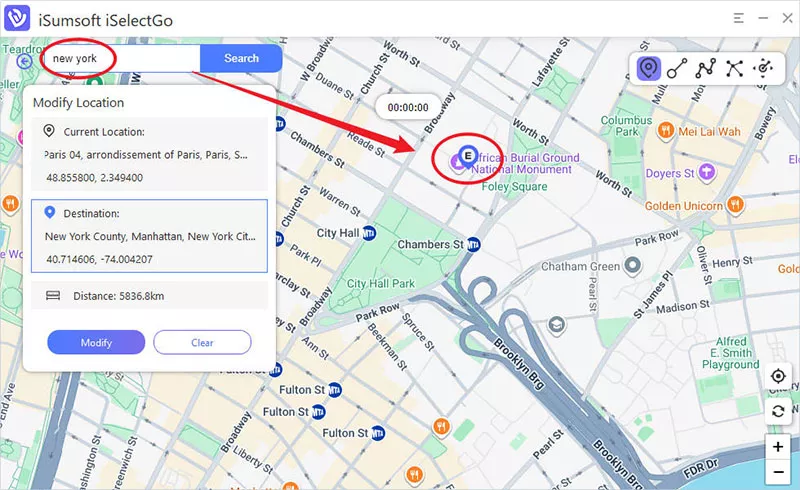
3. Click the Modify button in the lower-left corner and your iPhone location is changed instantly.
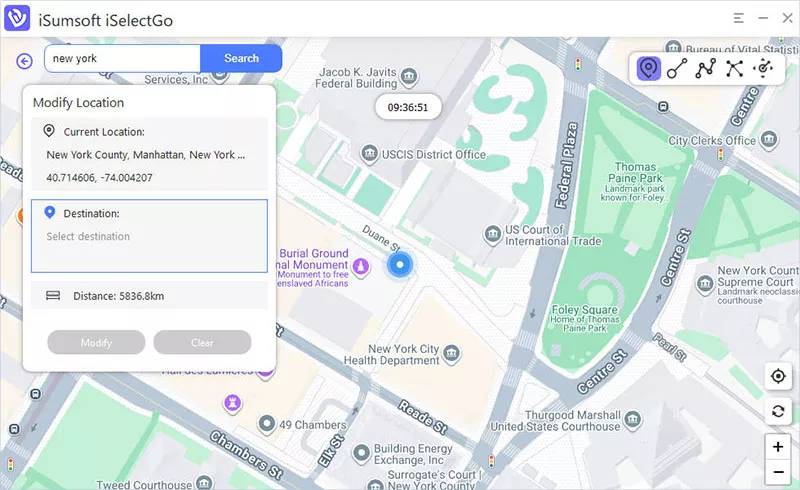
Once the new location is set, your iPhone will report it to apps and services that rely on GPS data, including Find My, without notifying anyone or affecting your location settings. Using this tool, you can even simulate movement between two or more locations. Afterward, you can safely disconnect your phone from your computer and go wherever you want—your real location will no longer be tracked. To revert to your actual location, simply restart your iPhone.
Conclusion
Whether you want to maintain privacy, keep your movements secret, or simply avoid unnecessary notifications, there are several ways to hide your location on an iPhone without alerting others. From turning off location services and using Airplane Mode to leveraging tools like iSumsoft iSelectGo, these methods offer varying levels of control over your device’s location-sharing features.
If you prefer the manual approach, disabling location sharing and location services can work well. However, for a more advanced solution, iSelectGo allows you to change your GPS location with ease. Regardless of your needs, one of these methods will help you keep your location private when necessary.