How to Pause or Freeze Location on Find My iPhone: 4 Methods

We’ve all been there. You’re enjoying a private moment, planning a surprise, or simply want a little digital privacy, and you realize your location is being shared in real-time on Find My iPhone. The immediate question is, "How can I freeze my location on Find My iPhone without them knowing?" This guide will clear up the confusion and give you the exact steps pause or freeze your location on Find My iPhone.

- Method 1: Pause Your Location by Turning Off Find My iPhone
- Method 2: Pause Your Location by Disabling Location Services
- Method 3: Freeze Location on Find My iPhone by Airplane Mode
- Method 4: Freeze Location on Find My iPhone with iSumsoft iSelectGo
Method 1: Pause Your Location by Turning Off Find My iPhone
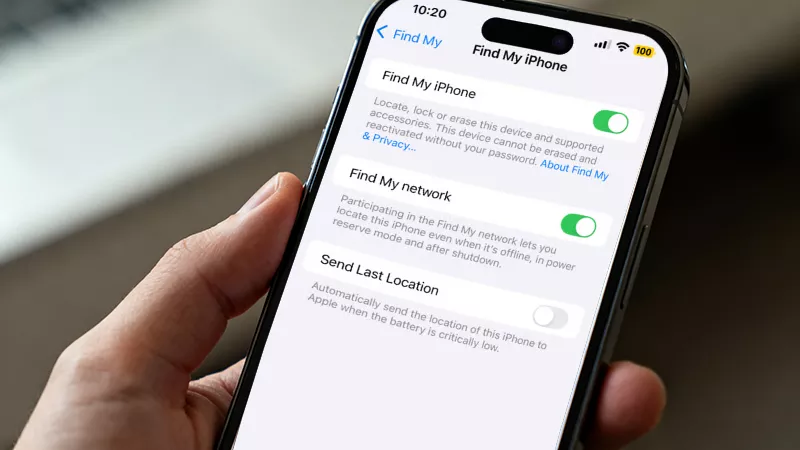
The most direct way to pause your location is by temporarily turning off the Find My iPhone service. This method stops your device from sharing its location with Apple’s servers and removes it from your family or friends’ Find My devices list.
1. Open the Settings app on your iPhone.
2. Tap on your Apple ID name at the top of the screen.
3. Select Find My.
4. Tap Find My iPhone.
5. Toggle the switch to turn off Find My iPhone.
6. Enter your Apple ID password to confirm the action.
After completing these steps, your iPhone will stop sharing its location with Apple’s servers, meaning your family and friends won’t be able to track your device through the Find My app. However, keep in mind that your loved ones will be aware that you’ve intentionally turned off Find My iPhone, as it will no longer show up in their devices list.
If you prefer to freeze your location on Find My iPhone without them knowing, you can move on to the next method.
Method 2: Pause Your Location by Disabling Location Services
Another way to pause the location on Find My iPhone is by disabling location services on the device. Using this method, the other party may not realize you've intentionally paused sharing your location.
1. Open Settings on your iPhone.
2. Scroll down and tap Privacy & Security.
3. Select Location Services.
4. Toggle the switch at the top to turn off Location Services completely.

After that, the Find My app can no longer use your GPS or network data to determine your location. This will freeze your location for all friends and family in Find My iPhone. In their Find My menu, the name of your iPhone will display “No Location found” next to it.
Method 3: Freeze Location on Find My iPhone by Airplane Mode
Another quick and easy way to freeze your location on Find My iPhone is by enabling Airplane Mode. It's perfect for when you need a few hours of privacy without any long-term changes to your settings.
1. Swipe down from the top-right corner of your screen (or up from the bottom on older models) to open the Control Center.
2. Tap the Airplane Mode icon. Ensure it turns orange.
3. Crucially, you must also turn off Wi-Fi. Even with Airplane Mode on, if Wi-Fi reconnects automatically, your location can be updated.

Your location will freeze at the point where you enabled Airplane Mode. This method is best For a short-term, immediate location freeze. The moment you disable Airplane Mode and reconnect to a network; your location will update again.
Method 4: Freeze Location on Find My iPhone with iSumsoft iSelectGo
If the previous methods don't suit your needs, iSumsoft iSelectGo provides a more advanced way to freeze your location on Find My iPhone. This tool allows you to change and "freeze" your location without affecting any other features on your device. It’s a great option for those who want to keep their location static without using Airplane Mode or alerting others to your actions.
Key Benefits of Using iSelectGo:
Freeze Location on Find My iPhone without Airplane Mode: This means you can still use your device for other functions while freezing the location.
Freeze Location on Find My iPhone without others knowing: This method freezes your location without alerting others. It won’t show as if you’ve intentionally disabled Find My iPhone or Location Services, offering a more discreet way to maintain privacy.
Freeze Location on Find My iPhone without turning it off: iSumsoft iSelectGo won’t affect any other features or apps on your iPhone, so you can continue using them normally.
1. Open iSumsoft iSelectGo on your computer and click Start to get started.

2. Connect your iPhone to your computer via USB cable, then unlock your iPhone and tap Trust if prompted. Once the software detects your iPhone, click Next.

3. Follow the on-screen instructions to enable Developer Mode on your iPhone.

4. After Developer Mode is enabled, the software will display your iPhone’s current actual location on a world map. Select the Modify Location option in the upper-right corner.

5. Search a location or click on the map to choose the location where you want to “freeze” your iPhone.

6. Click the Modify button in the lower-left corner, and the software will change your iPhone's location to the one you specified.

7. Your iPhone’s Find My iPhone will report the new location, effectively “freezing” it in place. Your location will remain static on that spot, even if you’re moving in reality.
When your friends or family try to find your location on their devices, it will display the fake location you specified instead of “Location Not Found.” This can be more convincing than simply going offline, as it shows a plausible stationary position.
Conclusion: Which Method is Right for You?
Choosing the best method to freeze your location depends on your specific needs:
• For a Quick, Short-Term Freeze: Use Airplane Mode (Method 3). It's instant and completely reversible.
• For a Longer Pause Without Losing Settings: Disable Location Services for Find My (Method 2) is your safest bet.
• For a Complete Location Shutdown: Turn Off Find My iPhone (Method 1) works, but use it sparingly due to the security risks.
• For a Custom, Static Location: Use a third-party tool like iSumsoft iSelectGo (Method 4).
By understanding these four methods, you can confidently choose how to manage your location sharing, ensuring you have control over your privacy whenever you need it.
FAQs on Freezing Location on Find My iPhone
Q: How do I freeze the location on Find My iPhone without them knowing?
A: To freeze your location on Find My iPhone without notifying others, you can use iSumsoft iSelectGo, a third-party software that allows you to spoof your location without turning off any essential features like Find My iPhone or Location Services. By using this method, your device will report a static location without alerting anyone. Unlike other methods such as turning off Find My iPhone, iSelectGo keeps your device's settings intact and avoids any obvious signs that you've changed your location.
Q: How do I make my location stay in one spot on iPhone?
A: If you want to keep your iPhone’s location static (i.e., make it stay in one spot), using a GPS spoofing tool like iSumsoft iSelectGo is the most effective solution. After connecting your iPhone to the software and enabling Developer Mode, you can select a location on the map and "freeze" it. This will trick your device into thinking it is in a particular spot, regardless of where you physically are. This method works without needing to turn on Airplane Mode or disable any features.
Q: How do I tell if someone frozen their location on Find My iPhone?
A: If someone has frozen their location on Find My iPhone, it may not be immediately obvious, but there are a few signs to look for:
Inconsistent Location Updates: If you notice that the location remains the same over an extended period, despite the person’s movements, this could indicate that their location has been frozen.
Missing Updates in Real-Time: If you usually see frequent updates of the person’s location but notice a sudden pause or significant delay in updates, it could be due to location spoofing or freezing.
However, since freezing or spoofing a location is not easily detectable by Apple’s systems, these signs are merely circumstantial. Apple doesn’t provide a direct way to confirm if someone has used third-party software to freeze or spoof their location.