How to Clear Browsing History and Data in Safari

It's actually a good practice to delete all of your Safari browsing history. This tutorial will show you how to clear browsing history and data from Safari on iPhone, iPad, and Mac.
Part 1: Clear Browsing History and Data on iPhone/iPad
Clearing will remove history, cookies, and other browsing data.
Step 1: Go to Settings > Safari.
Step 2: Scroll down to Clear History and Website Data, then tap on it.
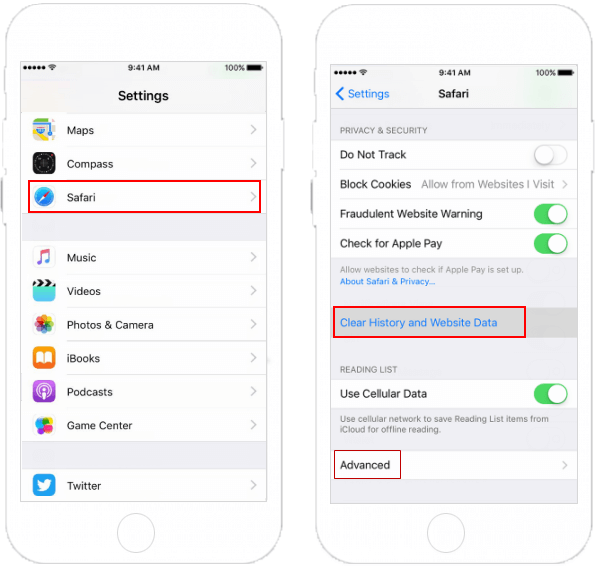
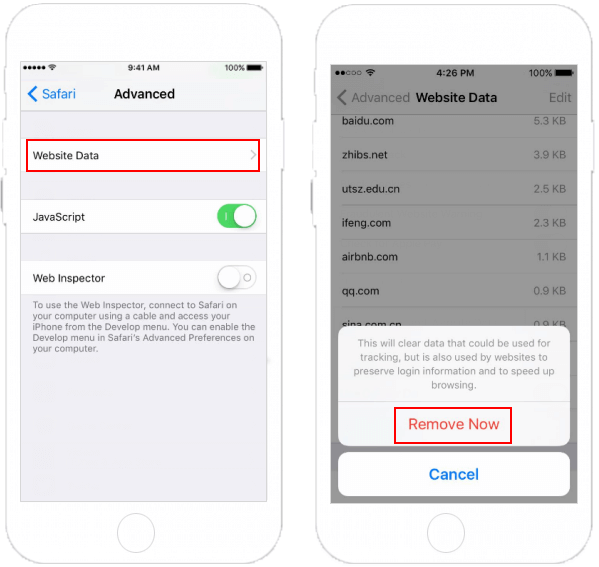
Step 3: To remove other stored information, tap on Advanced > Website Data > Remove All Website Data.
Part 2: Clear History and Cache from the Safari on Mac
To delete all history and caches from the Safari on Mac:
Step 1: Open Safari.
Step 2: Go to click Safari on the top menu. Then click on Clear History and Website Data.
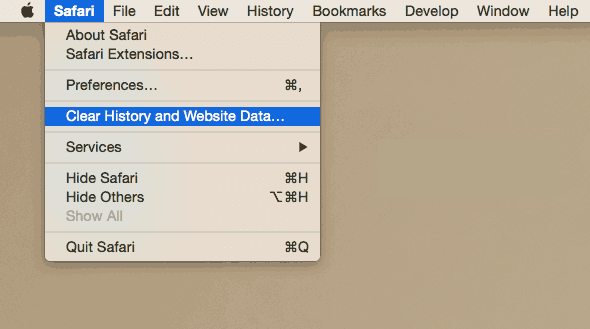
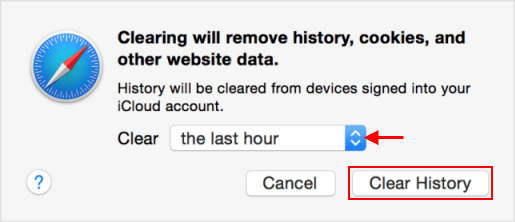
Step 3: In the sheet that appears, choose the range of data you want to remove from the Clear pop-up menu.
Step 4: Click Clear History.
Tips: Clearing your history, cookies, and browsing data from Safari won't change your Autofill information.
If you don't want Safari to save your browsing history at all, you can switch to use private browsing mode.
Related Articles
-
![Delete Browsing History]() How to Delete
Browsing History and Data on Chrome/Microsoft Edge/Firefox
How to Delete
Browsing History and Data on Chrome/Microsoft Edge/Firefox
-
![Clear browsing history]() How to
Clear Browsing and Search History in Internet Explorer
How to
Clear Browsing and Search History in Internet Explorer
-
![delete temporary internet files]() Delete
Temporary Internet Files from any browser
Delete
Temporary Internet Files from any browser
-
![Private browsing mode]() How to Enable
Private Browsing Mode in Safari
How to Enable
Private Browsing Mode in Safari
-
![use private browsing mode on chrome]() How to Use
Private Browsing Mode on Chrome/Firefox
How to Use
Private Browsing Mode on Chrome/Firefox
-
![Enable AutoFill for Password]() How to
Enable Autofill for Password and Credit Card in Safari
How to
Enable Autofill for Password and Credit Card in Safari