6 Tips to Save Power on Microsoft Surface Tablet

Extend your Surface's battery performance during critical mobile usage with these expert-approved Surface power-saving techniques. Compatible with Surface Laptop, Book, and Pro models running Windows 10/11 and 8.1 operating systems.
6 Proven Strategies to Maximize Surface Battery Life & Performance
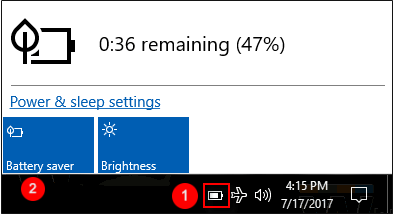
1. Activate Battery Saver Mode Immediately
Access the Battery icon in the taskbar notification area and enable Battery saver for instant power conservation.
2. Optimize Display Brightness Settings
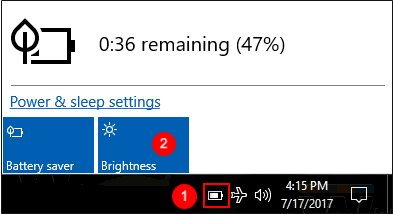
Display illumination accounts for 30-40% of battery consumption. Adjust brightness levels strategically for optimal energy efficiency.
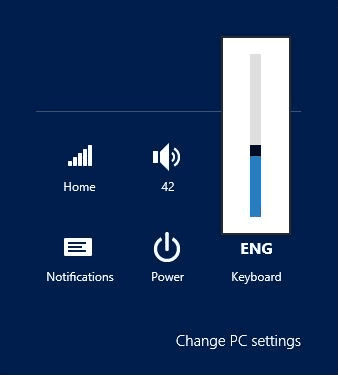
Windows 8.1 users: Navigate to Settings > brightness icon > adjust slider to recommended 40% baseline.
Windows 10/11 optimization: Right-click the battery icon > select Display brightness > set to 25-30% for balanced visibility and power conservation.
3. Configure Power Saver Mode Effectively
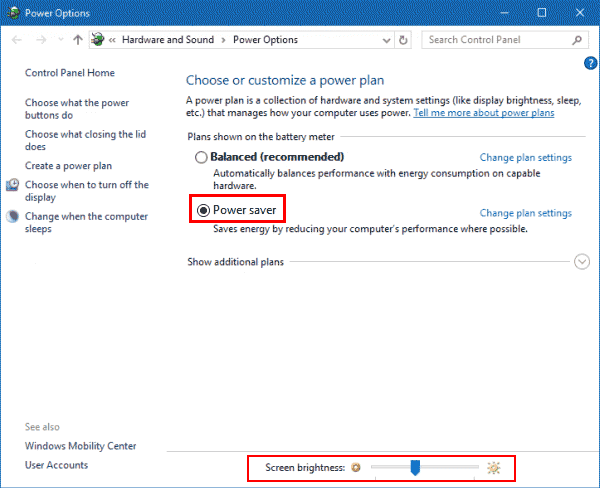
Access advanced power management through right-click on battery icon > select Power Options for customized settings.

In Power Options interface: Select Power saver profile and synchronize brightness adjustments with power plan requirements.
4. Manage Wireless Connectivity Efficiently
Enable Airplane mode via taskbar's Network icon when wireless connectivity isn't required. This simultaneously disables Wi-Fi, Bluetooth, and cellular data radios.

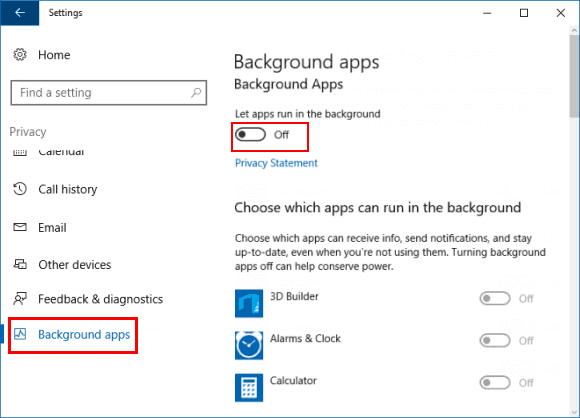
5. Control Background App Activity
Manage background processes through Settings > Privacy & security > Background apps. Toggle off non-essential applications to reduce battery drain by up to 20%.
6. Maintain Optimal Operating Temperatures
Maintain device temperature between 32°F-95°F (0°C-35°C). Prolonged exposure beyond 95°F (35°C) accelerates lithium-ion battery degradation - avoid direct sunlight and enclosed vehicles.