How to Set up Fingerprint ID on Microsoft Surface

While Windows Hello facial recognition comes standard on Surface devices, the Surface Pro 4 Type Cover with integrated fingerprint sensor provides an alternative biometric authentication method. Learn to configure fingerprint login for secure screen unlocking and streamlined Windows Store purchases.
How to Set Up & Use Fingerprint ID on Surface Tablet: Complete Guide
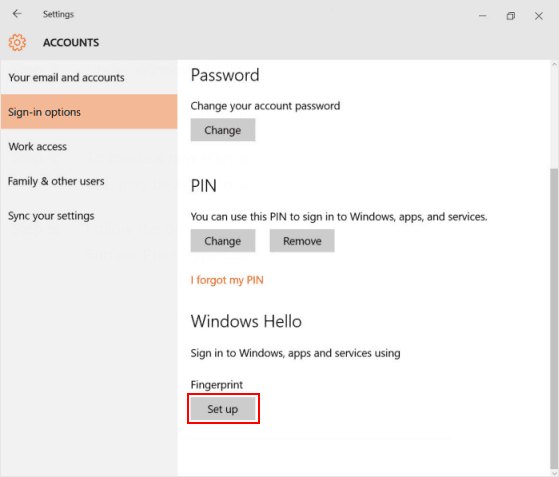
Step 1: Navigate to Start menu > Settings > Accounts
Step 2: Select Sign-in options in the left navigation panel
Step 3: Under Windows Hello, choose Fingerprint recognition > Set up
Position your finger vertically on the Type Cover's fingerprint sensor during the scanning process. Maintain consistent pressure for optimal recognition.
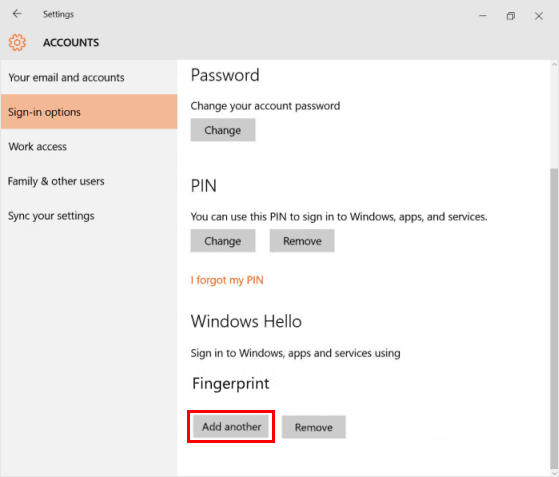
Step 4: Complete 6-8 fingerprint scans for enhanced accuracy. Select Add another finger to register backup fingerprints - ideal for multiple login preferences.
To unlock your Surface Tablet: Lightly press any registered finger on the Type Cover sensor from sleep mode or lock screen for instant access.

Pro Tip: Fingerprint authentication works at any password prompt - no need to enable special lock screen settings for biometric access.