How to Jailbreak iOS 15 & iOS 16 on Windows

Starting with iOS 15, Apple has implemented the Signed System Volume (SSV) feature, which ensures the integrity and trustworthiness of the operating system.
Compared with jailbreak iOS 12 - iOS 14 devices on Windows computers, jailbreak iOS 15-16 is a bit different. This article will illustrate you how to jailbreak iOS 15/16 on Windows.

- Part 1: Preparations
- Part 2: Boot from the USB device
- Part 3: Perform Pelen1x to jailbreak iOS 15/16
Tools:
- A USB flash driver
- A Windows computer
- An iOS device
Download:
Notes:
- Virtual machines are not able to jailbreak.
- It is best to jailbreak on Intel platforms.
- After a rootful jailbreak and creating a fakeFS file system, the phone will reboot and need to be rooted again to boot to the created fakeFS file system. If a fakeFS file system has already been created, creating it again will be an error, just root jailbreak again to boot to the created fakeFS file system.
Part 1: Preparations
Step 1: Download and extract Palen1x.

Step 2: Download and extract Ventoy.

Step 3: Plug the USB drive into the PC, then launch Ventoy2Disk.exe application.

Step 4: Click on Yes.

Step 5: From the Device menu, choose the USB driver you connected to the computer, then click on Install.

Step 6: Warned that the device will be formatted, click Yes.

Step 7: Click on Yes.

Step 8: After successful installation, click Ok to close the program.

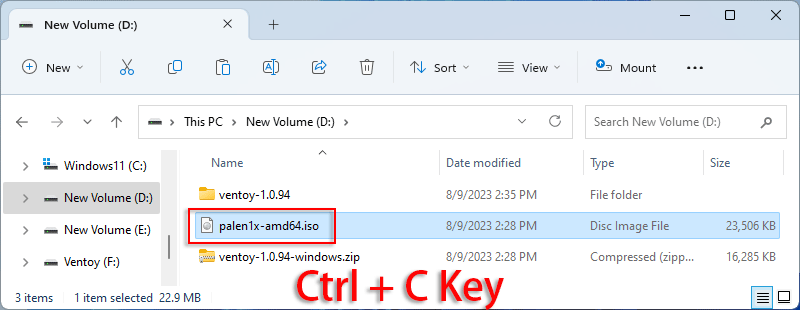
Step 9: Locate palen1x-amd64.iso image, then press Ctrl + C to copy the file.
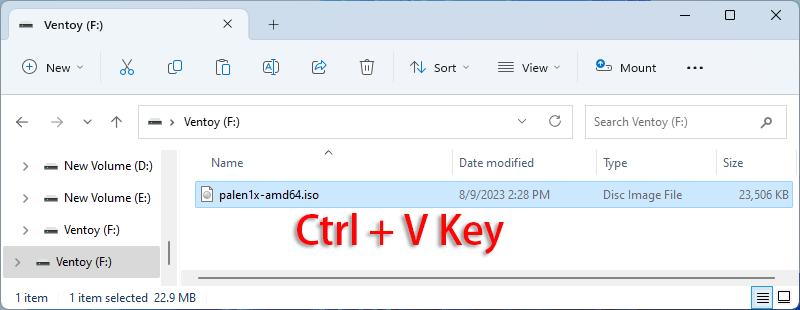
Step 10: Paste the copied file into the USB device using Ctrl + V.
Part 2: Boot from the USB device
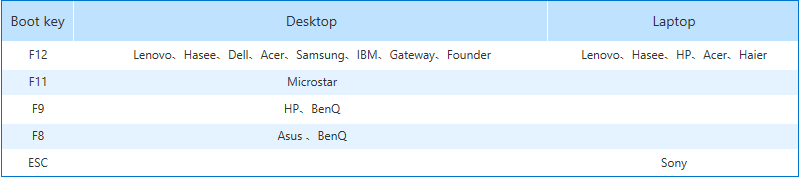
Step 1: Reboot the computer and press the hotkeys to access the Boot Menu.
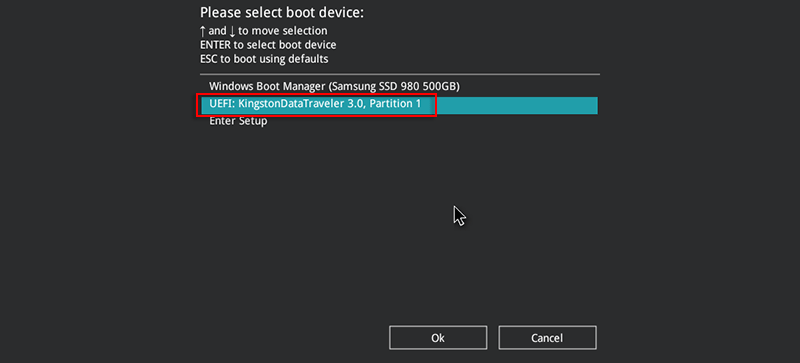
Step 2: Use the Up and Down keys to choose the USB drive, then hit Enter.
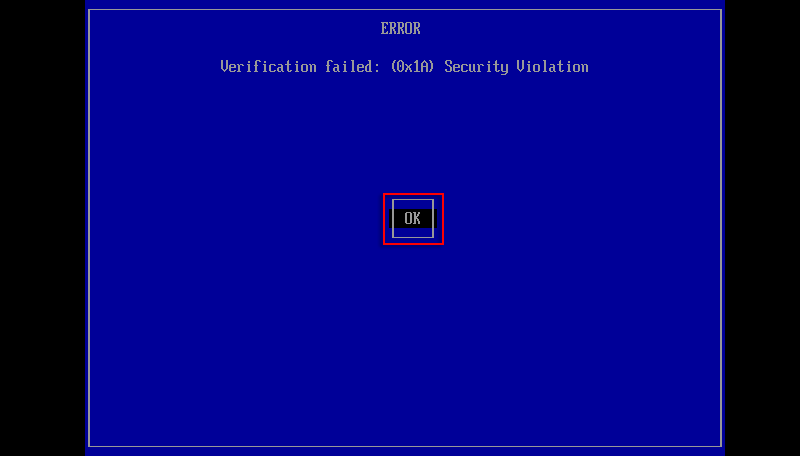
Step 3: If you enable Secure Boot on the computer, you will be prompted an error. Press Enter to continue.
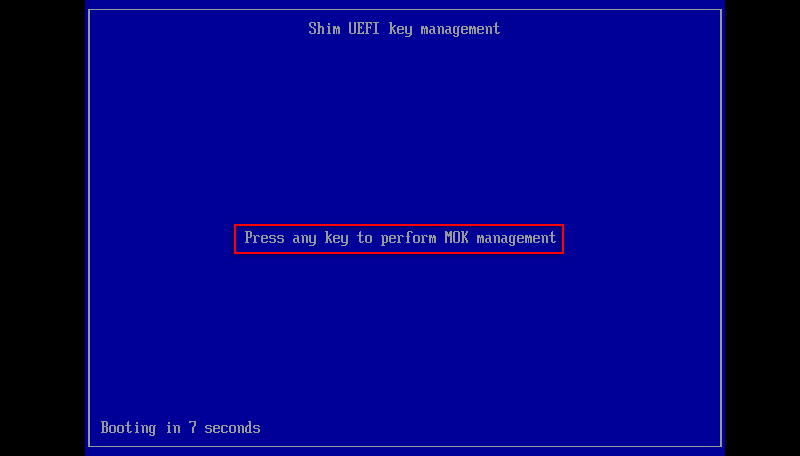
Step 4: Press any key to perform MOK management in 10 seconds.
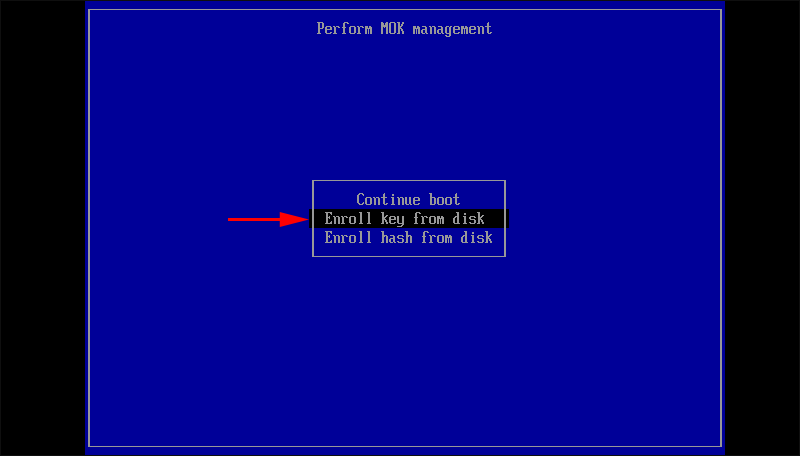
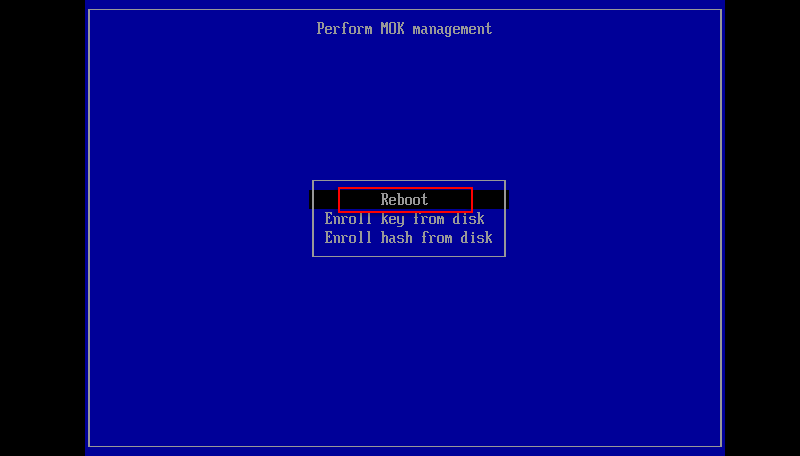
Step 5: Use the Up and Down keys to select the Enroll key from disk, then hit Enter.
Step 6: Select VTOYEFI and hit Enter.
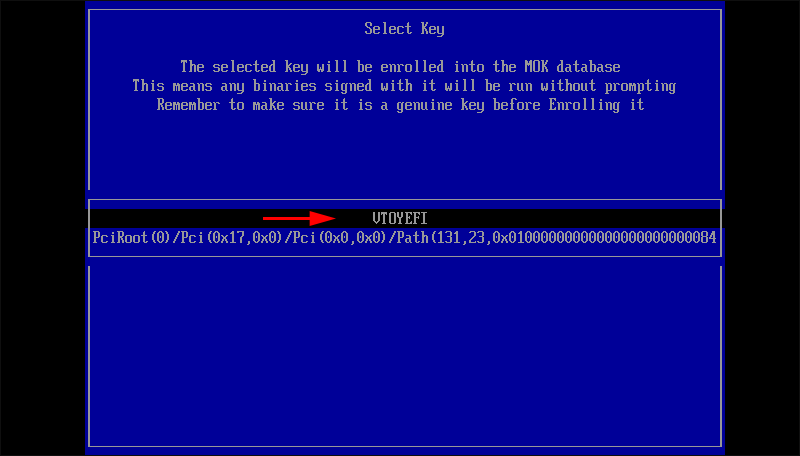
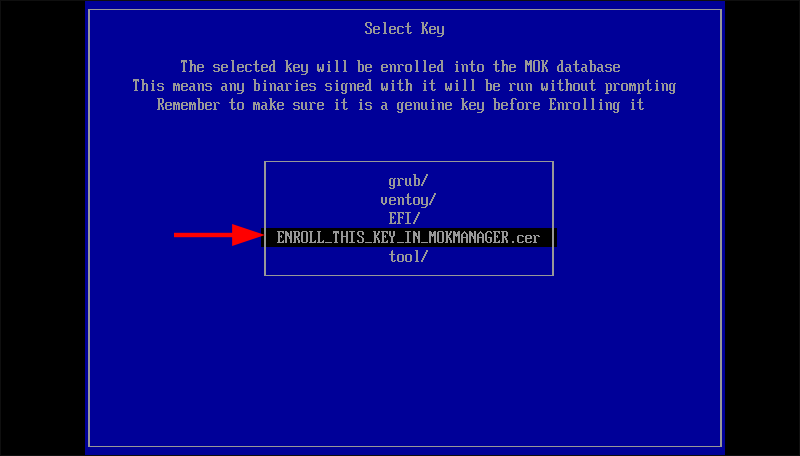
Step 7: Use arrow keys to select ENROLL_THIS_KEY_IN_MOKMANAGER.cer, then press Enter.
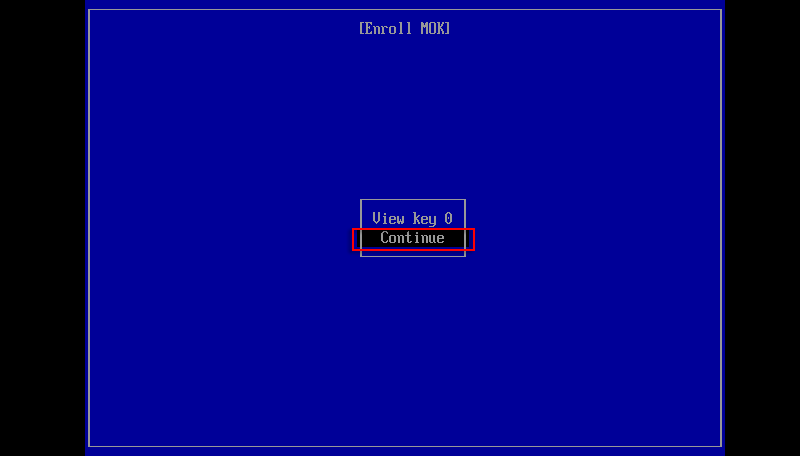
Step 8: Enter Continue.
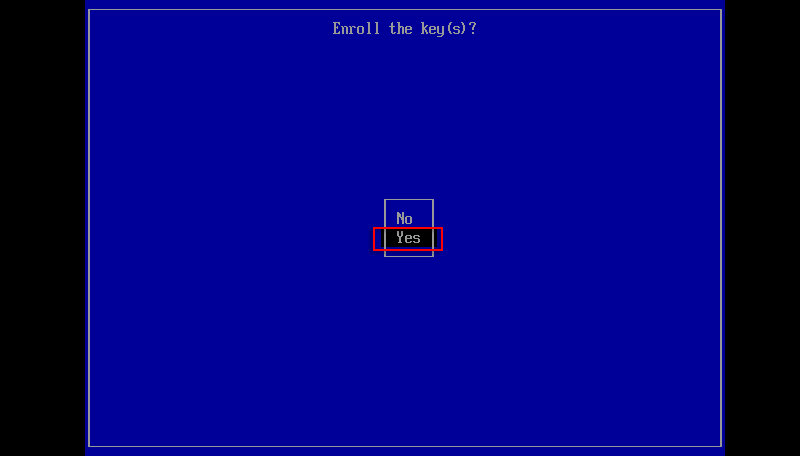
Step 9: Enter Yes.
Step 10: Enter Reboot.
Part 3: Perform Pelen1x to jailbreak iOS 15/16
Step 1: Connect your iPhone to the computer and access the Boot menu again. Then press Enter to choose palen1x-amd64.iso.

Step 2: Select Boot in grub2 mode and hit Enter.

Step 3: Select 1 palera1n and press Enter.

Step 4: Enter 2 Options and press the Spacebar key to choose Create FakeFS, then press Enter to confirm.
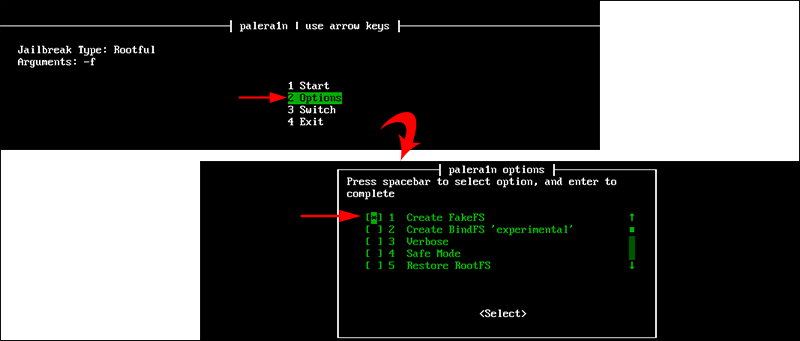
Step 5: Enter 1 Start. Note that the Jailbreak Type should be Rootful, and the Arguments should be -f -c -v.

Step 6: When prompted "Press Enter when ready for DFU mode", press Enter.

Step 7: Get ready to access DFU mode manually.

Step 8: Hold volume down + side button for 4 seconds.

Step 9: Release side button and keep holding volume down button for 10 seconds until enter DFU mode.

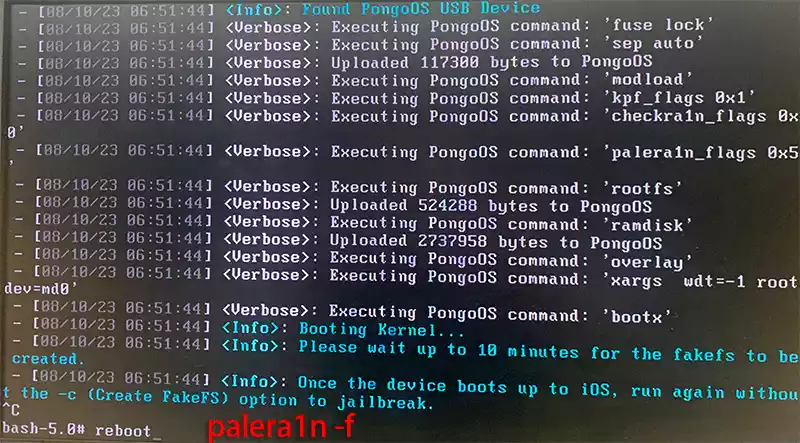
Step 10: Palen1x is performing the program and it will take about 10 minutes to create fakefs.

Step 11: If your iOS device restarts, press Ctrl + C to exit palen1x.

Step 12: Type palera1n -f and hit Enter for palen1x program, or you can type reboot and hit Enter to restart system again.
Step 13: Enter 1 palera1n.

Step 14: Enter Start. Note that the Jailbreak Type should be Rootful, and the arguments should be -f.

Step 15: When prompted "Press Enter when ready for DFU mode", press Enter.

Step 16: Hold volume down + side button for 4 seconds.

Step 17: Release side button and keep holding volume down button for 10 seconds until enter DFU mode.

Step 18: When the message "Booting Kernel" displays on the screen, the iPhone will restart automatically, completing jailbreaking.

Step 19: After the successful jailbreak, you can press Ctrl + C to end the program, then type reboot and hit Enter to reboot system.
Related Articles
![restore iPhone in recovery mode]() How to Restore
iPhone in
Recovery Mode with or without iTunes
How to Restore
iPhone in
Recovery Mode with or without iTunes
![How to Fix iPhone X/XS/11/12/13/14 Frozen during/after iOS 16 Update]() How to Fix iPhone
X/XS/11/12/13/14 Frozen during/after iOS 16 Update
How to Fix iPhone
X/XS/11/12/13/14 Frozen during/after iOS 16 Update![Stop iOS Software Update Notification Reminders]() Stop iOS
Software
Update Notification Reminders
Stop iOS
Software
Update Notification Reminders![Stop iOS App Automatic Updates Over Cellular]() Stop iOS App
Automatic
Updates Over Cellular
Stop iOS App
Automatic
Updates Over Cellular![Fixed: The iPhone Software Update Server Could Not Be Contacted]() Fixed:
The
iPhone Software Update Server Could Not Be Contacted
Fixed:
The
iPhone Software Update Server Could Not Be Contacted![4 Ways to Update iPhone to the Latest iOS Version (14.7.1)]() 4 Ways to Update iPhone to the Latest
iOS
Version (14.7.1)
4 Ways to Update iPhone to the Latest
iOS
Version (14.7.1)