
[FIXED] Erase All Content and Settings Not Working on iPhone

You’re trying to erase all content and settings on your iPhone and it’s not working? You’ve hit the “Erase All Content and Settings” option, but nothing happens? This issue can be frustrating, especially when you want to erase your device for various reasons, such as preparing for resale, resolving technical glitches, or simply clearing space. Fortunately, there are several methods to fix the "Erase All Content and Settings" not working issue on your iPhone. In this guide, we’ll explore effective solutions to help you fix this problem and successfully reset your iPhone.

Why Is "Erase All Content and Settings" Not Working?
Before diving into the solutions, let’s understand why the "Erase All Content and Settings" option may fail to work. The most common reasons are:
1. Software Glitches: Sometimes, a bug or software issue prevents the reset process from completing successfully.
2. Network Issues: If your iPhone requires an active connection to Apple’s servers during the reset process, network problems could interfere.
3. Apple ID Issues: If you’re signed into an Apple ID, certain settings might require you to sign out before performing a full reset.
4. Storage Limitations: Low storage could prevent the reset process from completing properly.
5. Outdated iOS: An outdated iOS version may cause unexpected behavior, including issues with resetting the device.
Now that we understand some of the reasons behind this problem, let’s look at how to fix it.
Method 1: Force Restart Your iPhone
If you don’t have access to a computer or prefer to perform the reset directly on your iPhone, a force restart is the first step to try when the Erase All Content and Settings option is not working.
iPhone 8 or later: Quickly press and release the Volume Up button, then quickly press and release the Volume Down button. Next, press and hold the Side button until the Apple logo appears.
iPhone 7 or iPhone 7 Plus: Press and hold the Volume Down button and the Sleep/Wake button simultaneously until the Apple logo appears.
iPhone 6s or earlier: Press and hold the Home button and the Sleep/Wake button together until the Apple logo appears.
Once your iPhone restarts, try the "Erase All Content and Settings" option again. If this doesn’t resolve the issue, proceed with the next solution.
Method 2: Resolve Network Issues
Network issues can sometimes interfere with the process or erasing all content and settings. If your iPhone is trying to contact Apple’s servers for verification during the reset, a weak or unstable connection could prevent it from completing. Here’s how to resolve network-related issues:
1. Go to Settings > General > Transfer or Reset iPhone > Reset > Reset Network Settings to reset your network settings.
2. After that, make sure your iPhone is connected to a stable Wi-Fi network. If Wi-Fi is unstable, try switching to mobile data.
3. Once your network is stable, try erasing all content and settings again.
Method 3: Sign Out of Apple ID
In some cases, the Erase All Content and Settings feature is not working due to issues with Apple ID verification. Signing out of your Apple ID can help resolve these issues and allow the reset to proceed smoothly.
1. Go to Settings and tap on your Apple ID at the top.
2. Scroll down and tap Sign Out.
3. Enter your Apple password and confirm that you want to sign out.
4. Once signed out, try erasing all content and settings again.
Method 4: Insert SIM Card
The absence of a SIM card may cause certain features to not working, including the Erase All Content and Settings. This could be related to network settings or verification processes that require the presence of a SIM card to function correctly. Inserting a SIM card into the iPhone may help resolve the issue.
1. Power off your iPhone.
2. Use the SIM card tray ejector tool to insert a valid SIM card into your iPhone.
3. Power your iPhone back on.
4. Once the device is on, attempt to reset it by selecting Erase All Content and Settings.
Method 5: Update iOS
An outdated version of iOS can cause several issues, including problems with erasing all content and settings. Apple regularly releases updates that fix bugs, improve security, and enhance performance. Make sure your iPhone is running the latest version of iOS.
1. Open Settings and select General > Software Update.
2. If an update is available, tap Download and Install.
3. Once your iPhone is updated, try erasing all content and settings again.
Method 6: Erase iPhone Remotely via iCloud
If the “Erase All Content and Settings” feature is still not working, you need to try a different method to reset your iPhone, such as using iCloud’s Find My. If you just want to erase all content and settings on your iPhone, this is the simplest and fastest way.
1. Make sure that your Apple ID is signed in on your iPhone and that Find My iPhone is turned on.
2. Sign in to icloud.com/find on another device using the same Apple ID.
3. Once signed in, select your iPhone and click Erase This Device to erase it remotely.
Method 7: Factory Restore iPhone with iTunes
If the “Erase All Content and Settings” feature is still not working, another option is to factory restore your iPhone using iTunes on your computer. This method not only erases all content and settings but also reinstalls the latest version of iOS on your iPhone.
1. Connect your iPhone to your computer using a USB cable.
2. Open iTunes and select your iPhone once it’s detected.
3. Click Restore iPhone and follow the on-screen prompts to confirm the action.
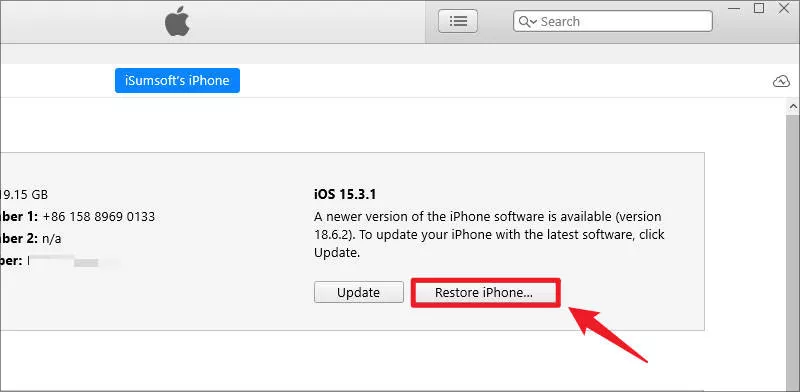
4. Wait for iTunes to automatically reset your iPhone to its factory settings.
Method 8: Factory Reset iPhone with iSumsoft iOS Refixer
If none of the above methods work and you still cannot erase and reset your iPhone, turn to a third-party tool like iSumsoft iOS Refixer. This powerful tool is specifically designed to fix a wide range of iOS system issues, like being stuck in recovery mode, stuck on the Apple logo, force restart not working, screenshot not working, Erase All Content and Settings not working, and much more.
1. Download and install iSumsoft iOS Refixer on your PC or Mac, then launch the software.
2. Select the System Repair option on the software’s main interface.
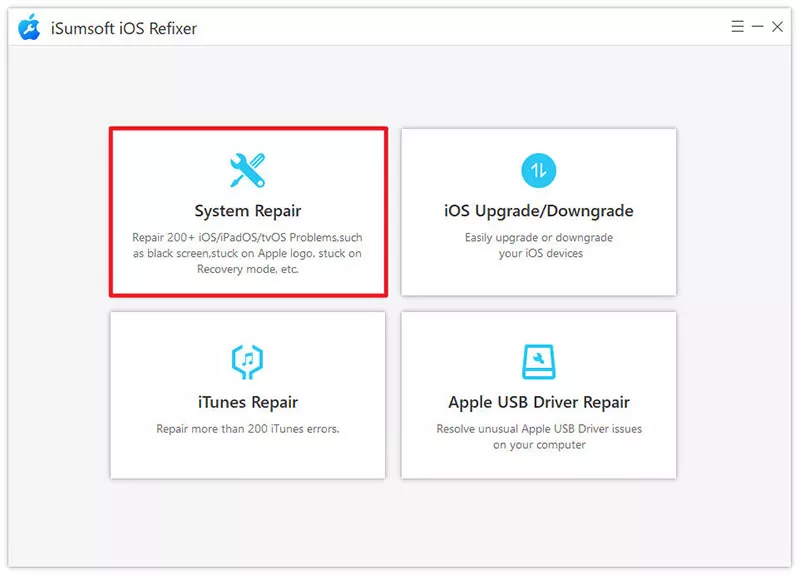
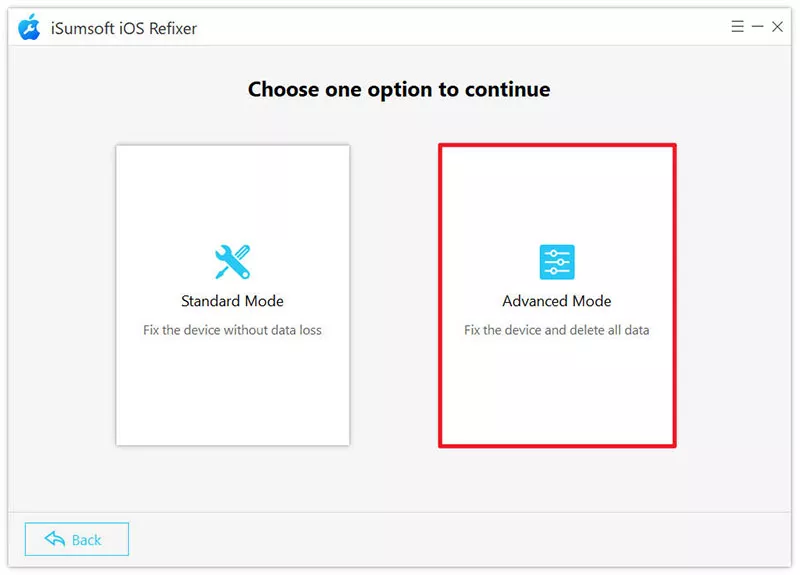
3. Choose Advanced Mode to factory reset your iPhone and perform a deep repair of the iOS system.
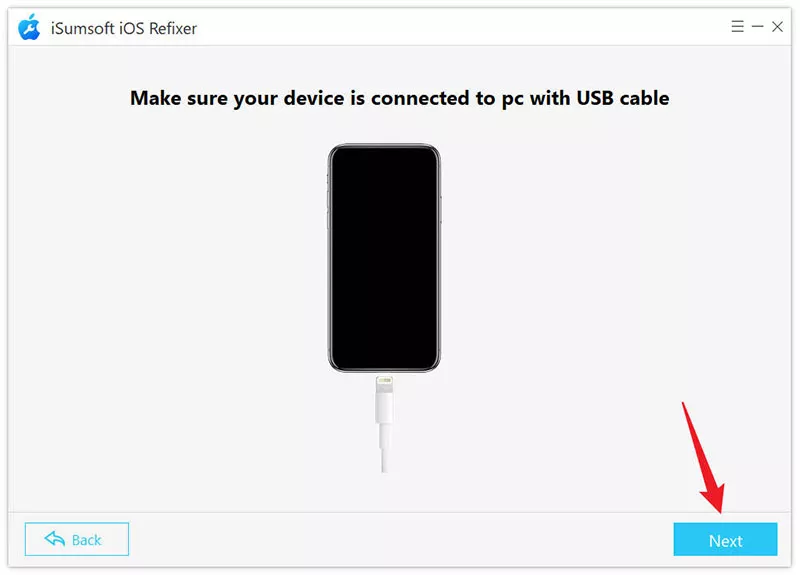
4. Click Start, then Click Next after ensuring your iPhone is connected to your computer via USB cable.
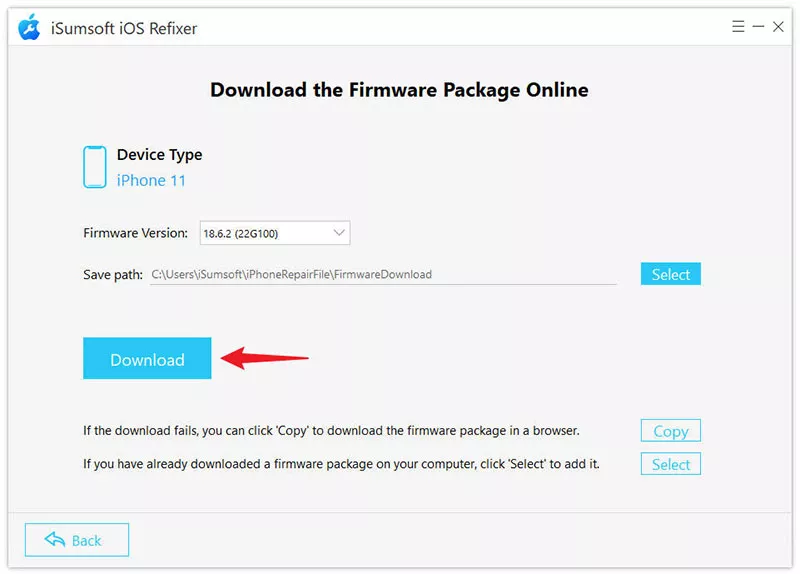
5. Click Download to download the firmware package for your iPhone.
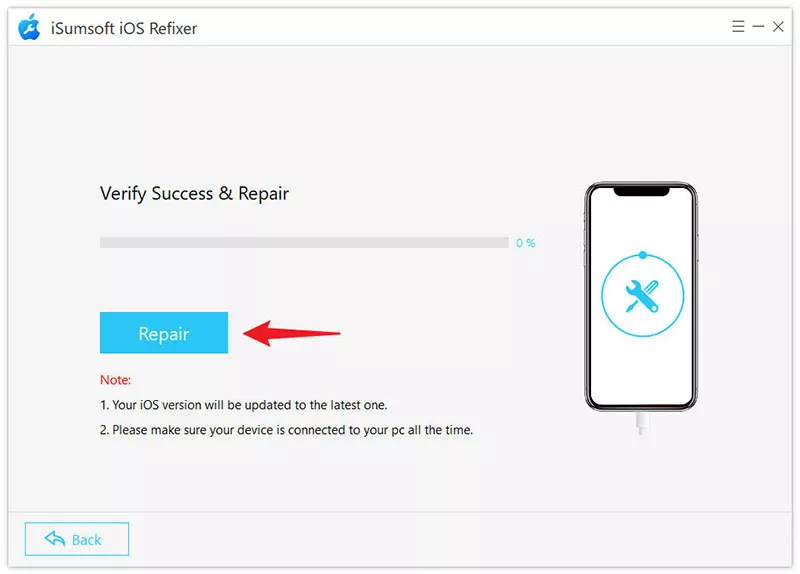
6. Click Repair to start repairing your iPhone.
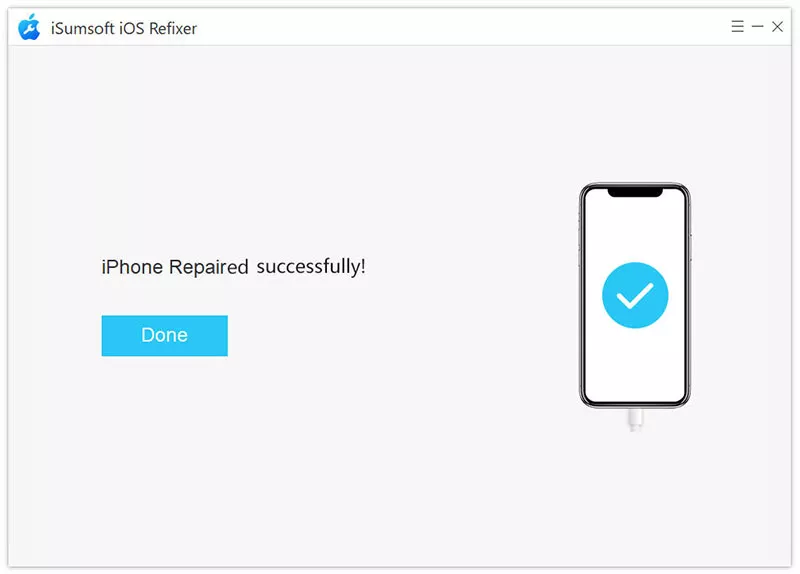
7. After the repair is complete, your iPhone has been reset to factory settings. When you return to the system, all functions, including “Erase All Content and Settings”, should work properly.
Conclusion
In this guide, we’ve explored several effective solutions to fix the "Erase All Content and Settings" not working issue on your iPhone. From force restarting your device to signing out of your Apple ID, there are multiple ways to resolve this frustrating problem. If none of these methods work, you can try another way to reset your iPhone, such as using iCloud Find My, iTunes, or a third-party tool like iSumsoft iOS Refixer.
Issues with resetting your iPhone can be caused by a variety of factors, such as software glitches, network issues, or Apple ID verification problems. By following the methods outlined here, you can restore your device to its factory settings and resolve any underlying issues that may be preventing the reset.
Related Articles
 How to Fix
iPhone Stuck on Software Update Complete Screen
How to Fix
iPhone Stuck on Software Update Complete Screen
 How to Fix iPhone Stuck on
Preparing Update iOS 18/17
How to Fix iPhone Stuck on
Preparing Update iOS 18/17
![iPhone Battery Draining Fast After Update [iOS 17 Included]](../images/ios-issues/iphone-battery-draining-fast-after-update/iphone-battery-draining-fast-after-update.webp) iPhone Battery
Draining Fast After Update [iOS 17 Included]
iPhone Battery
Draining Fast After Update [iOS 17 Included]
 3 Ways to Fix
iPhone Stuck on Verifying Update
3 Ways to Fix
iPhone Stuck on Verifying Update
 How to Fix iOS
18/17 Stuck on Update Requested
How to Fix iOS
18/17 Stuck on Update Requested
 How to Fix
Face ID Not Available after iOS 17 Update?
How to Fix
Face ID Not Available after iOS 17 Update?