
Updating your iPhone to the latest iOS version is essential for accessing new features, security improvements, and overall device optimization. However, sometimes you may face frustrating delays with the iPhone update process, especially when it takes longer than expected. If your iPhone is taking forever to update iOS 27, you're not alone.
In this article, we will discuss why iOS 27 might be taking longer than usual to update and provide 7 proven solutions to help speed up the process. Whether you're facing a slow or stuck update, these tips will help ensure your device updates smoothly.
Quick check for iOS 27:

Before we dive into the solutions, it’s important to understand why iOS updates can sometimes take so long. There are several factors that can contribute to a slow update:
1. Slow or Unstable Network Connection: Since iOS updates are downloaded over the internet, a slow Wi-Fi connection can lead to extended download times.
2. Insufficient Storage Space: Updates often require a significant amount of free space on your device. If your iPhone is running low on storage, the update process can be delayed.
3. Heavy Server Traffic: When a new iOS version is released, many users download and update their devices at the same time, putting strain on Apple's servers. This can result in slow download speeds or issues with the update process.
4. Corrupted Update Files: Sometimes, the update file may get corrupted during download, leading to delays or failures in the update process.
5. Background Processes: If you have too many apps or processes running in the background, it may slow down the update process.
Now that we understand some of the common reasons, let's take a look at the solutions that can help speed up your iPhone’s update.
The first thing you should do when your iPhone is taking forever to update is force restart your iPhone. This method helps resolve any temporary glitches that may be affecting the update process.
1. Quickly press and release the Volume Up button.
2. Quickly press and release the Volume Down button.
3. Press and hold the Side button until you see the Apple logo, then release.
4. After the restart, try updating your iPhone again.
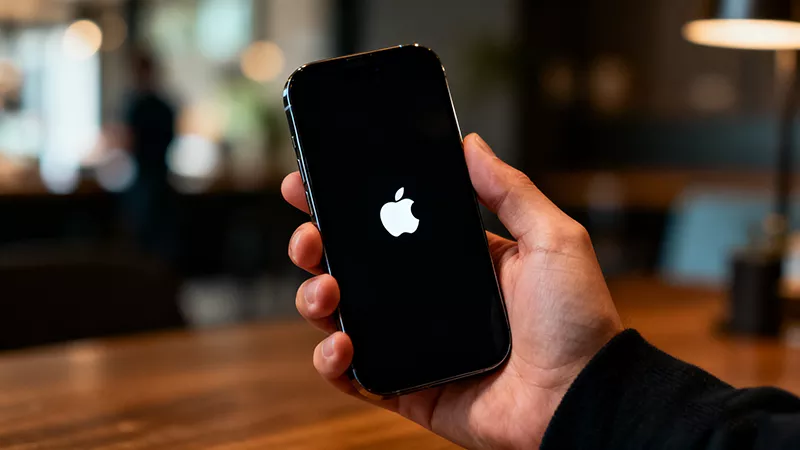
If your iPhone is taking forever to update, check your network connection. A slow or unstable Wi-Fi connection is one of the most common causes of prolonged update times.
1. Open Settings and tap on Wi-Fi.
2. Ensure that you are connected to a stable and fast Wi-Fi network.
3. Test your internet speed by using an online speed test app or website. If your speed is slow, consider switching to a faster Wi-Fi network or moving closer to your router.
4. If your Wi-Fi connection is fine but the update is still slow, try restarting your router or turning your iPhone’s Wi-Fi off and on again.
Of course, network speed tests aren’t 100% accurate. Additionally, your ISP can sometimes throttle certain types of traffic to reduce bandwidth for other customers on the same node. Downloads and streaming are usually the first two to get slowed.
If you haven’t detected any network issues but your iPhone is still taking forever to update, move on to another method.
iOS updates require enough free storage on your device to be downloaded and installed. If you’re running low on storage, the update may take longer or even fail to install.
1. Open Settings, then go to General > iPhone Storage.
2. Review the list of apps and data consuming space on your iPhone.
3. Delete unnecessary apps, photos, or other files to free up space.
4. Ensure that you have at least 5GB of free space available for the update.
5. Once your storage is cleared up, restart your iPhone and try updating again.
At times, the iPhone is taking forever to update due to high server demand. When a new iOS version is released, millions of users may try to update their devices simultaneously, which can slow down Apple's servers. Additionally, as mentioned earlier, your internet service provider (ISP) may occasionally limit your download speed, causing delays. In such cases, one of the best things you can do is wait it out.
1. If you notice that the update is taking longer than usual, wait for a few hours and check the update status again.
2. If your iPhone hasn’t made progress after waiting, you can proceed to the next steps to troubleshoot.
If you don't need to use your iPhone immediately, leaving the device plugged in overnight can be a practical solution. This ensures the update can proceed without interruptions, especially if the download speed is slow.
1. Ensure your iPhone is plugged into a charger to avoid battery issues.
2. Connect to a stable Wi-Fi network.
3. Leave the phone to download and install the update while you sleep.
If your iPhone update is still taking too long, consider updating through a computer. Updating through iTunes (or Finder on macOS Catalina and later) can be faster and more reliable than updating over Wi-Fi.
1. Plug your iPhone into your computer using a USB cable. Unlock your iPhone and tap Trust when prompted.
2. Open iTunes (or Finder if you’re using macOS Catalina or later). Your iPhone should be detected automatically, and you’ll be prompted to download and install the update. Click Download and Update.
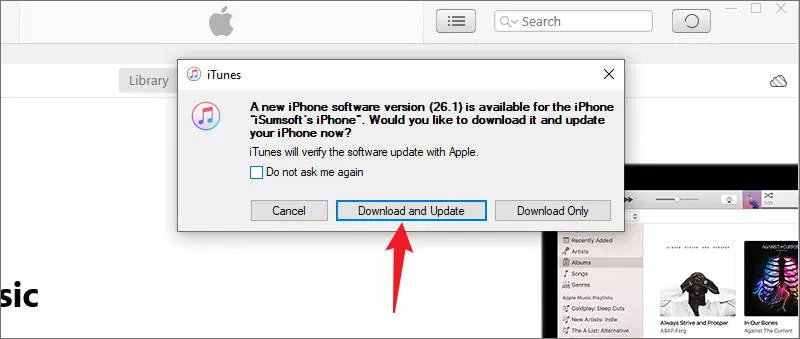
3. Follow the on-screen instructions to confirm the update. iTunes (or Finder) will download the latest iOS version and install it on your device.
If none of the previous methods have resolved the issue and your iPhone is still taking forever to update, iSumsoft iOS Refixer may be your best option. This software is designed to fix various iOS system issues, including update problems, without causing data loss.
1. Begin by downloading iSumsoft iOS Refixer on your computer and install it.
2. Use a USB cable to connect your iPhone to the computer.
3. Open iSumsoft iOS Refixer and choose the System Repair option.
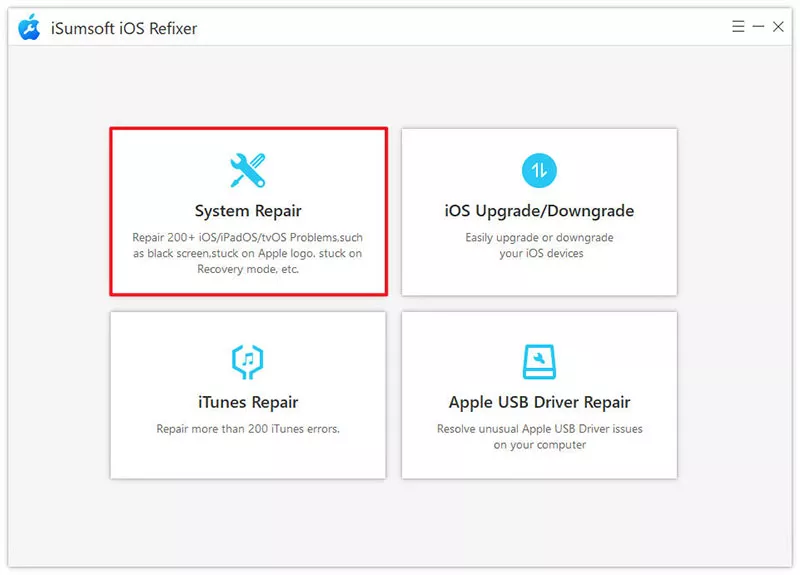
4. Choose the Standard Repair mode to fix update-related issues without erasing your data.
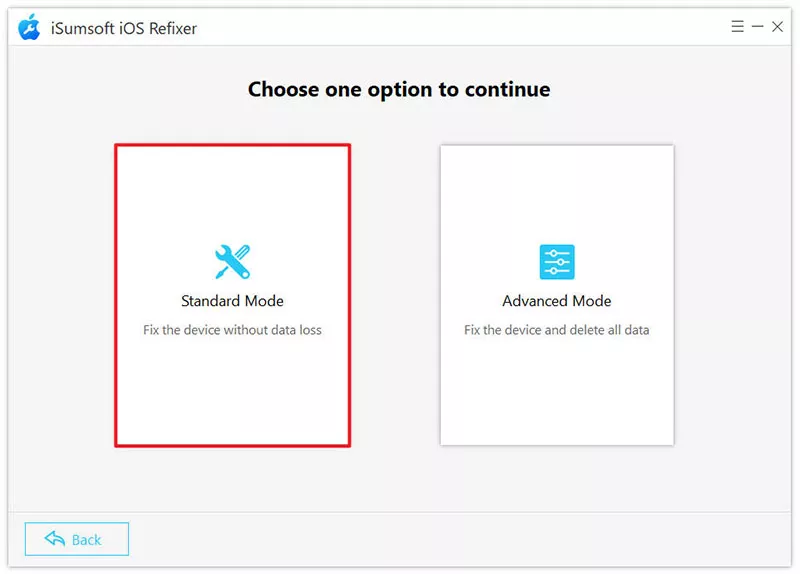
5. Click Start to confirm you want to proceed, then click Next. The software will automatically detect your iPhone.
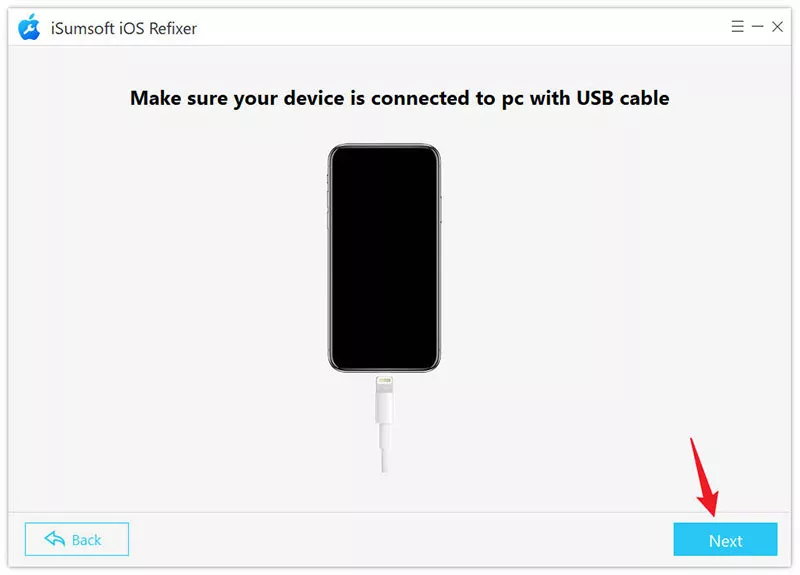
6. Click Download. The software will download the necessary firmware for repairing and updating your device.
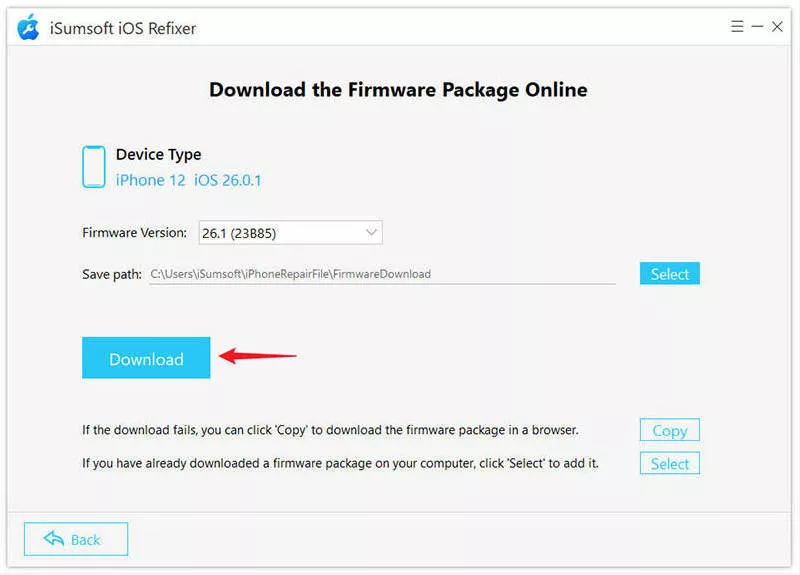
7. Click Repair to start repairing your iPhone, then wait for the repair to complete.
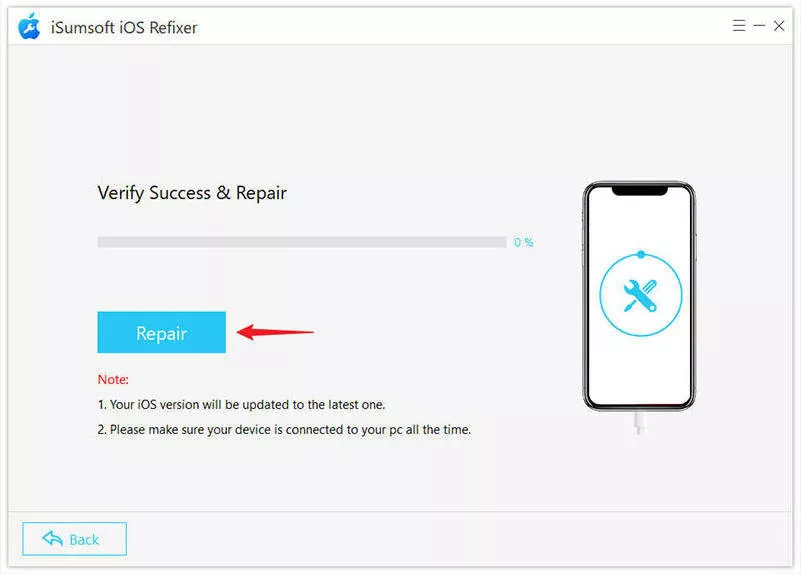
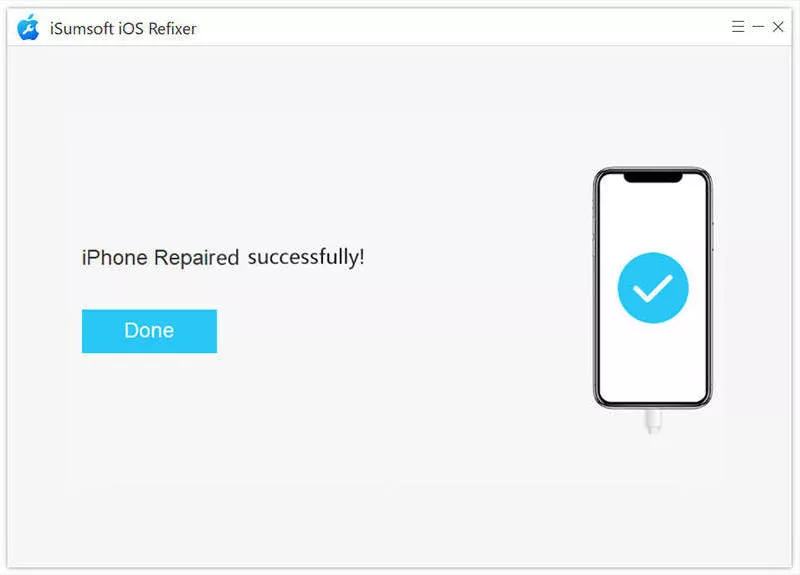
8. When the software prompts that the repair was successful, your iPhone has been repaired and updated to the latest iOS version.
If your iPhone is taking forever to update iOS 27, there are several troubleshooting methods you can try. From checking your network connection and free storage space to using a computer or third-party software, these solutions should help speed up the update process. Sometimes, patience can sometimes be key. With these methods, your iPhone will be up and running with iOS 27 in no time!
For current first-party troubleshooting steps, see Apple Support's If your iPhone or iPad won't update.
 iPhone
Screen Keeps Dimming Even with Auto Brightness off? Why and How to Fix
iPhone
Screen Keeps Dimming Even with Auto Brightness off? Why and How to Fix
 How to Fix iPhone Apps Closing
Unexpectedly
How to Fix iPhone Apps Closing
Unexpectedly
![[Solved] 8 Ways to Fix iPhone Lagging and Freezing](../images/ios-issues/iphone-lagging-and-freezing/8-ways-to-fix-iphone-lagging-and-freezing.webp) [Solved] 8 Ways to Fix iPhone
Lagging and Freezing
[Solved] 8 Ways to Fix iPhone
Lagging and Freezing
 How to Force Reboot iPhone
 Fix
iPhone Stuck in Recovery Mode Loop after Update
Fix
iPhone Stuck in Recovery Mode Loop after Update
 How to Fix iPhone Screen
Going Black Randomly
How to Fix iPhone Screen
Going Black Randomly
 How to Fix
iPhone Stuck on Headphone Mode
How to Fix
iPhone Stuck on Headphone Mode
 Fix:
iPhone Shows White Screen with Black Apple Logo Then Turns off
Fix:
iPhone Shows White Screen with Black Apple Logo Then Turns off
 How to Unzoom iPhone
Stuck in Zoom Mode
How to Unzoom iPhone
Stuck in Zoom Mode
