
[7 Proven Ways] How to Fix iPhone Stuck in Boot Loop

An iPhone stuck in a boot loop can be one of the most frustrating issues to deal with. Your iPhone keeps restarting, or it freezes on the Apple logo, preventing you from using it. Fortunately, there are several ways you can fix this problem. This guide will walk you through common causes of iPhone boot loops and 6 effective methods to resolve the issue.

- Causes of iPhone Boot Loop
- Method 1: Force Reboot Your iPhone
- Method 2: Bypass Lock Screen and Free Up Storage
- Method 3: Fix iPhone Boot Loop with iTunes
- Method 4: Fix iPhone Boot Loop with iSumsoft iOS Refixer
- Method 5: Fix iPhone Boot Loop via DFU Mode
- Method 6: Fix iPhone Boot Loop after Water Damage
- Method 7: Contact Apple Support
Causes of iPhone Boot Loop
A boot loop is when a device fails to enter the operating system successfully at boot and repeatedly tries to boot. There can be many reasons why the iPhone boot loop happens, actually, this is usually caused by a fault in the operating system files or hardware.
Software Glitches: Minor software bugs, corrupted system files, interrupted iOS updates, or failed factory resets can cause the iPhone’s startup process to fail, leading to a boot loop.
Full Storage: When your iPhone’s storage is full, it prevents essential system files from loading, causing your device to freeze on the Apple logo or get stuck in a boot loop.
Hardware Issues: Physical damage, such as from a drop, water exposure, screen replacement, bad battery, or even faulty charging, can interfere with your iPhone’s ability to boot correctly, resulting in a continuous restart cycle.
Method 1: Force Reboot Your iPhone
A force restart is often the first step when your iPhone is stuck in a boot loop. This method clears minor software glitches and helps resolve the issue without losing data.
1. Quickly press and release the Volume Up button.
2. Quickly press and release the Volume Down button.
3. Press and hold the Side button until the Apple logo appears, then release the button.
Once your iPhone restarts, check if the boot loop issue is resolved. If it’s still stuck, move on to the next method.
Method 2: Bypass Lock Screen and Free Up Storage
If your iPhone shows the lock screen after a force reboot but re-enters the boot loop immediately after unlocking, the issue is likely caused by low storage. When the device runs out of space, it cannot load essential system files, causing a crash.
Normally, you would need to free up space through the settings, but due to the boot loop, you can’t access these options directly. A factory reset would solve the problem but requires a computer and would result in data loss if no backup exists.
If you want to fix the iPhone boot loop without a computer and without losing data, try this method shared by a Reddit user. Your goal is to bypass the lock screen and free up storage space.
Step 1: Force Restart to Access the Lock Screen
Force restart your iPhone again and wait for the lock screen to appear.
Step 2: Trigger a Call Screen
Once on the lock screen, do not enter your passcode yet. Call your iPhone using another phone (a friend’s or a call from an online service), then answer the incoming call.
Step 3: Navigate to Settings
1. Tap the plus icon to add a call.
2. When the iPhone will ask for your passcode, enter it.
3. Swipe down from the top of the screen to access the Control Center.
4. Press and hold the WiFi icon twice to open the WiFi Settings.
5. The Settings app should now open!
Step 4: Free Up Storage Space
1. Go to General > iPhone Storage.
2. Free up at least 1–2 GB of space by offloading apps or deleting large files like videos.
Step 5: Restart Your iPhone
After successfully freeing up space, perform a normal restart by turning your iPhone off and on again. Once it reboots, it should start up normally without entering a boot loop.
Method 3: Fix iPhone Boot Loop with iTunes
If the previous methods haven’t worked for you, it’s time to fix your iPhone boot loop using iTunes on your computer. Using iTunes to update or restore your iPhone is an effective solution for boot loops caused by software glitches, storage issues, and other non-hardware-related problems.
Step 1: Connect Your iPhone to Your Computer
Connect your iPhone to your computer using a USB cable.
Step 2: Boot Your iPhone into Recovery Mode
iTunes won’t connect to your iPhone when it’s stuck in a boot loop, so you need to boot your iPhone into recovery mode. Here is how:
1. Quickly press and release the Volume Up button.
2. Quickly press and release the Volume Down button.
3. Press and hold the Side button until you see the recovery mode screen.

Step 3: Update iPhone Software
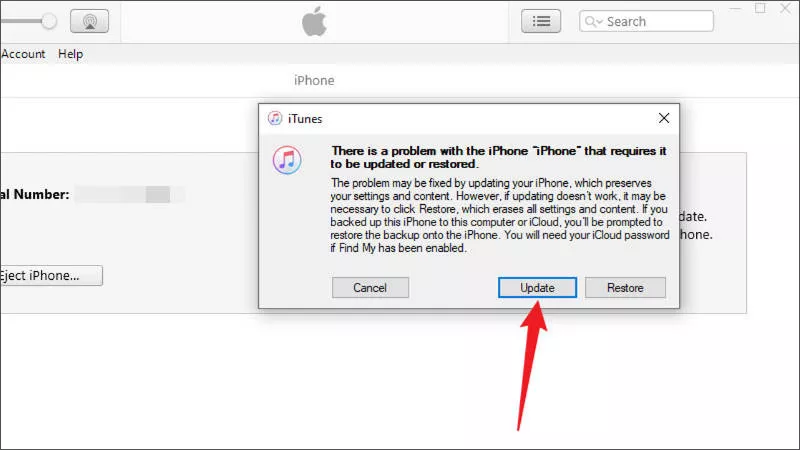
Open iTunes, and it will automatically detect your iPhone in recovery mode, prompting to choose between updating or restoring the device. Choose Update, then follow the on-screen instructions to begin the process.
Step 4: Restore Your iPhone If Update Fails
If an update doesn’t work and your iPhone is still stuck in a boot loop, boot your iPhone into recovery mode again, and then select Restore in iTunes. This will erase your iPhone and reinstall iOS, which should resolve the issue.
Method 4: Fix iPhone Boot Loop with iSumsoft iOS Refixer
If iTunes does not work for you, iSumsoft iOS Refixer is a great alternative, allowing you to fix an iPhone stuck in the boot loop without losing data.
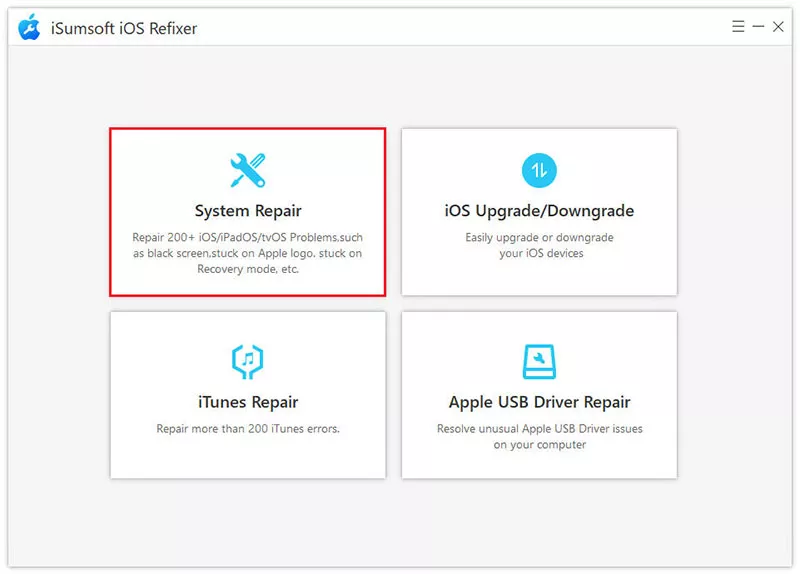
1. Download and install iSumsoft iOS Refixer on your computer, then launch the software.
2. Choose System Repair.
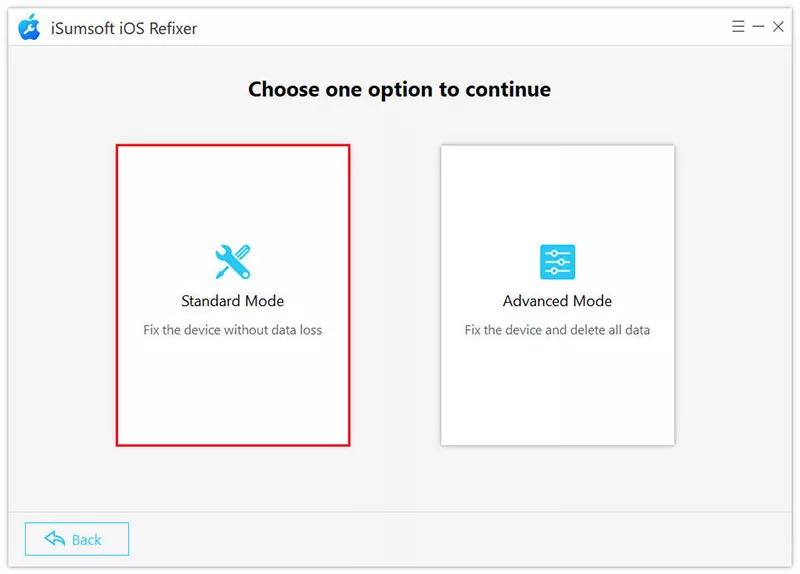
3. Choose Standard Mode to fix your iPhone boot loop without erasing any data.
4. Click Start to confirm you want to proceed.

5. Connect your iPhone to the computer via USB cable and boot your iPhone into recovery mode. After that, click Next. The software will automatically detect your iPhone.

6. Click Download to download the latest firmware package required for the repair. 
7. After the firmware download is complete, click Repair to start repairing your iPhone.

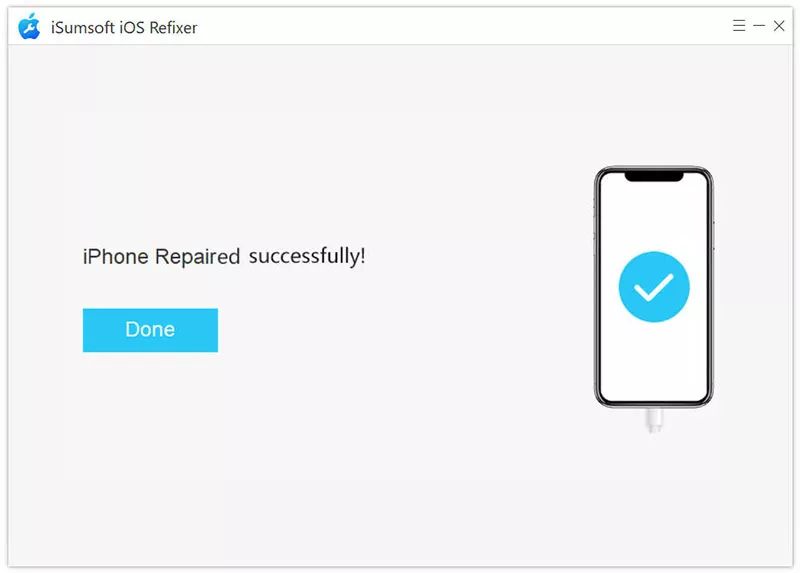
8. When the software prompts for successful repair, your iPhone should exit the boot loop and restart normally.
Method 5: Fix iPhone Boot Loop via DFU Mode
If the issue persists, you may need to try fixing the iPhone boot loop in DFU mode. DFU (Device Firmware Update) Mode is a deeper restore mode that can help fix more severe software issues, such as iPhones stuck in a boot loop. This is an uncommon approach, but it does work sometimes.
Step 1: Connect your iPhone to your computer via a USB cable.
Step 2: Boot your iPhone into DFU mode:
- Quickly press and release the volume up button.
- Quickly press and release the volume down button.
- Press and hold the side button until the screen goes black, then press and hold both the side button and volume down button for 5 seconds.
- Release the side button, but continue holding the volume down button for another 10 seconds. Your screen should remain black, indicating that your iPhone is in DFU mode.
Step 3: Open iTunes (or Finder) on your computer.
Step 4: Once iTunes/Finder detects your iPhone, select Restore to restore your iPhone to its factory settings.
Step 5: When the restore is complete, your iPhone should exit the boot loop and start up normally.
Method 6: Fix iPhone Boot Loop after Water Damage
Water damage can cause a boot loop by affecting the internal components. If you’ve dropped your iPhone in water or suspect liquid damage, follow these steps:
Step 1: Power Off Your iPhone
Turn off your iPhone immediately to prevent further damage.
Step 2: Dry the iPhone
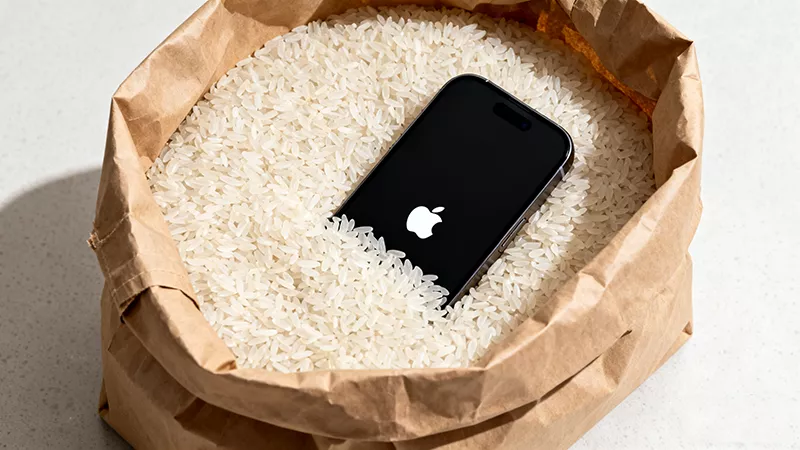
Dry the exterior with a soft cloth and place the phone in a bag with silica gel packets or rice for 24-48 hours.
Step 3: Check for Physical Damage
Inspect your iPhone for visible signs of corrosion or damage. The Liquid Contact Indicator (LCI) will turn red if water has entered your device.
Step 4: Try a Force Restart or Recovery Mode
After the iPhone is completely dry, try a force restart or use recovery mode to update or restore the iPhone.
If the problem persists, you may need professional repair to fix internal components damaged by water.
Method 7: Contact Apple Support
If all else fails, it’s time to contact Apple Support. Apple technicians can diagnose and fix more complex hardware or software issues that might be causing the boot loop.
Step 1: Check Warranty Status
Verify if your iPhone is still under warranty. If so, repairs may be free or discounted.
Step 2: Contact Apple Support
Visit the Apple Support website or use the Apple Support app to contact a representative or book an appointment at an Apple Store.
Step 3: Follow Apple's Guidance
Apple Support may offer remote assistance or suggest you send your iPhone for repairs. If the issue is hardware-related, they will provide a repair estimate.
FAQs about iPhone Boot Loop
Q: Can iPhone boot loop fix itself?
A: In some cases, yes. If the boot loop is caused by a minor software glitch, it might resolve automatically after the battery fully drains and the iPhone is recharged. However, most boot loops require manual troubleshooting.
Q: How much does it cost to fix a boot loop on an iPhone?
A: The cost of fixing a boot loop on an iPhone depends on whether the issue is caused by software or hardware problems:
Software issues (e.g., corrupt files, failed updates) are often free or low-cost to fix, using tools like iTunes, iSumsoft iOS Refixer, or DFU mode.
Hardware-related issues (e.g., water damage, faulty battery, or damaged components) can be more expensive. Repair costs at Apple range from $150 to $600 depending on the iPhone model and the damage. If your iPhone is under warranty, repairs may be covered. Out-of-warranty repairs typically cost more, and third-party repair shops may offer lower prices.
Conclusion
An iPhone stuck in a boot loop is a frustrating issue, but with the right troubleshooting methods, you can resolve it without too much hassle. From simple solutions like a force restart to more advanced options like DFU mode or using iTunes and iSumsoft iOS Refixer, there are several ways to fix the problem. If the issue is hardware-related, seeking help from Apple Support is the best option. By following the steps outlined in this guide, you can get your iPhone back to normal and avoid losing important data.
Related Articles
 iPhone Stuck in
Recovery Mode and Won’t Restore or Update? 6 Fixes!
iPhone Stuck in
Recovery Mode and Won’t Restore or Update? 6 Fixes!
 3 Ways to Fix
iPhone Stuck on Verifying Update
3 Ways to Fix
iPhone Stuck on Verifying Update
![[Solved] 8 Ways to Fix iPhone Lagging and Freezing](../images/ios-issues/iphone-lagging-and-freezing/8-ways-to-fix-iphone-lagging-and-freezing.webp) [Solved] 8 Ways to Fix iPhone
Lagging and Freezing
[Solved] 8 Ways to Fix iPhone
Lagging and Freezing
 Fix iPhone
Touch Screen Not Working after iOS Update
Fix iPhone
Touch Screen Not Working after iOS Update
 How to Fix
iPhone Stuck on Black Screen with Spinning Wheel
How to Fix
iPhone Stuck on Black Screen with Spinning Wheel
 How to Fix iPhone Apps Closing
Unexpectedly
How to Fix iPhone Apps Closing
Unexpectedly