
iPhone Battery Draining Fast After iOS 27 Update? 6 Fixes

If your iPhone battery is draining fast after the iOS 27 update, allow background indexing and app updates time to settle, then check Battery usage for the actual source. The six fixes below cover software updates, restarts, background activity, and display settings.
If the phone also overheats, shuts down unexpectedly, has a swollen battery, or was recently damaged, stop troubleshooting and arrange qualified hardware service. For new-model preparation, see the iPhone 18 Pro and iOS 27 upgrade guide.

- How to Fix iPhone Battery Draining Fast After Update
- Solution 1: Update iPhone to The Latest iOS Version
- Solution 2: Force Restart iPhone
- Solution 3: Check the Usage of Battery
- Solution 4: Turn off Background App Refresh
- Solution 5: Turn off Background Applications
- Solution 6: Disable Always on Mode
How to Fix iPhone Battery Draining Fast After Update
Solution 1: Update iPhone to The Latest iOS Version
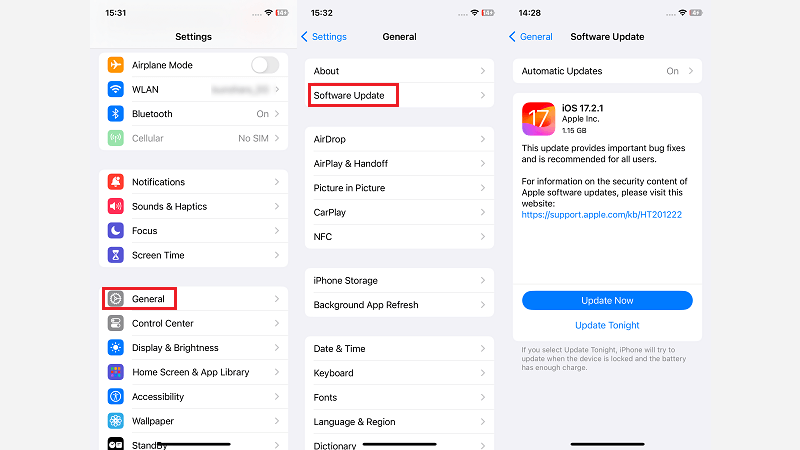
Open Settings > General > Software Update and install the latest update available for your device. Point releases can contain stability and security fixes. Back up the iPhone first and keep it connected to power and reliable Wi-Fi.
Solution 2: Force Restart iPhone
Considered the simplest and the most effective way, force restarting iPhone can fix a range of issues. Here is how to force restart iPhone:
1. Press and quickly release the Volume Up button.
2. Press and quickly release the Volume Down button.
3. Press and hold the Side (or Power) button until you see the Apple logo. Keep holding the button until the device restarts.

Solution 3: Check the Usage of Battery
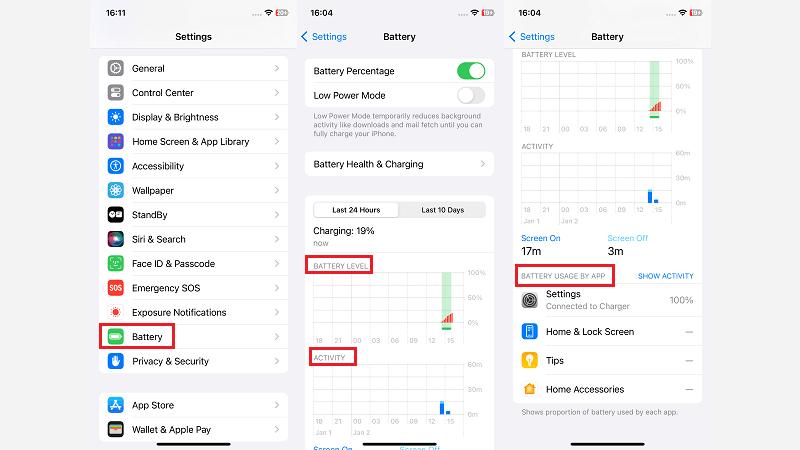
Battery, an iPhone built-in tool, allows you to monitor the power consumption of each application. By using this tool, you can identify which apps are consuming the most power and make informed decisions about disabling or adjusting them accordingly. Go to Settings > Battery. Here you can see the battery level and activity, as well as the battery usage by app.
Solution 4: Turn off Background App Refresh
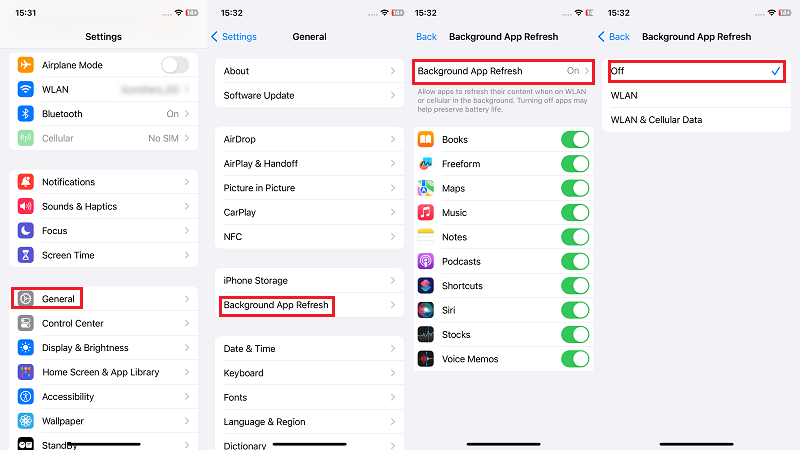
Background App Refresh allows apps to refresh their content when running in the background on Wi-Fi or cellular. Some apps that run in the background use a lot of battery power. Turning off apps can help conserve battery life. Go to Settings > General > Background App Refresh and disable it for non-essential apps.
Solution 5: Turn off Background Applications
Even when you're not using background apps, they continue to run and use system resources, which can drain your battery. By manually closing or disabling unnecessary background apps, you can reduce your overall power consumption and extend the battery life of your iPhone.
To close background applications on iPhone, follow these steps:
Step 1: Double-press the Home button (iPhone with the Home button) or swipe up from the bottom of the screen and pause (iPhone without the Home button) to access the app switcher.
Step 2: Swipe left or right to navigate through open app cards.
Step 3: Swipe up on an app card to close the apps that you want to stop running in the background.
Solution 6: Disable Always on Mode
Always On mode causes the screen or display to remain continuously active, which consumes more power. By turning off Always-On mode, the screen or display turns off when not in use and activates only when you interact with your device, extending your device's battery life.
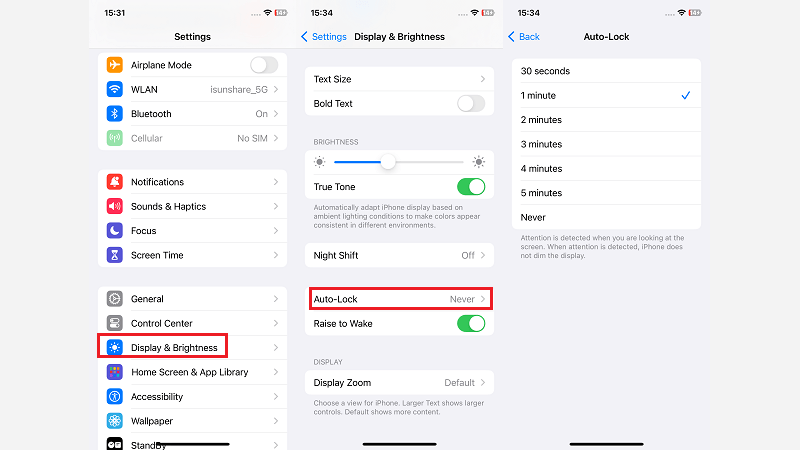
On iPhone: Go to Settings > Display & Brightness > adjust the Auto Lock setting to a shorter duration (e.g. 30 seconds or 1 minute) to ensure the screen turns off quickly when not in use.
Apple's official battery guidance explains how to review battery usage and service status in iPhone Battery Service.
Related Articles
 How to
Reset iPhone
Backup Password If Forgot It
How to
Reset iPhone
Backup Password If Forgot It
 iPhone
Could Not be
Restored, An Unknown Error Occurred
iPhone
Could Not be
Restored, An Unknown Error Occurred
 iTunes
Stuck on
Preparing iPhone for Software Update, What to Do?
iTunes
Stuck on
Preparing iPhone for Software Update, What to Do?
 Fixed: iTunes
Cannot Read the
Contents of the iPhone
Fixed: iTunes
Cannot Read the
Contents of the iPhone
 Fixed: iPhone Keeps
Popping Up Trust
This Computer
Fixed: iPhone Keeps
Popping Up Trust
This Computer
-
 How to
Transfer Data from
iPhone to iPhone without Backup
How to
Transfer Data from
iPhone to iPhone without Backup