
Face ID Not Working after Update iOS 27? 10 Proven Fixes!

Face ID is one of the most secure and convenient features of your iPhone, allowing you to unlock your phone, make payments, and use apps that require authentication simply by scanning your face. However, many users report issues with Face ID not working after updating to the latest version of iOS. If you're experiencing this problem after updating to iOS 27, don't worry! We’ve got you covered with these practical and effective solutions to fix the issue.
In this article, we’ll guide you through 10 methods to get your Face ID working again after the update. Whether it's a software glitch, hardware issue, or just a simple setting that's out of place, we’ll walk you through how to resolve the problem step by step.

For iOS 27 model and upgrade context, see the iPhone 18 Pro and iOS 27 upgrade guide. If the TrueDepth camera shows a hardware warning, use Apple's support route rather than attempting a physical adjustment.
- Why Won’t Face ID Work after Update?
- Method 1: Inspect the TrueDepth Camera Safely
- Method 2: Clean the Front Camera
- Method 3: Remove Case and Protector
- Method 4: Force Restart the iPhone
- Method 5: Open the Camera app
- Method 6: Turn Off Scene Detection
- Method 7: Check Screen Time Settings
- Method 8: Fix with iSumsoft iOS Refixer
- Method 9: Restore Your iPhone in Recovery Mode
- Method 10: Replace Face ID Component
Why Won’t Face ID Work after Update?
If Face ID was working fine before but suddenly stops working after an iOS update, it could be due to a variety of factors. iOS updates can make Face ID sensors more sensitive, which may cause them to be affected by issues that previously didn't interfere. Here are some common reasons why Face ID is not working after an update:
1. Sensor Misalignment or Obstruction
After an update, Face ID sensors—especially the TrueDepth camera—can become more sensitive to even slight misalignments, internal shifts, or external obstructions. This includes dirt, smudges, or fingerprints on the front camera lens, which can block the sensors and prevent Face ID from working.
2. Software Bugs or Glitches
Although iOS updates are intended to improve functionality, they can sometimes introduce bugs or glitches that interfere with Face ID. These issues could result from incomplete updates, corrupted files, or conflicts within the system, causing Face ID to behave unpredictably or fail to recognize your face altogether.
Method 1: Inspect the TrueDepth Camera Safely
Do not hit, tap, squeeze, or try to realign the TrueDepth camera. Impact can worsen physical damage and cannot repair a software problem. Instead, inspect the top of the display in good light for a cracked screen, moisture, a shifted protector, or visible damage.
If Face ID stopped after a drop, liquid exposure, or screen repair, skip repeated resets and contact Apple or an authorized service provider. Face ID security components require qualified service.
Method 2: Clean the Front Camera
Your Face ID can stop working if the sensors are obstructed by everyday grime, oil, or a smudge. A software update can make the system more sensitive to these minor obstructions.
1. Use a soft, lint-free microfiber cloth to gently clean the front camera lens.
2. Make sure there are no smudges or dirt left behind.
3. Once you've cleaned the lens, try using Face ID again to see if the problem has been fixed.

Method 3: Remove Case and Protector
If Face ID is still not working, try removing the phone case and screen protector. After updating to the latest iOS version, your iPhone may become more sensitive to obstructions around the TrueDepth camera system.
1. Carefully remove your iPhone case.
2. Try using Face ID without the case.
3. If Face ID is still not working, remove your screen protector and try again.

Method 4: Force Restart the iPhone
If Face ID is still not working, a force restart can often resolve minor software glitches that might be interfering with the system. This method won’t erase any data, and it can help reboot your iPhone’s hardware and software, giving Face ID a fresh start.
1. Quickly press and release the Volume Up button.
2. Quickly press and release the Volume Down button.
3. Press and hold the Side button until you see the Apple logo, then release the button.
4. After the restart, check if Face ID is working properly.

Method 5: Open the Camera App
If Face ID is not working after an update, the issue could be related to the system not properly recognizing the front camera. Sometimes, opening the Camera app can help reset the connection between the Face ID sensor and the system, allowing it to recalibrate and work correctly.
1. Open the Camera app from your iPhone’s Home screen.
2. Switch to the front camera.
3. Try using Face ID again.
Method 6: Turn Off Scene Detection
If Face ID is still not working, it’s worth checking your settings. After updating to the latest iOS, Face ID may sometimes stop working due to new features or settings that affect how the system interacts with your face. One such feature, Scene Detection, may unintentionally interfere with Face ID by adjusting how the camera detects your surroundings. Turning off this setting may help restore Face ID functionality. Here's how to do it:
1. Open Settings on your iPhone.
2. Scroll down and tap on Camera.
3. Scroll down till you see Scene Detection and toggle it off. (You can turn this back on later after you re-setting up Face ID if you want.)

4. Check if Face ID is working. If it is still not working, reset it, and after setting it up again, it should function properly.
Method 7: Check Screen Time Settings
If Face ID is not working after an update, there could be restrictions in place that are affecting its ability to work properly. iOS's Screen Time feature allows you to control various settings, including restrictions on passcode changes, which may interfere with Face ID's setup. Adjusting these settings can sometimes resolve the issue. Here's how:
1. Go to Settings > Screen Time.
2. Tap on Content & Privacy Restrictions, and enter your Screen Time passcode if prompted.
3. Tap on Passcode Changes and set it to Allow.

Method 8: Fix with iSumsoft iOS Refixer
If the previous methods haven’t resolved the issue, there may be a deeper software issue causing Face ID not to work, such as an incomplete update, a system file conflict, etc. In this case, you can use iSumsoft iOS Refixer to quickly fix this issue without losing any data.
1. Connect your iPhone to your computer using a USB cable. Unlock your iPhone and tap Trust if prompted.
2. Download and install iSumsoft iOS Refixer on your computer, then launch the software.
3. On the main interface of the software, select the System Repair option.

4. Select Standard Mode, which allows you to repair iOS system issues without losing any data.

5. Click Start to confirm your selection.

6. Click Next. The software will automatically detect your iPhone.

7. Click Download, and the software will automatically download the firmware package required to repair your iOS system.

8. Once the firmware download is complete, click Repair to begin repairing your iPhone.

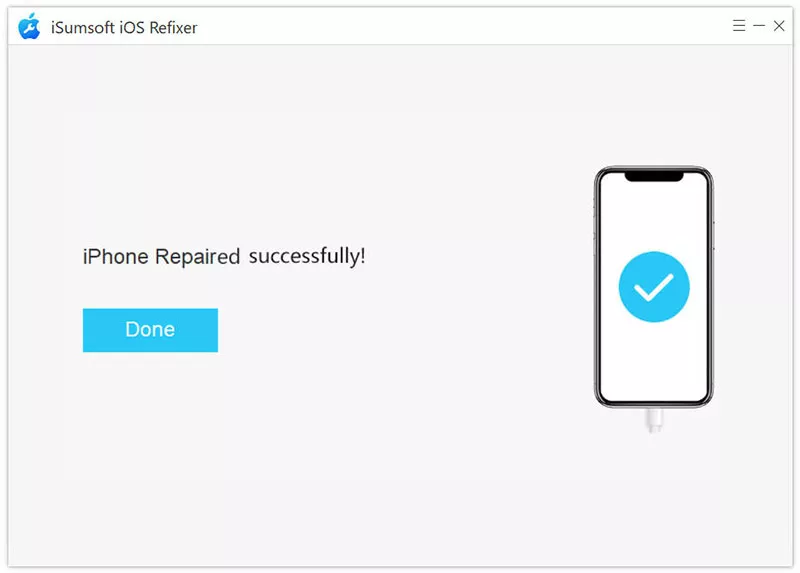
9. After a few moments, the software will notify you that the repair is successful. Your iPhone will automatically restart, and Face ID will begin working properly again, along with all other features.
Method 9: Restore Your iPhone in Recovery Mode
If Face ID is still not working and you prefer not to use a third-party solution, restoring your iPhone to factory settings in Recovery Mode is also an effective solution. This method will erase all data on the iPhone and reinstall the latest iOS version, often resolving any software-related issues causing Face ID to not work. Be sure to back up your iPhone before proceeding. Here's how to do it:
1. Connect your iPhone to your computer using a USB cable.
2. Press and release the Volume Up button, then press and release the Volume Down button. Finally, press and hold the Side button until the recovery mode screen appears.
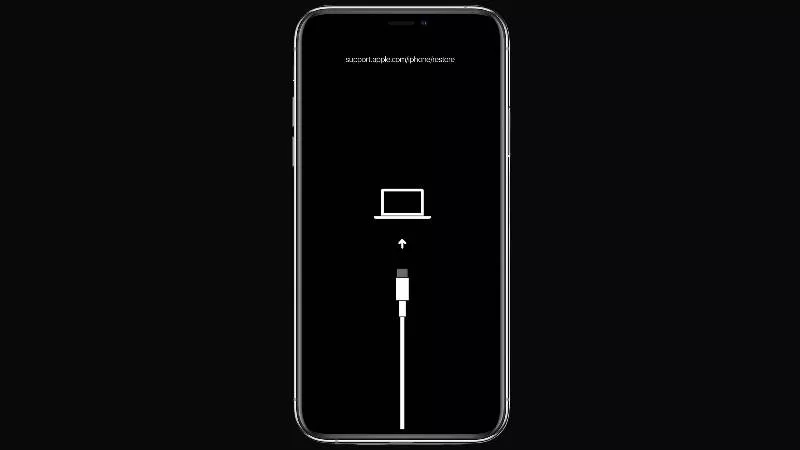
3. Open iTunes on your computer and choose Restore when prompted.
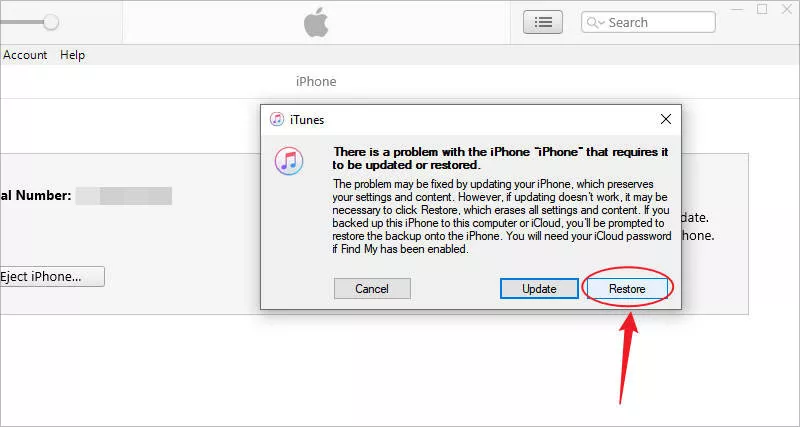
4. Click Restore and Update to proceed.
5. Agree to the terms if prompted, and iTunes will automatically restore your iPhone to its factory settings.
6. When the restore is complete, set up your iPhone again from scratch and set up Face ID again if you wish.
Method 10: Replace Face ID Component
If none of the software-based solutions work, your Face ID component or TrueDepth camera may be broken, and you might need to repair or replace it.
Contact Apple Support: Reach out to Apple Support to explain the issue and confirm whether your Face ID sensor or related components might need replacement.
Visit an Apple Store or Authorized Service Provider: Apple technicians will diagnose the issue. If they determine that the Face ID hardware is faulty, they will replace the necessary components.

Cost: Be prepared for potential repair costs. The replacement of the Face ID components typically involves replacing the front camera and the TrueDepth camera system, which can be expensive, especially for out-of-warranty devices.
Backup Your Data: Before any repair, ensure you have a complete backup of your iPhone to avoid data loss.
In many cases, Face ID issues after updates are software-related. However, if hardware failure is the cause, replacing the faulty component is the only effective solution.
Conclusion
If Face ID is not working after an iOS update, it can be frustrating, but the issue is often due to common, fixable problems. Whether it's due to sensor misalignment, obstructions like dirt or smudges on the front camera, or software bugs from the update itself, there are several steps you can take to resolve the issue.
Start by checking for any physical obstructions around the TrueDepth camera, such as a dirty lens or poorly aligned case. If that doesn’t work, a simple force restart or troubleshooting through iOS settings can often do the trick. In some cases, a software glitch may be the root cause, and using iSumsoft iOS Refixer or performing a factory reset might help.
If you’ve tried all these steps and Face ID is still not working, reaching out to Apple Support for further assistance may be necessary. By following the troubleshooting methods outlined in this guide, you should be able to restore Face ID functionality and get back to using your iPhone without issue.
Related Articles
-
 iPhone
Screen Keeps Dimming Even with Auto Brightness off? Why and How to Fix
iPhone
Screen Keeps Dimming Even with Auto Brightness off? Why and How to Fix
 How to Fix iPhone Apps Closing
Unexpectedly
How to Fix iPhone Apps Closing
Unexpectedly
![[Solved] 8 Ways to Fix iPhone Lagging and Freezing](../images/ios-issues/iphone-lagging-and-freezing/8-ways-to-fix-iphone-lagging-and-freezing.webp) [Solved] 8 Ways to Fix iPhone
Lagging and Freezing
[Solved] 8 Ways to Fix iPhone
Lagging and Freezing
 How to Force Reboot iPhone
 Fix
iPhone Stuck in Recovery Mode Loop after Update
Fix
iPhone Stuck in Recovery Mode Loop after Update
 How to Fix iPhone Screen
Going Black Randomly
How to Fix iPhone Screen
Going Black Randomly
 How to Fix
iPhone Stuck on Headphone Mode
How to Fix
iPhone Stuck on Headphone Mode
 Fix:
iPhone Shows White Screen with Black Apple Logo Then Turns off
Fix:
iPhone Shows White Screen with Black Apple Logo Then Turns off
 How to Unzoom iPhone
Stuck in Zoom Mode
How to Unzoom iPhone
Stuck in Zoom Mode