
Unable to Check for Update on iPhone iOS 27? Here's The Fix!

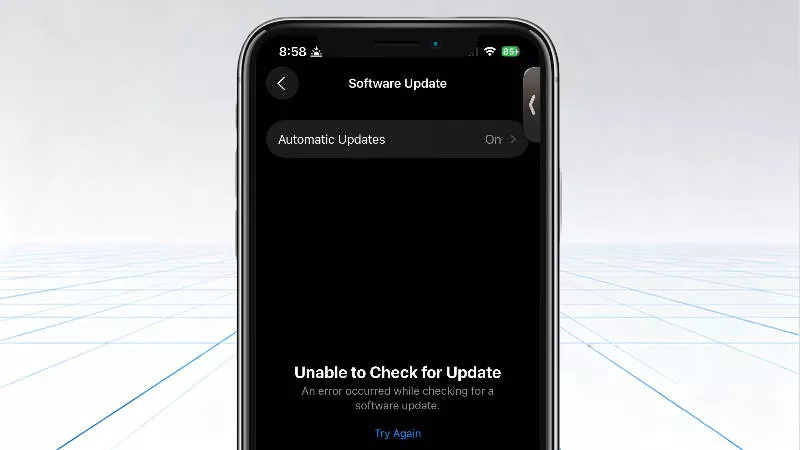
If you’ve encountered the frustrating "Unable to Check for Update" error while attempting to update your iPhone, you’re not alone. This issue can prevent you from enjoying the latest features and security enhancements of iOS. Fortunately, there are several methods to resolve this error and successfully update your device. In this article, we'll guide you through 8 effective solutions to fix the "Unable to Check for Update" error on your iPhone.
Start here:
- Confirm your model supports iOS 27 and check Apple's System Status page.
- Try another reliable Wi-Fi network before changing security settings or erasing the phone.
- New iPhone users can follow the iPhone 18 Pro and iOS 27 setup checklist.
- Why Is My iPhone Saying "Unable to Check for Update"?
- Method 1: Delete the Downloaded Update
- Method 2: Force Reboot Your iPhone
- Method 3: Turn Off the Passcode
- Method 4: Try Again Later
- Method 5: Disable Your DNS
- Method 6: Erase All Content and Settings
- Method 7: Update Your iPhone with iTunes
- Method 8: Fix Using iSumsoft iOS Refixer
Why Is My iPhone Saying “Unable to Check for Update”?
The error message “Unable to Check for Update” usually appears when your iPhone fails to connect to Apple’s servers to check for or download an available iOS update. This issue can occur due to several reasons, including network problems, system glitches, incorrect settings, or corrupt files. Let’s dive into the solutions you can use to resolve the problem.
Method 1: Delete the Downloaded Update
If your iPhone says “Unable to Check for Update,” the first step is to delete any previously downloaded update file. Many Reddit users have reported that this works. Here’s how:
1. Go to Settings on your iPhone.
2. Tap on General.
3. Select iPhone Storage.
4. Find the Software Update file in the list of apps and tap on it.
5. Tap Delete Update.
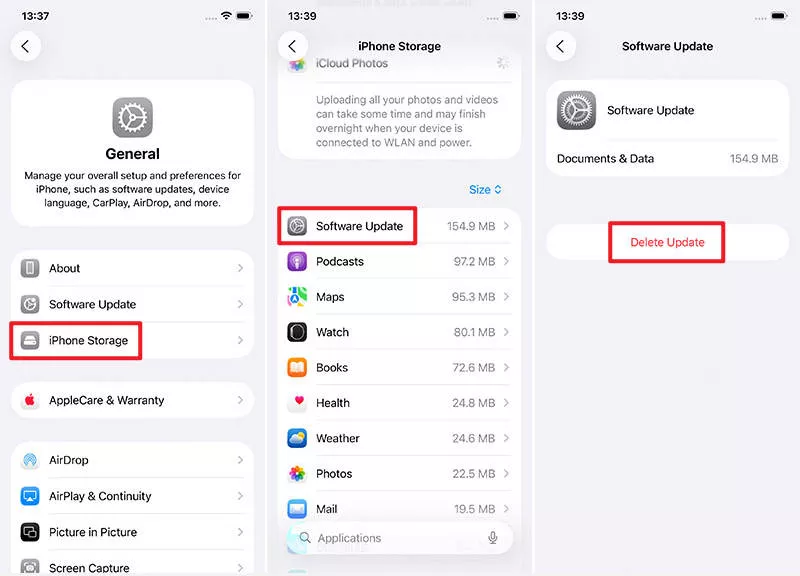
6. Afterward, go back to Settings > General > Software Update to try downloading and installing the update again.
This method can help clear any corrupted update files and let you try the update process from scratch.
Method 2: Force Reboot Your iPhone
A simple force reboot can often resolve many software-related issues, including update errors. By rebooting your iPhone, you’ll refresh the system and clear temporary glitches that might be causing it to be unable to check for the update.
1. Quickly press and release the Volume Up button.
2. Quickly press and release the Volume Down button.
3. Press and hold the Side button until the Apple logo appears.
4. Once your iPhone has rebooted, go to Settings > General > Software Update to check for the update again.
Method 3: Turn Off the Passcode
Several users on Reddit have shared that turning off the passcode helped resolve the issue. This may sound strange, but it actually works for some users.
1. Go to Settings.
2. Tap Face ID & Passcode.
3. Enter your passcode.
4. Scroll down and tap Turn Off Passcode.
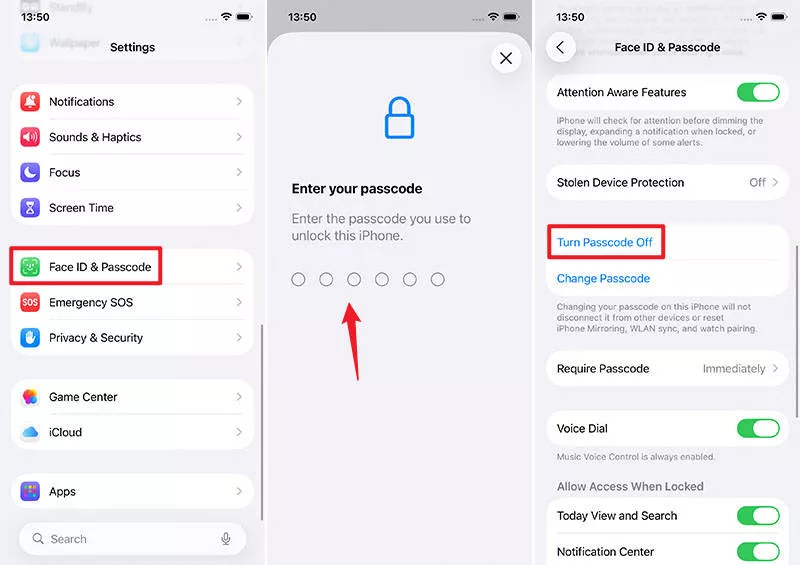
5. Confirm by entering your passcode again.
6. Once the passcode is turned off, try updating your iPhone again.
Method 4: Try Again Later
If your iPhone is still saying “Unable to Check for Update”, the issue may be on Apple’s servers. Sometimes, Apple’s servers can become overloaded, especially during the release of new iOS updates. This can result in connection issues when your iPhone attempts to check for updates. If this is the case, you may need to wait until the servers are less busy.
1. Try checking for the update at a different time of day, particularly during off-peak hours when Apple's servers might be less congested.
2. You can also check Apple’s System Status page to see if there are any ongoing server issues affecting software updates.
Method 5: Disable Your DNS
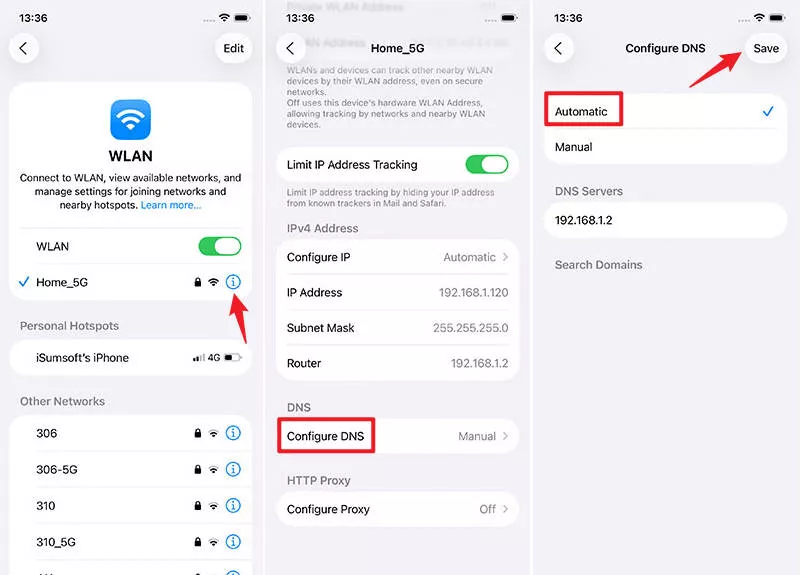
If all else fails, ensure no DNS settings are blocking access to Apple’s servers, which could cause your iPhone to be unable to check for the update. Disabling or resetting the DNS settings can help resolve this issue.
1. Open Settings on your iPhone.
2. Tap on WLAN.
3. Tap the information icon next to your connected WiFi network.
4. Scroll down and tap Configure DNS.
5. Select Automatic, then tap Save to apply the changes.
Method 6: Erase All Content and Settings
Warning:
- This method erases the iPhone. Use it only after the lower-risk network, restart, and computer-update methods, and verify a usable backup first.
1. Open Settings on your iPhone and tap on your Apple account name at the top, then go to the iCloud option to back up your iPhone to iCloud.
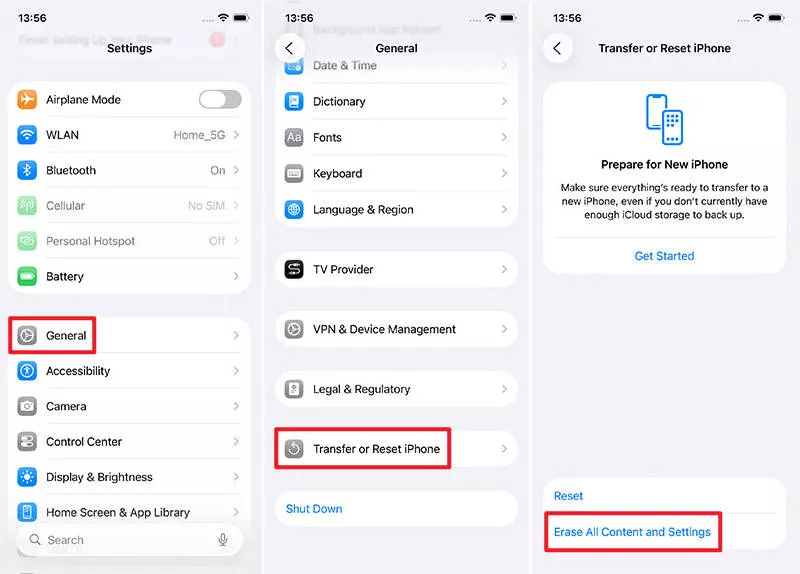
2. Go to Settings > General > Transfer or Reset iPhone > Erase All Content and Settings to erase your iPhone.
3. When your iPhone is erased, set it up again and restore data from iCloud backup.
4. When you return to your iPhone, it should be able to check for the update.
Method 7: Update Your iPhone with iTunes
If your iPhone is still unable to check for the update, using iTunes (or Finder on macOS Catalina and later) can help bypass the issue and force the update to install.
1. Connect your iPhone to your computer using a USB cable.
2. Press and release the Volume Up button, and press and release the Volume Down button. Then hold the Side button until the recovery mode appears.
3. Open iTunes on your computer and choose Update when prompted.
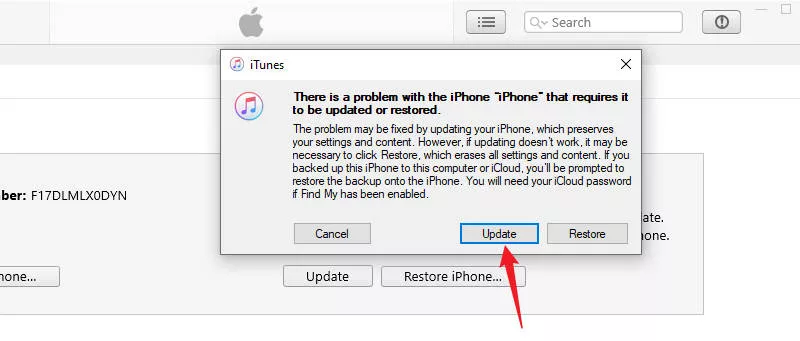
4. Follow the on-screen instructions to begin the update.
Method 8: Fix Using iSumsoft iOS Refixer
If you’ve tried all the above methods without success, you might be dealing with a deeper system issue. In this case, using a professional iOS repair tool like iSumsoft iOS Refixer can help. This tool is designed to fix common iOS problems, including the "Unable to Check for Update" error, without causing any data loss.
1. Download and install iSumsoft iOS Refixer on your computer, then launch the program.
2. Connect your iPhone to your computer using a USB cable. Unlock your iPhone and tap Trust if prompted.
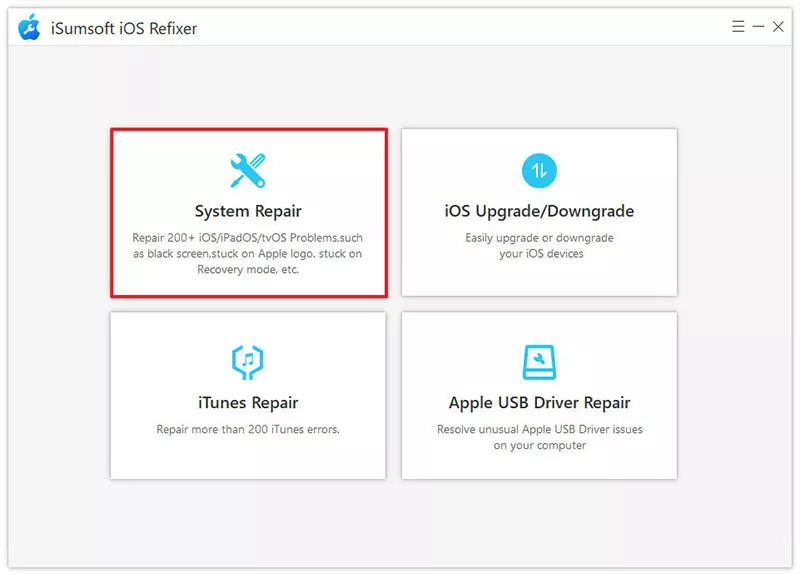
3. In iSumsoft iOS Refixer, select the System Repair option.
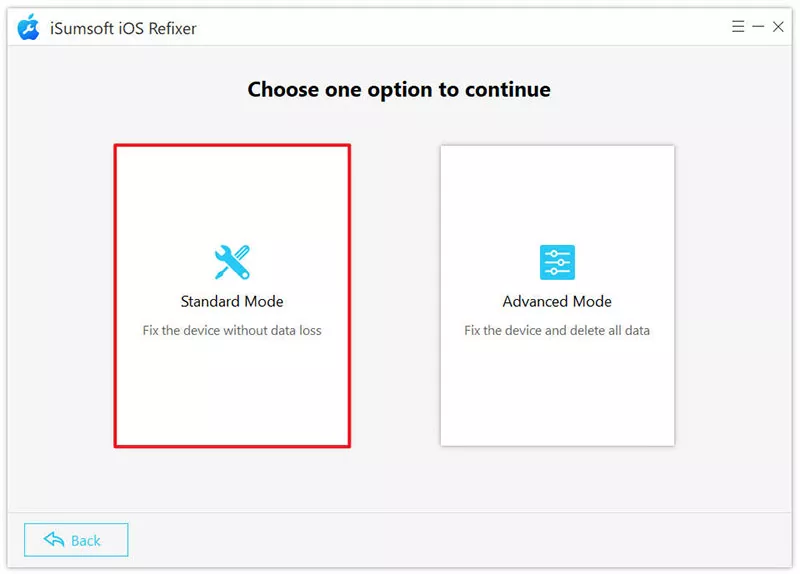
4. Select Standard Mode, which helps fix your iOS issues without losing any data.
5. Click Start to confirm your choice, then click Next. The software will automatically detect your
iPhone. 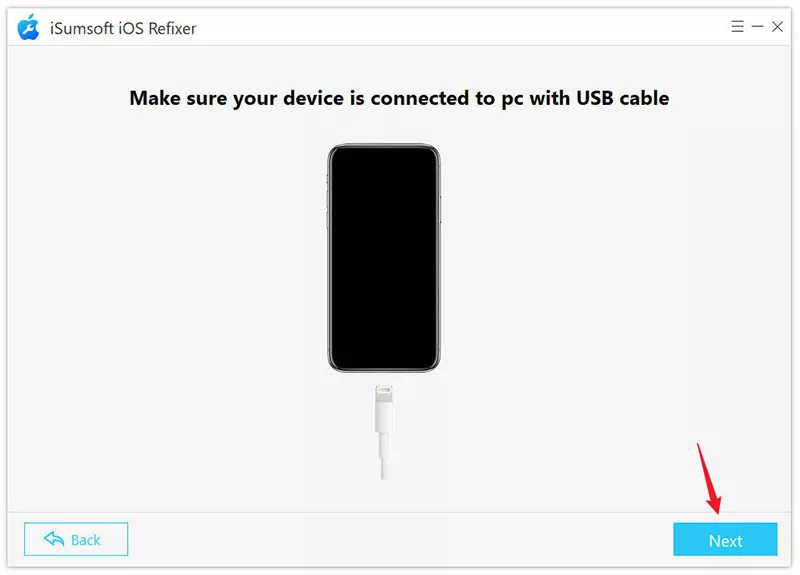
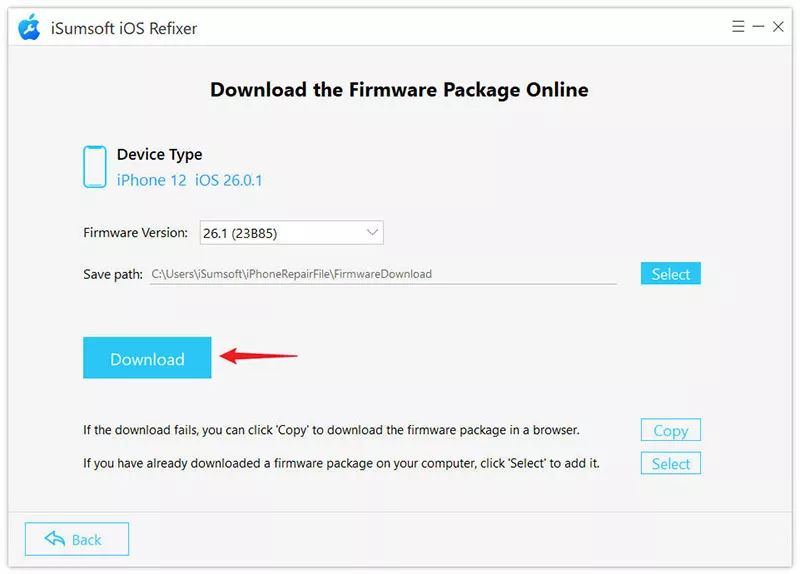
6. Click Download to download the latest iOS firmware for your iPhone.
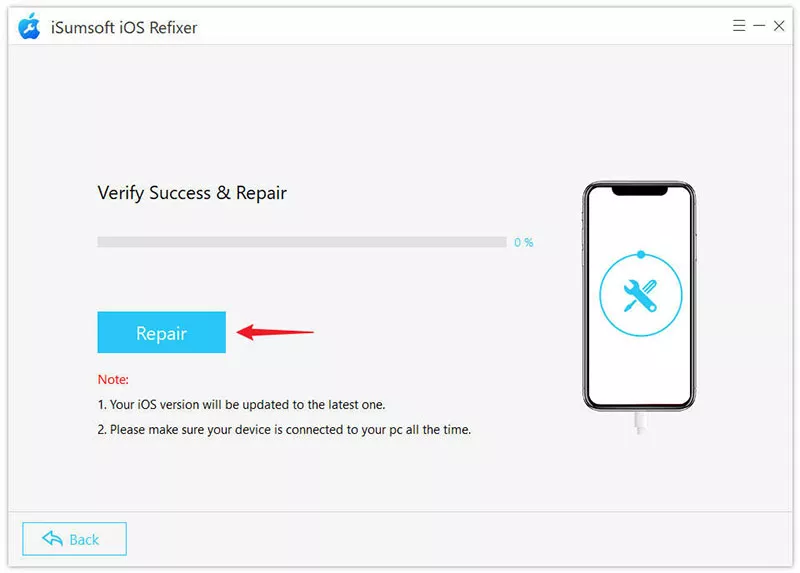
7. Once the firmware download is complete, click Repair to start repairing your iPhone.
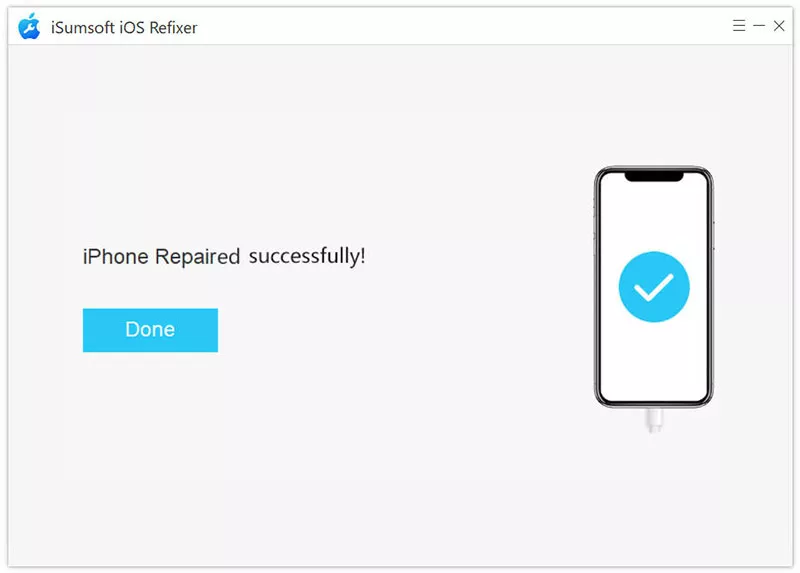
8. When the software confirms that the repair was successful, your iPhone will be updated to the latest iOS version. You won’t need to perform another update, and your iPhone should now be able to check for and install future updates without issues.
Conclusion
The "Unable to Check for Update" error can be a frustrating issue, but with these 8 methods, you can quickly troubleshoot and resolve the problem. Whether it’s deleting a downloaded update, force rebooting your iPhone, or using a professional repair tool like iSumsoft iOS Refixer, there’s a solution that can help. Try these methods in order, and you should be able to update your iPhone without any issues.
If the problem persists, it might be time to contact Apple Support for further assistance. With the right steps, you’ll soon be able to enjoy all the new features of iOS!
Apple documents the official causes and update steps in If your iPhone or iPad won't update.
Related Articles
-
 iPhone
Screen Keeps Dimming Even with Auto Brightness off? Why and How to Fix
iPhone
Screen Keeps Dimming Even with Auto Brightness off? Why and How to Fix
 How to Fix iPhone Apps Closing
Unexpectedly
How to Fix iPhone Apps Closing
Unexpectedly
![[Solved] 8 Ways to Fix iPhone Lagging and Freezing](../images/ios-issues/iphone-lagging-and-freezing/8-ways-to-fix-iphone-lagging-and-freezing.webp) [Solved] 8 Ways to Fix iPhone
Lagging and Freezing
[Solved] 8 Ways to Fix iPhone
Lagging and Freezing
 How to Force Reboot iPhone
 Fix
iPhone Stuck in Recovery Mode Loop after Update
Fix
iPhone Stuck in Recovery Mode Loop after Update
 How to Fix iPhone Screen
Going Black Randomly
How to Fix iPhone Screen
Going Black Randomly
 How to Fix
iPhone Stuck on Headphone Mode
How to Fix
iPhone Stuck on Headphone Mode
 Fix:
iPhone Shows White Screen with Black Apple Logo Then Turns off
Fix:
iPhone Shows White Screen with Black Apple Logo Then Turns off
 How to Unzoom iPhone
Stuck in Zoom Mode
How to Unzoom iPhone
Stuck in Zoom Mode