
New iPhone Stuck on Software Update During Setup? 5 Fixes

A new iPhone can appear stuck when setup requires a software update before Quick Start can continue. Keep the old phone and its backup intact while you use the low-risk fixes below.
See the complete iPhone 18 Pro and iOS 27 setup and transfer checklist before erasing or trading in the old device.

Quick answer
- Fastest fix: Force restart your iPhone — press Volume Up, press Volume Down, then hold the Side button until the Apple logo appears. This does not erase data.
- If it's still stuck: Press the Side button, choose Start Over, and skip data transfer during setup. Then update iOS in Settings > General > Software Update and transfer your data afterward.
- Before you start: Connect to stable Wi-Fi, charge above 50%, and do not transfer your eSIM until the new iPhone is fully set up.
- Last resort: Update or restore the iPhone with a computer, or use a repair tool such as iSumsoft iOS Refixer.
If you’ve recently bought a new iPhone and are stuck on the software update screen during the setup process, you're not alone. Many new iPhone users have faced the same frustrating issue: the device seems to hang on the update, preventing you from completing the initial setup. This can be especially troublesome if you’re excited to start using your new phone but can’t get past the setup process.
In this article, we'll explore why your new iPhone might be stuck on the software update and provide you with several effective methods to resolve the issue. Whether you are trying to skip the update, restart the phone, or use a computer to fix it, we’ve got you covered. Let’s dive into each method to help you get your iPhone back up and running smoothly.
- Why Is New iPhone Stuck on Software Update During Setup
- Method 1: Force Restart Your iPhone
- Method 2: Skip Software Update during Setup
- Method 3: Wait for It to Fix Itself
- Method 4: Fix with iSumsoft iOS Refixer
- Method 5: Update or Restore Using a Computer
- Official Apple Sources
- Frequently Asked Questions
Why Is New iPhone Stuck on Software Update During Setup
When setting up a new iPhone, if you choose to transfer data from an old iPhone, the system will prompt you to update the software before proceeding. However, sometimes the software update takes too long or even gets completely stuck. There are several reasons why this could happen:
Slow or Unstable Internet Connection: The software update requires a stable and fast Wi-Fi connection to complete. If your Wi-Fi connection is slow, intermittent, or drops during the process, the update might fail or freeze.
Heavy Server Traffic from Apple: When Apple releases a new iOS update, millions of users try to download and install it at the same time. This can overload Apple’s servers, leading to delays or errors during the update process.
Corrupted or Interrupted Update File: If the update file becomes corrupted during the download process, the iPhone might be unable to install it correctly. This could happen if there is an issue with the download, like an interruption or network problem. The update process could then get stuck, as the device keeps trying to apply a faulty file.
Not Enough Storage or a Low Battery: If the new iPhone is low on free space after a data transfer begins, or the battery drops below 50% without being plugged in, iOS can pause or refuse to finish the update and leave it stuck.
A Temporary Software Glitch: Setup runs activation, the software update, and data migration at the same time. A minor iOS glitch — or a known bug some users hit during the "Transfer Your Apps & Data" step — can freeze the Software Update screen even when your connection is fine.
Important: don't transfer your eSIM yet
- If your carrier uses an eSIM, do not move it to the new iPhone until setup finishes successfully.
- If the update gets stuck after the eSIM transfers, the new iPhone can't get online to finish updating, and your old iPhone may lose service too.
- Once the new iPhone is fully set up and updated, add the eSIM from Settings > Cellular > Add eSIM (or Add Cellular Plan).
Method 1: Force Restart Your iPhone
If your new iPhone is stuck on the Software Update screen during the setup, the first step you should try is to force restart the device. Many users have reported that after a force restart, the software update is complete, allowing them to continue transferring data and complete the iPhone setup.
Step 1 Quickly press and release the Volume Up button.
Step 2 Quickly press and release the Volume Down button.
Step 3 Press and hold the Side button until the Apple logo appears.

Method 2: Skip Software Update during Setup
If your iPhone is still stuck, another effective solution is to skip the software update during the initial setup process. By doing so, you can complete the setup without waiting for the update to finish, and then update your iPhone later at your convenience.
Set It Up Again without Transferring Data
Step 1 When your iPhone is stuck on the Software Update screen, press and hold the Side button.
Step 2 When a menu appears with an option to Start Over, tap on it to restart the setup process.
Step 3 During the setup process, when you are prompted to transfer data from iCloud or your old iPhone, choose the option to skip this step.
Step 4 Complete the rest of the setup steps. Since you’ve skipped the data transfer, the setup should proceed without encountering the software update screen.
Update iOS via Settings
Step 5 On your iPhone, go to Settings > General > Software Update to download and install the iOS update.
Transfer Data
Step 6 If you want to transfer data from your old iPhone, erase your new iPhone first by going to Settings > General > Transfer or Reset iPhone > Erase All Content and Settings.
Step 7 Once your iPhone is erased, set it up again and transfer data from your old iPhone, and this time, you won’t be stuck on the Software Update screen.
Method 3: Wait for It to Fix Itself
Several users have reported that simply leaving it alone for a moment and it will fix itself. While this may sound counterintuitive, sometimes the iPhone just needs more time to complete the software update, especially if the process is being delayed by factors such as slow internet speeds or temporary server issues. If you're not in a rush, this method can be an easy way to get past the update screen without taking any further steps.
Method 4: Fix with iSumsoft iOS Refixer
If you’ve tried the methods above, I believe that the issue is most likely resolved. However, if your new iPhone is still stuck on the Software Update screen, you may want to consider using iSumsoft iOS Refixer as your next step. This powerful tool is designed to fix a variety of iOS issues, including devices stuck on the software update screen, boot loops, and more.
Step 1 On your computer, download and install iSumsoft iOS Refixer, then launch the software.
Step 2 Select System Repair.

Step 3 Select Standard Mode, and on the next page, click Start to confirm your selection.

Step 4 Click Next after ensuring your iPhone is connected to your computer via USB cable. The software then automatically detects your iPhone.

Step 5 Click Download to download the latest firmware package for your iPhone.

Step 6 Click Repair to begin fixing your iPhone, then wait for the process to complete.

Step 7 When the software prompts that the repair was successful, your new iPhone has been repaired and updated to the latest iOS.
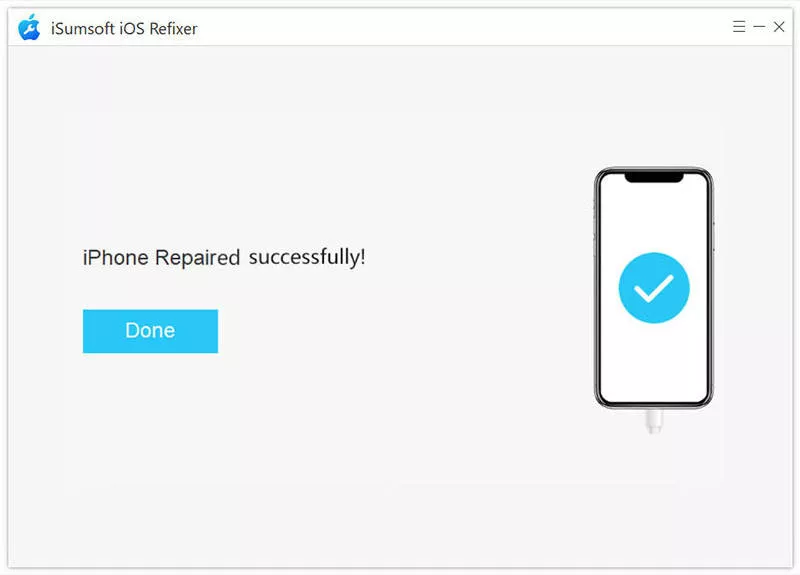
Step 8 You can now proceed with setting up your new iPhone, and during this process, you can transfer data without being prompted for a software update.
Method 5: Update or Restore Your iPhone Using a Computer
If you prefer not to use a third-party solution, you can fix the stuck update by connecting your iPhone to a computer and using recovery mode. Recovery mode gives you two choices: Update, which reinstalls iOS without erasing your data, and Restore, which wipes the device. Several users report this works when on-device methods fail.
Before you continue
- Try Update first: It reinstalls iOS and keeps your data. Only use Restore if Update fails.
- Restore erases everything: Back up your old iPhone to iCloud or your computer first, since a new iPhone stuck in setup usually has no backup of its own yet.
- Which app: Use Finder on macOS Catalina or later, or iTunes on Windows and older Macs.
Step 1 Connect your iPhone to your computer using a USB cable.
Step 2 Press and release the Volume Up button, press and release the Volume Down button, then press and hold the Side button until the recovery mode screen (a computer-and-cable icon) appears.

Step 3 Open Finder (or iTunes) on your computer and locate your iPhone, but do not sign in with an Apple ID.
Step 4 When prompted, click Update first so the computer reinstalls iOS without erasing your data. If Update does not clear the stuck update, repeat the steps and choose Restore.
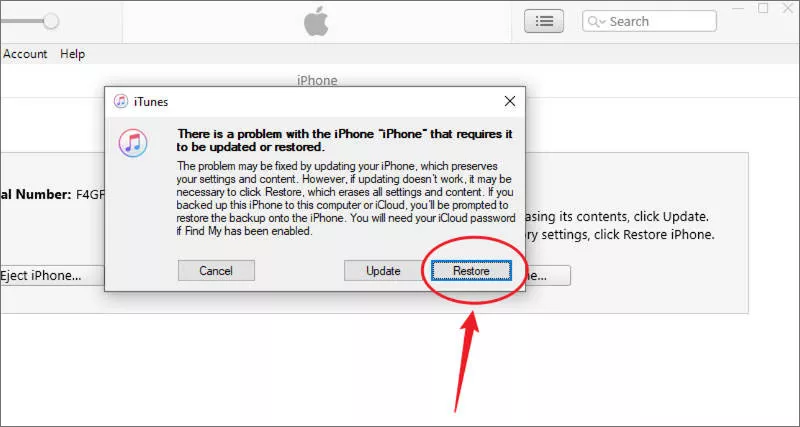
Step 5 If you choose Restore, the computer erases your iPhone, installs the latest iOS, and returns it to factory settings.
Step 6 When the restore is complete, set up your iPhone again, and this time you won’t be prompted for an update.
Conclusion
If your new iPhone is stuck on the software update screen during setup and transferring data, there are several ways to resolve the issue. Whether it’s due to slow internet speeds, server congestion, or a simple software glitch, most of the time, the problem can be fixed by waiting, force restarting, or skipping the update during setup. If those methods don’t work, you can also try advanced solutions like using iSumsoft iOS Refixer or restoring your iPhone through a computer. These are effective methods shared by users on Reddit.
In most cases, the issue can be resolved with patience and the right troubleshooting steps. However, if the problem persists, reaching out to Apple Support for further assistance might be necessary. With these solutions, you can quickly get past the update screen and continue setting up your iPhone without further delay.
Official Apple Sources
The steps above were cross-checked against Apple's official support documentation:
- Restart your iPhone — Apple Support
- Update your iPhone or iPad — Apple Support
- If your iPhone or iPad won't update — Apple Support
- Use Quick Start to transfer data to a new iPhone or iPad — Apple Support
- Restore your iPhone to factory settings using a computer — Apple Support
Frequently Asked Questions
Q: How long should a software update take during iPhone setup?
A: Most updates during setup finish within 10–30 minutes on a stable Wi-Fi connection. If the progress bar has not moved for more than an hour, the update is likely stuck and you should force restart the iPhone.
Q: Can I skip the software update on a new iPhone?
A: Yes. Restart setup, choose Start Over, and skip the data-transfer step — setup will then finish without forcing the update. You can update later from Settings > General > Software Update and transfer your data afterward.
Q: Will fixing a stuck update erase my new iPhone?
A: No, in most cases. A force restart, skipping the update, or choosing Update (not Restore) on a computer all keep your data. Only a full Restore in recovery mode erases the device.
Q: Does a new iPhone need to update before transferring data?
A: Sometimes. If your old iPhone runs a newer iOS version than the new one ships with, setup prompts an update so the two versions match before migrating data. Updating first, then transferring, avoids the stuck-update loop.
Q: Should I transfer my eSIM before or after fixing the stuck update?
A: After. Keep the eSIM on your old iPhone until the new one is fully set up and updated. Transferring it too early can leave the stuck new iPhone — and sometimes the old one — without service.
Related Articles
-
 iPhone
Screen Keeps Dimming Even with Auto Brightness off? Why and How to Fix
iPhone
Screen Keeps Dimming Even with Auto Brightness off? Why and How to Fix
 How to Fix iPhone Apps Closing
Unexpectedly
How to Fix iPhone Apps Closing
Unexpectedly
![[Solved] 8 Ways to Fix iPhone Lagging and Freezing](../images/ios-issues/iphone-lagging-and-freezing/8-ways-to-fix-iphone-lagging-and-freezing.webp) [Solved] 8 Ways to Fix iPhone
Lagging and Freezing
[Solved] 8 Ways to Fix iPhone
Lagging and Freezing
 How to Force Reboot iPhone
 Fix
iPhone Stuck in Recovery Mode Loop after Update
Fix
iPhone Stuck in Recovery Mode Loop after Update
 How to Fix iPhone Screen
Going Black Randomly
How to Fix iPhone Screen
Going Black Randomly
 How to Fix
iPhone Stuck on Headphone Mode
How to Fix
iPhone Stuck on Headphone Mode
 Fix:
iPhone Shows White Screen with Black Apple Logo Then Turns off
Fix:
iPhone Shows White Screen with Black Apple Logo Then Turns off
 How to Unzoom iPhone
Stuck in Zoom Mode
How to Unzoom iPhone
Stuck in Zoom Mode