Cloned SSD Won’t Boot with Error 0xc000000e? Fix Windows 11 BCD

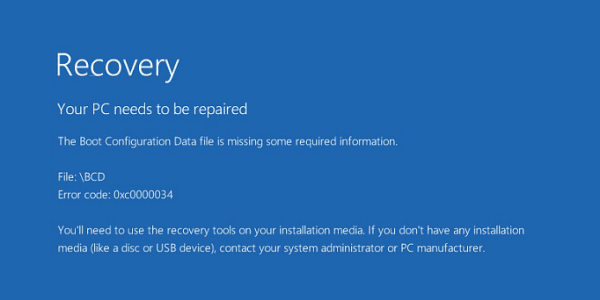
You cloned Windows 11 to a new SSD or NVMe drive, but instead of the sign-in screen, the PC displays a blue Recovery screen with error code 0xc000000e. The cloning process may have completed without an error, yet Windows cannot start from the new drive.
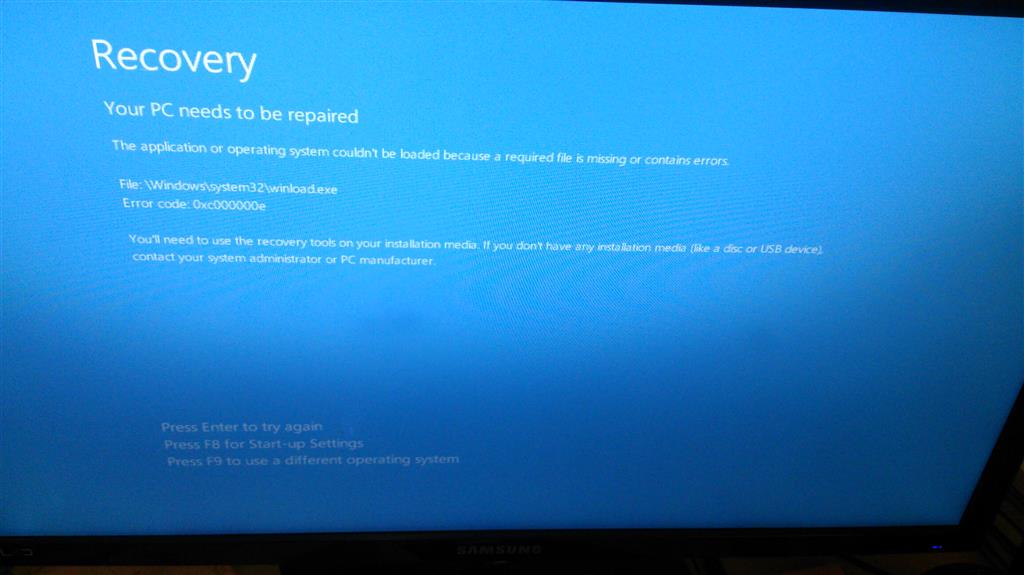
Example Recovery screen showing winload.exe and error 0xc000000e. Screen wording and appearance vary by Windows version.
This usually points to a problem locating a required boot device or accessing the boot configuration—not necessarily to lost personal files. After an SSD migration, possible causes include an incorrect UEFI boot entry, a missing or inaccessible EFI System Partition (ESP), or Boot Configuration Data (BCD) that does not point to the right Windows installation. The error code alone cannot prove which cause applies.
Quick answer
- First, confirm that the new SSD is detected in UEFI and try booting it with the old drive disconnected. Then run Windows Startup Repair. If Windows still shows
0xc000000e, use the Windows recovery Command Prompt to identify the correct Windows and EFI partitions and rebuild the boot files with Microsoft's BCDBoot utility. Do not format the SSD or EFI partition as a first step.
Before you begin
- This guide focuses on a typical Windows 11 UEFI/GPT installation . Legacy BIOS/MBR and complex dual-boot configurations require different procedures. If BitLocker/device encryption is enabled, have your recovery key available. Keep the original drive unchanged until you have verified that the new SSD starts independently and your files are intact. If a drive is failing or contains irreplaceable data, prioritize backup or professional recovery before changing partitions.
- Why does a cloned SSD show error 0xc000000e?
- Step 1: Check the new SSD and Windows Boot Manager in UEFI
- Step 2: Run Windows 11 Startup Repair first
- Step 3: Identify the Windows and EFI partitions (UEFI/GPT)
- Step 4: Rebuild EFI boot files with BCDBoot
- Step 5: Verify that the cloned SSD boots independently
- What if error 0xc000000e still appears?
- FAQs
- Conclusion
- Sources and technical references
Why does a cloned SSD show error 0xc000000e?
Windows needs more than the visible C: partition to start. On most modern Windows 11 PCs using UEFI, an EFI System Partition (ESP) contains Windows Boot Manager files and a BCD store. The firmware must locate Windows Boot Manager, and the boot configuration must locate the correct Windows installation. See Microsoft’s UEFI/GPT partition requirements.
After cloning, any of the following can interrupt that chain:
- The PC boots the wrong disk or an obsolete Windows Boot Manager entry. The old SSD may still be connected, or the firmware boot order may not reference the new one.
- The EFI System Partition was not copied or is inaccessible. Cloning only a Windows partition is not always equivalent to transferring every boot-related partition in a particular configuration.
- BCD entries or boot files are missing or invalid. The boot configuration may need to be rebuilt for the cloned installation.
- The disk layout or firmware boot mode does not match. A UEFI/GPT installation should not be troubleshot with legacy MBR repair commands by default.
- The cloned Windows partition is damaged, encrypted, or unreadable. In that situation, rewriting the BCD alone will not resolve the underlying problem.
If the SSD is not visible anywhere in UEFI or the recovery environment, investigate the SSD connection, slot compatibility, enclosure, and hardware before attempting a software boot repair.
Step 1: Check the new SSD and Windows Boot Manager in UEFI
Shut down the computer completely. If possible, temporarily disconnect the original SSD to avoid booting it by mistake. On devices where removal is unsafe or impractical, carefully identify each drive instead.
Start the PC and enter the firmware setup or one-time boot menu using the manufacturer’s documented key (often F2, F12, Esc, or Delete).
Check whether the new SSD is detected. Then look for an entry such as Windows Boot Manager associated with that drive.
Select the appropriate boot entry or make it the first boot option. Save and restart.
Result: If Windows starts, the problem was likely a boot-selection issue. Continue to Verify the repaired SSD. If the SSD is detected but 0xc000000e remains, proceed to Startup Repair. If the SSD is not detected, stop here and investigate the hardware.
Avoid: Randomly changing SATA controller modes, turning off Secure Boot, or converting the disk from GPT to MBR. Such changes can introduce new problems and are not standard fixes for this error.
Step 2: Run Windows 11 Startup Repair first
Microsoft recommends Startup Repair for common Windows boot-loader problems. Try this built-in repair before manually rewriting the boot files.
On a working PC, use Microsoft’s Windows 11 download page to create installation media matching the affected PC’s architecture on a blank USB flash drive of at least 8 GB. Creating the media erases the USB drive.
Insert the USB into the affected PC and boot from it using the one-time boot menu.
Select your language/keyboard as prompted, then choose Repair your computer rather than installing Windows. The screen wording may vary by Windows media version.
Open Troubleshoot > Advanced options > Startup Repair and select the Windows installation when requested.
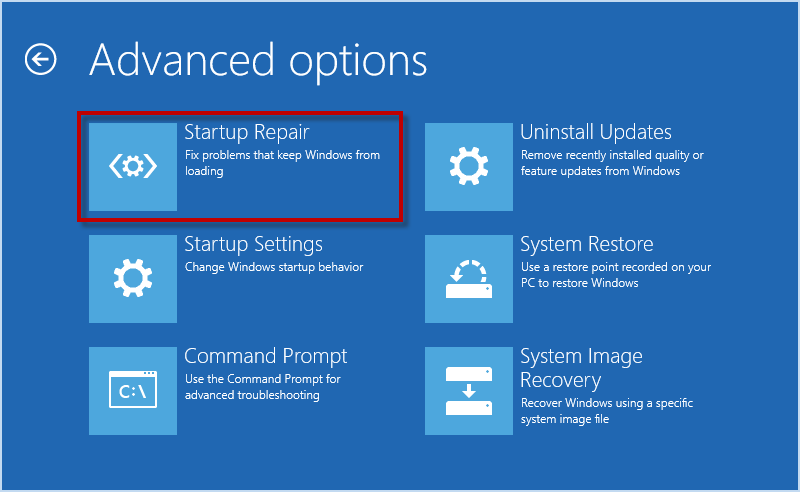
Earlier Windows recovery interface shown. The Startup Repair option and screen wording can vary by Windows build.
Let the diagnostic run. Restart without the installer USB and check the result.
If Startup Repair reports that it cannot repair the PC, do not repeatedly run it without investigating. Continue only after confirming the correct disk and partitions.
Official references: Microsoft: Windows startup troubleshooting and Create Windows installation media.
Step 3: Identify the Windows and EFI partitions (UEFI/GPT)
The letters shown in Windows Recovery Environment (WinRE) may differ from the normal Windows drive letters. Never assume that your installed Windows is on C: while you are in the recovery Command Prompt.
Boot to the same Windows installation USB.
Open Repair your computer > Troubleshoot > Advanced options > Command Prompt. Depending on your media, Shift + F10 may also open Command Prompt.

Earlier Windows recovery interface shown. Select Command Prompt to inspect the cloned SSD before changing boot files.
Inspect disks and volumes:
diskpart
list disk
list volume
Identify the new SSD by its capacity and disk layout. On a typical UEFI/GPT setup, look for a small FAT32 EFI System Partition and a larger NTFS Windows partition. Volume labels and sizes are clues, not guarantees. If multiple disks or installations are present and you are unsure, stop rather than guess.
Select only the EFI volume belonging to the cloned Windows installation. Replace N with the candidate EFI volume number, then inspect the disk it belongs to:
select volume N
detail volume
Microsoft documents that detail volume displays the disk containing the selected volume. Match that disk number to the new SSD identified with list disk. A FAT32 volume could instead belong to the installation USB or the old disk; do not select it based on file system or size alone. Check the partition layout too: the target must be the new SSD’s EFI System Partition. If that partition is missing or you cannot identify it confidently, stop rather than assigning a letter to an unrelated partition.
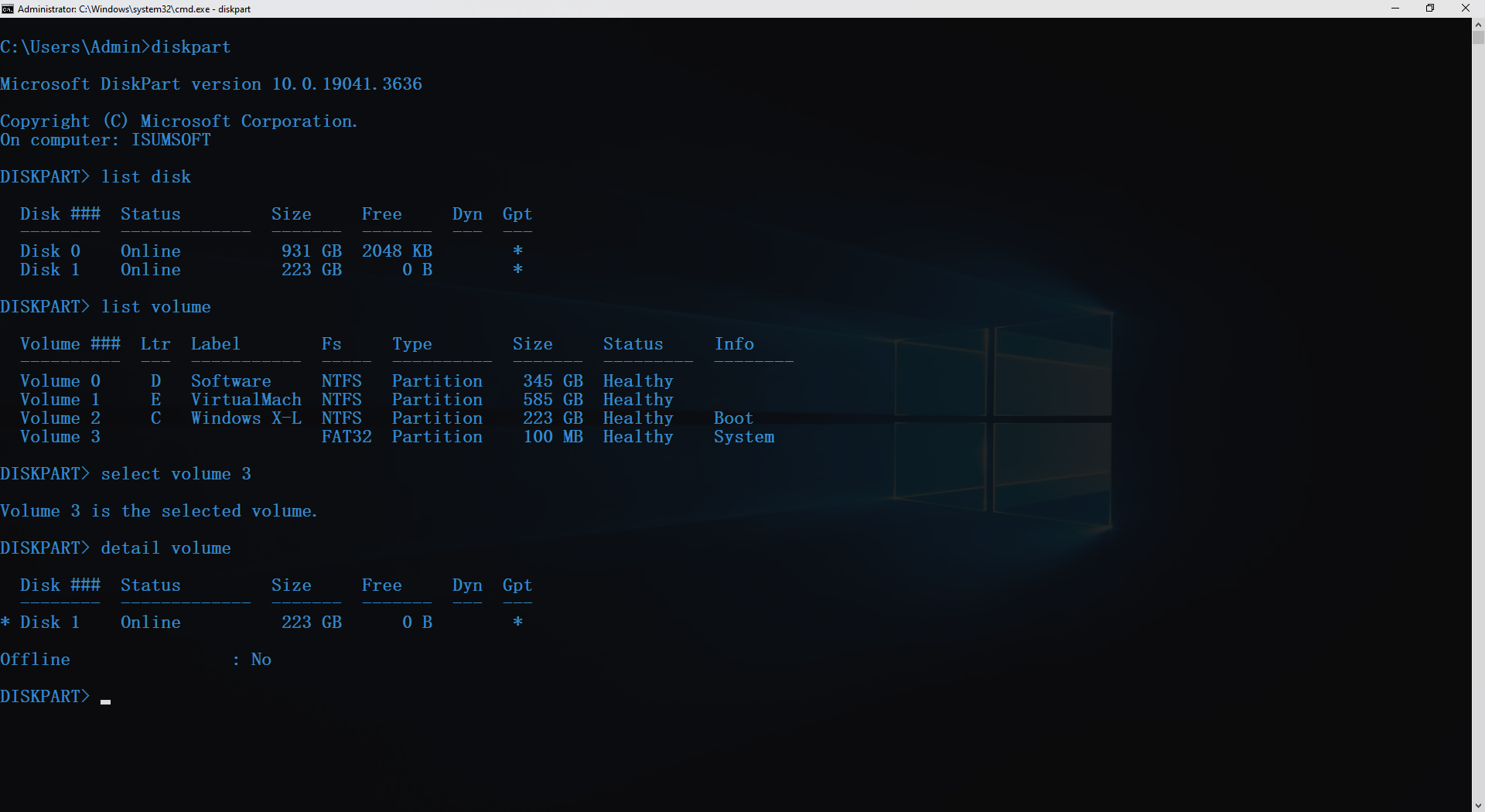
Example from a running Windows desktop: Volume 3 is a 100 MB FAT32 System volume, and detail volume places it on Disk 1 (223 GB). This illustrates volume-to-disk mapping, not which disk is the clone on your PC.
In this screenshot, Windows is on C:, while D: is labeled Software. The D:\Windows example later in this guide does not apply to that layout. Identify your own Windows volume and recheck the letters in WinRE; do not copy the disk or volume numbers from this image.
Only after confirming the selected EFI volume, assign an unused temporary letter and leave DiskPart:
assign letter=S
exit
Use S: only if list volume shows it is available. If it is already in use, choose another unused letter and substitute it in every later command. Do not remove another volume’s letter to make these examples fit.
Now find the actual Windows volume using a few candidate letters (example shown with D:):
dir D:\Windows
You should see the installed Windows directory, not the recovery environment’s own X:\Windows folder. If not, check another appropriate letter (for example C: or E:). Do not proceed until you identify the correct installation. The examples below assume Windows is D:\Windows and the EFI partition is S:. These are examples, not universal values.
BitLocker note: If the Windows volume is locked, find your BitLocker recovery key and unlock the volume through Microsoft’s supported recovery process before using its Windows files. Do not format the volume or attempt to bypass encryption.
Step 4: Rebuild EFI boot files with BCDBoot
When Startup Repair fails and the cloned Windows and EFI partitions have been positively identified, BCDBoot can copy Windows boot files and create a BCD store on the specified system partition.
In the same recovery Command Prompt, run this only after confirming D: and S: on your computer:
bcdboot D:\Windows /s S: /f UEFI
A successful operation usually reports:
Boot files successfully created.
This command means:
D:\Windowsis the source Windows installation found in Step 3./s S:identifies the target EFI System Partition./f UEFIwrites boot files for the UEFI firmware environment.
Important UEFI detail: Microsoft documents that specifying /s does not automatically create a new UEFI NVRAM firmware boot entry. The command prepares the selected system partition's boot files and depends on appropriate firmware boot discovery. If Windows Boot Manager is still absent from the firmware menu, use your manufacturer's firmware boot-entry procedure or obtain qualified assistance; do not keep guessing at disk partitions.
Do not replace this UEFI/GPT procedure with an indiscriminate sequence such as bootrec /fixmbr or bootrec /fixboot. Those commands address different boot scenarios and are not the default solution for a Windows 11 EFI boot configuration.
If BCDBoot reports Failure when attempting to copy boot files, recheck the Windows directory, the selected EFI volume, encryption state, and disk health. Avoid formatting or deleting the ESP simply to make the command succeed.
Official reference: Microsoft Learn: BCDBoot command-line options.
Step 5: Verify that the cloned SSD boots independently
Close Command Prompt and shut down the computer.
Remove the Windows installation USB.
Keep the original SSD disconnected for this test, if safely possible.
Enter UEFI and select the correct Windows Boot Manager entry on the new SSD, if available.
Start Windows and check that the desktop, user account, and important files load correctly.
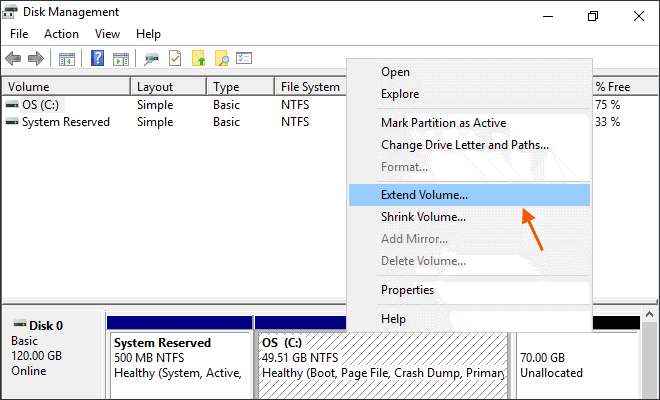
Open Disk Management and verify the new SSD's expected Windows and supporting partitions. If possible, restart a second time to confirm that booting remains consistent.
Do not wipe or repurpose the original SSD merely because the repair command succeeded. Retain it until you have a separate, verified backup and have confirmed repeatable independent booting.
What if error 0xc000000e still appears?
Use the result to narrow the next action:
| What you observe | What to investigate next |
|---|---|
| New SSD is missing from UEFI and DiskPart | Physical connection, NVMe slot compatibility, enclosure, SSD health |
| SSD is detected, but no suitable Windows Boot Manager entry appears | EFI partition contents and firmware boot configuration |
| BCDBoot cannot find the Windows directory | Incorrect recovery drive letter, incomplete clone, locked or damaged Windows volume |
| BCDBoot completes, but Windows still fails to load | Boot configuration, unreadable system files, storage drivers, or deeper installation problems |
| Windows boots only when the old SSD is attached | Boot files or firmware entry may still depend on the original SSD |
If the cloned disk lacks essential partitions or its Windows files cannot be read, repeat the migration only after backing up important data. Use a known-good source disk and verify that the intended boot-related partitions are included.
When iSumsoft Cloner is relevant
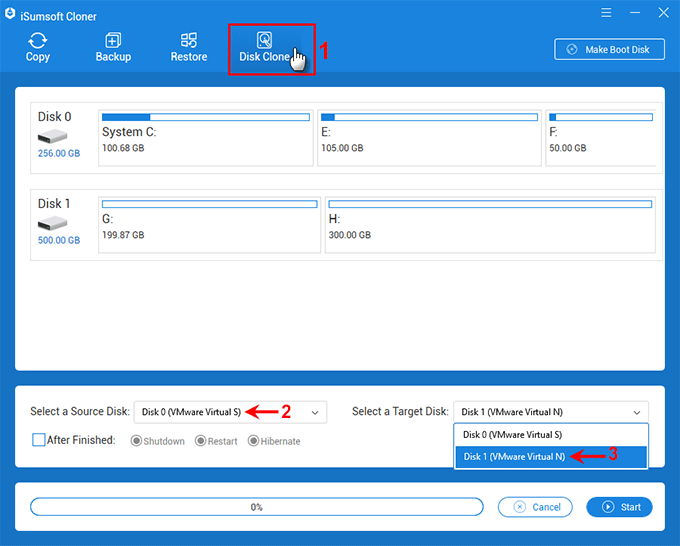
iSumsoft Cloner supports Windows system migration, partition backup/restore, and entire-disk cloning. Its Disk Clone workflow is relevant when you determine that an incomplete or unsuccessful clone needs to be redone. Cloning overwrites the destination disk, so select source and target carefully and preserve any files already stored on the target first.
Cloner is not presented here as a one-click BCD repair tool. For an existing cloned disk with intact Windows files, the correct first steps are boot-order checks, Microsoft's Startup Repair, and an appropriately targeted BCDBoot operation—not immediately overwriting the disk with a new clone.
FAQs
Does error 0xc000000e mean the cloned SSD is damaged?
No. The error can appear because Windows cannot locate a boot device or required startup configuration. Check firmware detection and the boot partitions before concluding that the SSD has failed.
Can I fix 0xc000000e without reinstalling Windows 11?
It may be possible when the Windows installation and its data are intact. Startup Repair or rebuilding the EFI boot files with BCDBoot may restore booting. Success depends on the underlying cause.
Will rebuilding BCD delete my personal files?
BCDBoot is intended to configure boot files, not erase your personal Windows documents. However, editing the wrong partition or performing additional destructive operations can cause data loss. Verify the source and target volumes and keep backups.
Why does the cloned SSD work only when the old drive is connected?
The system may still be using the old drive's EFI partition or firmware boot entry. Test with the original disk disconnected and inspect the new disk's boot partition. Avoid deleting the old disk until independent booting is verified.
Should I run bootrec /fixmbr or format the EFI partition?
Not as routine first steps on a Windows 11 UEFI/GPT PC. Start with firmware checks and Startup Repair, then use BCDBoot only after identifying the correct partitions. Formatting the EFI partition is unnecessary for many cases and increases risk.
Can iSumsoft Cloner directly fix 0xc000000e?
Cloner is designed for cloning, system migration, and backup/restore—not as a dedicated BCD repair utility. It may help you repeat a failed migration, but Microsoft's repair tools are the appropriate starting point for boot configuration repair.
Conclusion
For error 0xc000000e after cloning an SSD, first rule out the wrong boot entry and try Startup Repair. If manual repair is necessary, identify the new SSD’s Windows and EFI partitions before running BCDBoot. Keep the original drive unchanged until the clone boots independently and your files are verified.