Windows 11 System Image Backup Failed with Error 0x80780119? How to Fix It

You connect an external hard drive, choose Create a system image in Windows 11, and start a backup. Then Windows reports 0x80780119: there is not enough disk space to create the volume shadow copy. The frustrating part is that your external drive might have hundreds of gigabytes available.
This error does not always mean your backup destination is too small. Windows must also have enough usable space on the partitions included in the image. A nearly full required source volume can also be involved; the exact cause depends on your partition layout and backup logs.
Quick answer:
- Check the destination drive, inspect all partitions included in the system image, review Volume Shadow Copy Service (VSS) errors, and retry the backup. Do not delete EFI or Recovery partitions to make the error disappear.
- What Does Windows Backup Error 0x80780119 Mean?
- Fix 1: Confirm Which Drives Are Included in the Image
- Fix 2: Check the External Backup Drive
- Fix 3: Inspect Disk Management for Small Partitions
- Fix 4: Check Volume Shadow Copy Service and Backup Logs
- Fix 5: Check Windows System Files
- Alternative: Back Up the Windows Partition with iSumsoft Cloner
- FAQ
- Conclusion
- Sources
What Does Windows Backup Error 0x80780119 Mean?
Windows' legacy Backup and Restore (Windows 7) system-image feature relies on Volume Shadow Copy Service to create a consistent point-in-time image. Error 0x80780119 reports that a required volume lacks sufficient space for the shadow copy operation. That volume may be a small system partition rather than the large destination drive.
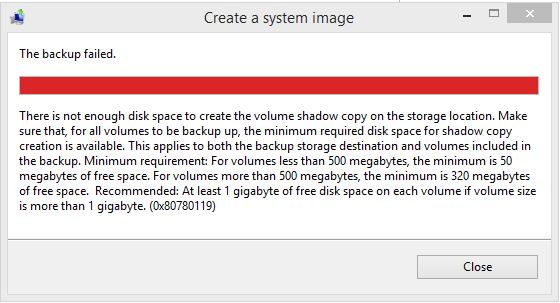
Example from an earlier Windows interface. Windows 11 may display the same error code and message with a different visual layout.
A user-reported Windows 11 case on Microsoft Q&A also describes this error despite available destination space. This community report is context, rather than a confirmed diagnosis for your PC: Microsoft Q&A: 0x80780119 despite sufficient target space.
Fix 1: Confirm Which Drives Are Included in the Image
Step 1 Press Windows + R, enter control, and open Backup and Restore (Windows 7).
Step 2 Select Create a system image and choose your external backup destination.

Step 3 Continue to the page listing the drives included in the backup. Windows automatically selects partitions required to boot.
Step 4 Identify any small EFI, System Reserved, or Recovery partitions shown alongside C:.
Step 5 Cancel the wizard if you are only inspecting the layout; do not modify those partitions.
A backup can fail when a small required partition lacks room for shadow-copy metadata, even when C: and the external drive have plenty of free space.
Fix 2: Check the External Backup Drive
Step 1 Open File Explorer > This PC and check the free space on the backup disk.
Step 2 Right-click the drive, choose Properties, and check its file system and error status.
Step 3 Prefer a reliable external disk with ample spare capacity. Avoid a nearly full backup destination.
Step 4 Check its cable and connection. Try a direct USB port if the drive disconnects intermittently.
Step 5 If previous backup images occupy most of the destination, preserve needed restore points before removing old backups.
Do not format the destination unless you have confirmed it contains nothing you need. An external disk with adequate free space is not proof that all VSS requirements are met.
Fix 3: Inspect Disk Management for Small Partitions
Step 1 Right-click Start and choose Disk Management, or run diskmgmt.msc.
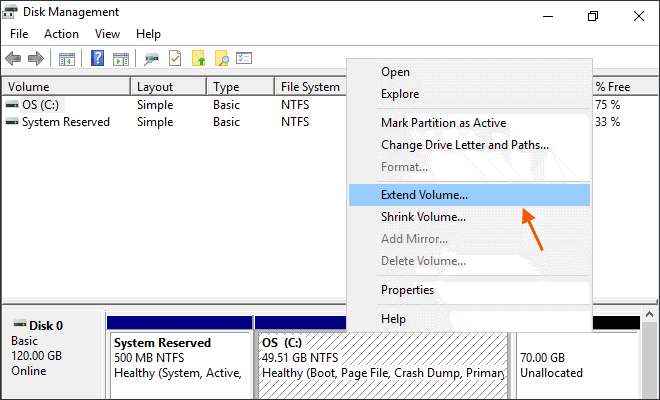
Step 2 Find the disk containing Windows. Inspect the layout and sizes of the EFI/System Reserved, Windows, and Recovery partitions.
Step 3 Note unusually small partitions, but do not delete, format, or resize them without a verified image backup and a recovery plan.
Step 4 If necessary, ask a qualified administrator to analyze which required volume lacks usable space.
Disk Management does not always report free space inside protected EFI partitions. A generic error message cannot justify editing a partition table. For additional background, see the Microsoft discussion of 0x80780119 and hidden partitions.
Fix 4: Check Volume Shadow Copy Service and Backup Logs
Step 1 Press Windows + R, type services.msc, and open Services.
Step 2 Locate Volume Shadow Copy and Microsoft Software Shadow Copy Provider.
Step 3 Do not assume that Manual startup is a problem; these services can start on demand.
Step 4 If a service is disabled by an unexpected local configuration, investigate the reason before making changes.
Step 5 Open Event Viewer and review relevant errors in Windows Logs > Application, looking for VSS or Backup events recorded at the time of failure.
For a read-only inspection, open an elevated Command Prompt and run:
vssadmin list writersWait for the list to complete. A writer showing an error may indicate a separate VSS problem, but the writer list by itself does not prove why 0x80780119 occurred.
Fix 5: Check Windows System Files
If the error appeared after an interrupted update or other system malfunction, repair Windows components before trying another backup.
Step 1 Open Terminal (Admin).
Step 2 Run DISM and wait until it finishes:
DISM /Online /Cleanup-Image /RestoreHealthStep 3 Then run:
sfc /scannowStep 4 Restart your computer and retry creating the image.
These commands repair certain Windows component and protected-file problems; they do not resize partitions or guarantee a fix for 0x80780119.
Alternative: Back Up the Windows Partition with iSumsoft Cloner
If the built-in imaging feature remains unreliable, consider a separate partition-backup workflow. iSumsoft Cloner can back up the selected Windows or data partition to an image archive.
Step 1 Install and open iSumsoft Cloner.
Step 2 Choose Backup.

Existing Cloner guide screenshots illustrate the partition-backup workflow; confirm the interface in your installed version.
Step 3 Select the partition you want to back up, such as C:.
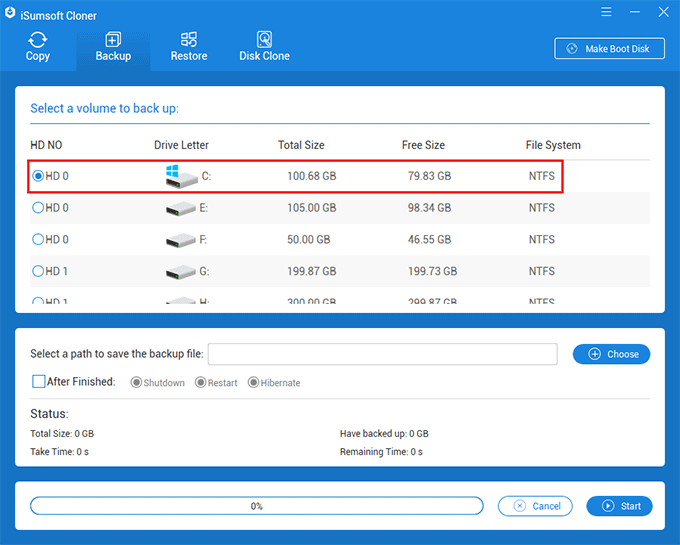
Step 4 Use Choose to select a folder on another drive.

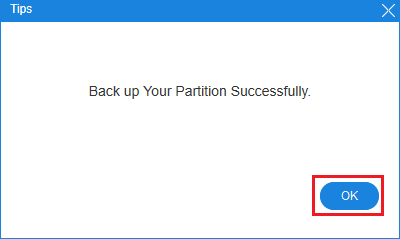
Step 5 Click Start, confirm, and wait for completion.

Step 6 Verify the image file was created and review how to restore it before you need it.
Important limitation:
- A backup of
C:alone is not automatically equivalent to a complete, boot-restorable image containing all EFI and recovery partitions. Confirm the backup scope and restoration procedure for your computer.
For the precise interface workflow, see the Cloner User Guide. For the broader native system-image procedure, see iSumsoft: System Backup in Windows 11.
FAQ
Why does error 0x80780119 appear even though my external drive has enough space?
Because Windows also needs space on the source volumes included in the image. Small required system volumes can be involved; confirm the cause from your own backup logs. Check the complete set of volumes instead of only the destination disk.
Can I delete the Recovery partition to fix 0x80780119?
Do not use that as a routine fix. Recovery and EFI partitions support Windows startup and recovery. Deletion can make the PC harder to repair or unbootable.
Will DISM and SFC fix VSS storage problems?
Only if damaged Windows components contribute to the failure. They do not change how much space a protected partition has.
Is Backup and Restore (Windows 7) the same as Windows Backup?
No. The legacy system-image feature is separate from newer Windows Backup experiences that emphasize user files, settings, and cloud integration.
Conclusion
Error 0x80780119 is frequently misunderstood as a simple shortage of storage on the destination disk. Start by identifying every required source partition, checking the external drive, and reading VSS diagnostics. Avoid destructive EFI or recovery-partition changes. If you choose an alternative such as iSumsoft Cloner, verify exactly which partitions it includes and whether your recovery process meets your needs.
Sources
- Microsoft Q&A: Windows 11 system image backup 0x80780119
- Microsoft Q&A: hidden EFI partition discussion
- iSumsoft Windows 11 backup tutorial
For the repair-command procedure, see Microsoft: Using System File Checker in Windows.
![[Windows 11] A Comprehensive Tutorial on System Backup](../images/backup-recovery/a-comprehensive-tutorial-on-system-backup-in-windows-11/a-comprehensive-tutorial-on-system-backup-in-windows-11-s.webp)