Accidentally Ran DiskPart Clean? How to Recover Lost Partitions and Files

You opened DiskPart to prepare a drive and accidentally selected the wrong disk. After running clean, the partitions disappeared. In Windows 11 Disk Management, the drive may now show Unknown, Not Initialized, or a large area of Unallocated space.
If the disk contained valuable files, the next action matters much more than the error itself. Initializing, formatting, copying new files or attempting random partition fixes can overwrite information that might otherwise be recoverable.
Quick answer
- Stop using the affected disk immediately. Check whether the command was
cleanorclean all, identify the physical drive and do not write new data to it. A standardcleanprimarily removes partition information; some original file data may still exist. Recover files to a different drive or seek professional help before reconstructing partitions. A completedclean allis substantially harder to recover from because it writes zeros across the disk.
- What does DiskPart clean actually delete?
- First 5 minutes: What you should and should not do
- Part 1: Identify the affected disk without changing it
- Part 2: Decide whether file recovery or partition recovery is your priority
- Part 3: Evaluate data recovery software without writing to the affected disk
- Part 4: What about using a partition-recovery tool?
- Part 5: Recreate partitions only after the files are safe
- What if the command was clean all?
- Frequently asked questions
- Conclusion
What does DiskPart clean actually delete?
Microsoft documents two related commands with very different consequences.
| DiskPart command | Effect and recovery outlook |
|---|---|
clean |
Removes partition or volume formatting information. Some user data may remain, but metadata needed to locate it may be damaged. |
clean all |
Writes zeros to each accessible sector. Previous data cannot normally be recovered from sectors that were successfully overwritten. |
On MBR disks, clean overwrites MBR partition information and some related hidden-sector information. On GPT disks, it overwrites GPT partition information, including the protective MBR. That is not the same as securely rebuilding the former partition table.
The exact outcome also depends on whether the command finished, the storage medium, controller behavior, encryption, and whether additional writes occurred afterward. On an SSD, background flash-management behavior can further complicate recovery. Avoid absolute promises about recovery odds.
Reference: Microsoft's DiskPart clean command.
First 5 minutes: What you should and should not do
Step 1 Stop all copying, downloads, installations, backups or formatting operations targeting the affected disk.
Step 2 Do not initialize the disk just because Windows offers to initialize it.
Step 3 Do not create a New Simple Volume or run another DiskPart cleanup command.
Step 4 Do not run CHKDSK on an unallocated disk or randomly reconstruct its partition table.
Step 5 If it is an external drive, safely disconnect it when you can do so without interrupting active operations.
Step 6 Make a note of the disk model, capacity, DiskPart command used and whether the command completed.
If the disk makes unusual noises, disconnects repeatedly or reports read errors, stop software scans and contact a professional data-recovery service. Repeated reads against failing hardware may make matters worse.
Part 1: Identify the affected disk without changing it
You can inspect disk status in Windows 11 without initializing it.
Step 1 Press Windows + X and select Disk Management.
Step 2 Identify the physical drive by capacity and, when possible, model number.
Step 3 Record the disk number and whether the space is marked Unallocated.
Step 4 Cancel any initialization prompt if the drive previously contained important files.
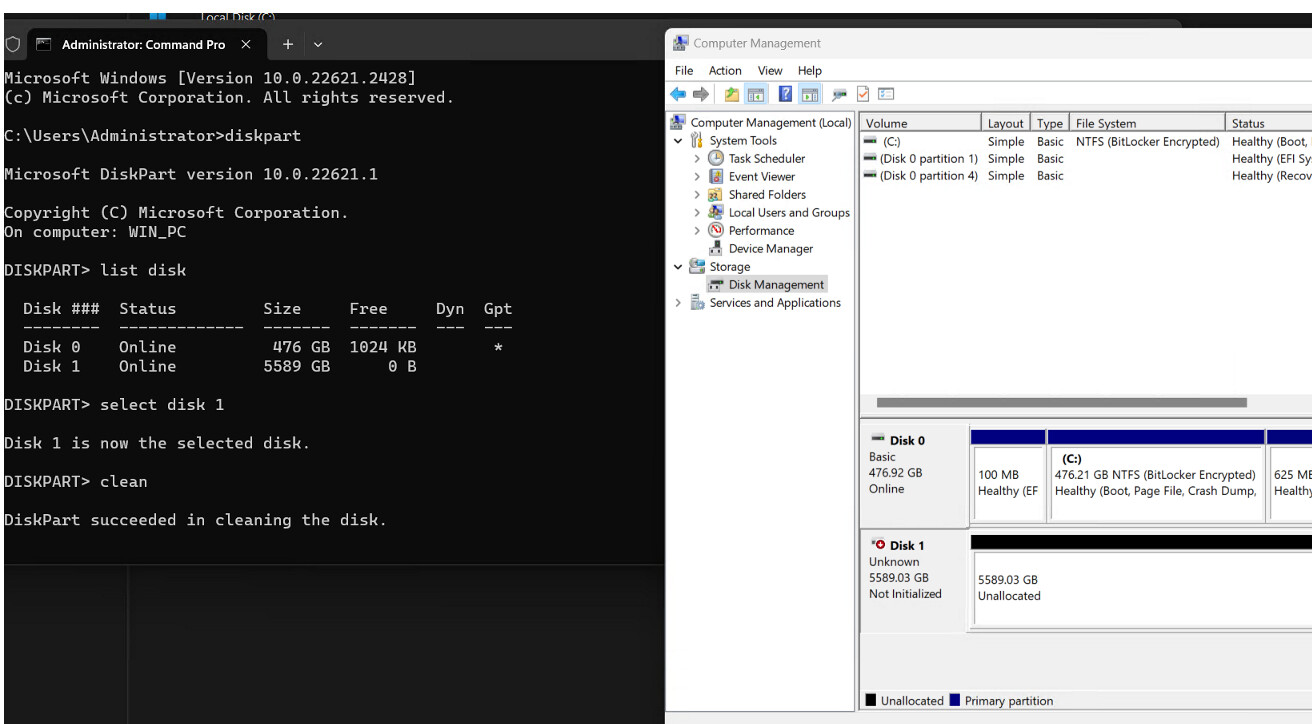
Warning: Do not repeat clean as a recovery step.
Step 5 Do not try to repair it by creating a new partition.
You can also inspect the disk list in Windows Terminal as administrator. Run these lines one at a time, replacing <verified-number> with the actual disk number you verified in the disk list. Do not enter cleanup, formatting, or partition-creation commands:
diskpart
list disk
select disk <verified-number>
detail disk
exit
These commands only display information as shown, but selecting the wrong disk remains dangerous if you later run a modifying command. Never copy recovery commands from a page without verifying the target device.
Part 2: Decide whether file recovery or partition recovery is your priority
There are two different objectives:
File recovery means extracting readable photographs, documents or videos from the disk to another healthy drive. File names and folder hierarchy may be partially lost if metadata has been damaged.
Partition recovery means trying to reconstruct the original partition boundaries and file-system structures so the disk becomes accessible again. This approach can be more sensitive to mistakes, especially if the disk has been initialized or partially overwritten.
For important data, it is generally safer to prioritize creating a sector-level image with appropriate specialist tools, if the drive is healthy enough to read, or to obtain the data from a read-only recovery process. Do not attempt experimental partition rebuilding on the only copy of your files.
Part 3: Evaluate data recovery software without writing to the affected disk
iSumsoft Data Refixer lists formatted/damaged-drive and deleted-file recovery among its supported scenarios. Its user guide describes selecting a readable location, scanning it, previewing files and recovering results.
Check detection before proceeding: The published guide does not confirm support for an unallocated physical disk after clean. The steps below apply only if the software detects the device without initializing or formatting it; this scenario has not been tested for this article.
If the program can detect the affected physical disk or readable scan target without formatting or initializing it:
Step 1 Install and run recovery software on a different drive or computer, not the affected disk.
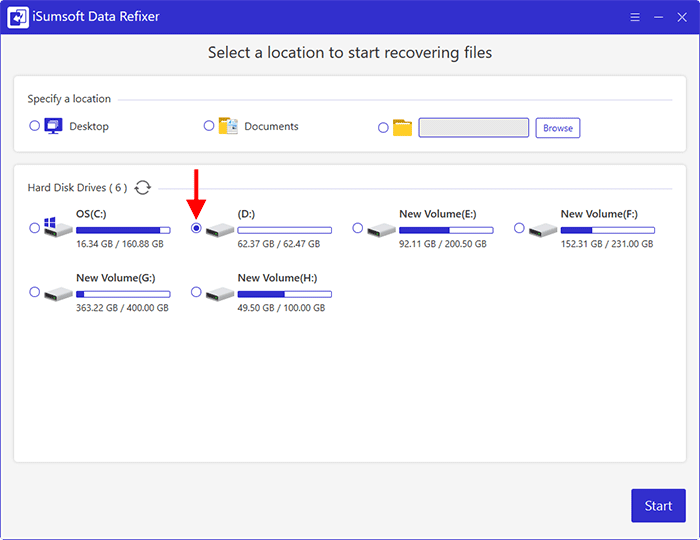
Step 2 Select the correct affected storage device or supported scan target.
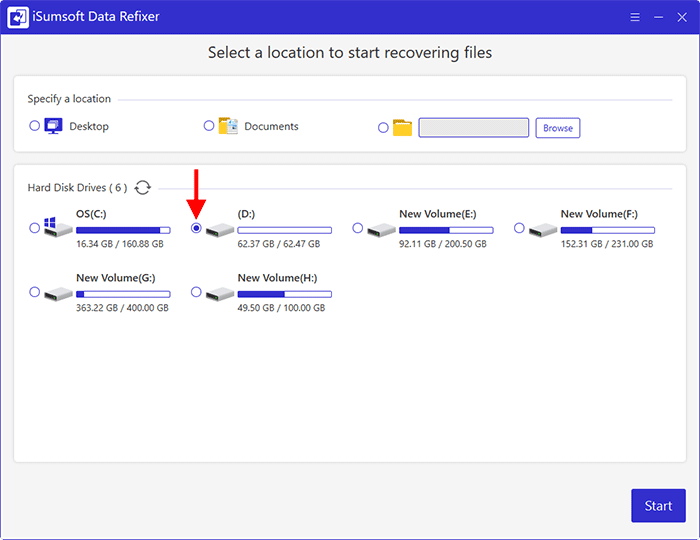
This example shows lettered volumes. Do not create a partition on a cleaned disk just to make it appear here.
Step 3 Start a scan without altering the disk layout.
Step 4 Preview recoverable files where supported.
Step 5 Select important files and save them to a separate healthy drive.
Step 6 Open several recovered documents, images and videos to confirm they are usable.
If the software cannot detect the affected disk, do not create a new partition just to make it appear in the software. Use a recovery tool designed for raw physical-disk imaging/recovery, or seek specialist help.
Part 4: What about using a partition-recovery tool?
A specialist partition tool may find remnants of previous partitions, especially if no additional data has been written. However, partition recovery is not guaranteed, and a mistaken write to the partition table can worsen the situation.
If the contents are irreplaceable, image the disk first or have a professional work on a copy. Follow a trusted tool's documented scan-and-preview process and avoid committing changes until the detected partitions and files have been verified.
An unallocated space indicator by itself cannot tell you whether the old user files are intact. It primarily indicates that Windows cannot currently use a recognized partition structure at that location.
Part 5: Recreate partitions only after the files are safe
When all required files have been independently recovered and verified—or when you are certain no data needs to be recovered—you can prepare the disk for reuse through Disk Management.
Initializing a disk and creating/formatting partitions may overwrite remaining recovery information. It belongs at the end of the process, not the beginning.
If the disk was wiped as part of a Windows reinstall, another issue may be ensuring the boot-critical partitions are rebuilt by an official Windows setup process. Do not mix boot repair with urgent file recovery; protect the data first.
What if the command was clean all?
A completed clean all is fundamentally different from clean: Microsoft's documentation states it sets every disk sector to zero. Typical file-recovery software cannot retrieve older contents from sectors that have actually been overwritten. If the command was interrupted before completion, the extent of overwritten sectors may be uncertain, but avoid making optimistic recovery claims.
If you suspect the wrong drive was wiped and the files are irreplaceable, stop all further operations and seek professional advice promptly.
Frequently asked questions
Is there an Undo command for DiskPart clean?
No. DiskPart does not provide an automatic undo command that restores the original partitions and files. Recovery may be possible from remaining metadata/data, but it is a separate process.
Can I recover files after accidentally cleaning an SSD?
Possibly, if relevant data remains and can be accessed. However, SSD behavior and any subsequent writes can reduce the chances. Do not use the SSD until it has been evaluated.
Should I initialize the disk before running recovery software?
Not when the disk contained data you still need. Initialization changes disk metadata and may complicate recovery.
Does DiskPart clean physically damage my SSD or HDD?
The command normally changes stored disk information rather than physically damaging hardware. Its data-loss consequences can still be severe.
Does iSumsoft Data Refixer guarantee recovery of cleaned partitions?
No. The current published guide describes recovery from detected drives/folders and does not prove that all unallocated post-clean disks are supported. Check whether the software detects your disk and previews the files before proceeding.
Conclusion
After an accidental DiskPart clean, your best chance comes from doing less, not more: stop writing to the disk, confirm the exact command, inspect it without modifying it and recover files to another destination. Partition recreation should wait until the data has been secured.