Fixing Windows Entering Recovery Mode Unexpectedly

Windows operating system is generally reliable, but sometimes, users find themselves stuck in the Windows recovery mode unexpectedly. This can be frustrating and confusing, especially when you're unsure of how it happened or how to resolve it......
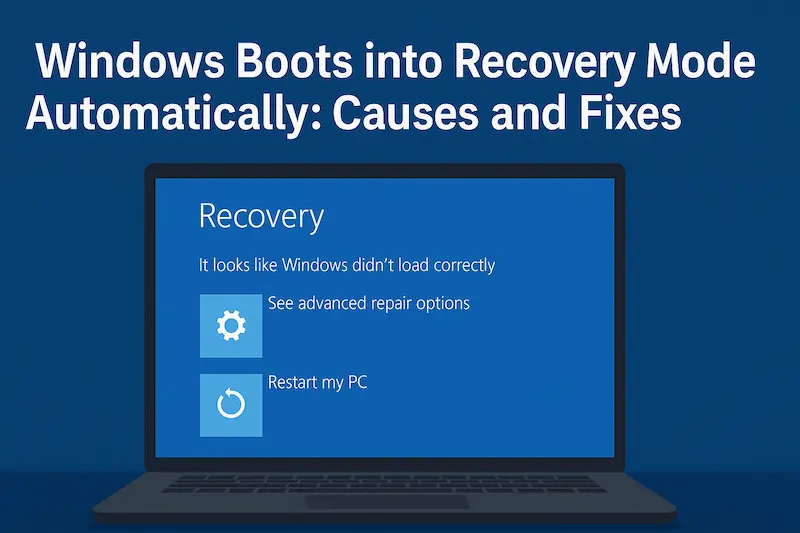
In this post, we'll explore What Windows recovery mode is, Why your computer might enter recovery mode, and How to get out of it.
We'll also dive into advanced troubleshooting steps to fix more complex issues.
- Understanding Windows Recovery Mode
- Common Reasons for Entering Windows Recovery Mode Unexpectedly
- Quick Fix Windows Recovery Mode
- Advanced Troubleshooting for Windows Recovery Mode
- FAQs About Windows Recovery Mode
Understanding Windows Recovery Mode
Windows Recovery Mode is a special environment designed to help you troubleshoot and repair your computer. It's not a mode you typically use unless your computer is having serious problems, such as failing to boot properly, system crashes, or corrupt files.
There are several tools in recovery mode, including System Restore, Startup Repair, Command Prompt, and the ability to Reset your PC.
Common Reasons for Entering Windows Recovery Mode Unexpectedly
There are several reasons why your Windows computer might unexpectedly enter recovery mode:
Corrupted System Files
The first one comes with corrupted system files, if important system files become corrupted or deleted, Windows might fail to boot, triggering recovery mode to protect your important data.
Failed Windows Updates
The second situation is failed Windows updates when we enabled automatic Windows updates.
Sometimes, Windows updates can cause issues. A failed update might force the system into recovery mode to fix the failed update.
Boot Configuration Errors
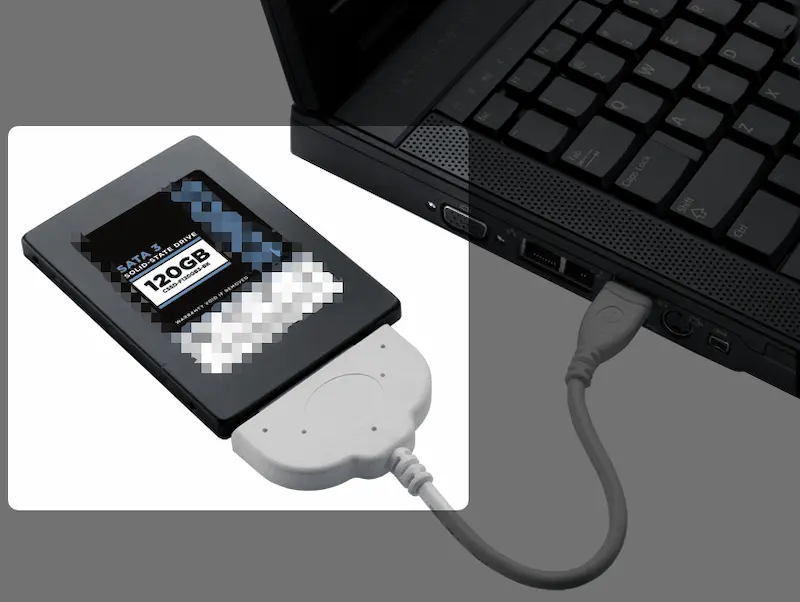
The third scenario is incorrect boot configuration. This often occurs when you forget to unplug an external hard drive or DVD drive before shutting down your computer, causing Windows to select the external device as the boot option. Since there is no built-in operating system on the external device, so the system enters recovery mode.
Hardware Failures or Malware
Issues with your hard drive, RAM, or other critical components can cause the system to enter recovery mode as a safety precaution.
What's more, malware or viruses might also damage essential system files and force Windows into recovery mode.
Quick Fix Windows Recovery Mode
If you find yourself stuck in Windows recovery mode, here are a few quick fixes to try after you unplug all the external devices:
Fix 1: Restart Your PC
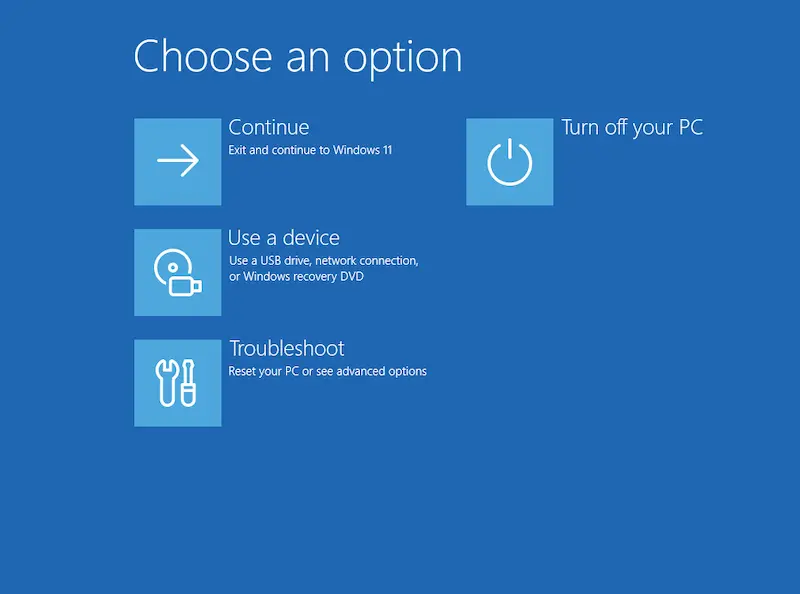
Sometimes, a simple restart can resolve the issue. Click on "Continue" or "Exit Recovery" to restart your computer and check if it boots normally.
Fix 2: Use Automatic Repair
From the recovery environment, select "Troubleshoot" → "Advanced Options" → "Startup Repair". This tool will attempt to fix any issues preventing Windows from booting properly.

Fix 3: Perform a System Restore
If the problem occurred after a recent change (e.g., an update or software installation), use the "System Restore" tool to roll back to a previous, stable point.
Fix 4: Reset Your PC
If nothing works, you can try to reset your PC from the recovery options. This will restore Windows to its factory settings, though you’ll lose some files in the process.
Advanced Troubleshooting for Windows Recovery Mode
If the quick fixes don’t work, it’s time to try some advanced troubleshooting steps. Here are some methods to get deeper into the problem:
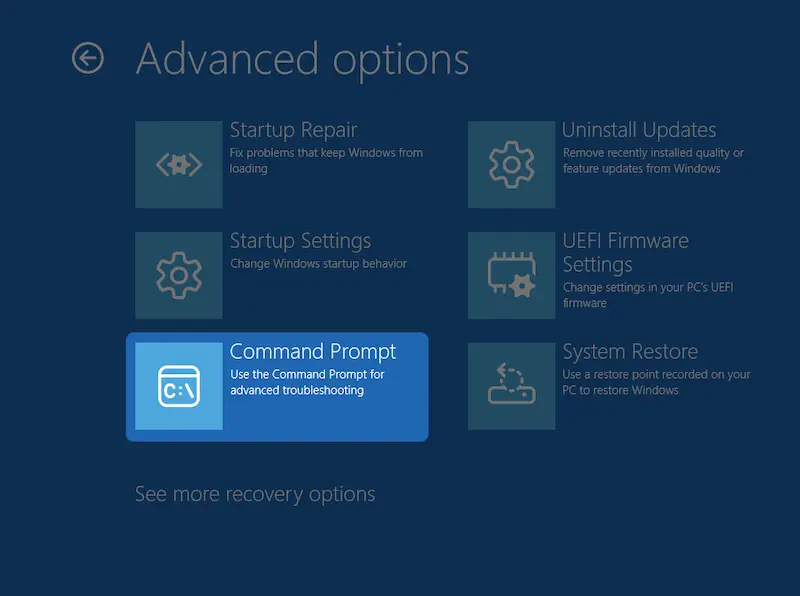
To use the following prompts to advanced troubleshooting your PC:
click Troubleshooting → Advanced options → Command Prompt.
Fix 1: Check Disk for Errors
Use the Command Prompt in the recovery environment to run chkdsk to check for and fix
disk errors.
chkdsk /f C:Tips:
- This Command may require you to reboot your PC to run chkdsk.
Fix 2: Rebuild Boot Configuration
If the boot configuration is corrupted, you can rebuild it using the bootrec command:
bootrec /fixmbr
                            bootrec /fixboot
                            bootrec /rebuildbcd
Fix 3: Check for Hardware Issues
Run hardware diagnostics from the recovery environment or BIOS to test the health of your hard drive and RAM.
Fix 4: Use the System File Checker
If system files are corrupted, you can use the sfc tool to scan and repair them:
sfc /scannowFAQs About Windows Recovery Mode
Can I fix Windows recovery mode without losing data?
Yes, using system restore or startup repair should not delete your files. However, resetting your PC will remove most of your personal data.
How do I avoid Windows recovery mode in the future?
Regularly update your system, back up important files, and use reliable antivirus software to prevent system corruption.
Can hardware failures cause Windows to enter recovery mode?
Yes, failing hardware such as a damaged hard drive or RAM can lead to recovery mode being triggered.
Conclusion
Windows recovery mode can be a hassle, but understanding its causes and knowing how to troubleshoot effectively can help you resolve the issue quickly. Whether you're dealing with system corruption, failed updates, or hardware problems, there are multiple ways to get your PC back up and running.
Follow the steps in this guide, and you should be able to escape Windows recovery mode without too much hassle.