MP4 'moov atom not found' After Interrupted Recording? How to Repair the Video

You finish an important recording, but the MP4 file refuses to open. VLC shows no usable video, Windows Media Player reports a playback error, or FFmpeg returns:
[mov,mp4,m4a,3gp,3g2,mj2] moov atom not found
Invalid data found when processing input
This frequently happens when an app crashes, a camera loses power, or recording stops before the MP4 file has been finalized. The good news is that the recording may still contain media data. The difficult part is determining whether enough structure remains to reconstruct a playable video.
Quick answer
- Save a copy of the damaged MP4 before trying anything. Use FFprobe to confirm the error, check whether actual media data remains, and look for a normal video recorded by the same device with matching settings. Standard FFmpeg remuxing cannot recreate a completely missing MP4 index if FFmpeg cannot read the original file. A repair tool that reconstructs the container using a healthy reference may be worth testing, but recovery is not guaranteed.
- What is the moov atom in an MP4 file?
- Why did the recording end without a usable moov atom?
- Part 1: Preserve the original MP4 and check the file size
- Part 2: Confirm the error with FFprobe
- Part 3: Know which FFmpeg fixes do not work
- Part 4: Try reference-based reconstruction when media data remains
- Part 5: Repair the MP4 with iSumsoft CorFixer (tested workflow)
- Part 6: Verify whether the repaired MP4 is really usable
- Can you prevent this error in future recordings?
- Frequently asked questions
- Conclusion
What is the moov atom in an MP4 file?
An MP4 file stores its contents in structured boxes (often called atoms). Two especially important ones are:
mdat: the area containing compressed video and audio data.moov: information needed to locate and time media samples, describe tracks and decode the movie correctly.
Other atoms, including ftyp, identify the file format or compatibility information.
A normal MP4 may place moov after the media data or before it. The location can vary depending on how the file is produced and whether it has been optimized for progressive download. The fact that moov comes at the end is not an error by itself.
A problem occurs when moov is absent, incomplete or unreadable. If the recording process ends abruptly before the MP4 writer finalizes the file, the media data may remain in mdat without a valid index.
Why did the recording end without a usable moov atom?
Possible causes include:
- The camera battery died while saving the recording.
- OBS or another recording application crashed or was force-closed.
- An external drive disconnected before the MP4 finalized.
- A transfer was interrupted, leaving an incomplete copy.
- The container or index was damaged by file-system/storage errors.
Do not assume all such files can be repaired. If the media data itself is missing, overwritten or encrypted, reconstructing the index will not restore content that is no longer present.
Part 1: Preserve the original MP4 and check the file size
Step 1 Copy the damaged file to a healthy local drive without modifying the original.
Step 2 Keep a second untouched backup of the damaged file.
Step 3 Compare its size to an ordinary recording from the same camera or application.
Step 4 Check whether the camera, SD card or recording software has its own built-in repair or recovery function.
Step 5 Stop recording to the same memory card if the file may have been lost or partially overwritten there.
A large file can suggest that media data is present, but file size alone does not prove the frames are recoverable. A zero-byte file or one containing only a tiny header is less promising.
Part 2: Confirm the error with FFprobe
Install FFmpeg from its official project website. Open a terminal in the folder containing a copy of your damaged file and run:
ffprobe -v error -show_format -show_streams "broken-recording.mp4"
If FFprobe reports moov atom not found, the file's MP4 metadata cannot be read normally. It does not by itself prove that the entire moov atom is physically absent; severe structural corruption can cause similar parser failures.
Documented example (October 23, 2026): The test file, recording_interrupted_missing_moov.mp4, is shown as 256.05 KB in CorFixer. FFprobe output reports:
moov atom not found
Invalid data found when processing input
FFprobe output identifies the healthy reference as H.264 video at 640 × 360 with AAC audio and a duration of 6 seconds. The damaged input returned a parser error. These results apply to this sample only.
You can also try opening a copy with VLC. If VLC plays the complete file correctly and FFprobe identifies streams, you may instead have a player/codec problem rather than a missing-index problem.
Part 3: Know which FFmpeg fixes do not work
You may find a widely repeated command such as:
ffmpeg -i "broken.mp4" -c copy "fixed.mp4"
This is useful when FFmpeg can successfully read the input but you want to remux it into a new MP4 container. It is not a general repair for a missing moov atom. When FFmpeg cannot parse the source, it usually cannot remux its streams.
Another command often mentioned online is:
ffmpeg -i "working.mp4" -c copy -movflags +faststart "web-ready.mp4"
+faststart relocates existing MP4 metadata to help progressive playback. It does not recreate missing metadata in the damaged source. Notice that the sample command uses a working input, not the broken file.
Avoid commands that combine a healthy reference clip with a damaged input and then mistake a copied reference for a recovered recording. A repaired file should visibly contain the events from the damaged original, not merely play successfully.
Part 4: Try reference-based reconstruction when media data remains
Some video-repair utilities can use a healthy reference video from the same device or application to infer codec and container information.
For the best match, create or find a reference recording with the same:
- Device or recording software and, ideally, firmware version.
- Resolution, frame rate and video codec.
- Audio settings (codec, channel layout, sample rate).
- Recording mode and other relevant camera options.
The open-source Untrunc project documents a workflow using a healthy clip and a damaged or truncated MP4/MOV file. Recovery quality varies by file and codec, and the project may require technical setup.
Always repair copies. A successful output should then be checked for picture, audio, seekability and duration. A program displaying “success” does not guarantee that all original footage was recovered.
Part 5: Repair the MP4 with iSumsoft CorFixer (tested workflow)
iSumsoft CorFixer offers video repair for MP4 and other supported formats. Its user guide describes both the ordinary repair process and Advanced Repair, which can use a matching undamaged sample video.
The Windows test screenshots show the following sequence for the interrupted-recording sample:
Step 1 Open iSumsoft CorFixer > Video Repair.
Step 2 Click Add File(s) and select a copy of recording_interrupted_missing_moov.mp4.
Step 3 Attempt the normal repair. In our test, CorFixer displayed Normal repair failed and the damaged video's dimensions were shown as 0 × 0.
Step 4 Click Advanced Repair. When the Add a Sample file to Repair dialog opens, select the matching undamaged recording, reference_healthy.mp4.
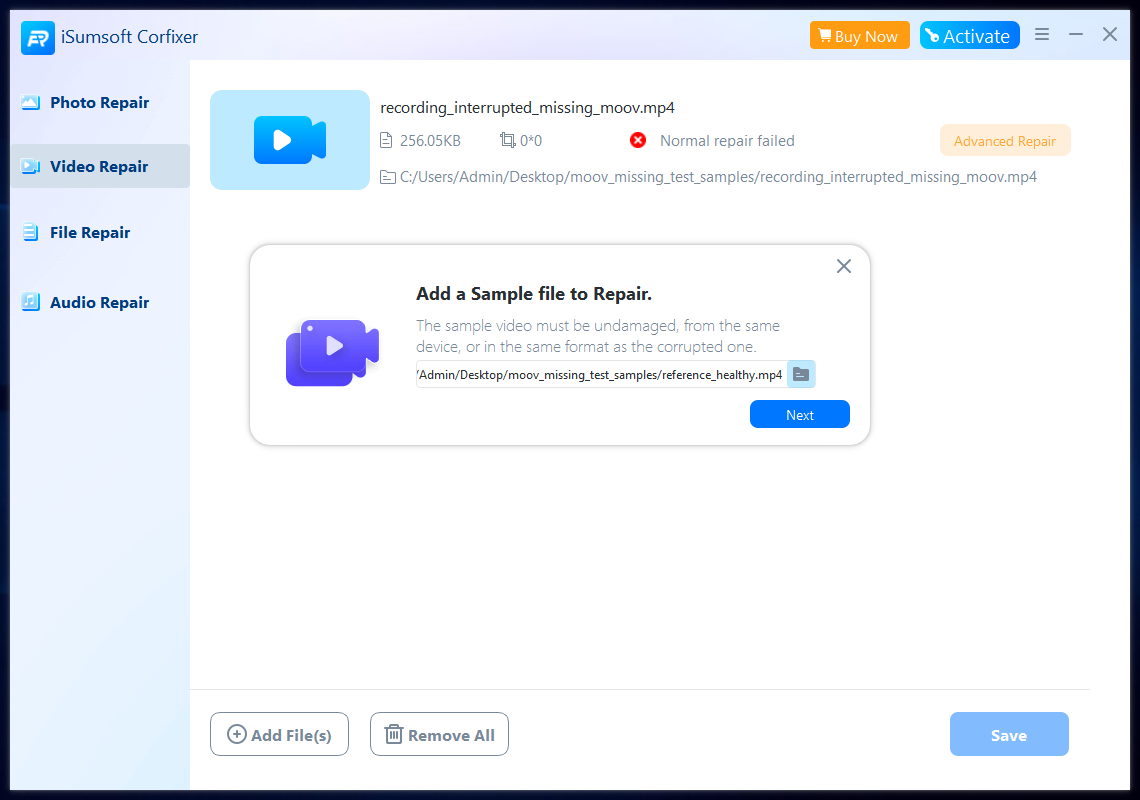
Step 5 Click Next and let CorFixer process the damaged file using the healthy sample.
Step 6 Review the repair status and use the built-in preview to inspect the actual recovered footage.
Step 7 If the result is acceptable and saving is available, click Save, select a separate destination and validate the exported file in another player.
Observed result: advanced repair succeeded
After we supplied the undamaged sample, CorFixer showed Advanced Repair Succeeded! The main interface identified the repaired item as a 640 × 360 video.
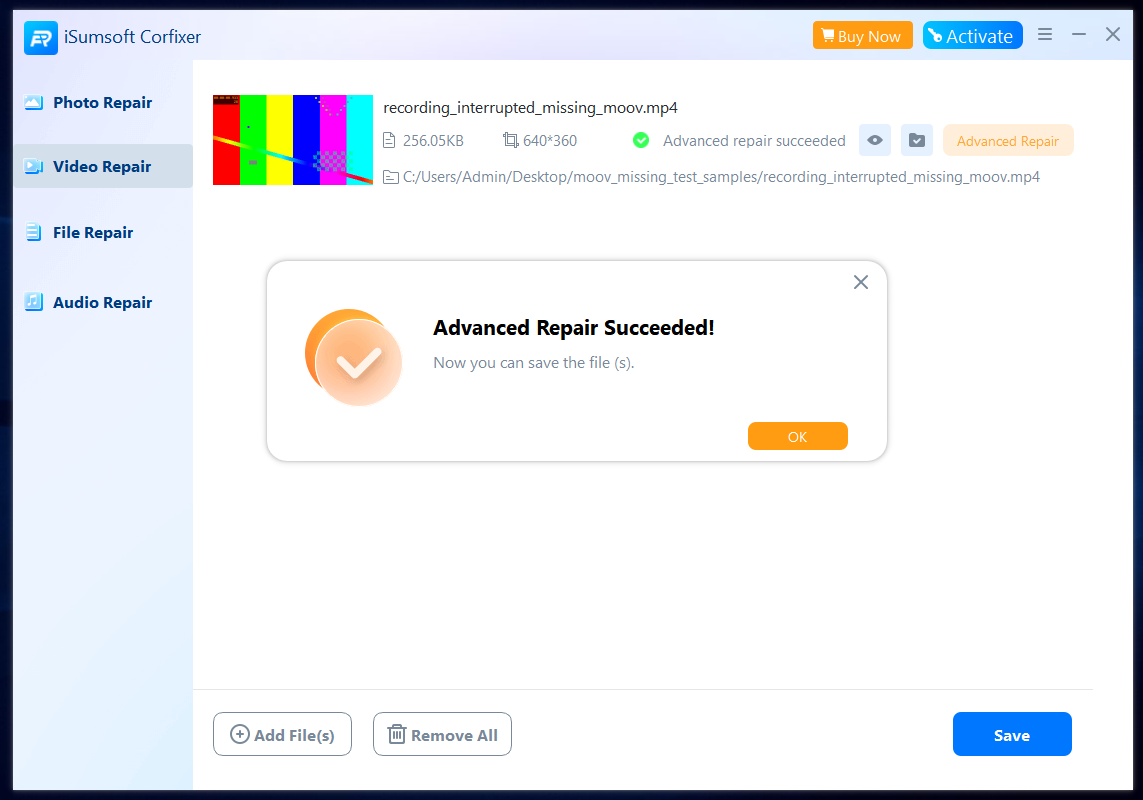
We then opened the repaired preview. CorFixer displayed a video frame with the expected colored test pattern, a visible playback timeline and approximately 2 seconds total duration.
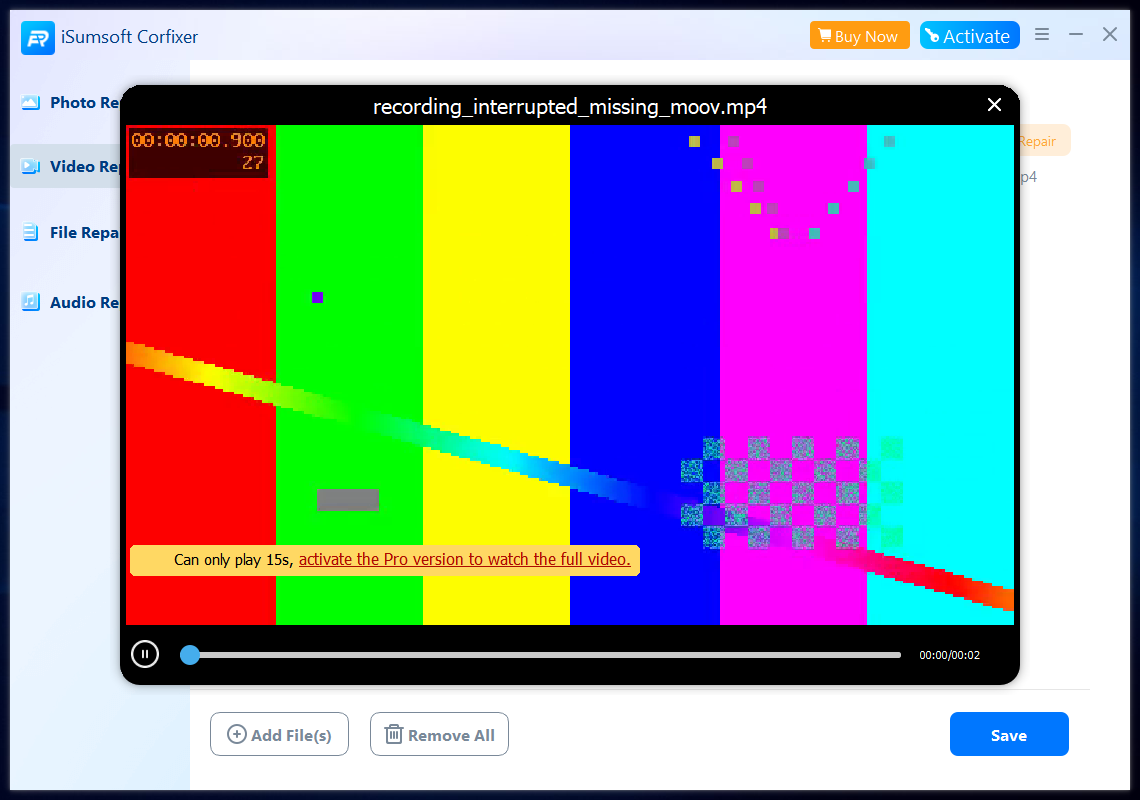
Note: The yellow 15-second banner is a preview limit; this test clip is approximately 2 seconds long.
What this test demonstrates: For this one reproducible interrupted-recording MP4, the normal repair failed but the reference-based advanced repair succeeded and produced video that could be played inside CorFixer's preview. This is stronger evidence than a success message alone.
What it does not yet establish: We have not verified a saved/exported version with VLC or FFprobe, nor proved that every intended frame and audio sample was recovered. The healthy reference is 6 seconds, but it is a separate clip and its duration should not be compared with the damaged clip as if it were the original recording. Do not generalize this single test into a success-rate claim.
Part 6: Verify whether the repaired MP4 is really usable
For each repair attempt, use this checklist:
| Test | What to look for |
|---|---|
| Open in a media player | Does it play the expected original footage? |
| Seek to the middle/end | Does seeking work without freezing? |
| Check sound | Is audio present and synchronized? |
| Run FFprobe | Are video/audio streams and duration recognized? |
| Compare with known original | Is the recovered content genuine, not a copied reference? |
A repaired MP4 may be partially playable while still missing the final seconds, some audio or a correct duration. In this test, playback is confirmed inside CorFixer only; check a saved output independently before declaring the file fully restored.
Can you prevent this error in future recordings?
If your recording software offers a crash-resistant container or fragmented recording mode, consider using it. For example, some workflows record to MKV and remux to MP4 after the recording is complete. This can reduce the risk of losing the entire recording when a program closes unexpectedly. Check your editor and playback compatibility before changing formats.
Use reliable storage and a stable power supply; stop recording normally before removing a camera battery, USB drive or SD card.
Frequently asked questions
Can FFmpeg automatically restore a missing moov atom?
Not when it cannot read the source media structure. Standard remuxing and faststart operations need valid input metadata. Reference-based reconstruction is a different process.
Is moov atom not found the same as a missing codec?
No. A missing codec is a playback/decoding compatibility problem; a missing or unusable MP4 index is a container structure problem.
Can I recover a video if the file has a large mdat section?
Sometimes. The data may still be present, but reconstruction requires enough identifiable frames and compatible metadata. File size does not guarantee recovery.
Does a reference MP4 need to have the same content?
No. It should be a different, healthy recording made with the same device and matching technical settings—not the same events.
Can CorFixer repair every MP4 with this error?
No repair tool can guarantee that. Confirm the supported format, try an actual sample and verify the recovered footage before relying on it.
Conclusion
The error moov atom not found is a clue, not a complete diagnosis. Preserve the damaged file, verify the parser error, and try carefully matched reference-based repair when appropriate. In our controlled test, CorFixer advanced repair reported success and previewed the recovered video after ordinary repair failed. Exported-file playback remains an additional verification step, and other damaged MP4s may behave differently.