Cloned SSD Offline Because of a Signature Collision in Windows 11? How to Fix It

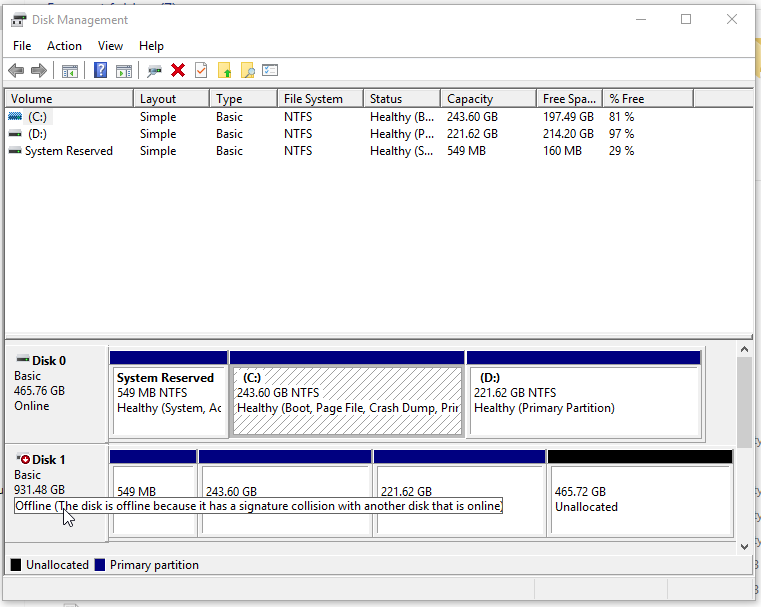
You have finished cloning your Windows 11 drive, but the new SSD does not appear in File Explorer. In Disk Management, the drive may be labeled Offline, with a message similar to:
The disk is offline because it has a signature collision with another disk that is online.
This often happens when the original drive and its clone are connected to the same computer. It does not automatically mean your clone failed or your files were deleted. Windows may have kept one disk offline because the two drives contain the same disk identifier.
Quick answer
- First identify which physical disk is the clone. If the new SSD is intended to replace your system drive, shut down and test it on its own before changing any identifiers. If it is intended as an additional storage disk, you can usually bring it online through Disk Management after confirming the correct disk. Avoid formatting, initializing, or cleaning either disk just to resolve a signature collision.
- Why does Windows 11 put a cloned SSD offline?
- Before you fix it: Identify the original and cloned drives
- Fix 1: Test the cloned SSD without the original disk
- Fix 2: Bring the correct cloned disk online in Disk Management
- Fix 3: Check whether a drive letter is missing
- Fix 4: Investigate a persistent duplicate disk ID (advanced)
- What if the clone still does not appear?
- Frequently asked questions
- Conclusion
Why does Windows 11 put a cloned SSD offline?
Windows assigns disk identifiers so that it can distinguish storage devices. A full-disk clone can copy the original drive's identification information to the destination. When both disks are attached simultaneously, Windows may detect a duplicate ID and prevent one of them from coming online.
A disk signature collision differs from these other symptoms:
| What you see | Most likely next check |
|---|---|
| Disk Management says Offline — signature collision | Duplicate disk identifier after cloning |
| SSD does not appear in Disk Management at all | Cable, enclosure, controller, power or firmware detection |
| SSD is Online but has no drive letter | Volume and drive-letter settings |
| SSD shows RAW or Unallocated unexpectedly | File system/partition damage; protect data first |
| New SSD appears but Windows cannot boot | Boot order, EFI/BCD or clone completeness |
For a system SSD, changing its identity may affect the way an existing boot setup references it. That is why it is important to decide whether the new SSD is meant to be a replacement boot disk or a second data disk.
Before you fix it: Identify the original and cloned drives
Step 1 Press Windows + X and choose Disk Management, or press Windows + R and run diskmgmt.msc.
Step 2 Note the disk number, capacity, existing partitions and current Online/Offline state for each drive.
Step 3 Check the manufacturer's model and serial number using Device Manager or your SSD manufacturer's utility if available.
Step 4 Record which drive is your currently running Windows system disk. Do not assume Disk 0 is always the original.
Step 5 If either drive contains unique files not present on the other, back them up before taking further steps.
Do not choose Initialize Disk, New Simple Volume, Format, or DiskPart clean as part of this basic fix. Those operations are not needed for a simple signature collision and can endanger data.
Fix 1: Test the cloned SSD without the original disk
This is the safest first test when the purpose of cloning was to replace the Windows boot drive.
Step 1 Shut down Windows completely.
Step 2 Disconnect the original system drive, or remove it temporarily if the device design permits. Follow the computer manufacturer's instructions and disconnect power before handling hardware.
Step 3 Install or connect the cloned SSD in the intended internal slot.
Step 4 Start the computer and enter the firmware's boot menu (commonly F12, F11, Esc, F2 or another model-specific key).
Step 5 On a UEFI system, select Windows Boot Manager for the target SSD if shown.
Step 6 Confirm Windows starts and the expected files and applications are available.
If the SSD boots by itself, the clone may be valid and the offline state may only have appeared while both copies were connected. Keep the original drive untouched until you have verified the replacement thoroughly.
If the SSD still does not boot, see the iSumsoft guide to booting from a cloned SSD, and consider Microsoft's Startup Repair after confirming the disk and its partitions are present.
Fix 2: Bring the correct cloned disk online in Disk Management
If you want to use the clone as an additional drive, or you have confirmed that changing the disk identity will not disrupt your intended boot configuration:
Step 1 Open Disk Management.
Step 2 Verify the target disk's number, size and model one more time.
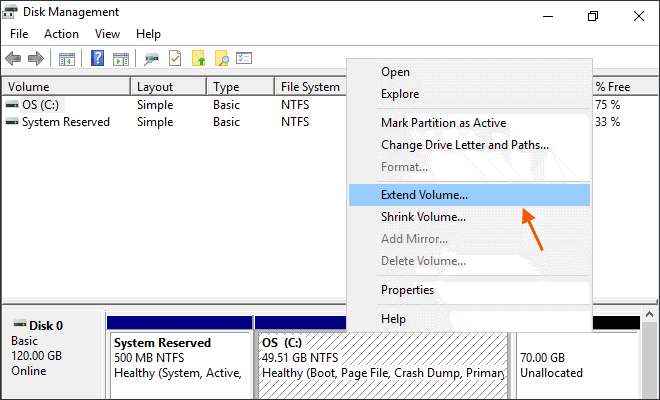
Step 3 Right-click the left-hand disk label that shows Offline (not the partition area).
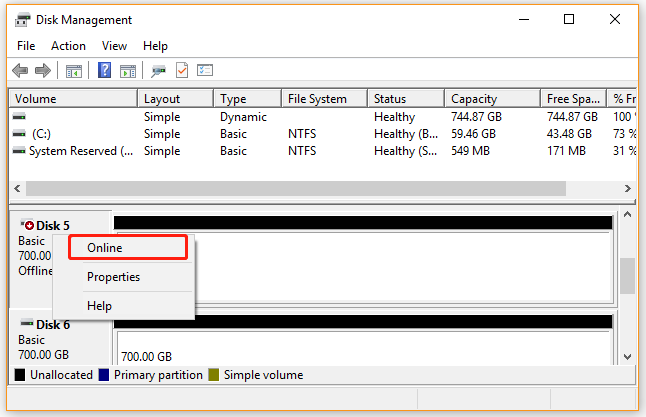
The menu example uses a different disk. Verify your target disk before selecting Online.
Step 4 Select Online.
Step 5 Wait for Disk Management to refresh, then check whether the partitions show as Healthy.
In common signature-collision cases, Windows can assign a different identifier when the disk is brought online. However, behavior may vary by disk type and system configuration.
Stop if Windows instead requests initialization or formatting of a disk that previously held data. That is not a normal resolution of a simple duplicate-ID warning.
Fix 3: Check whether a drive letter is missing
After the disk is online, its data partition may still be absent from File Explorer.
Step 1 Find the appropriate partition in Disk Management.
Step 2 Confirm it shows a recognized file system and a healthy status.
Step 3 Right-click the data volume and select Change Drive Letter and Paths.
Step 4 If no letter is assigned, select Add, choose an available drive letter and confirm.
Step 5 Reopen File Explorer and verify the files.
Do not assign a drive letter to the EFI System Partition or a Windows Recovery partition. They are not ordinary data volumes.
Fix 4: Investigate a persistent duplicate disk ID (advanced)
If Disk Management cannot bring the disk online because of the collision, open Windows Terminal as administrator to inspect its identifier with DiskPart. Run the lines below one at a time, replacing <verified-number> with the actual disk number you verified in the disk list:
diskpart
list disk
select disk <verified-number>
detail disk
uniqueid disk
These are inspection commands when used as shown, provided the correct disk is selected. Changing an ID requires a separate command, and GPT disk GUIDs and MBR disk signatures have different formats.
Changing a boot disk identifier can affect bootability. Do not paste an arbitrary replacement ID into DiskPart. First decide whether this is a replacement system disk or an additional data disk, keep a restorable backup, and follow Microsoft's uniqueid documentation or obtain help from a storage technician.
What if the clone still does not appear?
Try a different SATA port, M.2 slot or compatible USB enclosure. Confirm the drive appears in UEFI firmware and Device Manager. If the SSD repeatedly disconnects, reports I/O errors, or disappears even from firmware, treat it as a potential hardware or connection issue rather than a signature conflict.
If you need to create a fresh disk clone, iSumsoft Cloner supports disk cloning and Windows partition/system copy workflows. Choose the mode that includes the boot-critical partitions required by your setup. Its official user guide also warns that copy operations may overwrite the destination. Recloning is not the first fix for a mere Offline status, and you should not overwrite the only remaining good copy of your data.
Frequently asked questions
Does a signature collision mean the files are corrupted?
Not necessarily. It usually describes duplicate disk identification information, not proof of file corruption. Check the partitions and your files after safely bringing the correct disk online.
Can I use both the original and cloned SSD at the same time?
Usually, after ensuring their identifiers do not conflict and the boot configuration is appropriate. Keep the original unmodified until you have verified the replacement.
Will bringing a cloned SSD online erase it?
The Online action is not the same as formatting a disk. Nevertheless, identify the disk and understand possible boot-configuration consequences before proceeding.
Should I run DiskPart clean to fix this?
No. clean removes partition information and is not a reasonable first-line solution to a signature collision.
What if the SSD is online but will not boot Windows 11?
Treat that as a separate boot problem. Check Windows Boot Manager, the correct UEFI boot entry, required system partitions and Startup Repair.
Conclusion
Once the SSD is accessible, verify the partition layout, open several files, and—if it is the intended system drive—boot Windows with the original disk disconnected. Only then consider repurposing the old disk.