Apple Devices App Not Detecting iPhone on Windows 11? Fix USB Connection and Driver Issues

You plug your iPhone into a Windows 11 computer, open the Apple Devices app, and wait—but the iPhone never appears in the sidebar. Sometimes it charges normally. Sometimes File Explorer can even show a DCIM folder, while Apple Devices still fails to recognize the phone.
The problem may involve an incompatible USB cable, a locked iPhone, an unapproved trust request, out-of-date Apple software, or a Windows driver issue. You do not need to erase or restore your iPhone to investigate a normal detection problem.
Quick answer
- Unlock the iPhone, reconnect it using a data-capable USB cable, approve Trust This Computer, and restart the Apple Devices app. If it is still missing, test a different USB port and inspect Windows' device detection and Apple-related drivers. Consider a dedicated Apple USB driver repair only after the official checks.
- How Apple Devices should recognize your iPhone
- Fix 1: Unlock your iPhone and approve Trust This Computer
- Fix 2: Use a USB cable that supports data transfer
- Fix 3: Restart the app, the PC and the iPhone
- Fix 4: Reset the trust prompt if it does not appear
- Fix 5: Update Apple Devices, Windows and iOS
- Fix 6: Check iPhone detection in Windows Device Manager
- Fix 7: Try Apple USB Driver Repair in iSumsoft iOS Refixer
- What if Apple Devices still cannot see the phone?
- Frequently asked questions
- Conclusion
How Apple Devices should recognize your iPhone
Apple's intended Windows workflow is straightforward:
Step 1 Install and open Apple Devices on the Windows PC.
Step 2 Connect an unlocked iPhone using a supported Lightning or USB-C data cable.
Step 3 Approve the trust prompt on the iPhone when asked, and enter the device passcode.
Step 4 Look for the connected device in the Apple Devices sidebar.
If the iPhone is absent, do not immediately assume it is a damaged iOS installation. Start by identifying where in the connection chain detection breaks down.
| Symptom | First thing to check |
|---|---|
| iPhone does not charge or respond to USB | Cable, connector, port and hardware |
| iPhone charges but Windows shows no device | Data-capable cable, USB port, device trust and drivers |
| iPhone appears in File Explorer but not Apple Devices | Apple software, permission/trust or service/driver issues |
| Trust prompt was dismissed | Reset Location & Privacy and reconnect |
| Phone disconnects during backup or update | Cable quality, USB stability and software conflicts |
Fix 1: Unlock your iPhone and approve Trust This Computer
A locked iPhone may not grant the access needed for Apple Devices to display it.
Step 1 Unlock the iPhone and leave its Home Screen visible.
Step 2 Disconnect the USB cable and reconnect it directly to the PC.
Step 3 If Trust This Computer? appears, tap Trust, then enter the iPhone passcode if requested.
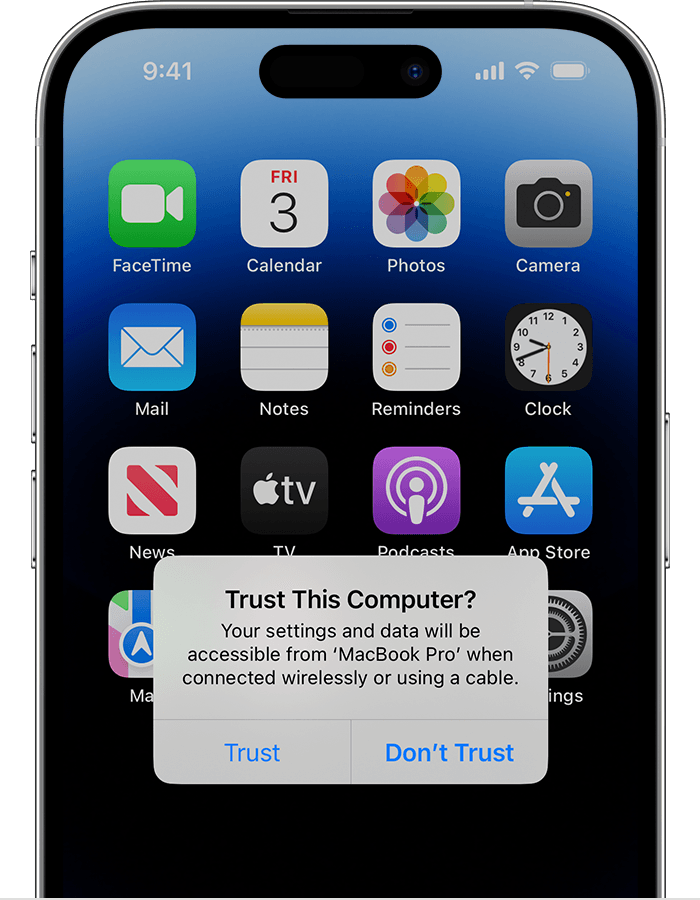
This example names a MacBook Pro; your iPhone will display your computer's name.
Step 4 Look again in the Apple Devices sidebar.
Apple documents these checks in its Apple Devices User Guide.
If a device belongs to someone else or is managed by a school or business, do not attempt to bypass the trust prompt or passcode. Only connect devices for which you have the owner's permission.
Fix 2: Use a USB cable that supports data transfer
Charging does not prove the cable supports data. A charge-only cable may power the phone but never establish the data connection required for synchronization and backup.
- Try the cable that came with the device or another known data-capable cable.
- Connect directly to a USB port on the PC instead of a hub, docking station or keyboard port.
- Test another USB port on the same PC.
- Carefully check the iPhone charging port for lint or debris; do not insert sharp metal objects.
- Test with another computer, if available, to isolate whether the problem follows the phone or the PC.
After each test, unlock the iPhone and reopen Apple Devices. If the connection repeatedly drops on multiple good cables and computers, the phone's port or another hardware component may need service.
Fix 3: Restart the app, the PC and the iPhone
Close Apple Devices completely and reopen it. If necessary, restart Windows and the iPhone. Then reconnect the phone, unlock it and respond to the trust request again.
This step is simple, but it avoids chasing a driver problem when an app session or temporary USB state is the cause. Do not reset or restore iOS merely because a Windows app is unresponsive.
Fix 4: Reset the trust prompt if it does not appear
If you previously tapped Don't Trust, or the computer is not requesting permission when expected, Apple provides a way to reset saved trust decisions.
On the iPhone:
Step 1 Open Settings > General.
Step 2 Tap Transfer or Reset iPhone > Reset.
Step 3 Choose Reset Location & Privacy.
Step 4 Enter the iPhone passcode if requested.
Step 5 Reconnect the phone and approve the trust prompt.
This resets location/privacy preferences and trusted-computer decisions; it is not the same as Erase All Content and Settings. Other apps may request permissions again afterward.
For more detail, see Apple's Trust This Computer guidance.
Fix 5: Update Apple Devices, Windows and iOS
Open the Microsoft Store > Library and check for updates to Apple Devices. Then check Settings > Windows Update for Windows and supported driver updates.
If the iPhone is usable, also check Settings > General > Software Update for an available supported iOS update. Update only when you have a reliable backup and adequate free space. An iOS update is not necessarily required to solve a USB recognition problem.
If you previously installed iTunes, another Apple connection utility or a third-party phone manager, test whether a software conflict is involved. Avoid deleting unknown Apple components or Windows services manually.
Fix 6: Check iPhone detection in Windows Device Manager
Step 1 Right-click Start and open Device Manager.
Step 2 With the iPhone unplugged, note the existing devices.
Step 3 Plug it in, unlock it and watch for changes.
Step 4 Check Portable Devices, Universal Serial Bus devices/controllers, and any Other devices with a warning icon. The exact category and device name depend on the installed driver.
Step 5 If a relevant device has a warning icon, open Properties and note the error message or device status.
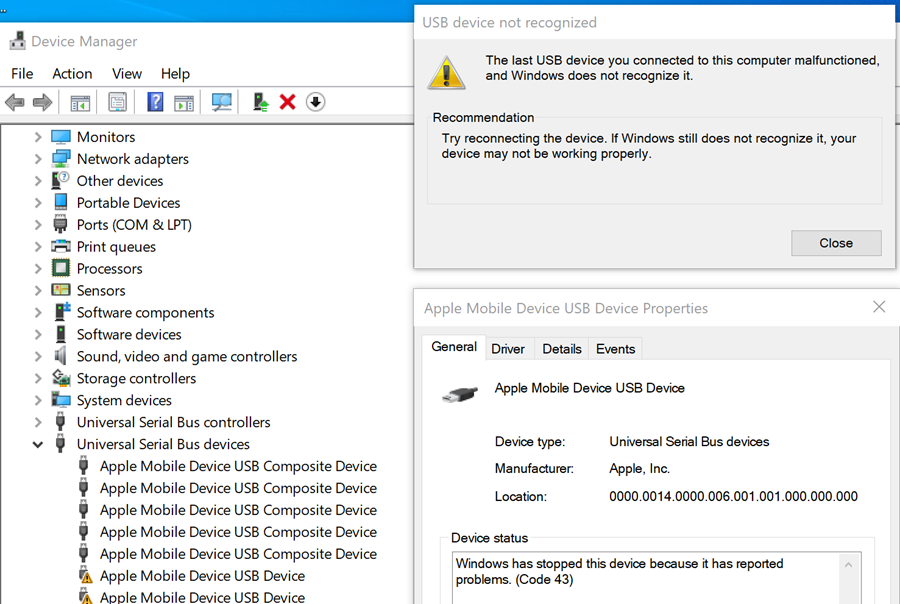
Step 6 Check Windows Update or the device vendor's official support channel for applicable drivers.
Do not select Uninstall device indiscriminately, delete driver packages from system folders or install random Apple USB drivers from third-party download sites. These actions can create additional connection problems.
If a device is not detected by Windows at all, return to cable and hardware checks. If Windows detects it but Apple Devices does not, the Apple software path is a more plausible place to investigate.
Fix 7: Try Apple USB Driver Repair in iSumsoft iOS Refixer
iSumsoft iOS Refixer includes an Apple USB Driver Repair feature. Its official guide describes the following workflow:
Step 1 Download the software from the official iSumsoft site and launch it on the Windows PC.
Step 2 Select Apple USB Driver Repair.

The interface may differ in your version.
Step 3 Click Start and allow the repair process to complete.

Step 4 Disconnect and reconnect the iPhone, as requested by the software.
Step 5 Reopen Apple Devices and check whether the phone is now recognized.
Compatibility note: The published guide documents this feature for iTunes connection problems. Its effectiveness with Apple Devices has not been verified for this article. Treat it as an optional driver troubleshooting step, not a guaranteed fix.
See the official iOS Refixer User Guide for the current interface.
What if Apple Devices still cannot see the phone?
Check a second Windows PC, another compatible cable and the manufacturer's hardware diagnostics. If Apple Devices detects other iPhones but not this one, the specific device may need additional assessment. If no iPhone is detected on the same Windows PC, focus on the shared USB/software environment.
If the phone is part of a company-managed setup, ask the device administrator whether USB accessories, pairing or synchronization are restricted.
Avoid choosing Restore iPhone as a connectivity test: restoring erases device data and does not address every underlying hardware or driver issue.
Frequently asked questions
Why does my iPhone charge but not show in Apple Devices?
Charging alone does not prove a working USB data connection. Use a known data cable, unlock the phone, approve trust and test a different port.
Can Windows detect the iPhone when Apple Devices does not?
Yes. Device detection at the USB level, access to photos and full Apple Devices synchronization are related but distinct functions.
Will Reset Location & Privacy erase my photos?
No. It resets certain permissions and trust choices, not the phone's stored photos. Do not confuse it with the separate Erase All Content and Settings option.
Is Apple USB Driver Repair guaranteed to fix Apple Devices?
No. The feature exists, but results depend on the cause and the versions in use. Hardware failures, device trust restrictions and unsupported configurations may need other solutions.
Do I need to reinstall iOS?
Usually not for an ordinary Windows detection issue. Start with connection, trust and software checks.
Conclusion
Most Apple Devices recognition failures should be approached as a connection-chain problem, not an invitation to reset the iPhone. Check the unlock and trust state, use a proper cable and update supported Apple/Windows software. Only then consider driver repair and hardware diagnostics.