2 Ways to Take Screenshots in iPhone X/8/7, iPad, and Apple Watch

iPhone X no longer has the Home button, and the iPhone 7/8's Home button has been transformed into a touch-sensitive surface. This requires iPhone users to change their gestures to take screenshots on iPhone.
How to Take Screenshots on iPad/iPhone X/8/7/6/se
We'll cover two ways to do this here: one method that requires using the Power button, and the other convenient trick that works in all version of the iPhone. Both methods assume you quickly capture screenshots.
Way 1: Use different version of the iPhone to take screenshots
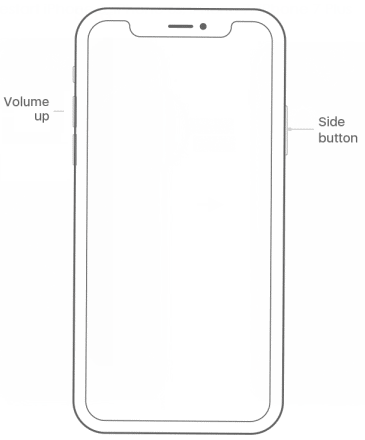
To take screenshots in iPhone X, press Side button + Volume up button.
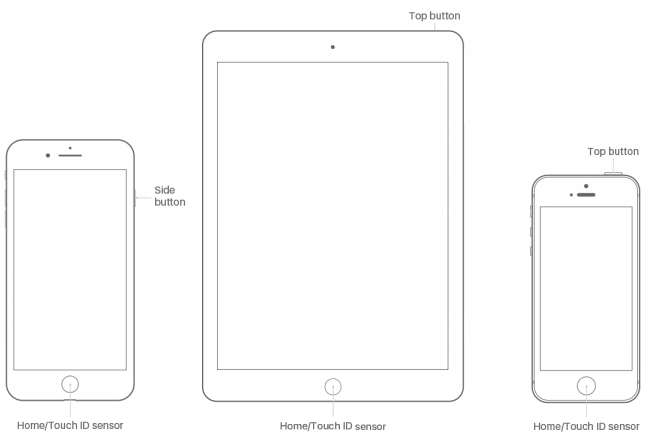
To take screenshots in iPhone 7/7Plus, press Power(Side) button and tap Home button.
To take screenshots in iPhone 6s later and iPad: Power (Top) button + Home button.
Way 2: Use Screenshots function of Virtual Home Button
Make sure that Assistive Touch is turned on, if it is not, go to enable Virtual Home button.
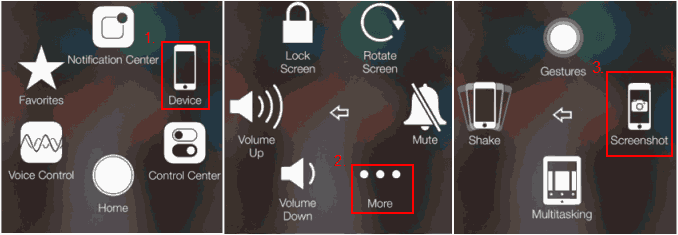
Step 1: Open the screen you want to capture. Tap the Virtual Home button on the screen.
Step 2: Tap Device in the pop-up menu, then click More to continue. Tap Screenshot to capture the screen.
The screenshots will be automatically saved in the Photos app. To find your screenshots, go to the Photos app > Albums > Screenshots album. Here you can edit, delete and share the photos and screenshots to your friends.
How to Take a Screenshot on Apple Watch
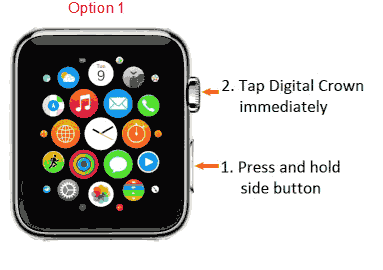
The method for taking a screenshot on an Apple Watch is very similar to this, but because there is no Home button, you must use the Digital Crown instead.
Step 1: Open the clock face, glance, notification, or apps where you want to take screenshots.
Step 2: Press and hold on the side button and Digital Crown at once.