How to Find Local IP Address in Apple Device

This tutorial will show you how to view and find local IP address in Apple Device.
- Option 1: To view IP address in System Preferences
- Option 2: To find IP address in Terminal
- Option 3: To find IP address in the Settings of iPhone/iPad
Option 1: How to View IP Address in System Preferences
Follow these steps below, you can easily view the detail IP address in Apple computer.
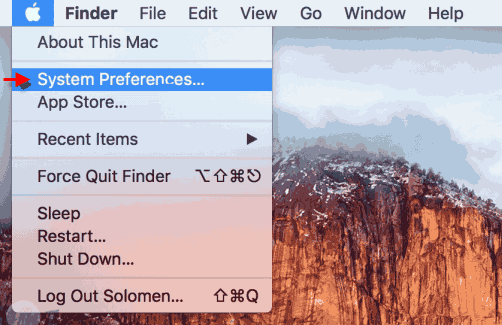
Step 1: On Mac, click the Apple menu and select System Preferences.
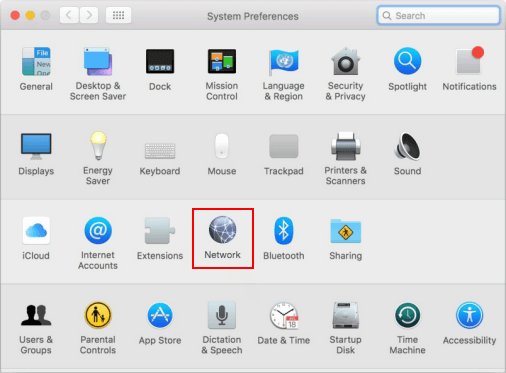
Step 2: Click the Network icon.
Step 3: Then select your Wi-Fi or wired Ethernet connection, and click Advanced.
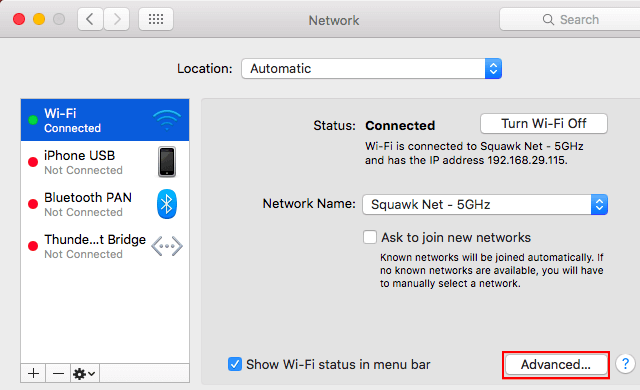
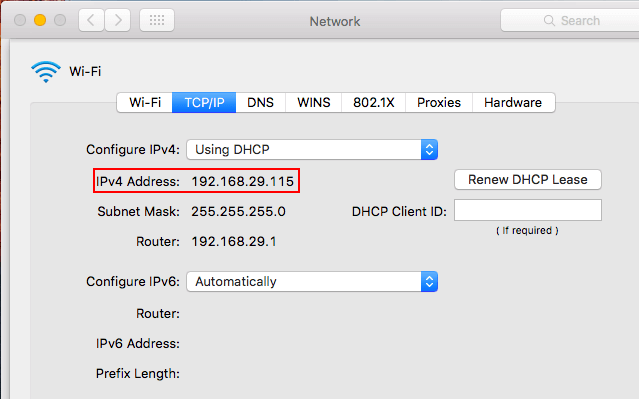
Step 4: Click on TCP/IP tab and you will see the local IP address of your PC in the right-side of IPv4.
Option 2: How to Find IP Address with Terminal
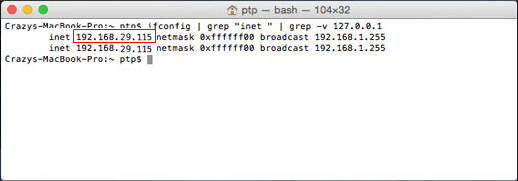
You can find IP address with Terminal if you use the following command:
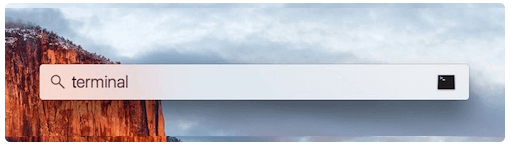
Step 1: Open Terminal app. You can access from Spotlight with Command + Space.
Step 2: In Terminal, run the following command, then hit Enter.
ifconfig | grep "inet " | grep -v 127.0.0.1
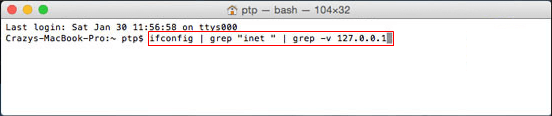
Step 3: Terminal will reveal the local IP address. You can see it is listed next to the name of "inet".
Option 3: How To Find IP Address in iPhone/iPad
You can also easily find IP address and Router address in iPhone/iPad.
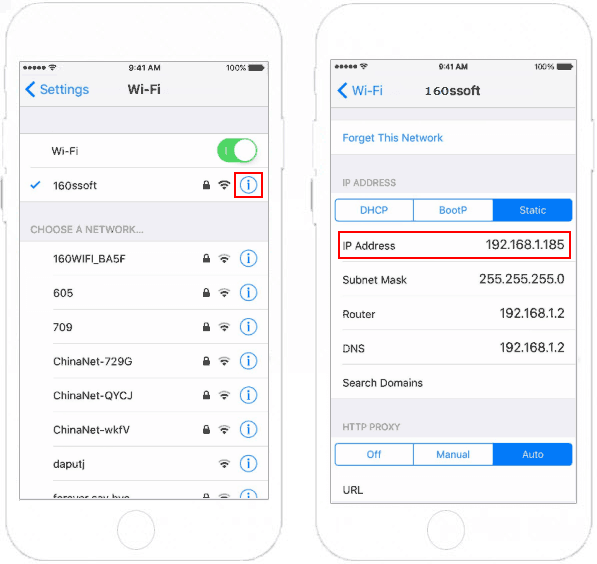
Step 1: Go to Settings > Wi-Fi.
Step 2: Tap the information icon to the right of the Wi-Fi connection you're currently connecting to.
Step 3: You'll see the IP address and other network details here.