2 Ways to Find Saved Wi-Fi Password on Mac

If you have a Mac that is connected to your wireless network, follow these instructions to retrieve the forgotten password. This tutorial will show you two methods to see/view/find Wi-Fi password on Mac.
- Option 1: Find the saved Wi-Fi password with Keychain Access
- Option 2: Find the saved Wi-Fi password with Terminal
Option 1: Show Wi-Fi password in Keychain Access
Keychain Access is a Mac OS X app that stores your passwords and account information. If you have a Mac that's currently connected to the Wi-Fi network or previously connected to it, you can also look up the password on that Keychain access.
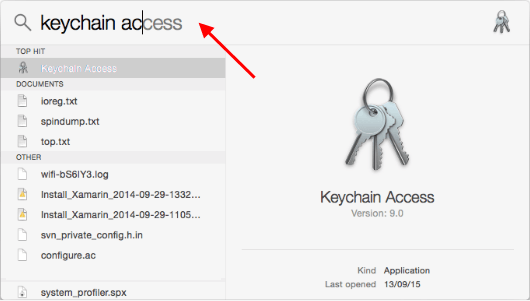
Step 1: On Mac, launch the Keychain Access app.
Press Command + Space to open the Spotlight search dialog, type Keychain Access, and press Enter.
Step 2: Click on Passwords tab on Category section, look for the name of the Wi-Fi network.
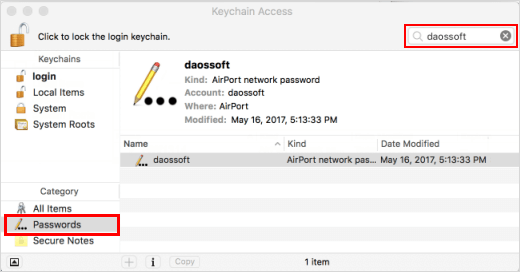
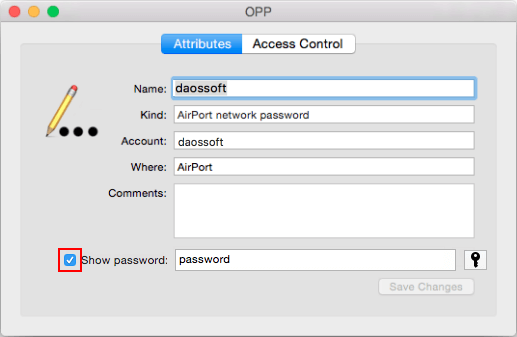
Step 3: Double-click on the network name that you want to reveal the details for, check Show password box.
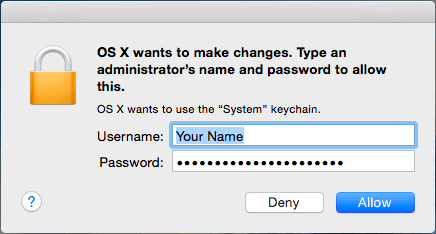
Step 4: Enter Mac's administrator's username and password.
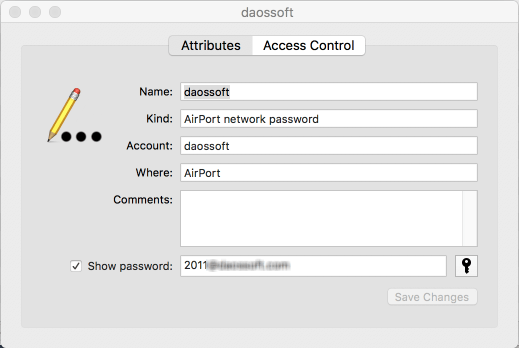
Your Wi-Fi network's security password should now be displayed.
Option 2: Find Wi-Fi password with Terminal
You can also use the Terminal to find a currently connected network's password.
Step 1: Open Terminal app. You can access from Spotlight with Command + Space.

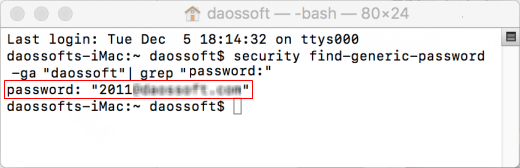
Step 2: Execute the following command in Terminal, then hit Enter.
security find-generic-password -ga "WiFiNAME" | grep "password:"
Note: "WiFiNAME" is the name of the network that you are seeking the password.
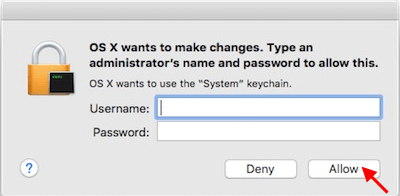
Step 3: Enter in your username and password when it prompts. Then, click Allow button.
Step 4: Terminal will show your Wi-Fi password.
Related Articles
-
![find saved wifi password Windows 10]() 4 Ways to
Find Saved WiFi Password on Windows 10
4 Ways to
Find Saved WiFi Password on Windows 10 -
![See WiFi password on iPhone]() How to
See Wi-Fi Password on iPhone without Jailbreak
How to
See Wi-Fi Password on iPhone without Jailbreak -
![Find iTunes Backups Files]() How to Find
iTunes Backup Files on Mac and Windows
How to Find
iTunes Backup Files on Mac and Windows -
![Get a Wireless Network Security Key]() How
to Get a Wireless Network Security Key if Forgot it
How
to Get a Wireless Network Security Key if Forgot it -
![Share WiFi password between Mac and iPhone]() Share WiFi
Password from Mac to iPhone or Vice Versa
Share WiFi
Password from Mac to iPhone or Vice Versa -
![View Password Saved in iCloud Keychain]() How to View
Password Saved in Safaris' iCloud Keychain
How to View
Password Saved in Safaris' iCloud Keychain