How to Create Custom Text Shortcuts for iPhone's Keyboard

Keyboard shortcuts can make you type faster and allow you to insert some special characters quicker. This post shows how to custom keyboard shortcuts in iPhone/iPad.
- Part 1: Create custom text replacement shortcuts
- Part 2: Set up Apple symbol as a keyboard shortcut
- Part 3: How to delete text keyboard shortcuts
Part 1: How to create custom text replacement shortcuts
You can create shortcuts for an email address, an emoji, or any message that you want. Here's how:
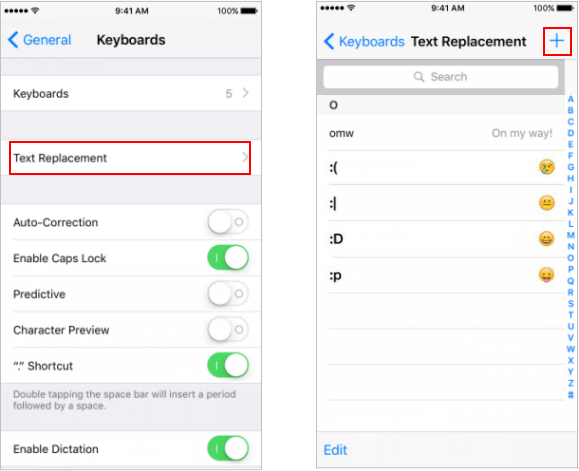
Step 1: Open the Settings app, then go to General > Keyboard > Text Replacement.
Step 2: Tap the plus sign in the top-right corner of the screen.
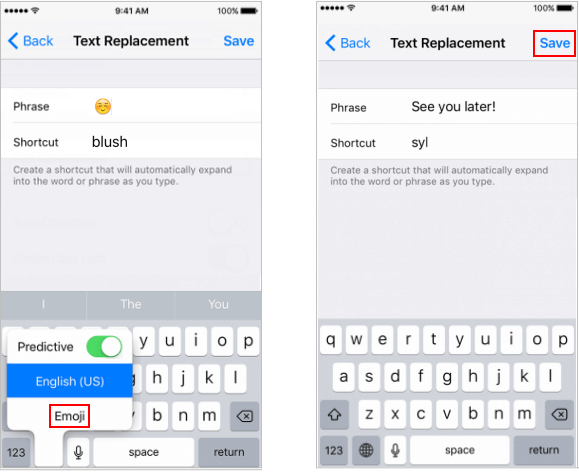
Step 3: In Phrase, type the desired message (for example, See you later!).
Step 4: Next to Shortcut, type a few characters (for example, syl). These are the characters you'll type whenever you want to use the shortcut.
Part 2: Set up Apple symbol as a keyboard shortcut
The simple way to enter the Apple symbol or other special characters with your iPhone or iPad is to set up them as keyboard shortcuts.
Step 1: Find the  Apple Symbol or other special characters that you want
from website.
Apple Symbol or other special characters that you want
from website.
Step 2: Go to Settings > General > Keyboard > Text Replacement.
Step 3: Tap plus sign.
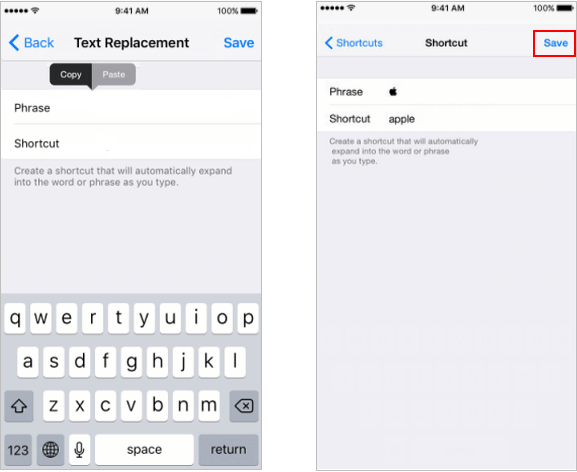
Step 4: Tap on Phrase, paste Apple symbol to insert it.
Step 5: Enter your shortcut letters. Tap Save.
Part 3: How to delete text shortcuts on iPhone and iPad
If you don't like a text keyboard shortcut, you can remove keyboard shortcuts at anytime.
Step 1: Go to Settings > General > Keyboard > Text Replacement.
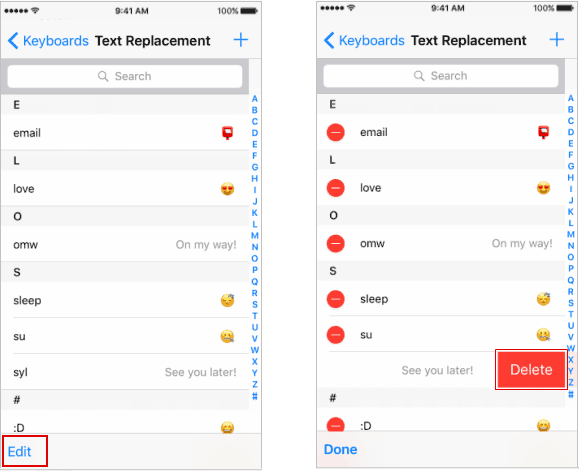
Step 2: Tap on Edit.
Step 3: Tap red icon and then tap Delete, finally tap Done.