2 Useful Feature of Globe Button on the keyboard

You can use the Globe button to switch between languages that use different keyboard layouts. With globe button, you can turn on or off predictive text in iPhone/iPad. Here will show you how to make full use of globe icon in iPhone/iPad.
Option 1: Switch Keyboard Input Language
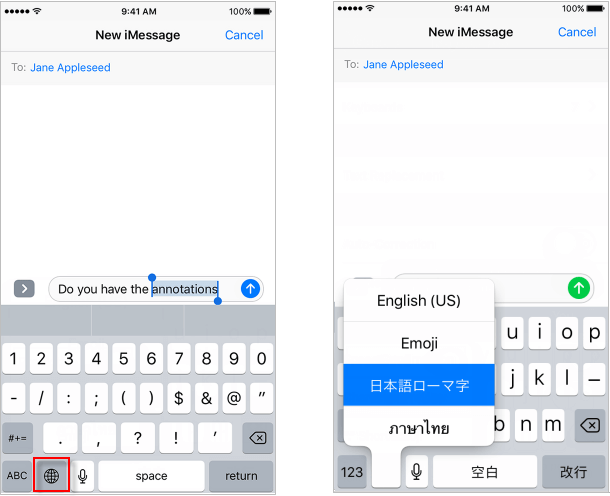
In iOS 10 or later, when tapping on globe button, keyboard automatically switches between the two languages. What's more, if you touch and hold the globe button, it can be used to switch to a different keyboard, such as a third-party keyboard, emoji or a language keyboard.
Step 1: Go to an app and tap a text field to access the keyboard.
Step 2: Touch and hold  to display a menu of keyboards.
Step 3: Move your finger to choose a new keyboard.
Option 2: Quickly Turn Off Predictive Text
Predictive text is an input technology used where one key or button represents many letters. If you don't like this feature, use these following ways to disable predictive text.
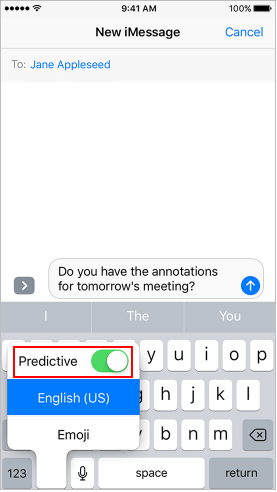
Way 1: Turn off predictive text in onscreen keyboard
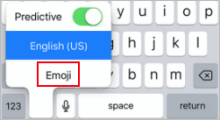
To turn off predictive text, touch and hold , then tap Predictive.
Way 2: Disable predictive text in Settings
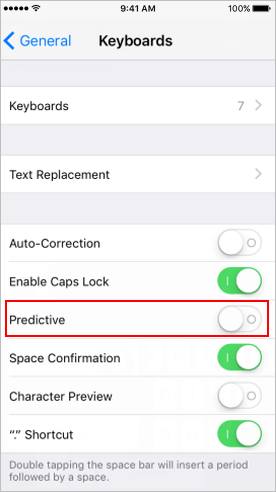
Go to Settings > General > Keyboard, tap Predictive to disable it.