
[Bring it Back] Phone Icon Missing on iPhone

When you want to call someone urgently but cannot find the phone icon, you may be at a loss and wonder where is the phone icon. Don't worry, it's not a big problem! In this article, we will present the reasons why the phone icon is missing on iPhone and how to bring the missing app icon back on iPhone. Read on and try these simple methods mentioned in this article.

- Part 1: Why is My Phone Icon Missing on iPhone?
- Part 2: How to Bring Back the Missing Phone Icon on iPhone
- Way 1: Force Restart Your iPhone
- Way 2: Search the iPhone Missing Apps with Spotlight Search
- Way 3: Add the Phone Icon to the Home Screen with the App Library
- Way 4: Reset Home Screen Layout
- Way 5: Check for Content & Privacy Restrictions
- Way 6: Fix Phone Icon Missing with the iOS Repair Tool
- Way 7: Perform iOS Update
- Way 8: Factory Reset Your iPhone
- Part 3: Bottom Line
Part 1: Why is My Phone Icon Missing on iPhone?
Some reasons for the phone icon missing on iPhone include the following:
• The phone app has been hidden accidentally
• Content & Privacy Restrictions settings is misconfigured
• Glitches existed in the iOS system
• Bugs on older iOS version
Part 2: How to Bring Back the Missing Phone Icon on iPhone
Way 1: Force Restart Your iPhone
Whenever or wherever you encounter every iPhone/Android-related problem, you should bear in mind that the first thing you should do is to force restart your iPhone.
Steps: Press the volume up and volume down buttons and then hold the power button until you see the Apple logo.
If your iPhone model is under iPhone 8, you can refer to this article to check your specific buttons for force restart.
Way 2: Search the iPhone Missing Apps with Spotlight Search
Since the phone app may have been hidden accidentally, and the phone app is the default app you cannot uninstall it, so, you can find it via spotlight search and drag it to the Home Screen.
Step 1: Swipe down from the top of the Home Screen to bring up the spotlight search screen.
Step 2: Type "Phone" on the search bar.
Step 3: Press and hold the phone icon and drag it to the Home Screen or dock.

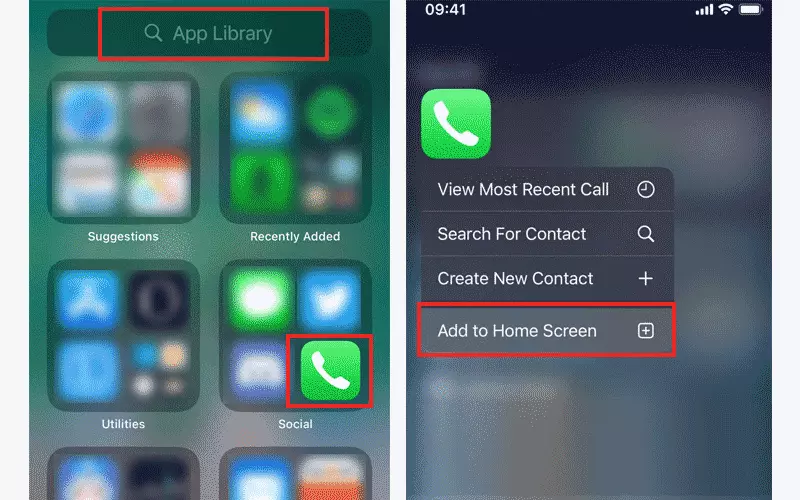
Way 3: Add the Phone Icon to the Home Screen with the App Library
Step 1: Swipe left to enter the App Library page.
Step 2: You can use the App Library search or look for the phone app.
Step 3: Press and hold the phone icon, when you see the option menu, select "Add to Home Screen". Or, you can tap and hold the phone icon and drag it to the Home Screen.
Way 4: Reset Home Screen Layout
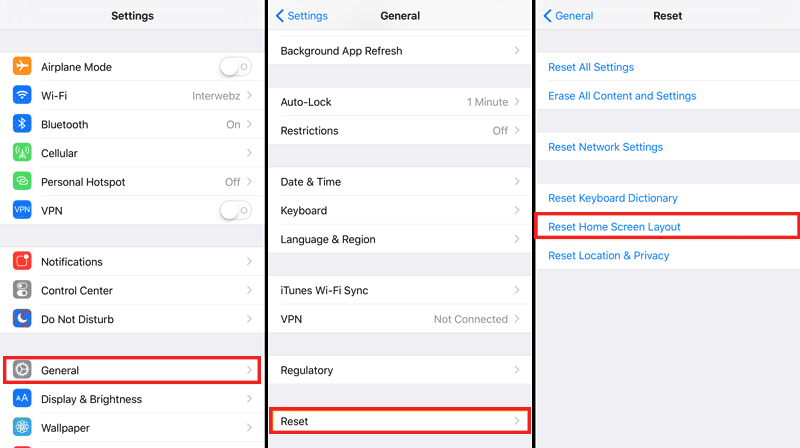
You can reset the Home Screen layout to check if the phone icon on the iPhone has been restored.
Steps: Go to Settings > General > Reset > Reset Home Screen Layout.
Way 5: Check for Content & Privacy Restrictions
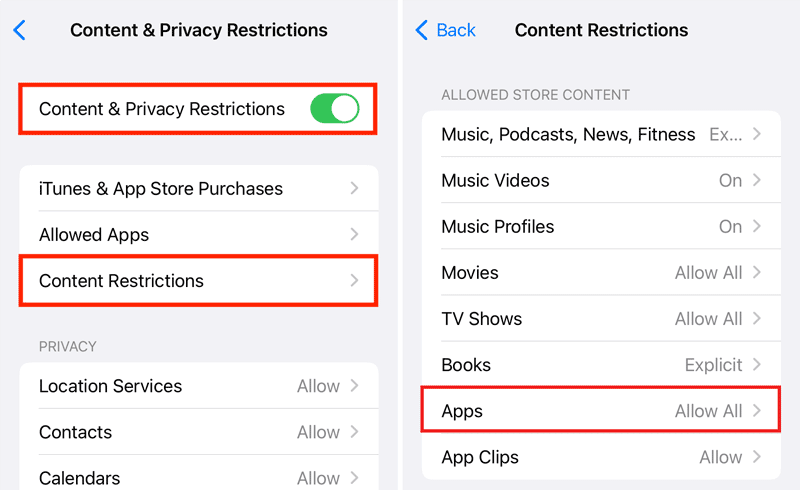
If you have limited app activities when enabled screen time, you’d better check for the content restrictions.
Steps: Go to Settings > Screen Time > Content & Privacy Restrictions > Content Restrictions > Apps. Check if the phone app has been restricted.
Way 6: Fix Phone Icon Missing with the iOS Repair Tool
iOS system glitches will also affect the phone icon missing issue, so you can fix it with iSumsoft iOS Refixer.

iSumsoft iOS Refixer
Powerful iOS System Repair Tool
- Fix 150+ iOS/iPadOS/tvOS system issues, two modes provided
- Repair 200+ iTunes errors and Apple USB Driver issues, no data loss
- Upgrade & Downgrade iPhone/iPad/iPod to any supported iOS version, including Beta versions
- Fix iPhone flashing Apple logo, iPhone stuck on update requested, iOS update not showing up, etc.
- Compatible with all iPhone and iPad models
Here are the steps for fixing the phone icon missing with iSumsoft iOS Refixer:
Step 1: Download and install iSumsoft iOS Refixer .
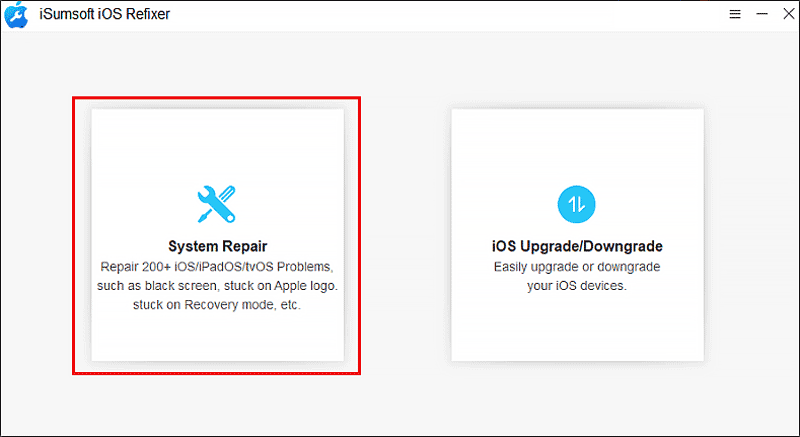
Step 2: Select System Repair and connect your iPhone to your computer with a USB cable.
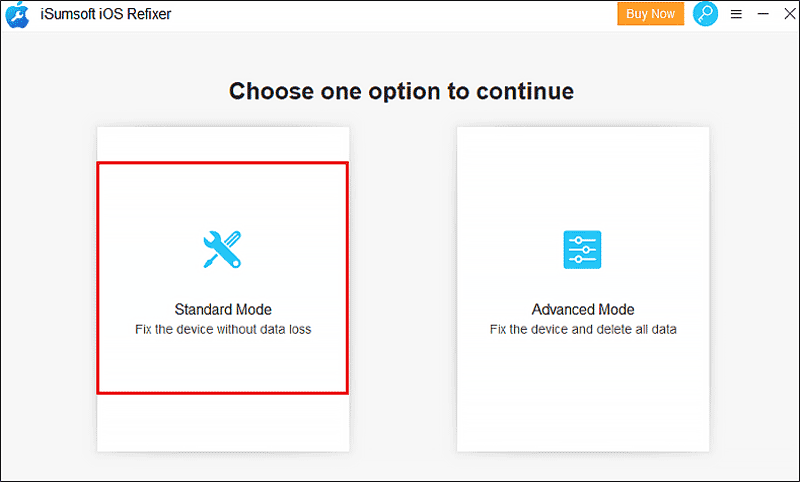
Step 3: Choose Standard Mode.
Note: Advanced Mode can run deep repair but it will erase all the data in your iPhone.
Step 4: Click Start.
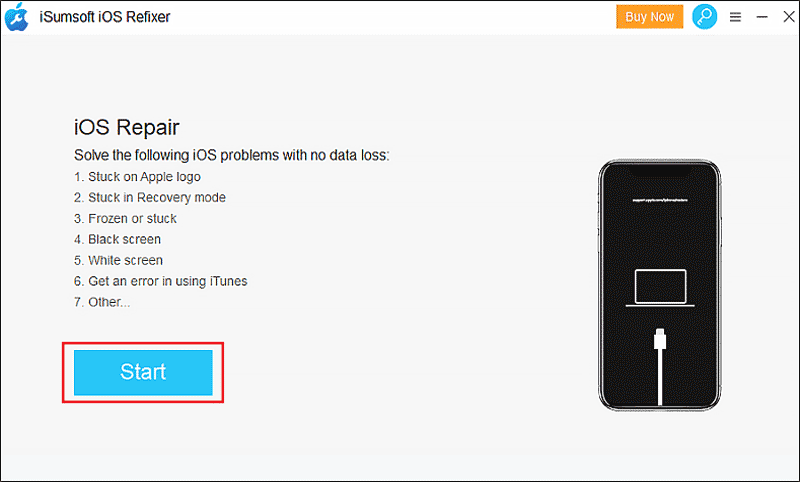
Step 5: Follow the on-screen instructions to put the iPhone into recovery mode.
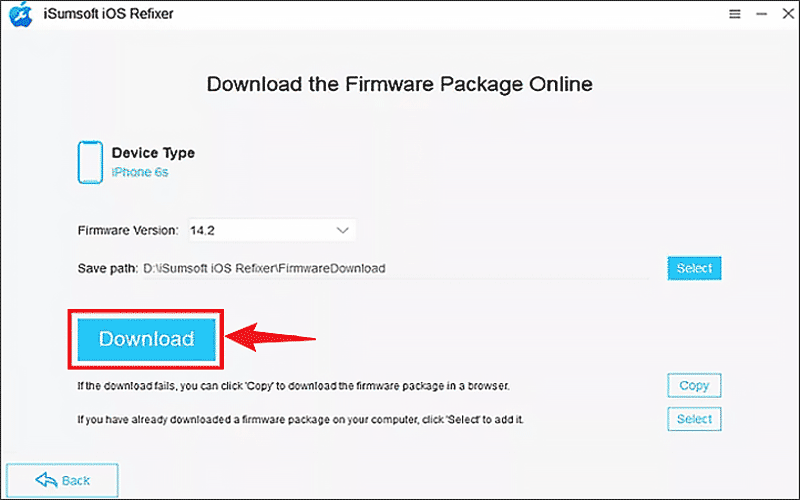
Step 6: Download the firmware package.
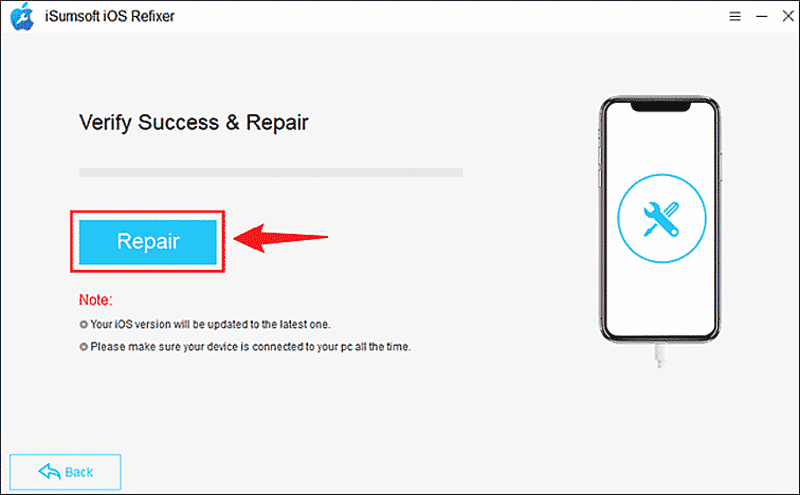
Step 7: Click Repair to begin repairing. Once the repair process is finished, your iPhone will restart automatically, then see if the phone icon missing on iPhone issue has been fixed.
Way 7: Perform iOS Update
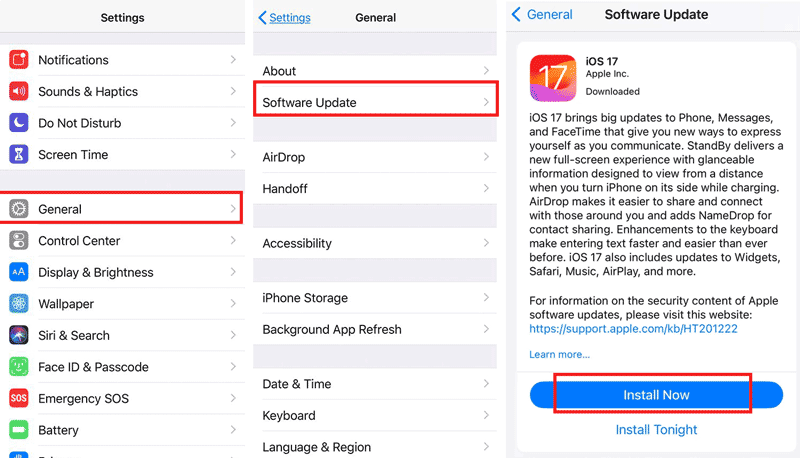
There may exist some bugs on the older iOS version and the newer update patches can fix them, so, you can update your iOS version to the latest version.
Settings: Go to Settings > General > Software Update > Download and Install.
Way 8: Factory Reset Your iPhone
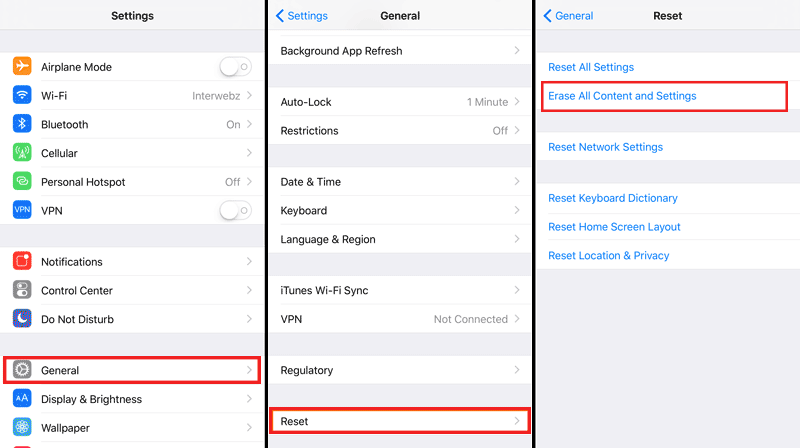
Factory reset your iPhone is the final method to fix the phone icon missing problem, but it is not recommended to do that without backing up your iPhone data. If you have backed up the data, you can try these steps to reset your iPhone: Go to Settings > General > Reset > Erase all Content and Settings.
Part 3: Bottom Line
In this article, we have provided 8 ways to fix phone icon missing on iPhone. What's more, the ways we've offered are not only to fix the phone icon missing, but are also suitable for any app icon missing on iPhone (iPhone mail icon missing, iPhone message icon missing, etc.).
Related Articles
![[All iOS Versions] iPhone Swipe Up Not Working Solutions 2024](../images/ios-issues/iphone-swipe-up-not-working/iphone-swipe-up-not-working-s.webp) [All iOS Versions] iPhone Swipe Up
Not Working Solutions 2024
[All iOS Versions] iPhone Swipe Up
Not Working Solutions 2024![Fixed iPhone Stuck on Do Not Disturb After Update [2024 Updated]](../images/ios-issues/iphone-stuck-on-do-not-disturb/iphone-stuck-on-do-not-disturb-s.webp) Fixed iPhone Stuck on Do Not
Disturb After Update [2024 Updated]
Fixed iPhone Stuck on Do Not
Disturb After Update [2024 Updated] Fix iPhone Photos not
Syncing to iCloud/Mac/PC
Fix iPhone Photos not
Syncing to iCloud/Mac/PC![[Fixed] iPhone Screen Goes Black Randomly Then Comes Back](../images/ios-issues/iphone-screen-goes-black-randomly/iphone-screen-goes-black-randomly.png) [Fixed] iPhone Screen Goes
Black Randomly Then Comes Back
[Fixed] iPhone Screen Goes
Black Randomly Then Comes Back My iPhone Won't Charge
When Plugged in - Solved
My iPhone Won't Charge
When Plugged in - Solved![[Solved] 8 Ways to Fix iPhone Lagging and Freezing](../images/ios-issues/iphone-lagging-and-freezing/8-ways-to-fix-iphone-lagging-and-freezing.webp) [Solved] 8 Ways to Fix iPhone
Lagging and Freezing
[Solved] 8 Ways to Fix iPhone
Lagging and Freezing