
Fixed iPhone Stuck on Do Not Disturb After Update [2024 Updated]

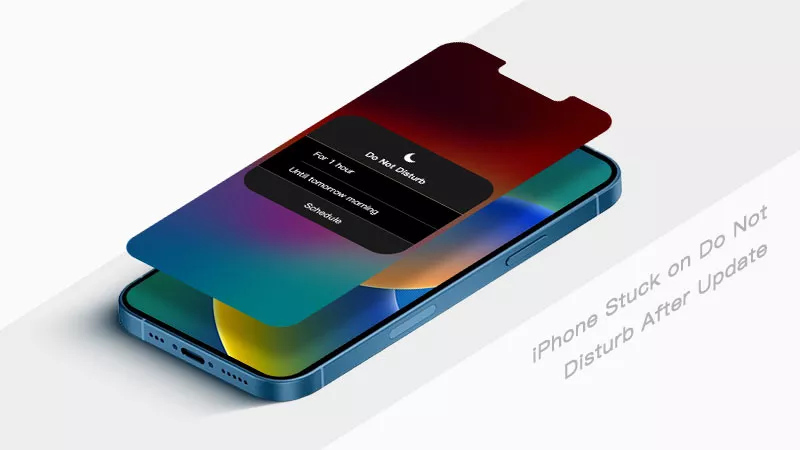
It is not surprising that various issues arise after updating iOS and iPhone stuck on Do Not Disturb mode is one of the most discussed issues. This article will delve into the causes behind it and show you how to fix iPhone stuck on Do Not Disturb after update.
- Part 1: Why Can't I Turn off the Do Not Disturb on iPhone?
- Part 2: How to Turn off Do Not Disturb on iPhone?
- Solution 1: Turn off Do Not Disturb from Control Center
- Solution 2: Disable Do Not Disturb from Settings
- Part 3: How to Fix iPhone Stuck on Do Not Disturb Mode?
- Solution 1: Turn off Sleep Focus
- Solution 2: Delete Do Not Disturb Schedule
- Solution 3: Force Restart iPhone
- Solution 4: Reset All Settings
- Solution 5: Turn off Driving Focus
- Solution 6: Use iTunes to reset iPhone
- Solution 7: Repair iPhone via iSumsoft iOS Refixer
Part 1: Why Can't I Turn off the Do Not Disturb on iPhone?
You must be curious about why your iPhone gets stuck in the Do Not Disturb mode. Here are some common reasons:
Do Not Disturb is scheduled: If you have it scheduled to turn on at certain times, you won't be able to turn it off manually until the scheduled time has passed.
A Focus mode is enabled: Focus mode is a new feature in iOS 15 that allows you to filter out specific notifications and apps based on your current activity. If you have a Focus mode enabled, it may be preventing you from turning off Do Not Disturb mode.
Your iPhone is glitching: After a recent software update or conflicting settings, there may be a temporary glitch or error in the settings or software of your iPhone, causing it to get stuck in Do Not Disturb mode.
Your iPhone is in Airplane Mode: When your iPhone is in Airplane Mode, all wireless connections are turned off, resulting Do Not Disturb mode turning on automatically.
Physical issue: Physical issues with the hardware like buttons or sensors may prevent your iPhone from recognizing your input to disable Do Not Disturb mode.
Part 2: How to Turn off Do Not Disturb on iPhone?
Solution 1: Turn off Do Not Disturb from Control Center
Swipe from the top-right corner to open Control Center. Locate and tap on the Do Not Disturb icon, which looks like a crescent moon, to disable it. Once disabled, its background color will turn transparent, indicating that Do Not Disturb mode is off.

Solution 2: Disable Do Not Disturb from Settings
Go to Settings > Focus > Do Not Disturb, then toggle the button to turn it off.

Part 3: How to Fix iPhone Stuck on Do Not Disturb Mode?
Solution 1: Turn off Sleep Focus
Check if you've turned on Sleep focus, it will turn on Do Not Disturb mode automatically for fewer interruptions. Follow these steps:
1: Tap Settings> Focus > Sleep, then tap on your schedule and toggle the button to disable it.

Solution 2: Delete Do Not Disturb Schedule
During the scheduled time, you're not allowed to turn off the DND mode unless you delete the schedule you set. Here is how to delete the schedule to fix iPhone stuck on Do Not Disturb mode:
Go to Settings > Focus > Sleep > Delete Focus.

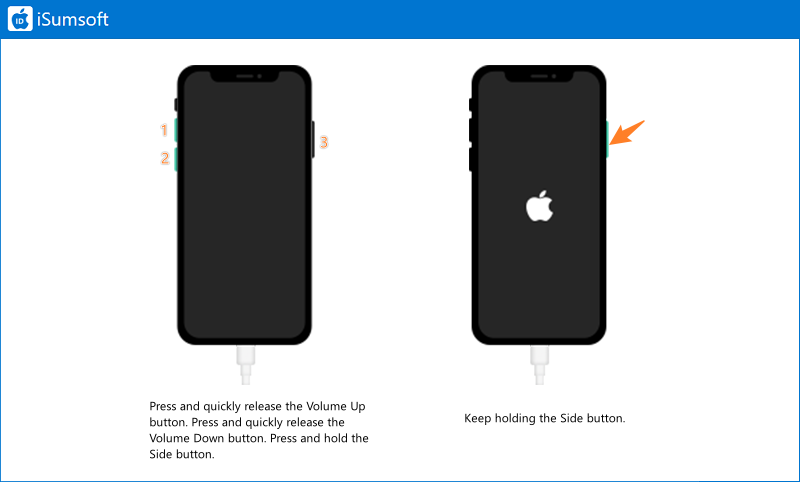
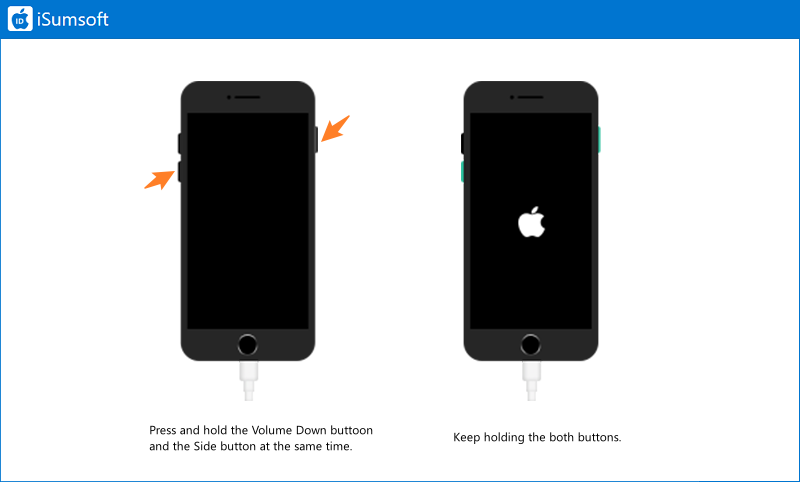
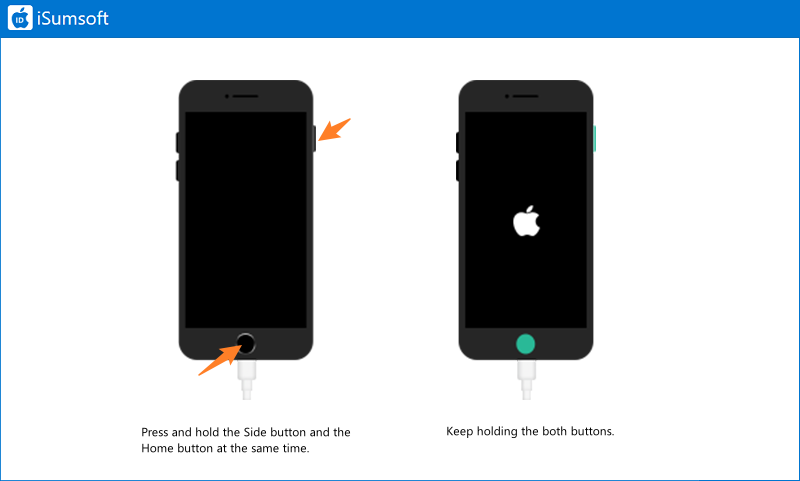
Solution 3: Force Restart iPhone
Force restarting iPhone may help you solve this issue. Learn how to force restart your iPhone:
For iPhone 8 and later
For iPhone 7 and iPhone 7 Plus
For iPhone 6s and iPhone SE
Solution 4: Reset All Settings
Have you tried resetting all settings? Different settings may lead to configuration conflict. Try to reset all iPhone settings to solve Do Not Disturb can't be turned off on iPhone.
On Settings, tap General > Transfer or Reset iPhone > Reset > Reset All Settings, then enter your screen lock passcode to complete the process.

Solution 5: Turn off Driving Focus
Once the Driving Focus feature is enabled, your iPhone is set to Do Not Disturb mode automatically when you're driving. Follow these steps:
From Settings, tap Screen Time > Content & Privacy Restrictions, then locate Driving Focus (if you have set a screen time, you are asked to enter your screen time passcode) and select Don't allow.

Solution 6: Use iTunes to reset iPhone
You can also use iTunes to fix iPhone stuck on Do Not Disturb, which restores your iPhone by erasing your media and all other data. Here is how to use iTunes:
Step 1: Connect your iPhone to a computer installing Windows 10 and later.
Step 2: Put your device into Recovery Mode.
Step 3: When asked to Update or Restore, click Restore and follow the onscreen instructions to complete the process.

Solution 7: Repair iPhone via iSumsoft iOS Refixer
The last resort is that you can use a professional tool, iSumsoft iOS Refixer, to repair your iPhone. It provides you with two repair modes - one is Standard Mode (no data loss) and the other is Advanced Mode (data erased) - to resolve various iOS-related issues. Learn how to use this software:

iSumsoft iOS Refixer
Powerful iOS System Repair Tool
- Fix 150+ iOS/iPadOS/tvOS system issues, two modes provided
- Repair 200+ iTunes errors and Apple USB Driver issues, no data loss
- Upgrade & Downgrade iPhone/iPad/iPod to any supported iOS version, including Beta versions
- Fix iPhone flashing Apple logo, iPhone stuck on update requested, iOS update not showing up, etc.
- Compatible with all iPhone and iPad models
Step 1: Free download iSumsoft iOS Refixer, then connect the iPhone to your PC and launch the software.
Step 2: Select System Repair.

Step 3: Select Standard Repair.

Step 4: Click Start to repair your device.

Step 5: You need to download a match firmware package. Click Download to proceed.

Step 6: After the successful download, click Repair to fix iPhone stuck on Do Not Disturb issue.

Step 7: Wait for the process to complete. When you see "Repair Successfully", your iPhone will start by itself and the problem has been resolved.

Related Articles
 How to Fix iOS 17
Stuck
on Update Requested
How to Fix iOS 17
Stuck
on Update Requested Fixed iPhone
Stuck
on Support Apple Com iPhone Restore Screen
Fixed iPhone
Stuck
on Support Apple Com iPhone Restore Screen![[5 Fixes] iPhone X/11/12/13/14/15 Stuck on Emergency SOS Mode 2023](../images/ios-issues/iphone-stuck-on-emergency-sos-mode/5-ways-to-fix-iphone-stuck-on-emergency-sos-mode.webp) [5 Fixes] iPhone
X/11/12/13/14/15 Stuck on Emergency SOS Mode 2023
[5 Fixes] iPhone
X/11/12/13/14/15 Stuck on Emergency SOS Mode 2023![Fixed iPhone Stuck on 'Install Now' While Updating [iOS 17 included]](../images/ios-issues/iphone-stuck-on-install-now/iphone-stuck-on-install-now-s.webp) Fixed iPhone Stuck on 'Install
Now'
While Updating [iOS 17 included]
Fixed iPhone Stuck on 'Install
Now'
While Updating [iOS 17 included]![iPhone is Frozen on Lock Screen and Won't Turn off [2023]](../images/ios-issues/iphone-frozen-on-lock-screen-wont-turn-off/iphone-frozen-on-lock-screen-wont-turn-off-s.webp) iPhone is Frozen on
Lock
Screen and Won't Turn off [2023]
iPhone is Frozen on
Lock
Screen and Won't Turn off [2023]![How to Fix iPhone Stuck on Black Screen with Spinning Wheel [Solved]](../images/ios-issues/iphone-stuck-on-black-screen-with-spinning-wheel/iphone-black-screen-spinning-wheel.png) How to Fix
iPhone
Stuck on Black Screen with Spinning Wheel [Solved]
How to Fix
iPhone
Stuck on Black Screen with Spinning Wheel [Solved]