
How to Fix iPhone Storage Not Loading/Showing iOS 17/16/15

"I’m on 15.3.1 and everytime I open storage setting it seems loading forever and not showing up anything."
iPhone storage is closely related to your iPhone running speed. Generally, you may not notice your iPhone storage until your phone is running slow. When you check how much free storage that iPhone leaves, iPhone storage may load for a long time or even cannot be loaded. What’s going on? This article will show you why iPhone storage not loading and list 6 common methods to fix iPhone storage not loading.

- Part 1: Why is iPhone Storage Not Loading/Showing?
- Part 2: 6 Common ways to Fix iPhone Storage Not Loading
- Part 3: Effective Way to Fix iPhone Storage Not Loading
- Part 4: Summary
Why is iPhone Storage Not Loading/Showing
Why is Storage not showing? Here you should know several reasons why the iPhone storage not loading.
1. Small temporary glitches
There is inevitable that various programs such as Settings or iCloud may have some unknown glitches during running. In this case, your iPhone may freeze for a short time, which will also make the iPhone memory unable to be loaded.
2. Insufficient storage
As we mentioned above, iPhone running speed will be affected by iPhone storage. With more and more data piled up on your iPhone, the available space on your iPhone will become less and less. When the iPhone's memory is approximately insufficient, every program on iPhone will also performs slowly, including the process that iPhone calculating storage category sizes and loading categories.
3. Software issues
In addition to the free storge, iPhone system is also one of the important factors that affect the running speed of the iPhone. If the iPhone is using an older system that has bug, this may cause iPhone storage categories not loading.
Part 2: 6 Common ways to Fix iPhone Storage Not Loading
Actually, it takes some time to load the iPhone storage. The more data in your iPhone, the longer time iPhone loads storage. In this case, you may need to wait patiently for the iPhone storage refreshing. If iPhone storage loading forever and won’t load, you can try to fix it with following ways.
- Way 1: End Settings Process
- Way 2: Force Restart iPhone
- Way 3: Clean up iPhone Storage
- Way 4: Re-sign in iCloud
- Way 5: Update iOS to Latest version
- Way 6: Reset iPhone All Settings
Way 1: End Settings Process
If iPhone storage not loading, one of the common ways is to force end the task that iPhone analyzing and loading storage information. You can force end Settings in this way.
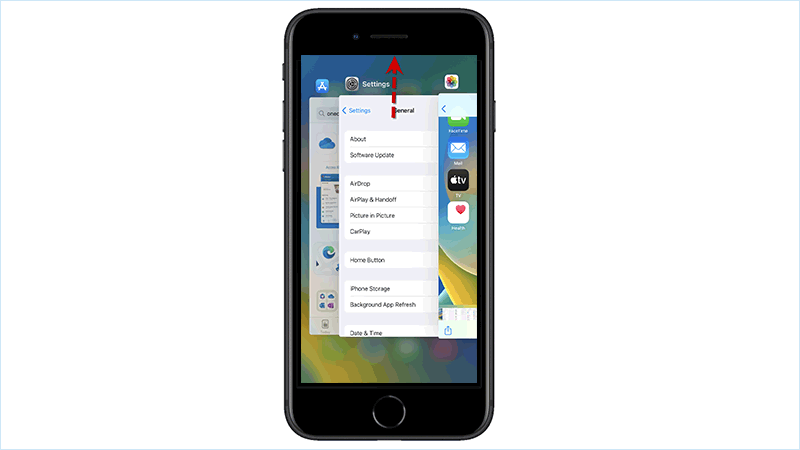
Step 1: On iPhone X or later, swipe up from the bottom to the middle of iPhone screen and hold until App Switcher appears. On iPhone 8 or earlier, double-click the Home button to see Apple Switcher.
Step 2: Swipe left or right to find the Settings app and swipe up to close it. After that, you can also try to restart the iPhone and reconnect to the network. If iPhone storage still won’t load, you can move to next way.
Way 2: Force Restart iPhone
For most of the iPhone problems caused by glitches such as iPhone lagging and freezing, force restart can be a very effective solution. Therefore, you can try to force restart to see if it can solve the problem of iPhone storage not loading.

Way 3: Clean up iPhone Storage
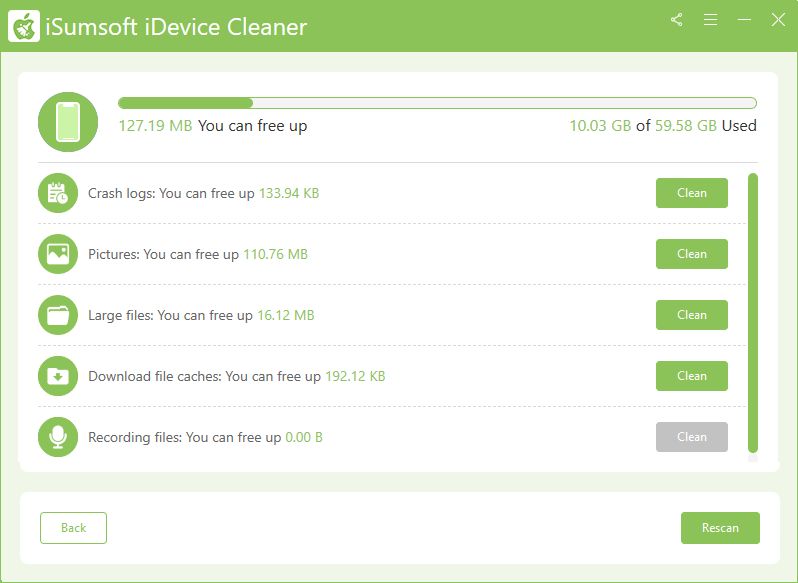
If iPhone storage full not loading, it’s time to clean up phone storage. To free up iPhone, you can clear iPhone junk files or uninstall unnecessary applications. It is suggested that you use a professional iPhone cleanup tool like iSumsoft iDevice Cleaner to clear all kinds of iPhone caches and unused apps within a few clicks.
Way 4: Re-sign in iCloud
If you sync your iPhone data to iCloud, you can attempt to sign out and then sign in iCloud again to check whether it can fix iPhone storage not loading. Here are the steps.
Step 1: Enter Settings > Tap General
Step 2: Tap your account name and scroll down to tap Sign Out.
Step 3: After that, sign in iCloud again with your Apple ID and passcode.

Way 5: Update iOS to the Latest Version
Updating the iPhone system can fix any problems in the old system that may prevent iPhone storage from loading. Here the following steps can help you update your system.
Step 1: Go to iPhone Settings, find and open General Settings
Step 2: Select Software Update. Then download and install the latest iOS system.
Step 3: After completing the system update, you may fix iPhone storage not loading.

Way 6: Reset iPhone All Settings
If updating the system cannot solve iPhone storage not loading, here is another solution, which is to reset all settings of the phone. This method will only restore the phone to its default settings without deleting your files, so it's worth a try.
Step 1: On iPhone, tap Settings > General. Then scroll down to choose Transfer or Reset iPhone.
Step 2: Here you are able to choose Reset option.
Step 3: Now select Reset All Settings.

Part 3: Effective Way to Fix iPhone Storage Not Loading
If none of above ways work, there may be some unknow system issue leading to iPhone storage unloading. Here you can use a specialized tool named iSumsoft iOS Refixer to repair your iPhone. With this powerful tool, you can solve dozens of iOS problems such as iPhone getting stuck in Apple logo, boot loop, update failure, etc. Now, learn how to use iSumsoft iOS Refixer to repair iPhone without losing any data.

iSumsoft iOS Refixer
Powerful iOS System Repair Tool
- Fix 150+ iOS/iPadOS/tvOS system issues, two modes provided
- Repair 200+ iTunes errors and Apple USB Driver issues, no data loss
- Upgrade & Downgrade iPhone/iPad/iPod to any supported iOS version, including Beta versions
- Fix iPhone flashing Apple logo, iPhone stuck on update requested, iOS update not showing up, etc.
- Compatible with all iPhone and iPad models
Step 1: Download and install iSumsoft iOS Refixer on the computer where you have installed iTunes.
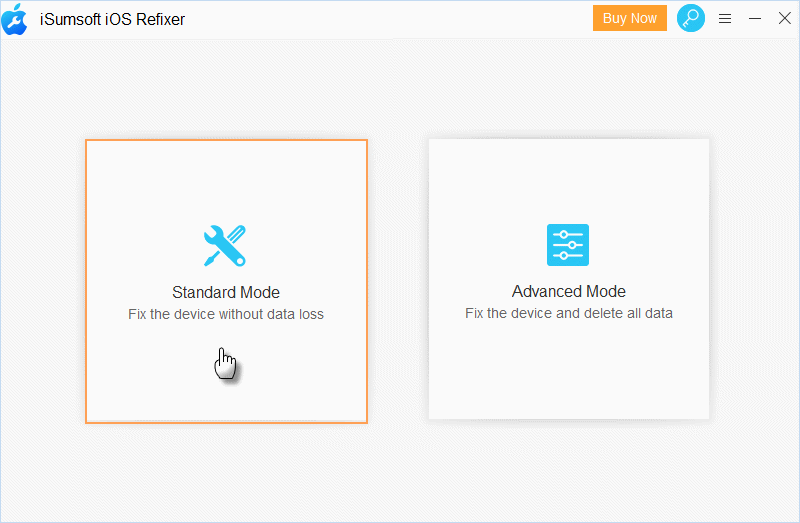
Step 2: Open iSumsoft iOS Refixer and choose Standard Mode.
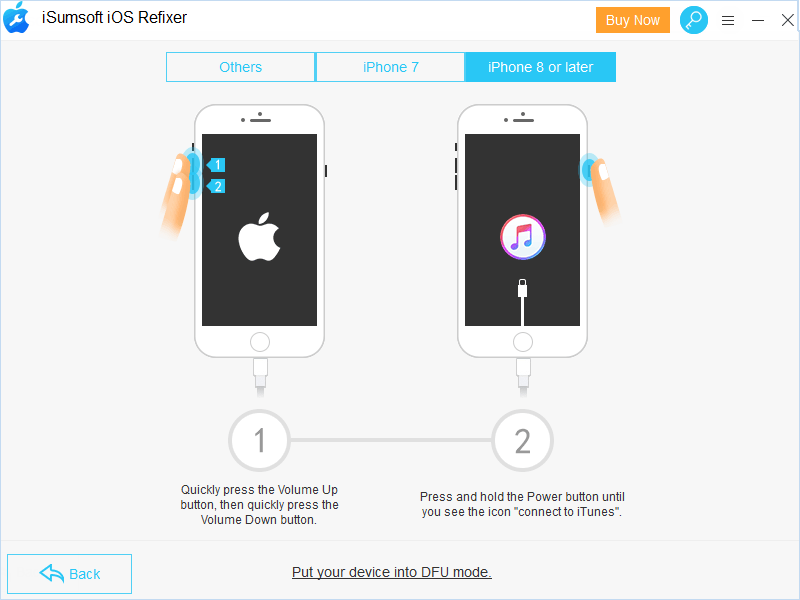
Step 3: Follow the on-screen guide to connect iPhone to computer and then put iPhone into Recovery Mode.
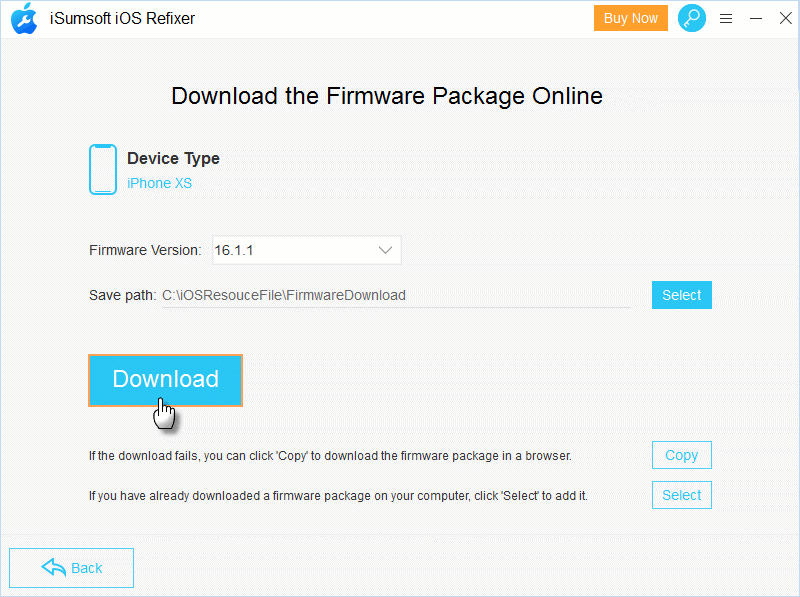
Step 4: When the firmware package is available to download, click Download. Once finished, click Repair.
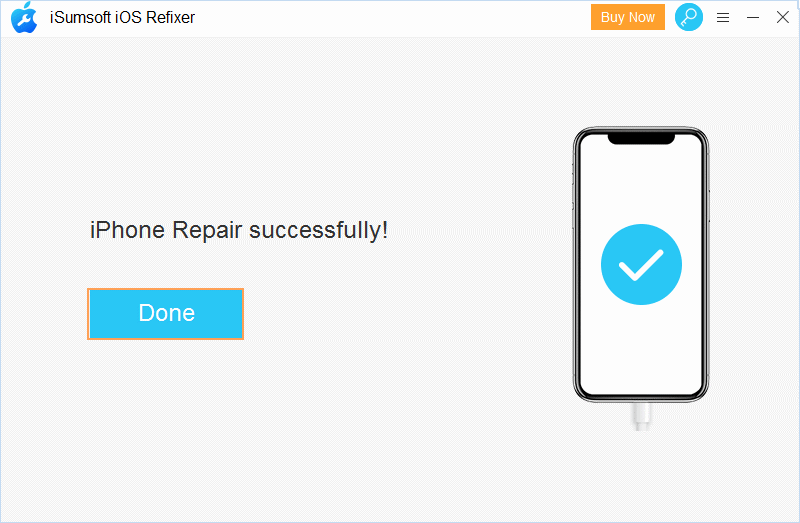
Step 5: Wait until iOS Refixer successfully repair your iPhone, “iPhone storage not loading issue” may be fixed.
Video guide:
Summary
That’s all about how to fix iPhone storage not loading. Among these ways, restarting the iPhone, cleaning up iPhone storage and repairing the iOS issues are the most 3 effective methods. Hopefully, the above methods can be helpful. Welcome to share your experience and other useful ways to solve this problem. Thanks.
Related Articles
 How to Free Up Space on iPhone
without Deleting Apps or
Photos
How to Free Up Space on iPhone
without Deleting Apps or
Photos
-
 3 Ways to
Transfer Everything from Old
iPhone to New iPhone
3 Ways to
Transfer Everything from Old
iPhone to New iPhone
-
 iCloud Backup Taking Forever?
Here're 6 Tips to Fix It
iCloud Backup Taking Forever?
Here're 6 Tips to Fix It
 OneDrive
Files
Not Showing up? 9 Ways to Fix Sync Issues!
OneDrive
Files
Not Showing up? 9 Ways to Fix Sync Issues!
 Fix iPhone Photos Not
Syncing to iCloud/Mac/PC
Fix iPhone Photos Not
Syncing to iCloud/Mac/PC
-
 5 Ways to Fix iPhone Not
Showing up in Windows
Explorer
5 Ways to Fix iPhone Not
Showing up in Windows
Explorer