MX Records Issues: Fix Email Problems After Enabling Cloudflare

After migrating a website DNS to Cloudflare, some users find their emails stop working. If you can’t send or receive emails from your customers, don’t panic! Let's troubleshoot with a few steps and fix it.

- Possible Causes of Email Problems after Enabling Cloudflare
- Step-by-Step Solutions of Email Problems
Possible Causes
1. Missing or Incorrect MX Records
If MX records weren’t copied correctly during migration, emails won’t work.

2. MX Records Are Proxied (Orange Cloud)
Cloudflare proxies web traffic, but emails don’t work through it. MX records should be DNS only (gray cloud).
3. DNS Records Are Still at the Domain Registrar
If your DNS is split between Cloudflare and your registrar, MX records might need to be updated in both places.
4. Proxy Mode Is Enabled for the Mail Server
Cloudflare proxy mode (yourdomain.com) does not support email services. To avoid disruptions, create a dedicated mail subdomain like mail.example.com and ensure it is set to DNS only (gray cloud).
5. SPF/DKIM/DMARC Issues
These records help verify email legitimacy, but incorrect settings may cause delivery failures or spam filtering.
Already stuck in the mud? Don't worry, those following steps may help you out.
Step-by-Step Solutions
1. Add MX Records to Cloudflare
Step 1 Go to Cloudflare Dashboard > DNS Settings.
Step 2 Add the correct MX records (pointing to your mail server (mail.yourdomain.com) rather than your main domain).

2. Ensure MX Records Are Set at Your Registrar
Step 1 If DNS is still partly managed by your registrar, also add the MX records there.

Step 2 Verify records using tools like MXToolbox/DNSDumpster.
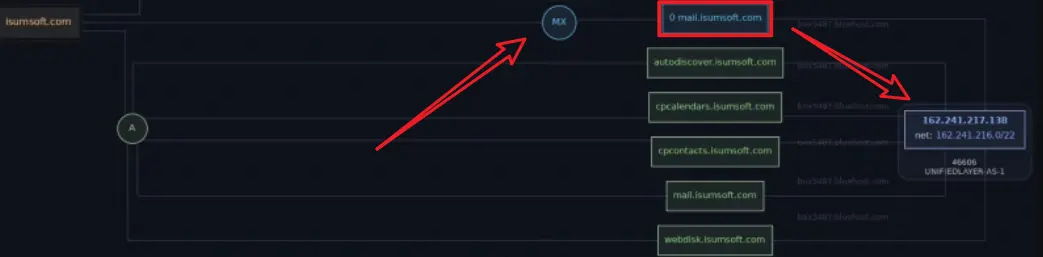
3. Ensure MX Records Are Not Proxied
Step 1 Check MX records in Cloudflare.
Step 2 If they have an orange cloud, switch them to gray cloud (DNS only).
4. Create a Mail Subdomain (No Proxy)
Step 1 Add an A record for mail.example.com, pointing to your mail server.
Step 2 Set it to DNS only (gray cloud in cloud flare dashboard) to avoid proxying issues.
5. Check SPF/DKIM/DMARC Records
Step 1 Add or correct your SPF (Sender Policy Framework) record to allow your mail server to send emails.
Step 2 Set up DKIM(DomainKeys Identified Mail) and DMARC(Domain-based Message Authentication, Reporting, and Conformance) to improve email authenticity.

Step 3 Send a test email to verify if the issue is resolved.
FAQs
Why did my email stop working after enabling Cloudflare?
Likely due to missing MX records, Cloudflare proxy settings, or incorrect SPF/DKIM configurations.
How do I check if my MX records are correct?
Using tools like MXToolbox/DNSDumpster.
Can I use Cloudflare proxy for email?
Nope. Email services should always use DNS only (gray cloud in cloud flare dashboard) mode.
Why are my emails going to spam after enabling Cloudflare?
Check and properly configure SPF, DKIM, and DMARC records.
Wrapping up
If emails stop working after switching to Cloudflare, check MX records, proxy settings, and authentication records. Follow the steps above, and you’ll be back to receiving/sending emails to your business in no time!