How to Restore the Missing Chrome Browser Icon for HTML File

Chrome is my default Browser, HTML files don't show the Chrome browser icon, instead, all of them turn into blank document icon. When I change default Browser to other browsers, HTML receive the proper icon of Microsoft Edge or IE. But when I return to Chrome, the icons become blank again.
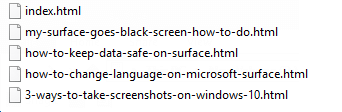
This article will show you how to restore HTML file showing the Chrome icon properly.

How to show Chrome browser icon for HTML file
Use these steps below, you can easily restore HTML file to show Chrome browser icon instead of the blank icon.
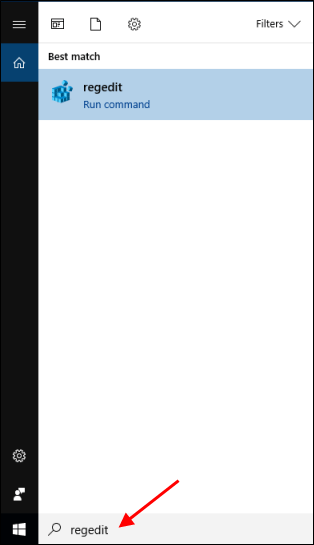
Step 1: Open Registry Editor.
Press Windows logo key to focus on the search box, type in regedit, then hit Enter key.
Step 2: In the Registry Editor, go to registry key: Computer\HKEY_CLASSES_ROOT\CLSID\{42042206-2D85-11D3-8CFF-005004838597}\Old Icon\GoolgeChrome.HTML\DefaultIcon.
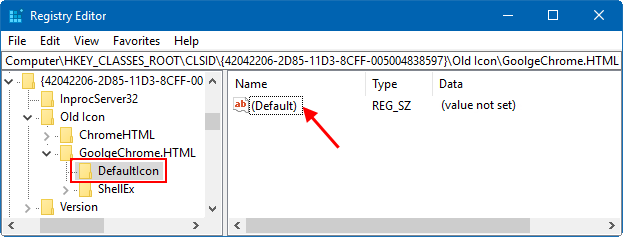
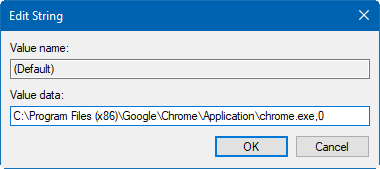
Step 3: Double-click on Default to modify its value data as:
C:\Program Files (x86)\Google\Chrome\Application\chrome.exe, 0
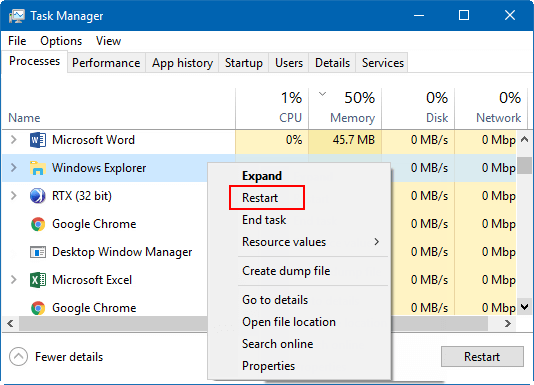
Step 4: Restart Windows Explorer.