How to Remove Android Bloatware (No Root)

Pre-installed system apps (bloatware) consume storage, drain battery, and slow down your Android device. While standard uninstall options are often disabled for these apps, you can easily remove them without rooting your phone.
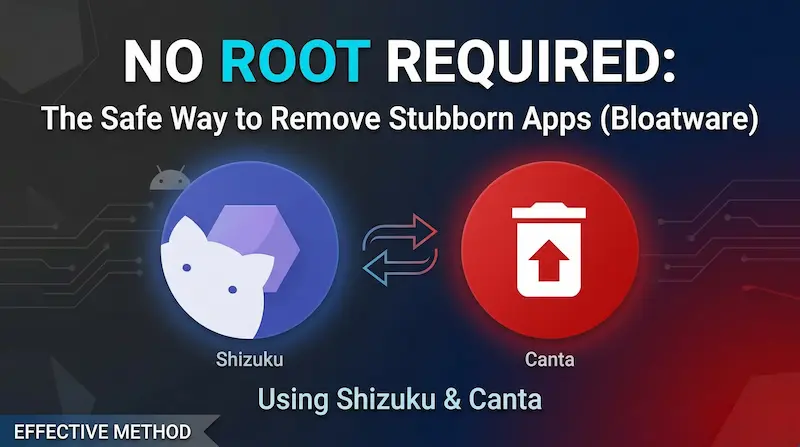
Follow this quick guide to safely uninstall stubborn Android bloatware using Shizuku and Canta (No Root required).
- Step 1: Enable Developer Options and Wireless Debugging
- Step 2: Download, Install and Pair Shizuku
- Step 3: Download and Install Canta
- Step 4: Uninstall Bloatware using Canta
- Frequently Asked Questions
Step 1: Enable Developer Options and Wireless Debugging
Before using Shizuku, you need to enable Developer Options and Wireless Debugging on your Android phone.
1. Open the Settings app on your Android phone.
2. Scroll down and tap on About phone (or About device).
3. Find the Build number and tap it repeatedly (usually 7 times) until you see a message saying "You are now a developer!"
4. Go back to the main Settings menu, find and tap on Developer options.
5. Scroll down to the Debugging section and toggle on Wireless debugging. If prompted, allow wireless debugging on your network.
Step 2: Download, Install and Pair Shizuku
Shizuku is an open-source app that allows other apps to perform system-level operations using ADB permissions, without requiring root access.
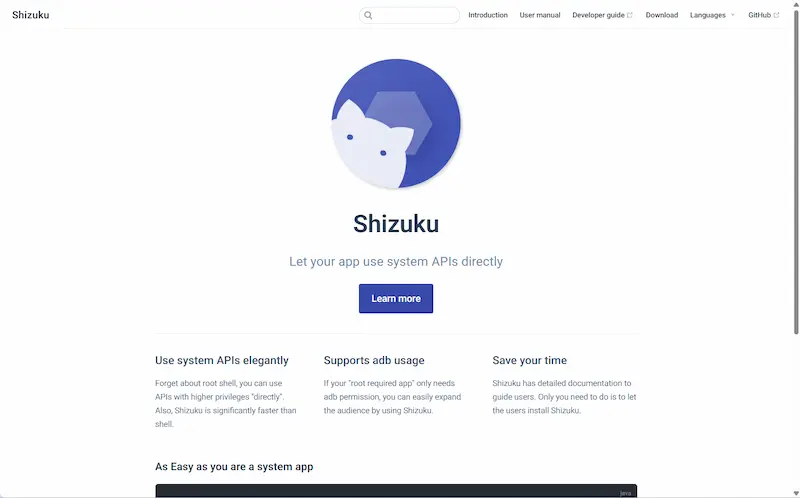
1. Open the Google Play Store and search for Shizuku. Alternatively, you can download it from its official GitHub page. Install the app.
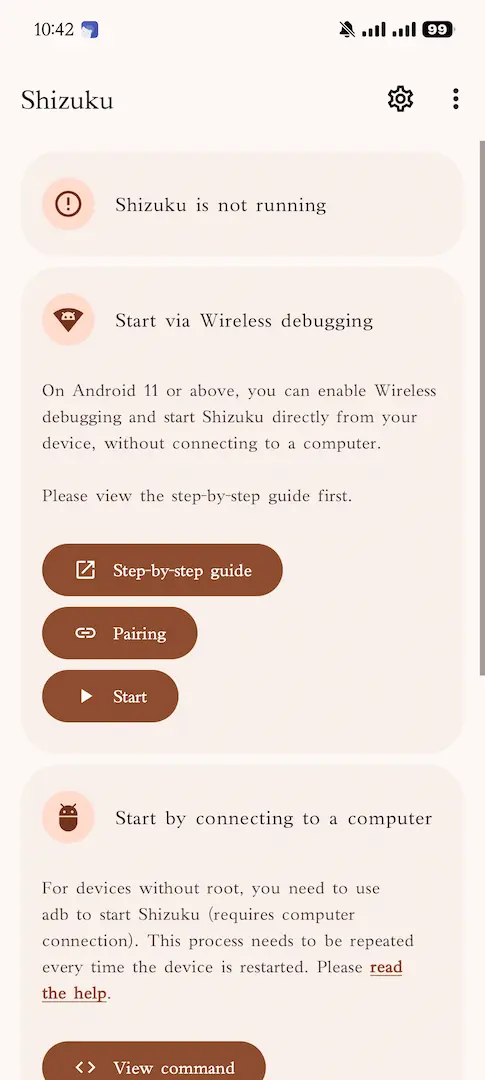
2. Open the Shizuku app. In the "Start via Wireless debugging" section, tap on Pairing.
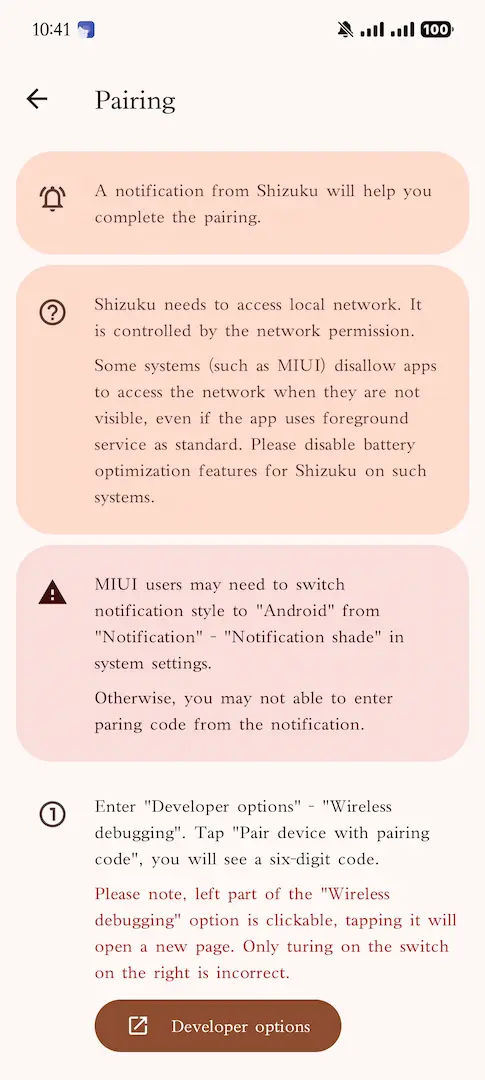
3. Tap Developer options from the prompt to open the Wireless Debugging settings directly.
4. Tap on Pair device with pairing code. A popup with a 6-digit Wi-Fi pairing code will appear.
5. Swipe down from the top of your screen to open the notification panel. You should see a Shizuku notification asking for the pairing code. Enter the 6-digit code and tap the send icon.
6. Once paired successfully, go back to the Shizuku app and tap Start. Shizuku is now running!
Step 3: Download and Install Canta
Canta is an open-source app manager designed to work with Shizuku to uninstall any app, including system apps, without root.
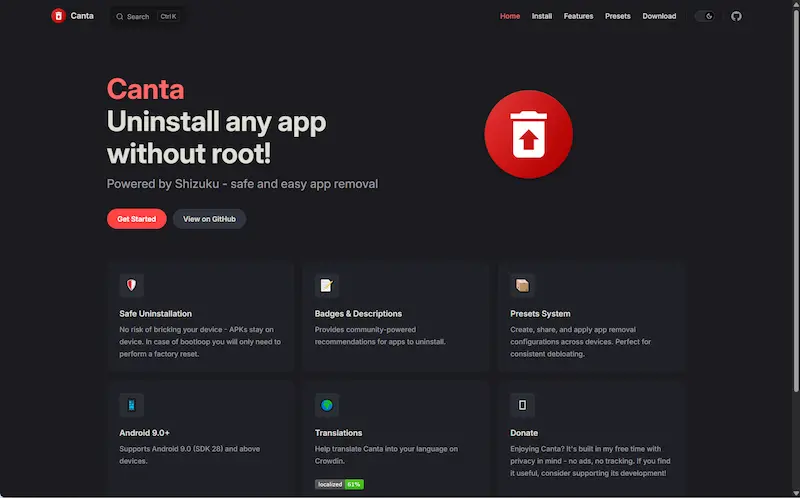
1. Since Canta is not available on the Google Play Store, you need to download it from its official repository. Open your browser and go to the Canta GitHub releases page.
2. Download the latest APK file (e.g., app-release.apk) and install it on your Android device. You may need to grant your browser permission to install unknown apps.
Step 4: Uninstall Bloatware using Canta
With Shizuku running and Canta installed, you can now safely remove bloatware.
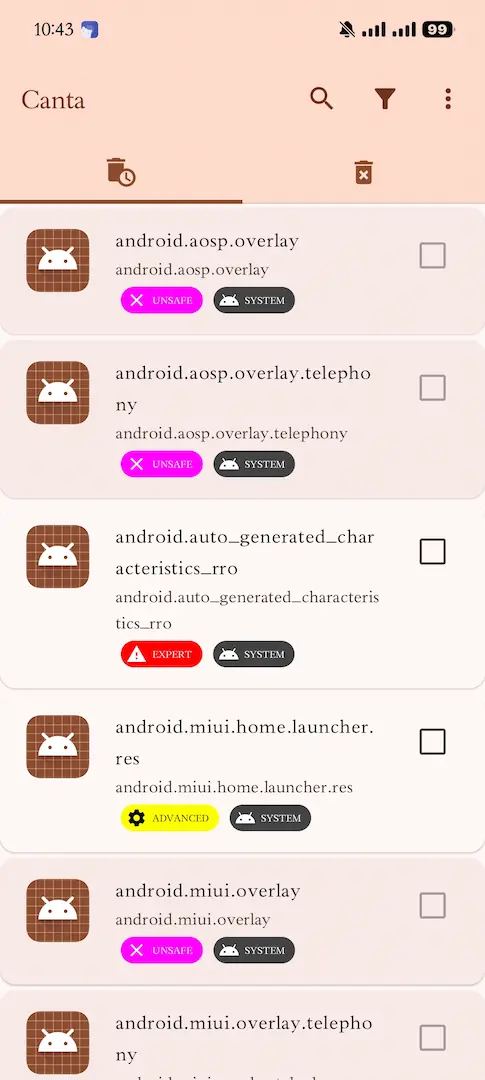
1. Open the Canta app. You will immediately be prompted to grant Shizuku permission. Tap Allow all the time to let Canta access Shizuku's ADB privileges.
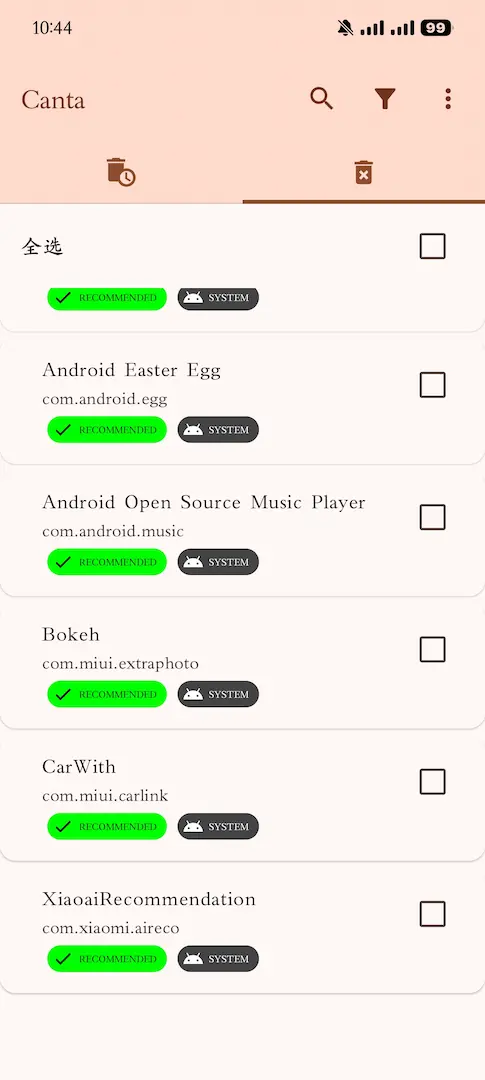
2. Canta will load a list of all installed apps on your device. You can filter the list to only show system apps or search for specific bloatware you want to remove.
3. Select the apps you want to uninstall by checking the boxes next to them.
Note: Be very careful when uninstalling system apps. Do not uninstall essential system components (e.g., Bluetooth, Wi-Fi, System UI, or Phone services) as this can cause your device to malfunction or enter a bootloop.
4. Once you have selected the bloatware, tap the trash can icon at the bottom of the screen. Confirm the uninstallation when prompted.
5. The selected apps will be completely removed from your device, freeing up storage and improving system performance.
Frequently Asked Questions
1. Can I restore the system apps I removed with Canta?
Yes. Even though the apps are uninstalled for the current user, they are not permanently deleted from the system partition. Canta has a built-in "Reinstall" feature (usually found in a separate tab or menu) that keeps a log of the apps you have removed, allowing you to easily select and restore them anytime if you accidentally uninstall something essential.
2. Does using Shizuku and Canta void my phone's warranty?
No. Using Shizuku via Wireless Debugging does not require unlocking the bootloader or rooting your device, so it will not trip Knox (on Samsung devices) or void your warranty.