How to Send a Message with Screen-full Animations Effect

Once enabled iMessage, you can iMessage to send message effects over Wi-Fi or cellular data networks. This tutorial will show you how to send a message with effects in the iPhone/iPad.
How to send a message with animated effects in iPhone/iPad
With iOS 10, you can personalize your messages with bubble effects and screen effects. With full-screen effects, you can animate your screen with balloons, confetti, fireworks and more.
To send a full-screen effect, follow these steps:
Step 1: Open Messages. Tap  and enter a contact or go to an existing
conversation.
and enter a contact or go to an existing
conversation.
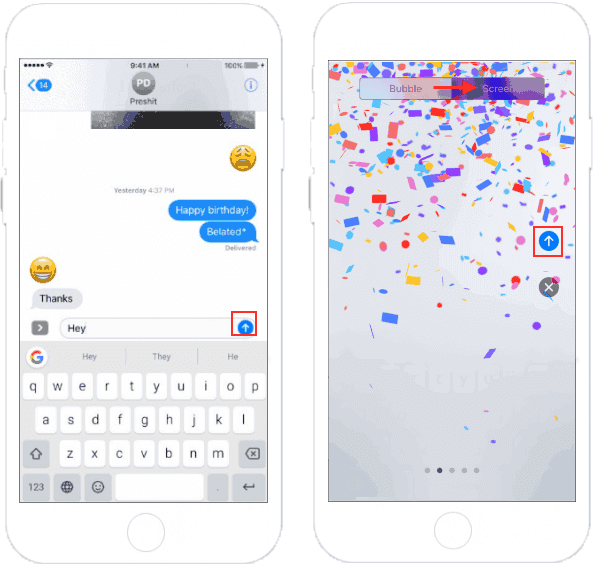
Step 2: Enter the content you want to send. Touch and hold  to activate effects.
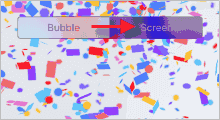
Step 3: In Send Effect with screen, tap Screen, swipe to the left to see full-screen effects, like balloons and confetti.
Step 4: Select one of the animation effects you want, tap to send.
How to send a message with a bubble effect
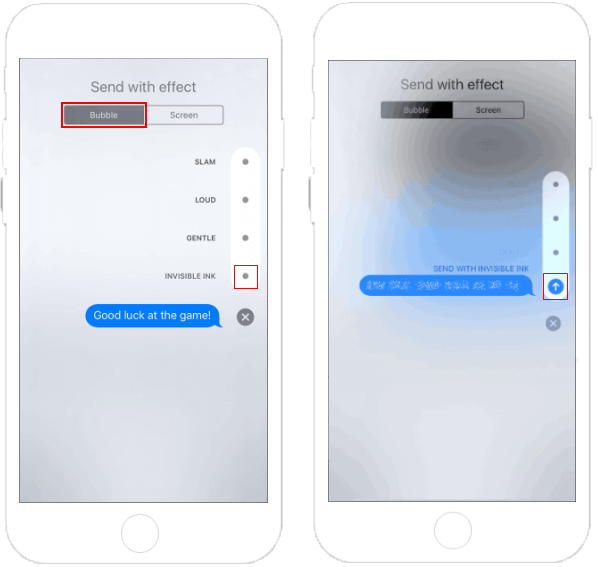
With the same steps above, but in Step 3, choose Bubble option,
Tap  to preview bubble effects. Tap Arrow
up to send iMessage.
to preview bubble effects. Tap Arrow
up to send iMessage.