
How to Unlock iPhone 18 Pro without Passcode: 5 Safe Ways

Quick answer: If you changed the passcode within 72 hours, try Apple's Previous Passcode option first because it can preserve data. Otherwise, resetting a forgotten iPhone screen passcode erases the device. Restore a verified backup afterward and be ready to enter the owner's Apple Account credentials.
- Identify the Lock Screen
- Method 1: Use the Previous Passcode
- Method 2: Use Forgot Passcode
- Method 3: Erase with Find My
- Method 4: Reset with a Computer
- Method 5: Use a Verified Reset Tool
- Frequently Asked Questions
Ownership and data warning:
- Use these methods only on an iPhone you own or are authorized to administer.
- No legitimate method reveals a forgotten screen passcode.
- Except for the 72-hour Previous Passcode feature, passcode-reset methods erase current device data.
- Resetting the screen passcode does not remove Activation Lock.
Identify What Is Blocking iPhone 18 Pro
| Screen | What It Means | Correct Route |
|---|---|---|
| Normal Lock Screen | Passcode or Face ID is required | Try the correct passcode; Face ID cannot replace the passcode after restart or certain security events |
| iPhone Unavailable / Security Lockout | Too many incorrect attempts | Previous Passcode when eligible, then Apple's reset options |
| Activation Lock | The device remains linked to an Apple Account | Owner sign-in, previous owner removal, or Apple with valid proof of purchase |
| Remote Management | An organization manages setup | Contact the authorized administrator |
Apple announced iPhone 18 Pro and iPhone 18 Pro Max, with availability beginning September 18, 2026, but not a standard iPhone 18. See the iPhone 18 Pro and iOS 27 guide for accurate model and compatibility details.
Method 1: Use Your Previous Passcode within 72 Hours
If you changed the passcode recently and forgot the new one, iOS 17 and later can temporarily accept the previous passcode for 72 hours.
Step 1After several incorrect attempts, tap Forgot Passcode?.
Step 2Choose Enter Previous Passcode.
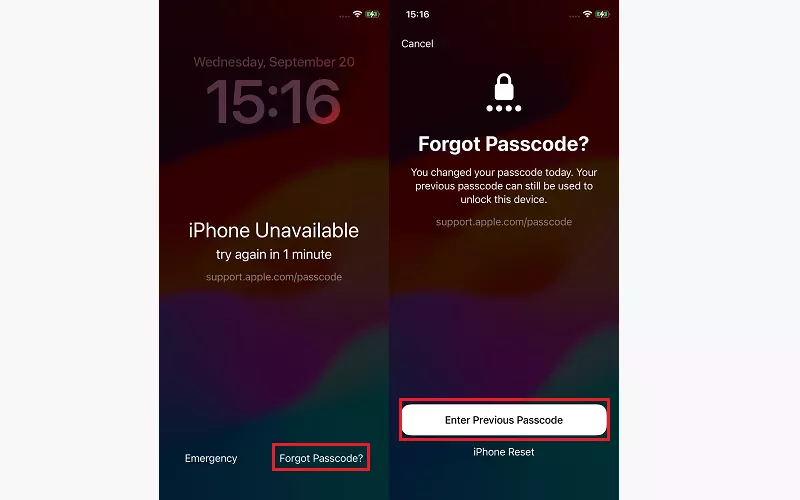
Step 3Enter the old passcode and create a new passcode immediately.
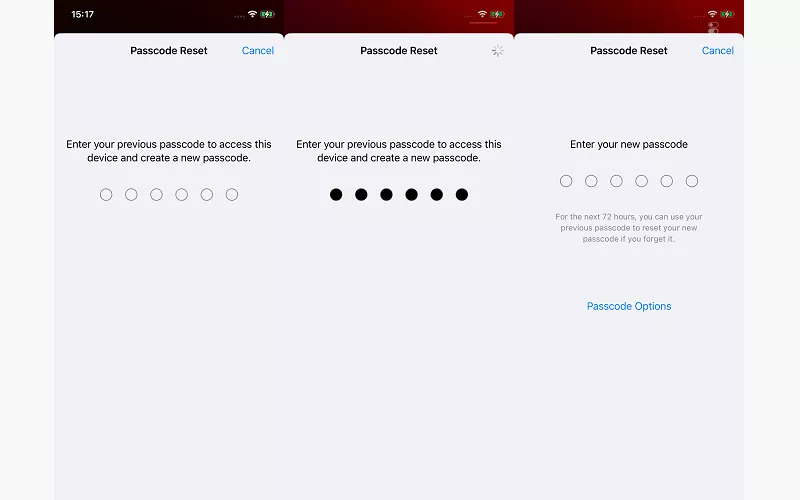
This is the only method here designed to preserve the data already on the device. See Apple's Previous Passcode guidance.
Method 2: Reset from Forgot Passcode on the iPhone
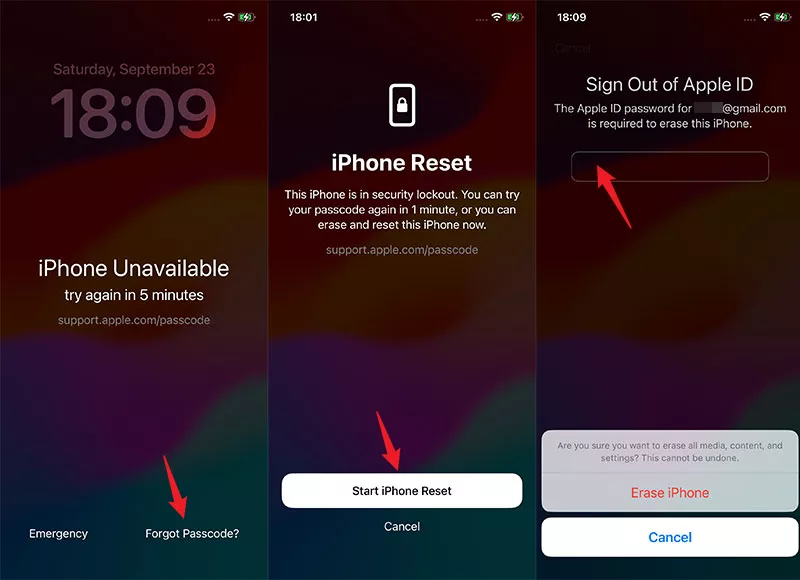
This route requires an active cellular or Wi-Fi connection, Find My already enabled, and the Apple Account password.
Step 1Continue until the iPhone Unavailable screen offers Forgot Passcode?.
Step 2Choose to start the device reset.
Step 3Enter the owner's Apple Account password.
Step 4Choose whether to keep or remove the eSIM when offered.
Step 5Erase the device, set it up again, and restore a compatible backup.
Data loss:
- The erase step permanently removes data currently stored only on the iPhone.
Apple documents the requirements and steps in Reset a forgotten passcode without a computer.
Method 3: Erase iPhone 18 Pro with Find My
If Find My was enabled and the phone appears in the owner's account, use the Find My app on another trusted Apple device or sign in to iCloud Find Devices. Select the correct iPhone and choose Erase.
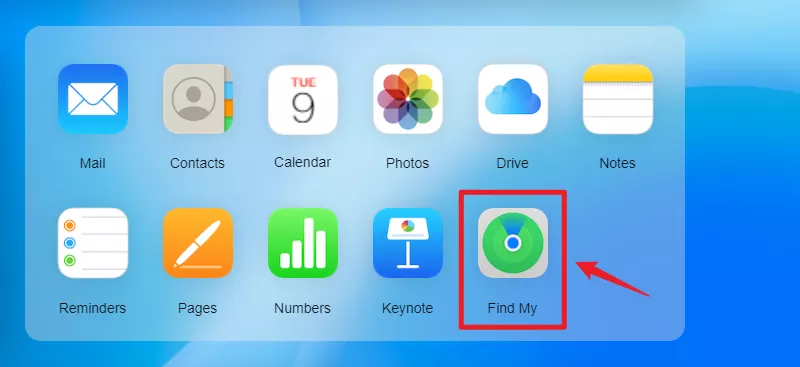
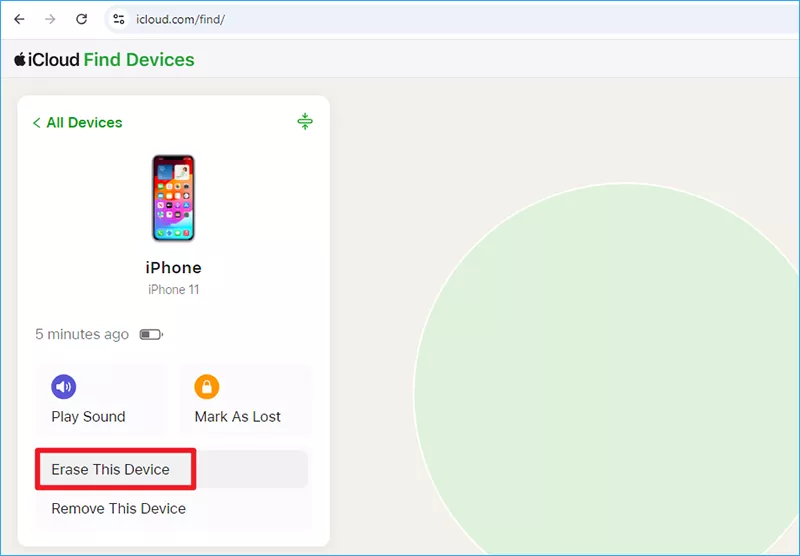
Reference images: erase removes data from the selected iPhone, while Activation Lock remains linked to the owner's Apple Account.
When the erase completes, Activation Lock still protects the phone. Sign in with the linked Apple Account during setup and restore a backup if available. Never erase a device simply because it is offline; confirm the model and device name first.
Method 4: Reset iPhone 18 Pro with a Computer
Step 1Use an updated Mac with Finder or Windows PC with Apple Devices.
Step 2Turn off the iPhone.
Step 3Connect it to the computer while holding the Side button, and keep holding until the cable-and-computer screen appears.
Step 4Select the iPhone in Finder or Apple Devices and choose Restore.
Step 5After erasure, set it up and restore a compatible backup.
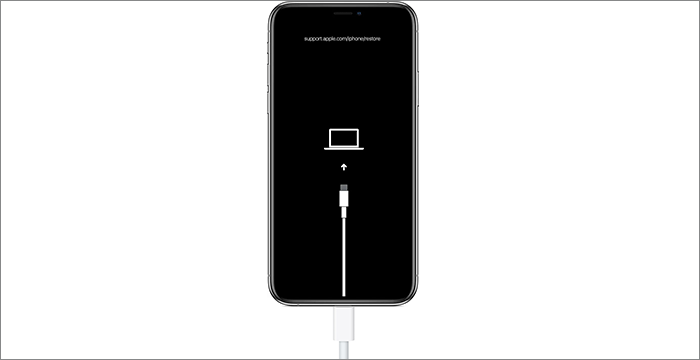
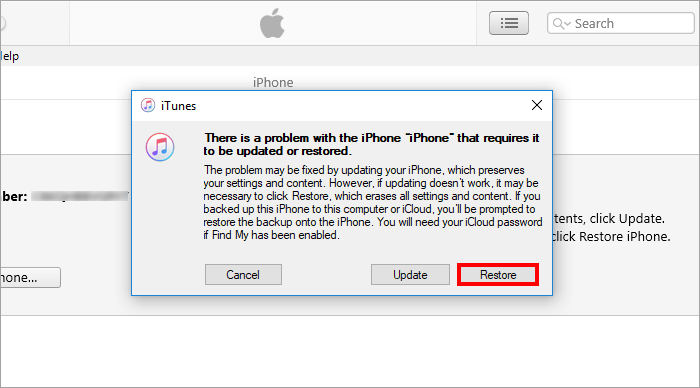
Reference images: Finder and Apple Devices interfaces can vary by operating-system version. Restore erases the iPhone.
Apple's current computer reset instructions confirm that this process erases current iPhone data.
Method 5: Use a Verified Passcode Reset Tool
iSumsoft iPhone Passcode Refixer provides guided workflows for supported screen-passcode and account conditions. Public compatibility is confirmed through iOS 26 and iPhone 17; iOS 27 and iPhone 18 Pro validation is in progress.
Step 1Install the current trial on a Windows PC.
Step 2Connect the phone and confirm that the trial recognizes the exact model and requested mode.
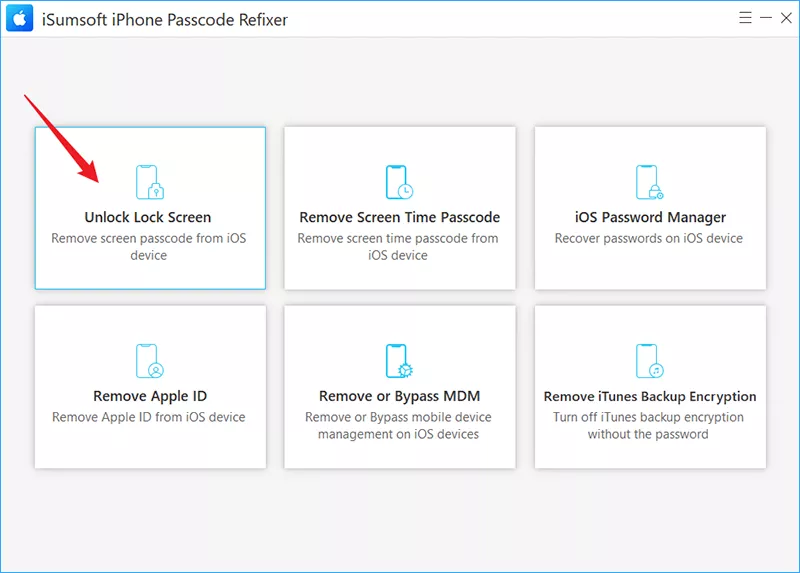
Step 3Read the onscreen data-loss and account requirements before downloading firmware.
Step 4Proceed only on an owned or authorized device.
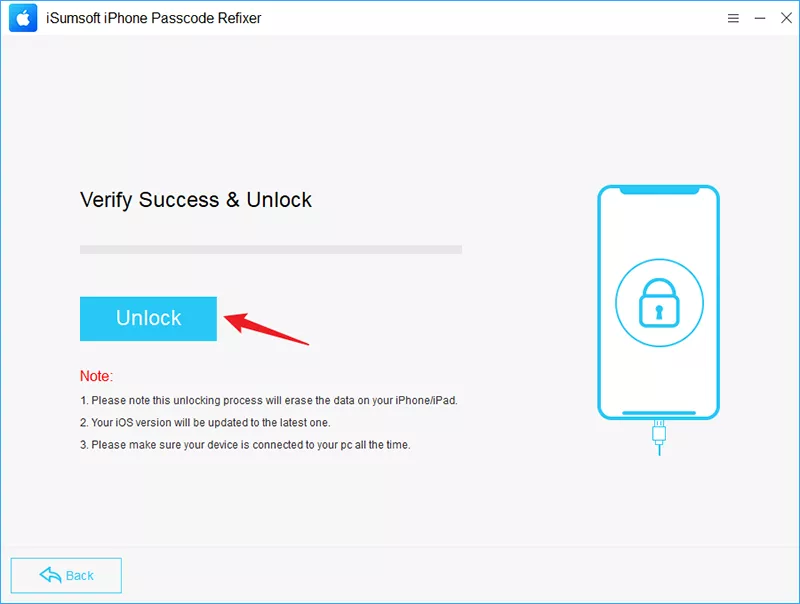
Current interface reference: passcode removal erases the device, and iOS 27/iPhone 18 Pro validation is still in progress. Confirm recognition with the installed trial first.
Screen-passcode removal resets the device and does not remove Activation Lock. Do not purchase until the trial confirms the exact device and function.
Frequently Asked Questions
Can Face ID unlock iPhone 18 Pro if I forgot the passcode?
Not in every state. The passcode is required after restart, after certain security events, and periodically. Face ID cannot reveal or replace a forgotten passcode.
Can I unlock iPhone 18 Pro without losing data?
Only when you still know the correct passcode or qualify for the 72-hour Previous Passcode feature. Other forgotten-passcode reset routes erase the device.
Does a factory reset remove Activation Lock?
No. The linked Apple Account remains required during activation unless the owner removes the device from the account or Apple approves an ownership request.
Does iSumsoft currently support iPhone 18 Pro?
Validation is in progress. Use the current trial to check recognition and the required function before purchasing.
Conclusion
Try the previous passcode first when eligible. If a reset is required, use an official Apple route or a verified supported workflow, expect device data to be erased, and restore only from a backup you trust.