How to Boot a Dell Computer from a USB or External Drive

To boot a Dell computer from a USB or external drive, connect a bootable drive, restart the computer, and open the one-time Boot Menu before Windows starts. On many Dell computers, F12 opens that menu; if it does not, use the model-specific key shown in the table below. Use the one-time menu first because it changes only the current boot and does not permanently alter the boot order.
2 ways to Boot your computer from a USB drive
- Way 1: Boot your computer from a USB drive via Boot Menu.
- Way 2: Set your computer to boot from a USB drive with UEFI BIOS Utility.
Way 1: Boot your computer from USB drive via Boot Menu.
Video Guide to boot from USB drive:
Step by step guide to boot your computer from USB drive:
Step 1: Insert a bootable USB flash/pen/key drive into your computer.
Step 2: Start or restart your computer. When the vendor logo appears, immediately and repeatedly press the Boot Menu key (mostly F12/ESC), until Boot Menu appears.
Note: You can find the Boot Menu Key by the vendor from the table at the end of the article.
Step 3: On the Boot Menu highlight the USB-HDD or other by ↓ or ↑ key. Hit Enter to confirm. Then your computer will boot from the USB drive.
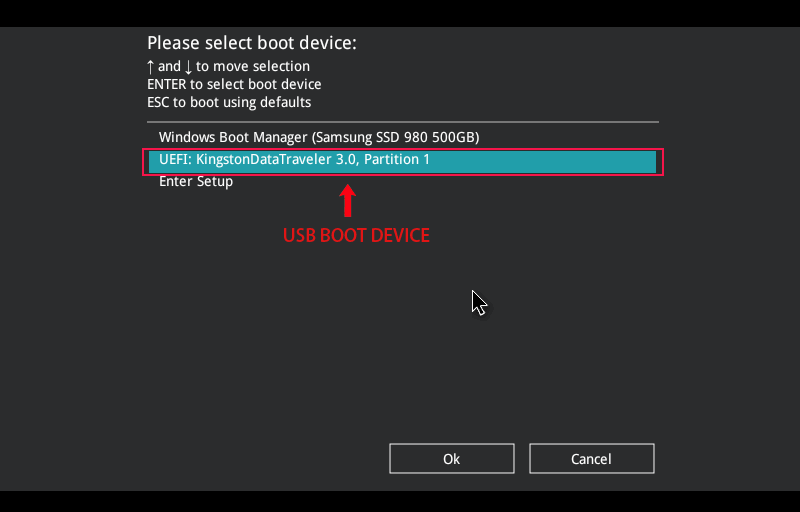
Tips: The USB boot device name of your computer may be different from the one above.
Way 2: Set your computer to boot from a USB drive with UEFI BIOS Utility.
Similarly, you need to the first connect a bootable USB drive to your computer.
Then start or restart your computer and immediately press and hold the BIOS key until UEFI BIOS Utility displays.
Tips: The BIOS Keys vary for different computer vendors and brands. The most common is F12, DEL, F11, F1, F9 or other.
Click here to find BIOS Key for your computer.
1. Boot computer from USB drive in UEFI BIOS Utility - EZ Mode.
Step 1: Start your computer and immediately press and hold BIOS key (DEL/F2) until entering UEFI BIOS Utility. Generally, EZ Mode will be displayed on most mainboards, and then click Boot Menu or press F8 to open the Boot Menu as shown in the following picture.

Step 2: After that, a Boot Menu window will be displayed.

Step 3: Select a USB flash drive used to boot with your mouse or keyboard.

2. Boot computer from USB drive in UEFI BIOS Utility - Advanced Mode.
Step 1: In the interface of EZ Mode, click Advanced Mode or press F7 to open the Advanced Mode.

Step 2: After entering Advanced Mode, click Bootselect Boot menu.

Step 3: The Boot menu will be displayed after that.

Step 4: Select a USB flash drive used to boot with your mouse or keyboard.

Hot Keys for Boot Menu and BIOS Settings:
| Computer Manufacturer | Type | Model | Boot Menu Key | BIOS Key |
|---|---|---|---|---|
| HP SERIES | ||||
| HP | generic | Esc, F9 | Esc, F10, F1 | |
| HP | desktop | Media Center, Pavilion 23 All In One, Pavilion g6 and g7 | Esc | F10 |
| HP | desktop | Pavilion HPE PC, h8-1287c, Pavilion PC, p6 2317c, Pavilion PC, p7 1297cb, TouchSmart 520 PC | Esc | Esc F10 |
| HP | laptop | 2000 | Esc | Esc |
| HP | notebook | Pavilion | Esc | F10 |
| HP | notebook | ENVY dv6 and dv7 PC | Esc | Esc |
| ACER SERIES | ||||
| ACER | netbook | AspireOne, Aspire Timeline, Aspire v3, v5, v7 | F12 | F2 |
| DELL SERIES | ||||
| DELL | desktop | Dimension, Inspiron, Latitude,Inspiron One 2020, 2305, 2320, 2330 All-In-One | F12 | F2 |
| DELL | laptop | Inspiron, Precision | F12 | F2 |
| ASUS SERIES | ||||
| ASUS | desktop | F8 | F9 | |
| ASUS | laptop | Esc | F2, F9 | |
| ASUS | laptop | R503C | F8 | F2, DEL |
| ASUS | netbook | Eee PC 1025c | Esc | F2 |
| LENOVO SERIES | ||||
| LENOVO | desktop | F12, F8, F10 | F1, F2 | |
| LENOVO | laptop | F12 | F1, F2 | |
| SAMSUNG SERIES | ||||
| SAMSUNG | Esc | F2 | ||
| SONY SERIES | ||||
| SONY | VAIO, PCG, VGN | F11, ASSIST | F1, F2, F3 | |
| SONY | VGN Esc | F10, ASSIST | F2 | |
| TOSHIBA SERIES | ||||
| TOSHIBA | Protege, Satellite, Tecra | F12 | F1, Esc | |
| TOSHIBA | Equium F12 | F12 | F12 | |
| MOTHERBOARDS | ||||
| ASUS | F8 | Del | ||
| GIGABYTE | F12 | Del | ||
| MSI | F11 | Del | ||
| INTEL | F10 | F2 | ||
| ASROCK | F11 | F2, Del | ||
| OTHER MANUFACTURERS | ||||
| XIAOMI | Notebook | MI Notebook Air | Fn +F2 (Choose Boot Menu) | Fn +F2 (Choose BIOS Setup) |
| PANASONIC | Toughbook | F2 (go to the exit and then choose boot order) | F2, Del | |
| GATEWAY | F11, Esc, F10 | F2, Del | ||
| HUAWEI | Matebook | F2 | F12 |
Related Articles
-
![4 Ways to fix Windows 10 bootable USB Not Working]() How
to Fix Windows 10 Bootable USB Not Working
How
to Fix Windows 10 Bootable USB Not Working
-
![how to check if a USB drive is bootable in Windows 10]() How
to Check If A USB Drive is Bootable in Windows 10
How
to Check If A USB Drive is Bootable in Windows 10
-
![Boot a computer from CD or DVD]() How to Boot a Computer from CD or DVD
How to Boot a Computer from CD or DVD
-
![Boot a mac from a bootable USB drive]() How to
Boot a Mac from a Bootable USB Disk
How to
Boot a Mac from a Bootable USB Disk
-
![Secure a computer]() How to Secure a Computer from
Hacking and Theft
How to Secure a Computer from
Hacking and Theft
-
![Create bootable USB for Windows password reset]() How to
Create Bootable USB for Windows Password Reset
How to
Create Bootable USB for Windows Password Reset
-
![Make a password reset disk for another computer]() How
to Make a Password Reset Disk for Another Computer
How
to Make a Password Reset Disk for Another Computer
-
![reset Windows 10 password with USB]() How
to Reset Windows 10 Forgotten Password with USB
How
to Reset Windows 10 Forgotten Password with USB